TeamViewer QuickSupport
- 164.47K
- 4.3
- Installs
- 50.00M
- Price
- Free

Screenshots
Analysis by Reviewed APKs
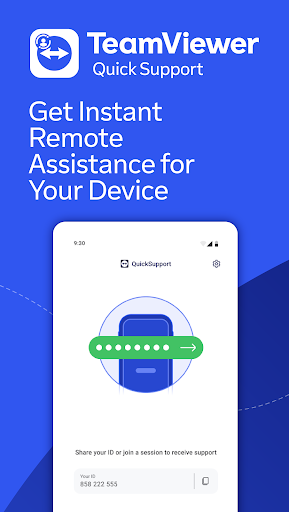
TeamViewer QuickSupport is for people who need a trusted person to help with a problem on their phone, tablet, Chromebook, or Android TV. Instead of trying to describe every setting over a call, you can share a session and let a remote partner view or assist with the device after you approve access. I find the permission-first approach reassuring, though this is a support tool, not something most people need open every day.
Help Without Guesswork
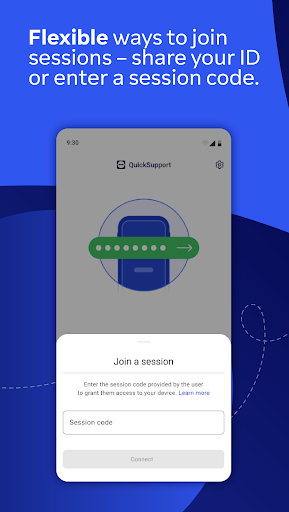
Picture a family member stuck on a confusing phone setting while you are across town. With QuickSupport, they open the app, share their ID or enter a session code, and accept a connection request from you. The remote partner can then view device information, chat, transfer files, and, where supported, control the device. That is more direct than asking someone to read tiny labels aloud or sending a string of screenshots.
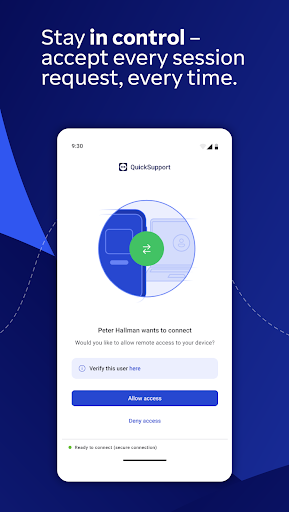
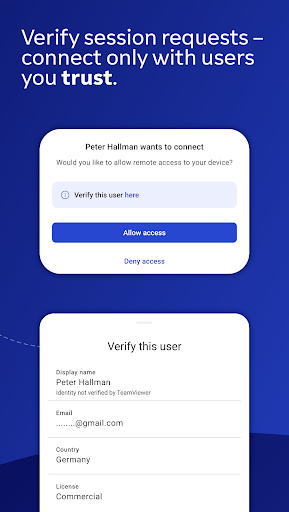
I like that the connection does not begin just because someone has the app open. The person receiving help must accept each request, and the app provides details about the connecting user to help check who is asking. That makes the handoff feel deliberate. It still calls for common sense: I would share access only with someone I trust, and I would end the session when the task is done.
A Support Tool, Not Remote Access
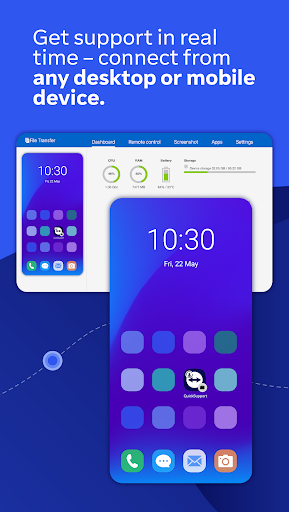
The closest alternative is often a phone call, a video chat, or a series of screenshots. Those can work for simple questions, but they leave the person needing help to navigate every step themselves. QuickSupport is better suited to situations where seeing the screen or interacting with settings would save time. A support partner can connect from a desktop, browser, or mobile device, so both people do not need the same kind of hardware.
This is not a general-purpose remote desktop app for quietly checking in on a device. The person receiving support has to open QuickSupport and approve the connection, and the app cannot establish a session while running in the background. It is also not a replacement for professional technical support: it provides a way to connect, communicate, and assist, rather than a promise that every device issue can be fixed remotely.
Make Sessions Easier
A small bit of preparation can make a support session less awkward. I would ask the other person to install and open QuickSupport before we start troubleshooting, then agree on who will share the ID or session code. Keeping the app in the foreground matters because a connection cannot be established when it is only running in the background. That simple reminder can prevent a lot of repeated instructions over a call.
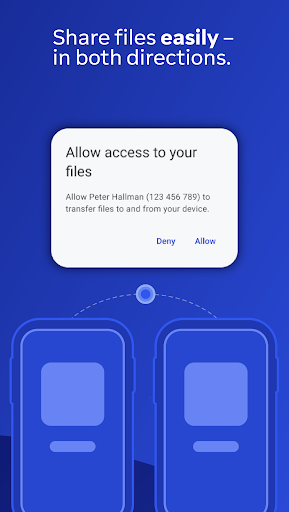
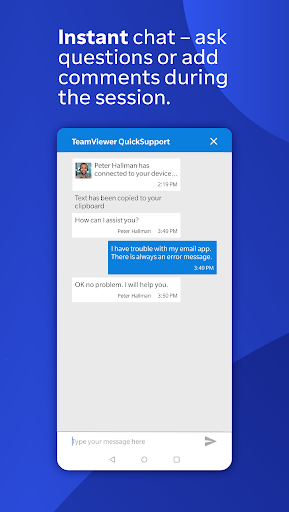
During a session, chat is useful for short directions or clarifying what the remote partner is doing. File transfer can help when the problem involves moving a document, while device information and system diagnostics can give the helper more context. I would still keep the session focused: solve one issue, confirm the person understands what changed, and end access. That is a more comfortable routine than leaving a remote connection open without a clear reason.
Reads About TeamViewer QuickSupport
More From Our News Desk

Zoom Meetings, Google Meet, or Teams: Which Is Easiest to Join?

How I Build a Free Streaming Lineup With Tubi

Why Crunchyroll Is the Default Anime App for So Many Fans

YouTube TV: A Practical Guide to Cutting Cable

Rummikub and the Small Comfort of Phone Games

Gmail, Yahoo Mail and Outlook: A Calmer Phone Inbox
Who Will Find It Useful
I would recommend QuickSupport to people who regularly help relatives, coworkers, or customers with mobile-device problems. It is especially handy when the person on the other end is uncomfortable navigating settings or describing what they see. The ability to connect from a desktop, browser, or mobile device makes it flexible for a helper, while chat and file transfer can keep the conversation and practical task in one session.
It may not suit someone who wants unattended access, since the app requires the recipient to open it and approve every connection. It is also more machinery than most people need for a quick question that can be answered with a sentence or screenshot. I would treat it as a tool to keep available for occasional, trusted support, not as an everyday remote-control companion.
TeamViewer QuickSupport is a free Productivity app from TeamViewer. Google Play shows more than 50 million installs and a 4.3-star rating from around 164,000 ratings. The app is marked for Everyone. Its listed version is 15.82.264, and its release date is July 9, 2013.
The app is free to install, with no in-app purchases or ads indicated in the supplied app details. The listed last update is October 26, 2026. The minimum Android version is not included in the supplied specifications, so check Google Play for compatibility with a particular device.
A Closer Look at Remote Support
Opening the App
QuickSupport has a focused purpose: help someone receive remote assistance on a device they are holding. When I first opened it, I thought of it less as an app to browse and more as a meeting point for a support session. The basic sequence is straightforward: open the app, share an ID or enter a code, and approve the incoming request when the partner is ready.
The setup depends on coordination with another person, which is worth remembering before a stressful troubleshooting call. A helper can send a personal link that starts the app download, and the recipient can then open the app and join the partner’s session. It is not a self-guided troubleshooting wizard. Its value appears once both people are ready to connect and the device owner understands what permission they are granting.
The Session Itself
Day to day, the central experience is a remote session that the device owner actively accepts. The partner can view the device and communicate through chat, and remote control is among the listed features. The actual assistance will depend on the device and the support task, but the basic idea is practical: the helper can respond to what is on screen instead of relying entirely on a verbal description.
That approval step is an important part of the experience, not an obstacle to work around. QuickSupport says a connection cannot be established without explicit permission and that the app needs to remain open in the foreground for a connection. I see that as a reasonable trade-off for a support tool. It asks for active participation rather than making remote access invisible or automatic.
Useful Support Tools
Beyond screen access, QuickSupport combines several support functions in one place. A partner can chat, transfer files, view device information, and access system diagnostic information. The app also lists real-time screenshots, screen rotation, and a way to view the app list and start or uninstall apps. Those options make it more than a screen-sharing window, particularly when a helper needs context or a file as part of the task.
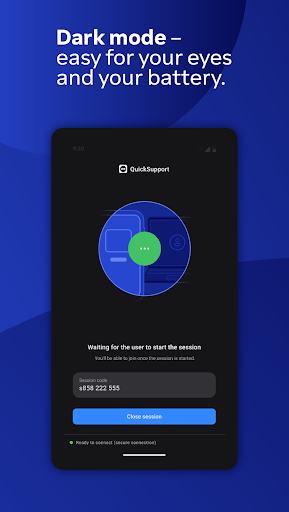
The Wi-Fi settings features stand out because they can help with a common source of confusion: connecting or adjusting network settings. The app also includes dark mode and clipboard support for storing confidential information on the device. I would use those capabilities only when relevant to the session, rather than assuming every support call needs broad access. The feature set gives a helper several routes to assist, but the owner remains the one who approves the connection.
A Calm Support Routine
For a routine call with a less technical family member, I would start by asking them to open QuickSupport and keep it visible. Then we could exchange the ID or session code and verify the incoming user details before accepting. Once connected, I would ask what they were trying to do and use chat for short explanations. That sequence keeps the purpose clear and gives the person receiving help a chance to follow along.
If the issue involves a file or a setting, the helper can use the relevant session tools rather than switching between several unrelated instructions. I would finish by checking that the original problem is resolved, answering any last question, and ending the session. The app supports establishing and ending sessions, and making that final step part of the routine helps keep remote assistance bounded to the task at hand.
Limits to Keep in Mind
QuickSupport depends on another person being available to connect, so it does not solve a problem on its own. The recipient has to open the app, share or enter connection details, and accept the request. If someone cannot follow those steps, the helper may still need to guide them by phone first. And because background connections are not supported, it is not designed for unattended monitoring or access.
The range of tools can also feel like a lot when all someone needs is a quick answer. Remote control, app management, file transfer, and Wi-Fi settings are useful in the right context, but they call for care and trust. The app describes user details for checking the partner and says connections use 256-bit AES session encoding. Even with those safeguards, I would verify the person and approve only sessions I understand.
TeamViewer QuickSupport does a clear job: it gives a device owner a way to bring a trusted helper into a support session without making access automatic. Chat, file transfer, device information, diagnostics, and remote-control features make it useful when spoken directions are not enough. The approval and foreground requirements keep the experience deliberate, though they also mean it is not an unattended-access tool.
I would keep QuickSupport in mind for family tech help or other situations where someone needs hands-on guidance from afar. It is less compelling for people who rarely troubleshoot with another person, and it is not a fix for every device problem. If you often help someone with their phone or tablet, the straightforward connection process and range of support tools make it worth trying.
TeamViewer QuickSupport Frequently Asked Questions
What is TeamViewer QuickSupport used for?
TeamViewer QuickSupport lets a trusted remote partner assist with a mobile device, tablet, Chromebook, or Android TV. Depending on the task, the partner can communicate by chat, transfer files, view device information, and use supported remote-control features. The recipient opens the app and accepts the connection request, so it is intended for active support sessions rather than unattended access.
Which devices can use TeamViewer QuickSupport?
The app is described as supporting mobile devices, tablets, Chromebooks, and Android TV, and it can receive connection requests from a desktop, web browser, or mobile device. Google Play is the store for the Android app. Device and system compatibility can vary, so check the Google Play store details for the specific device you plan to use.
What Android version does TeamViewer QuickSupport require?
The minimum Android version may vary by release and device. The supplied app details do not give a minimum requirement, so check the Google Play store page before installing if compatibility is a concern. The app is listed as version 15.82.264, but that version number by itself does not establish which Android releases a particular device can run.
Does TeamViewer QuickSupport cost money?
TeamViewer QuickSupport is listed as free to install on Google Play, with no in-app purchases or ads indicated in the supplied details. Store information and availability can change, so check the current Google Play page for the latest cost details before installing. The app’s core role is to help someone connect with a remote partner for device support.
Is TeamViewer QuickSupport suitable for unattended access?
No. The recipient must open QuickSupport, share an ID or enter a session code, and accept each connection request. The app also says connections cannot be established while it is running in the background. It is better suited to a person who is present and actively receiving help. Only accept a connection from someone you trust.
Pros
- Requires the device owner to accept each connection request.
- Combines chat, file transfer, device information, and remote support tools.
- Can receive connections from desktop, browser, or mobile devices.
- Includes user details to help verify a connecting support partner.
Cons
- The recipient must open the app and keep it in the foreground.
- Requires coordination with a trusted person; it cannot troubleshoot independently.
- Its broader remote tools may be more than a simple question needs.
- Category
- Productivity
- Version
- 15.82.264