Android Accessibility Suite
- 4.46M
- 4.1
- Installs
- 10.00B
- Price
- Free

Screenshots
Analysis by Reviewed APKs
Android Accessibility Suite brings several ways to interact with an Android phone into one collection, including spoken screen feedback, read-aloud tools and a large on-screen control menu. It suits people who want to use a device with less reliance on sight or touch, and anyone exploring accessibility options for a specific task. My overall take is that its value is practical: it can make ordinary phone actions more reachable, though it takes a little setup.
A More Reachable Phone
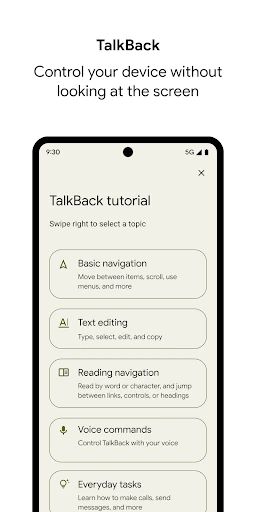
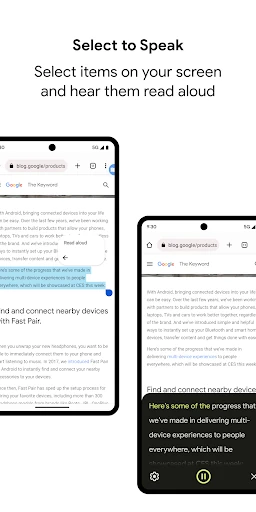
Imagine checking a message while your hands are busy or your eyes are tired. With Select to Speak, you can select items on the screen and have them read aloud. TalkBack goes further, giving spoken feedback as you navigate and letting you control the device with gestures. I like that these tools address different moments: one can help with a particular piece of text, while the other supports broader eyes-free use.
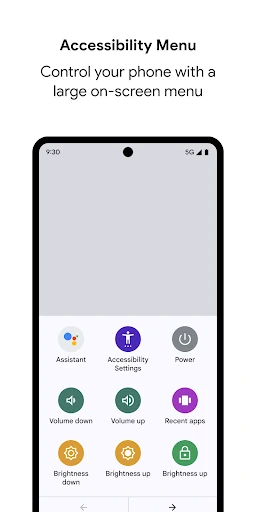
The Accessibility Menu is useful for a different everyday pinch point: reaching common device controls. It puts a large on-screen menu within reach for actions such as locking the phone, changing volume or brightness, and taking a screenshot. When I think about accessibility in daily use, these small tasks matter as much as reading a long page. The suite gives users several ways to reduce friction without treating every need as the same.
Tools, Not a New Phone
The suite makes more sense as a set of access tools than as an alternative launcher or a general phone productivity app. Its job is to change how you interact with Android: hearing screen content, navigating with spoken feedback, or bringing key controls into a larger menu. If you are looking for a new messaging service, a document editor or a broad device-customization package, this is not aimed at those jobs.
It also differs from simply turning up the volume or enlarging text in one app. Select to Speak can read selected on-screen items aloud, and TalkBack is designed to provide spoken feedback across device navigation. Those options can be helpful in different situations, but they do require learning how each one behaves. I would approach the suite as a set of focused accessibility features, rather than expecting one switch to suit every user.
Build Small Habits
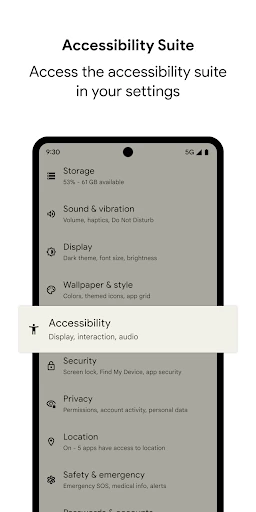
A little experimentation can make the suite easier to live with. I would start in the phone's Settings app, open Accessibility, and try one option at a time: Accessibility Menu, Select to Speak, or TalkBack. That keeps the first session manageable and lets you see which tool matches the task. The setup path is straightforward, even if the gestures and spoken interaction take practice.
It can help to connect a feature to a routine instead of trying to learn everything at once. For example, try Select to Speak when you want a selected passage read aloud, or use the Accessibility Menu when you need its larger controls. If TalkBack is the right fit, give yourself time to learn its gestures and on-screen braille keyboard. The suite rewards patient testing more than hurried toggling.
More From Our News Desk

Zoom Meetings, Google Meet, or Teams: Which Is Easiest to Join?

How I Build a Free Streaming Lineup With Tubi

Why Crunchyroll Is the Default Anime App for So Many Fans

YouTube TV: A Practical Guide to Cutting Cable

Rummikub and the Small Comfort of Phone Games

TeamViewer Remote Control or AnyDesk for Helping Family?
Who may find it useful
I would recommend Android Accessibility Suite to people who want spoken feedback while using a phone, need selected screen content read aloud, or would rather reach important controls through a large on-screen menu. It can also be worth exploring for anyone helping a family member adjust how their Android device works. Because the tools address different needs, users can begin with the one that seems most relevant.
It may be less appealing to someone who expects a conventional app with a single home screen and no setup, or who is not looking for accessibility features. TalkBack in particular changes the navigation experience, so it is sensible to learn it deliberately rather than turn it on casually and expect everything to work as before. These tools are most useful when their specific interaction style matches the person using the device.
Android Accessibility Suite is developed by Google LLC and is available on Google Play. The app is free, with no in-app purchases and no ads. Google Play shows a 4.1-star rating from around 4.5 million ratings, with over 10 billion installs. Its content rating is Everyone, making the store's age classification suitable for a general audience.
The current version varies with device. The app requires Android 7 or later; TalkBack for Wear requires Wear OS 3.0 or later. Google Play gives the last update date as November 4, 2026. The release date and a single minimum Android version in the store's version field are not included in these practical details.
A Closer Look at Everyday Access
Getting Started
When I first opened the idea of using this suite, what stood out was that setup happens through Android Settings rather than a separate collection of everyday app screens. The route is Settings, then Accessibility, where you choose Accessibility Menu, Select to Speak or TalkBack. That makes the suite feel integrated with the device, but it also means the first step is knowing which feature you want to try.
I would begin with a quiet few minutes and one feature, especially if spoken navigation is new to you. The suite's tools change how parts of the phone respond, and learning a new interaction method is easier without rushing through a message or trying to get somewhere. The practical starting point is clear; becoming comfortable with each option is a more personal process.
Daily Use
In day-to-day use, the suite's appeal is that it can support different levels of help. Select to Speak is aimed at selected items on the screen, so it can suit a short reading task. TalkBack offers spoken feedback and gesture-based control for wider navigation. The Accessibility Menu, meanwhile, gives access to common controls through a large on-screen menu. Those jobs overlap in the broad sense of making a phone more accessible, but they are not interchangeable.
What surprised me is how ordinary the examples are: changing brightness, locking a phone, or listening to text are small actions that happen between bigger tasks. The menu's controls include volume and screenshots as well as brightness and locking. That makes it a practical option to explore for specific touch or visibility needs, rather than a feature that only matters in an unusual situation.
Three Distinct Options
TalkBack is the most extensive option described here. It provides spoken feedback, supports gesture-based device control and includes an on-screen braille keyboard. For a user who wants eyes-free interaction, that combination can make TalkBack the central feature to investigate. It also asks for the most adjustment, since gestures and spoken navigation become part of how the phone is used.
Select to Speak has a narrower role: select screen items and hear them read aloud. The Accessibility Menu focuses instead on a large on-screen panel for actions such as adjusting volume or brightness, locking the phone and taking screenshots. I appreciate the distinction because it gives users a starting choice based on the task, rather than suggesting one mode has to solve every access need.
A Simple Practice Routine
If I were helping someone get comfortable with the suite, I would set aside a short session to open Settings and test one feature at a time. Start with the Accessibility Menu if larger controls are the main interest, or try Select to Speak when listening to selected content is the goal. Once the basic interaction feels familiar, it is easier to decide whether another tool is worth exploring.
For a reading routine, Select to Speak can be the first tool to test; for more comprehensive spoken navigation, TalkBack is the one to learn. I would keep the phone nearby and practice at a calm pace, rather than switching options in the middle of a time-sensitive task. That is not a complicated workflow, but it respects the fact that new gestures and feedback can take a little getting used to.
Keep the Fit in Mind
The main limitation is that these features have distinct interaction styles, and a tool that helps one person may not suit another. TalkBack changes navigation through spoken feedback and gestures; Select to Speak is for selected screen items; the Accessibility Menu provides a different route to device controls. I would not turn them on expecting a universal, effortless upgrade. Finding the right fit takes a little trial and attention.
The suite also depends on Android device settings, and the version varies with the device. Android 7 or later is required, with Wear OS 3.0 or later needed for TalkBack for Wear. The app's permission notice explains that the accessibility service can observe actions, retrieve window content and observe typed text. Those are important details to understand when deciding whether and how to use the features.
Android Accessibility Suite is a practical collection, not a one-size-fits-all solution. Its strongest point is offering different routes to spoken feedback, selected text read-aloud and easier access to common controls. The settings-based setup and learning curve deserve a little patience, but the individual tools have clear everyday purposes.
I would recommend trying it if you want to make an Android phone easier to use with less reliance on sight or touch. Start with the feature that matches a real need, then build from there. If you are not looking for accessibility tools, the suite is unlikely to have much to offer in your usual app routine.
Accessibility Suite Frequently Asked Questions
What is Android Accessibility Suite used for?
Android Accessibility Suite provides tools for using an Android device eyes-free or with a switch device. It includes TalkBack for spoken feedback and gesture control, Select to Speak for hearing selected screen items, and Accessibility Menu for a large on-screen menu of device controls. Which option is useful depends on the person's needs and preferred way to interact.
Which devices support Android Accessibility Suite?
The suite is for Android devices. It requires Android 7 or later, while TalkBack for Wear requires Wear OS 3.0 or later. The app's version varies with device, so compatibility details for a particular phone or wearable are worth checking on Google Play and in the device's accessibility settings.
Does Android Accessibility Suite cost money?
Android Accessibility Suite is free on Google Play. It has no in-app purchases and contains no ads. Store details can change over time, so check the Google Play page for the current information before installing.
Does Android Accessibility Suite work on iPhone?
Android Accessibility Suite is an Android app, so it is intended for Android devices rather than iPhone. Its accessibility options are opened through the Android Settings app. People using another platform should check that platform's own store and accessibility settings for suitable tools.
Is Android Accessibility Suite easy for beginners?
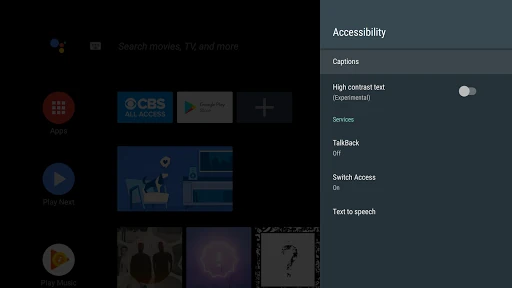
The starting path is simple: open Settings, select Accessibility, then choose Accessibility Menu, Select to Speak or TalkBack. Getting comfortable may take longer, particularly with TalkBack's spoken feedback and gestures. It may suit someone willing to try one feature at a time, but users who do not need accessibility tools may not find it relevant.
Pros
- Combines spoken navigation, selected text read-aloud and a large menu of practical device controls.
- Different tools let users start with a specific access need instead of one all-or-nothing mode.
- Free to use, with no ads or in-app purchases.
- Settings-based setup makes the accessibility options easy to find in Android.
Cons
- Learning TalkBack gestures and spoken navigation can take patience.
- The three tools serve different purposes, so choosing the right starting point takes some thought.
- The version varies by device, and Wear support has a separate requirement.
- Category
- Tools