Microsoft OneDrive
- 7.40M
- 4.6
- Installs
- 5.00B
- Price
- Free

Screenshots

Analysis by Reviewed APKs
Microsoft OneDrive is a cloud storage app for backing up photos and videos, keeping files available across devices, and sharing documents with other people. I see it as a practical fit for anyone who already works with Microsoft Office or wants a straightforward place for everyday files. Its mix of backup, offline access, scanning, and security tools makes it more useful than a simple photo archive, though some extras require a subscription.
A Backup for Busy Days
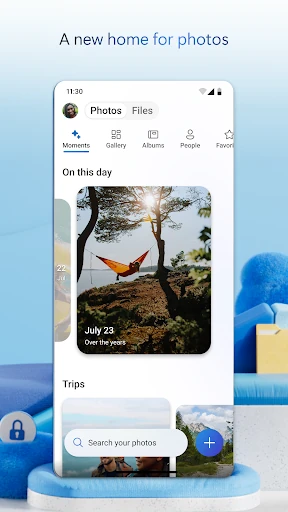
Picture finishing a family outing with a phone full of photos and videos, then wanting those memories somewhere other than the device. OneDrive’s Camera Upload can back them up automatically, while the app also lets you view and share photos across devices. I like that this addresses a routine need: capture something, let the backup happen, and find it later without having to remember a separate manual transfer.
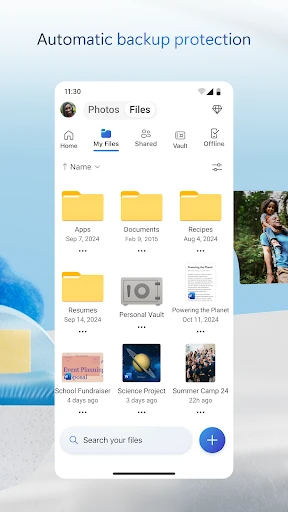
The same idea works for an ordinary workday. I can keep a document in OneDrive, open it from the phone, and make selected files available offline for a commute or a spotty connection. If I need to send something to a colleague or relative, file and album sharing are built in. That combination makes the app feel useful in small, recurring moments rather than only during a big file cleanup.
Cloud Storage, Not a Full Office
OneDrive makes the most sense as a home for files that should travel with you. Its Office connections are a particular advantage if your documents already live in Word, Excel, PowerPoint, or OneNote: the description supports editing and real-time collaboration through those apps. Compared with keeping everything only on a phone, cloud storage offers access across devices and sharing; compared with a dedicated editing app, OneDrive is the place that helps store and organize the files.
It is not a replacement for every productivity tool, and I would not choose it solely as a way to edit documents if I do not use Microsoft’s Office apps. Its free starting storage is limited to 5 GB, so a large photo library or growing work archive may push a user toward a paid plan. It is also not just a gallery: it covers documents, scanning, sharing, and file security alongside photos.
Make the Routine Easier
A few small habits help OneDrive earn its place. Turning on Camera Upload makes photo backup less dependent on remembering to do it, while choosing key files for offline access is useful before a trip or a day of meetings. I would also keep documents in recognizable folders and use search when I need to find a file by name or content. That is a simple way to avoid treating cloud storage as a digital dumping ground.
For important documents, scanning directly in the app can keep a digital copy alongside other files. Sharing links are another practical workflow, especially when a document needs to reach someone without sending multiple copies around. OneDrive also supports notifications when a shared document is edited, so I would use that for collaborative files rather than repeatedly checking for changes. These habits make the app more dependable without requiring a complicated system.
Reads About Microsoft OneDrive
More From Our News Desk

Zoom Meetings, Google Meet, or Teams: Which Is Easiest to Join?

How I Build a Free Streaming Lineup With Tubi

Why Crunchyroll Is the Default Anime App for So Many Fans

YouTube TV: A Practical Guide to Cutting Cable

Rummikub and the Small Comfort of Phone Games

TeamViewer Remote Control or AnyDesk for Helping Family?
Who May Find It Useful
I would recommend OneDrive to people who want phone photos and everyday documents backed up together, or who already use Microsoft Office and need files to move between devices. Families may appreciate photo and album sharing, while students and office workers can benefit from document access, scanning, and collaboration. The free 5 GB gives a newcomer room to try the basics before deciding whether a larger storage plan is worth paying for.
It may be a less natural fit for someone who wants a very large free storage allowance or does not need cloud access and sharing. People who mainly want a dedicated document editor may prefer to spend their time in the Office apps themselves, with OneDrive supporting storage in the background. And if automatic photo backup or extra security features are priorities, it is worth checking the settings and plan details before settling into a routine.
Microsoft OneDrive is a free Productivity app from Microsoft Corporation. Google Play shows over 5 billion installs and a 4.6-star rating from around 7.4 million ratings. The app contains no ads, and its content rating is Everyone. The listed version varies with device. The app was released on August 28, 2012, and its last update is dated October 27, 2026.
OneDrive starts with 5 GB of free cloud storage. The Google Play facts show in-app purchases, with items ranging from $0.99 to $129.99. The description says Microsoft 365 Personal and Family subscriptions start at $6.99 per month in the U.S., with regional pricing differences; Family storage is 1 TB per person for up to six people. A minimum Android version is not specified in the supplied app details.
A Practical Home for Everyday Files
A Clear Starting Point
When I first opened OneDrive, the broad purpose was easy to understand: it is a place to keep photos and files backed up and accessible. The app covers both personal memories and documents, so it can fit into a phone routine without being limited to one kind of content. The 5 GB free starting allowance gives people a way to begin, though anyone with a large camera roll may need to keep storage limits in mind.
The app’s setup choices matter more than any elaborate system. Camera Upload is the key option for people who want photos and videos backed up automatically. For files used away from a connection, selecting items for offline access is the more deliberate step. I appreciate that these are distinct needs: automatic backup helps with new memories, while offline selection helps with specific documents I expect to need.
Useful in the Daily Shuffle
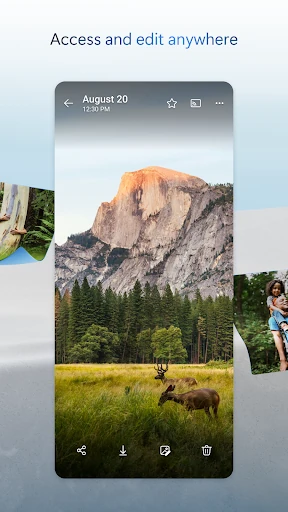
The everyday appeal is being able to reach a file when the phone is the device at hand. OneDrive supports access to files anywhere and lets users keep selected items available offline. That is useful when plans change, a document is needed away from a desk, or a connection is unreliable. Instead of relying on a file being attached to one device, the app gives it a cloud home.
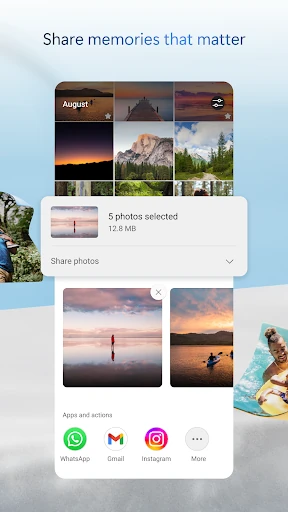
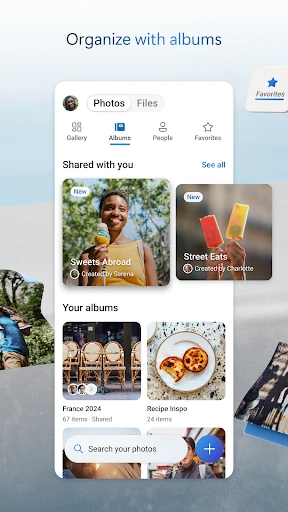
Sharing is part of that same everyday rhythm. I can use OneDrive to share photos, videos, albums, or documents with friends, family, and collaborators. For documents, the app can notify me when a shared item is edited. That is a more useful signal than repeatedly asking whether someone has made a change, though the actual editing and collaboration experience also involves Microsoft Office apps.
More Than File Storage
A standout feature is the range of ways to find and protect content. OneDrive can search photos by what appears in them, such as a beach or snow, and search documents by name or content. I like the idea of being able to look for a memory by its subject rather than needing to remember exactly when it was taken or how a file was named.
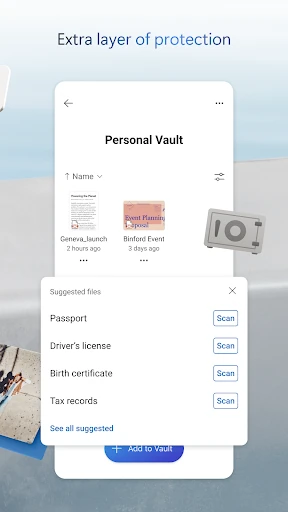
The security tools add another layer to the storage role. The description includes encryption for files at rest and in transit, Personal Vault with identity-verified protection, and version history for restoring earlier file versions. It also describes ransomware detection and recovery as part of the qualifying Microsoft 365 experience. These are useful distinctions: core storage protections are separate from features tied to a subscription.
A Simple Weekly Routine
For a practical routine, I would let Camera Upload handle new photos, then occasionally search for an older picture by subject when I need to share it. For work or school files, I would keep active documents in OneDrive, make the ones needed on the move available offline, and use the Office apps when editing or collaborating. It is a modest routine, but it reduces the number of places I have to check.
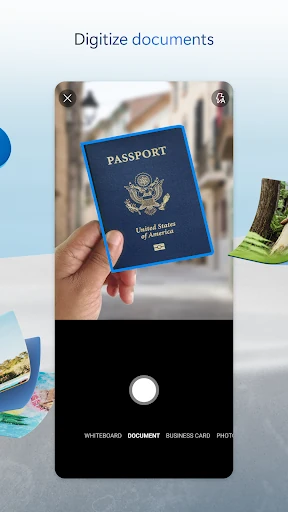
A phone can also be a useful tool for turning paper into a digital file. OneDrive supports scanning, signing, marking up, and sending documents from the mobile app. I would use that for a form or receipt I want to keep with related files, rather than letting a quick scan disappear into a separate corner of the phone. A secure folder is available for keeping documents protected.
Limits to Keep in View
The most obvious limit is storage. Five gigabytes is a useful starting point, but photos, videos, and documents can add up. Microsoft 365 Personal and Family subscriptions offer more space and premium features, so the value depends on how much the user stores and which tools they need. I would check the current plan details before assuming a particular feature or storage allowance is included.
OneDrive also has different levels of access across its features. Some security and sharing benefits, including ransomware detection and recovery, are tied to a qualifying Microsoft 365 subscription. Work or school sign-in requires an eligible OneDrive, SharePoint Online, or Microsoft 365 Business subscription. That makes the app flexible, but it is worth distinguishing personal use from an organization-managed account.
Microsoft OneDrive is a capable everyday storage app, especially for people who want photos and documents in one place and already use Microsoft Office. Automatic photo backup, offline file access, sharing, scanning, and search give it several practical jobs. The free 5 GB is a reasonable place to start, but a large collection may make the subscription options relevant.
I would try it if I wanted a dependable bridge between my phone and other devices, or if Microsoft’s document tools are already part of my routine. I would look elsewhere if I needed generous free storage or wanted a dedicated editor rather than a storage companion. For the right user, OneDrive makes common file chores feel easier to keep up with.
Microsoft OneDrive Frequently Asked Questions
What is Microsoft OneDrive used for?
Microsoft OneDrive stores and backs up photos, videos, and files so they can be accessed across devices. It supports sharing, selected offline files, document scanning, and search. It also works with Microsoft Office apps for editing and collaboration on supported files. Its combination of storage and everyday file tools makes it useful for both personal and work or school documents.
Which devices can use Microsoft OneDrive?
The app described here is OneDrive for Android, and its features include accessing files across devices. Microsoft Office apps can be used with files stored in OneDrive. The minimum Android version can vary with the app and device, so check the Google Play store page for the current compatibility information before installing.
Is Microsoft OneDrive free, and does it have purchases?
OneDrive offers 5 GB of free storage. In-app purchases are available, with Google Play item prices ranging from $0.99 to $129.99. The description says Microsoft 365 Personal and Family subscriptions start at $6.99 per month in the U.S.; prices may vary by region. Check Google Play for current pricing and subscription details.
What Android version does Microsoft OneDrive require?
The Android requirement can vary by device and app version. The current version is also described as varying with device. For the requirement that applies to your phone or tablet, check the Microsoft OneDrive page in Google Play before installing or updating.
Who is Microsoft OneDrive best suited for?
OneDrive is a good fit for people who want cloud backup for photos and files, need to share content, or use Microsoft Office documents across devices. Its 5 GB free tier lets people try the basics. Users with larger storage needs or interest in premium features should review the subscription options, while those who do not need cloud storage may find it more than they need.
Pros
- Combines photo backup, file storage, sharing, scanning, and offline access.
- Search can find photos by subject and documents by name or content.
- Works with Microsoft Office apps for editing and real-time collaboration.
- Starts with 5 GB of free storage and contains no ads.
Cons
- The free 5 GB may feel tight for large photo and video collections.
- Some security and sharing benefits require a qualifying Microsoft 365 subscription.
- Work or school sign-in depends on an eligible organization subscription.
- Category
- Productivity