Gboard - the Google Keyboard
- 18.93M
- 4.5
- Installs
- 10.00B
- Price
- Free

Screenshots
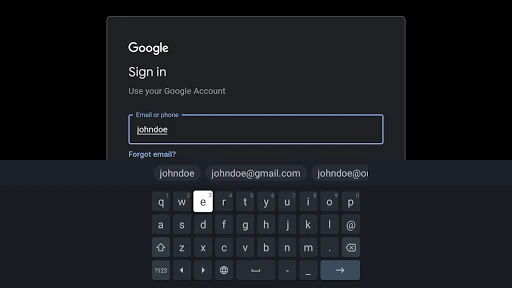
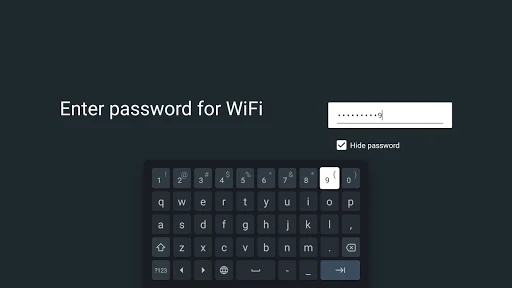
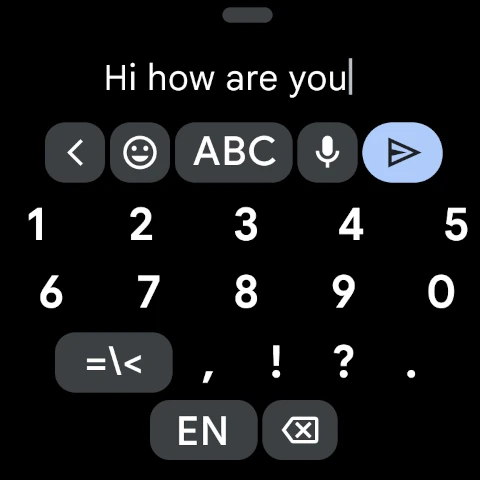
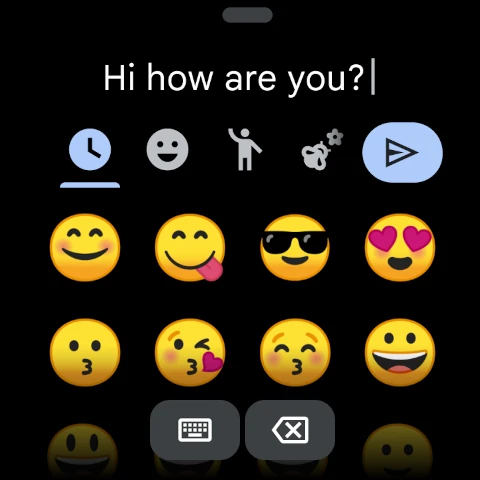
Analysis by Reviewed APKs
Gboard is Google’s keyboard app for people who want a practical way to type, dictate, and switch between languages on a phone or watch. I like that its everyday tools are close at hand, from sliding across keys to finding an emoji by name. It feels more like a dependable keyboard than a destination app, which is exactly the point for most people.
Typing Through a Busy Day
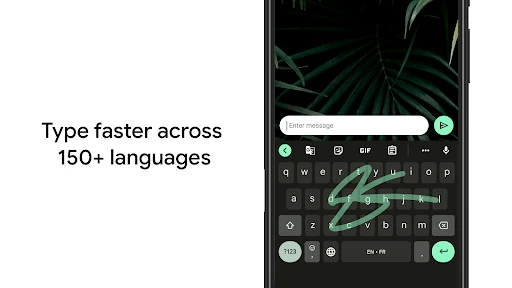
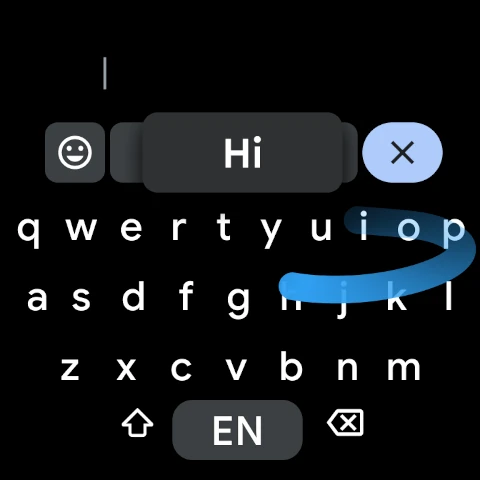
When I first opened Gboard, I thought about the small stretches of typing that fill an ordinary day: replying to a message while waiting for coffee, entering a quick note, or sending a longer update from the couch. Glide Typing is useful when I want to keep a thumb moving across the keys instead of tapping each letter. For short messages, that can make the keyboard feel less fussy.
Voice typing gives me another option when my hands are occupied or I would rather speak a sentence than peck it out. I can also search for an emoji instead of paging through categories, and GIF search offers a quick way to find a reaction. These tools do not change what a keyboard is for, but they help with the little pauses that can make messaging feel slower.
A Keyboard, Not a Messaging App
The obvious comparison is the keyboard that came with a device. Gboard is still doing that same basic job: putting text into whichever app I am using. Its appeal is the collection of input options in one keyboard, including voice typing, handwriting, multilingual suggestions, and Google Translate while typing. That makes it a useful alternative for someone who wants more than a standard row of keys.
It is not a messaging service, a social network, or a place to organize conversations. I would not install it expecting a new inbox or a broader communications hub. Instead, I think of it as a tool that follows me from one text field to another. Its value depends on whether its typing methods suit the way I already use my device.
Small Tweaks, Better Flow
A few settings can make Gboard feel more suited to a daily routine. Keeping the number row visible is handy if I often enter times, addresses, or short codes. Turning on symbol hints can save a detour when I need punctuation or another character. These are modest changes, but they can reduce repeated taps during the sort of quick typing that happens all day.
I also like the gesture shortcuts described for moving the cursor with a slide across the space bar and deleting several words with a swipe from the delete key. On a larger phone, one-handed mode can shift the keyboard to either side. I would try these one at a time rather than changing everything at once, then keep whichever shortcuts actually become second nature.
More From Our News Desk

Zoom Meetings, Google Meet, or Teams: Which Is Easiest to Join?

How I Build a Free Streaming Lineup With Tubi

Why Crunchyroll Is the Default Anime App for So Many Fans

YouTube TV: A Practical Guide to Cutting Cable

Rummikub and the Small Comfort of Phone Games

TeamViewer Remote Control or AnyDesk for Helping Family?
Who Will Appreciate Gboard
I would recommend Gboard to people who type frequently on an Android device and want several ways to enter text without changing their usual messaging or note-taking apps. It should be especially appealing if you switch among enabled languages, dictate now and then, or want emoji and GIF search close to the keyboard. Its range of tools gives regular typists room to find a comfortable rhythm.
It may be less compelling if the keyboard already on your device feels comfortable and you have no use for alternate input methods or the extra options. Gboard is a utility, so its success is mostly measured in small conveniences rather than a dramatic new experience. People using Android Go should also keep in mind that handwriting, emoji search, and GIFs are not supported on those devices.
Gboard - the Google Keyboard is made by Google LLC and is categorized as a Tools app. On Google Play it has more than 10 billion installs, with a 4.5-star rating from about 18.9 million ratings. The app is free, with no listed in-app purchases or ads. Its content rating is Everyone.
The version is described as varying with the device, and no single Android minimum is specified in the available app details. Gboard was released on June 5, 2013, and its last update is dated November 4, 2026. Device compatibility can depend on the Android version and device, so it is worth checking the Google Play details for your device.
The Little Choices That Shape Typing
A Familiar First Impression
My first impression is that Gboard is meant to disappear into the routine. It is a keyboard, not an app I need to open every morning and explore. The useful question is whether its input choices make everyday typing easier. I would start with the basics, then try a feature when a real need comes up instead of treating setup like a project.
The feature list includes Glide Typing, voice typing, handwriting, multilingual typing, emoji search, GIFs, and translation while typing. That is a generous set of options for a tool whose main job is to enter text. Some functions are marked as unavailable on Android Go devices, so the experience can differ by device.
The Daily Typing Rhythm
In day-to-day use, the most relevant choice is often simply how I want to enter a sentence. I can tap keys, glide across them, or dictate. The right method changes with the moment: tapping feels deliberate, gliding suits quick messages, and voice input can be useful when my hands are busy. Having those options in one keyboard is the practical strength.
Multilingual typing is another thoughtful part of the everyday experience. With multiple languages enabled, Gboard can offer suggestions and autocorrect across them rather than requiring a manual switch for each language. That is useful for people who routinely mix languages in their messages. It is less of a selling point if I only ever type in one language.
Tools Beyond the Keys
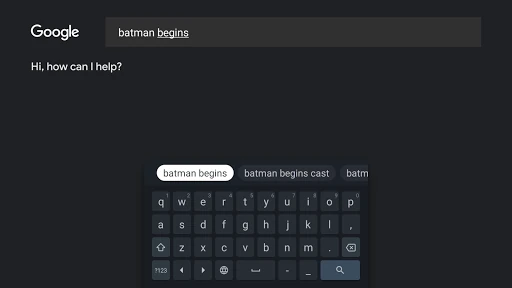
Emoji search is one of those small features that makes sense when I know what I want to express but cannot remember where the symbol lives in a keyboard. Searching by a word is more direct than browsing. GIF search serves a similar purpose for a reaction, helping me look for an image to share without leaving the keyboard for that search.
Google Translate while typing stands out because it brings translation into the act of writing rather than making it a separate step. Handwriting is also available for printed or cursive input. I would not assume every feature is necessary for every user; the attraction is that different people can rely on different parts of the same keyboard.
Make a Routine of It
A sensible way to get comfortable is to choose one repetitive annoyance and address it. If I type many numbers, I can try keeping the number row available. If I regularly reach for punctuation, symbol hints may help. If I often type with one hand on a large-screen phone, one-handed mode offers a way to pin the keyboard to the left or right.
After that, I would give the gesture controls a few real chances during normal messaging. Sliding across the space bar to move the cursor can be handy when correcting a word, while a leftward slide from delete can remove multiple words. Themes let me choose a look, with or without key borders. The best setup is the one I stop thinking about.
Keep Expectations Grounded
Gboard is still a keyboard, so it cannot make a message more thoughtful or solve every inconvenience in the app where I am typing. Its usefulness varies with personal habits: someone who prefers tapping and never needs translation may notice little difference, while a multilingual typist may value the suggestions more. The extra features are options, not a requirement to change how I write.
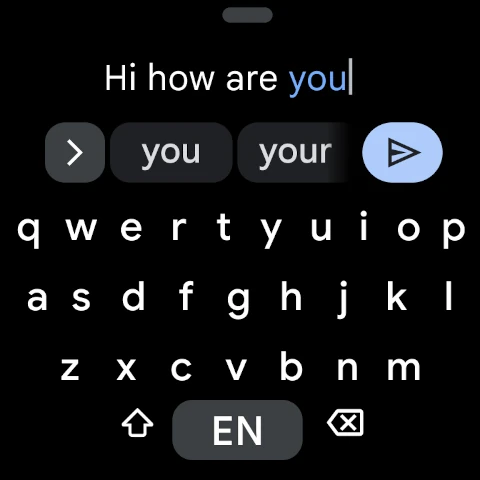
There are also device considerations. The description says handwriting, emoji search, and GIFs are not supported on Android Go devices. Wear OS support is available, with typing and voice features for watches, but a watch is a different, more constrained way to enter text. I would judge Gboard by the features that suit my device and routine, not by the length of its feature list.
After spending time with the idea of Gboard as an everyday tool, I see its strength in flexibility: tapping, gliding, dictating, and handling multiple languages all belong to the same keyboard. Its best features are small conveniences that can save effort repeatedly, rather than reasons to spend time inside the app itself.
I would recommend trying Gboard if you type often and want more input choices than a basic keyboard provides. If your current keyboard already works well, there is no need to switch just for the sake of it. For Android Go users, the limits on some features are worth weighing before deciding.
Gboard Frequently Asked Questions
What is Gboard - the Google Keyboard used for?
Gboard is a keyboard for entering text on a device. It supports typing by tapping or gliding, voice typing, handwriting, multilingual suggestions, emoji and GIF search, and translation while typing. Which tools matter most depends on how you write. Some features, including handwriting, emoji search, and GIFs, are not supported on Android Go devices.
Which devices can use Gboard - the Google Keyboard?
The app is available on Google Play for Android, and the description also includes Wear OS support for watches. Wear OS has typing, voice typing, and emoji typing features. Compatibility and the available functions can depend on the device, so check Google Play for the requirements and feature availability that apply to your particular device.
What Android version does Gboard - the Google Keyboard require?
A single minimum Android version is not specified in the app details provided here, and the version is described as varying with the device. Requirements can differ based on the device and its software. Check Gboard’s Google Play details on your device to see whether your current Android version is supported.
Does Gboard - the Google Keyboard cost money?
Gboard is free on Google Play. The available app details say it has no in-app purchases and contains no ads. Store information can change, so it is sensible to check the Google Play page before installing if you want the latest cost and purchase details.
Is Gboard - the Google Keyboard right for me?
Gboard is a good fit if you type often and would use features such as glide typing, voice input, multilingual suggestions, or emoji search. It may offer less value if your current keyboard already meets your needs. Android Go users should note that handwriting, emoji search, and GIFs are not supported on those devices.
Pros
- Offers tapping, glide typing, voice input, and handwriting in one keyboard.
- Supports multilingual suggestions and translation while typing.
- Includes emoji search, GIF search, themes, and useful gesture shortcuts.
- Free to use, with no listed ads or in-app purchases.
Cons
- Handwriting, emoji search, and GIFs are unavailable on Android Go devices.
- Some features may be unnecessary for people satisfied with basic typing.
- The minimum Android requirement is not specified in the available details.
- Category
- Tools