Google Docs
- 2.97M
- 4.7
- Installs
- 1.00B
- Price
- Free

Screenshots
Analysis by Reviewed APKs
Google Docs is a mobile writing and collaboration app for creating, editing, and sharing documents from an Android phone or tablet. I find it most useful when a document needs to stay accessible across a busy day, or when several people are working on the same draft. It is a capable option for everyday writing, though a phone screen still makes long editing sessions less comfortable than a computer.
A document on the go
When I first opened Google Docs, I thought about the little writing jobs that crop up between other plans: noting an idea before it disappears, checking a shared draft while away from my desk, or making a quick change before sending a document along. The app is built for those moments. I can create or edit documents on an Android phone or tablet, then share them with other people to keep the work moving.
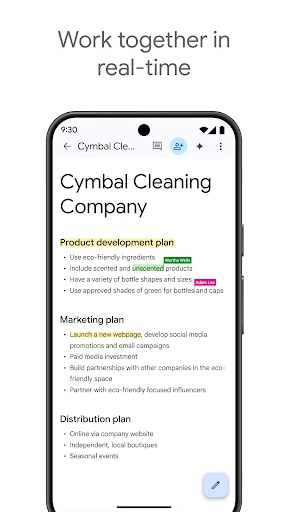
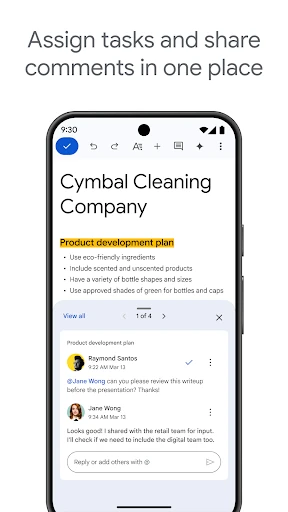
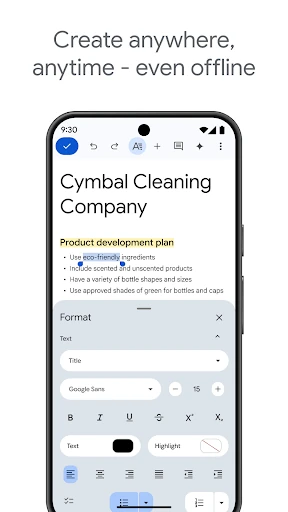
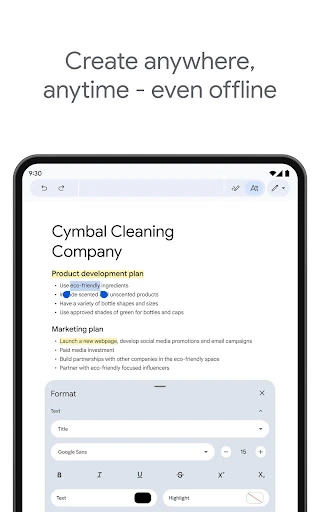
The collaboration is more than simply passing a file around. People can edit and comment in real time, and the app supports adding action items. That makes it a practical fit for a shared meeting outline or a document that needs several rounds of input. If I know I will be without a connection, offline mode can also help me keep working rather than treating every trip or commute as a forced pause.
More than a mobile notepad
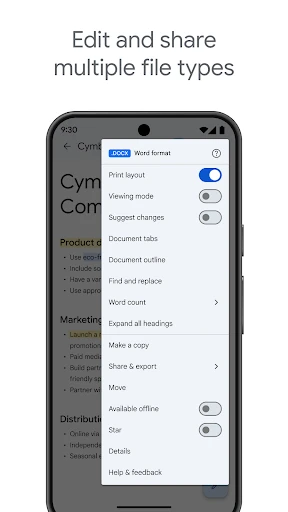
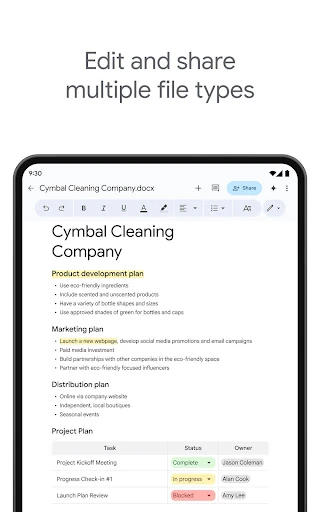
Compared with a basic notes app, Google Docs is aimed at documents that may grow, need formatting, or involve other contributors. Templates can give a document a more polished start, while sharing, comments, and live editing make it useful for group work. It also opens a variety of files, including Microsoft Word files, and supports converting and exporting files, which can help when collaborators use different applications.
I would not pick it as a replacement for every writing tool. A phone is handy for reviewing a paragraph or capturing a thought, but it is less inviting for sustained work on a long document than a larger screen. Docs is also not just a private scratchpad: its strengths become clearer when a document needs to be shared, edited, or carried into a wider Google Workspace workflow.
Small habits that help
I get more out of a mobile document app when I treat it as a place to keep work moving, not a promise to finish everything on my phone. I can capture an idea while it is fresh, then return to the document for a fuller edit later. If a task is shared, comments and action items give other people a way to contribute without relying on a separate round of file exchanges.
A little planning helps, too. Templates are worth considering when I want a useful starting point instead of a blank page, and offline mode is worth enabling as part of my routine when I expect to work without a connection. For mixed-device groups, I can use Docs to open Word files and convert or export documents as needed. These habits make the app feel less like an emergency editor and more like a dependable companion.
Reads About Google Docs
More From Our News Desk

Zoom Meetings, Google Meet, or Teams: Which Is Easiest to Join?

How I Build a Free Streaming Lineup With Tubi

Why Crunchyroll Is the Default Anime App for So Many Fans

YouTube TV: A Practical Guide to Cutting Cable

Rummikub and the Small Comfort of Phone Games

TeamViewer Remote Control or AnyDesk for Helping Family?
Who will get the most from it
I would recommend Google Docs to students, colleagues, and anyone who regularly needs to draft or review shared documents away from a computer. It is especially useful for people who want to make quick edits, leave comments, or capture writing while moving between places. Offline mode adds flexibility, while support for Word files and file conversion makes it easier to work with people who do not use the same document app.
It may be less appealing to someone who mainly wants a simple personal checklist, or who expects a phone to be a comfortable place for hours of detailed writing. The app’s value is strongest when its document and collaboration tools are useful to you. Google Workspace subscribers have access to additional features, but everyday use can still suit people who simply need to create, edit, and share documents.
Google Docs is made by Google LLC and is listed in the Productivity category on Google Play. It has more than one billion installs and a 4.7-star rating from about 3 million ratings. The app is free, has no in-app purchases, and does not contain ads. Its content rating is Everyone.
The listed version varies with device, and Google Play does not give one minimum Android version in the facts available here. Google Docs was released on April 30, 2014, and its listed last update is October 27, 2026. Check the Google Play store page for device-specific requirements and the current version information.
How Google Docs Fits a Busy Day
A quick, practical start
My first impression of Google Docs is that it is designed to keep document work within reach, rather than to turn a phone into a full desktop workstation. The core promise is straightforward: create or edit a document, collaborate with others, and keep going when a connection is unavailable. That combination makes sense for a tool people may open briefly throughout the day.
The app supports Android phones and tablets. I would start with the kind of document I actually need to work on, then decide whether a template or a blank document is the better starting point. Templates can save time and add polish, while a blank page is still the direct route for an unstructured note or a first draft.
The daily writing rhythm
In day-to-day use, Docs is at its best when I need to make progress in short stretches. I can capture a spontaneous idea, return to a draft, or make an edit while away from my usual workspace. That makes it a useful sidekick for the gaps between larger work sessions, rather than a tool that requires a dedicated desk and a long block of time.
When a document involves other people, real-time editing changes the rhythm. Rather than sending a new copy every time someone makes a change, collaborators can work on the document together, comment, and add action items. That is a sensible setup for a shared plan or evolving draft. The small-screen experience still has limits, but it can keep a project from stalling while I am out.
Collaboration and file flexibility
The standout feature is the combination of live collaboration and document portability. I can share documents with a team, edit and comment in real time, and add action items. Those tools address the practical problem of keeping a group on the same page, not just the act of typing. They make Docs a more complete option than a personal notes tool when work needs feedback.
Support for multiple file types also matters in ordinary use. Google Docs can open a variety of files, including Microsoft Word documents, and it supports converting and exporting files. That makes it easier to work across different applications without insisting that every collaborator start in the same place. Templates and offline mode round out the features that can help with everyday writing.
A routine for shared work
For a practical routine, I would use Docs to capture a rough idea as soon as it comes up, then shape it into a more complete document when I have time. If I am preparing something for a group, I can share it and invite feedback through comments or real-time edits. Action items can help make the next steps visible in the document itself.
Before heading somewhere with an unreliable connection, offline mode is worth thinking about. It gives me a way to keep working when I cannot depend on being online. If I am starting a familiar kind of document, a template can shorten the setup. And if a teammate sends a Word file, Docs can open it, with conversion or export available when the work needs to move between formats.
Keep expectations realistic
The main limitation is the form factor. A phone is excellent for a quick note or an edit, but a long stretch of detailed writing can feel cramped compared with working on a larger screen. I would use the mobile app to stay involved and make progress, while saving especially involved editing for a device that suits the task better.
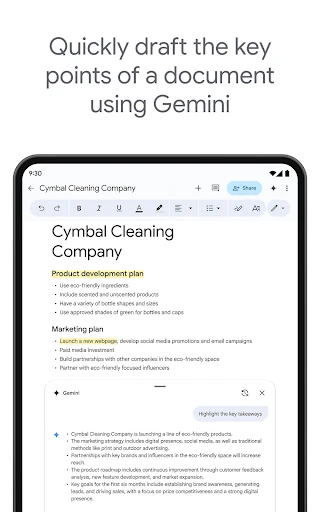
Docs also makes most sense when its document workflow matches what I need. Someone looking only for a lightweight private note may not use sharing, comments, file handling, or templates enough to appreciate the added scope. Google Workspace paid subscribers get additional features, including Gemini tools, so the experience can differ by subscription. For core mobile document work, though, the main tools are clear and useful.
Google Docs earns its place on my phone by making documents easier to reach, share, and keep moving. I especially like the combination of real-time collaboration, offline mode, and support for Word files. It is not the most comfortable way to write a long document, but it is a reliable way to handle the smaller jobs that would otherwise wait.
I recommend it to anyone who regularly edits or shares documents and wants to work from an Android phone or tablet. If your needs stop at private notes, a simpler app may be a better fit. But for collaborative writing and practical document access on the go, Google Docs is an easy app to consider.
Google Docs Frequently Asked Questions
What is Google Docs used for?
Google Docs is used to create, edit, and collaborate on documents from an Android phone or tablet. You can share documents, edit and comment with others in real time, add action items, and work offline. It also opens a variety of file types, including Microsoft Word files, and supports converting and exporting documents.
Which devices can run Google Docs?
Google Docs is available for Android phones and tablets. The minimum Android version can vary with the device and app version, so check the Google Play store page for current compatibility details. The version is also described as varying with device, rather than being one fixed version for every Android user.
Does Google Docs cost money?
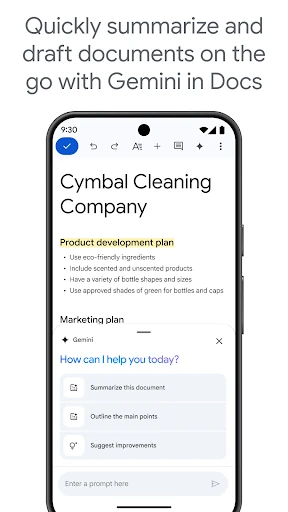
Google Docs is free to download and use, and it has no in-app purchases or ads according to its Google Play details. Google Workspace paid subscribers can access additional Google Docs features, including Gemini tools for drafting, editing, and other tasks. Subscription availability and terms may vary, so check Google Play for current details.
Can Google Docs work without internet?
Yes. Google Docs includes an offline mode so you can continue working when you do not have a connection. It is also built for online collaboration, including real-time editing and comments, so some features depend on working with others online. Check the app’s current Google Play information for details relevant to your device.
Is Google Docs a good fit for me?
I would suggest Google Docs if you need to create, edit, or share documents on the go, especially when other people need to comment or work with you. It can also suit people handling Word files or working offline. If you mainly want a simple private note-taking app, its broader document features may be more than you need.
Pros
- Real-time editing, comments, and action items make shared documents easier to manage.
- Offline mode helps keep writing moving when an internet connection is unavailable.
- Opens Microsoft Word files and supports converting and exporting documents.
- Templates offer a quicker, more polished starting point for common documents.
Cons
- Long writing sessions can feel cramped on a phone screen.
- Its collaboration and file tools may be unnecessary for simple private notes.
- Some additional features are available only to Google Workspace paid subscribers.
- Category
- Productivity