Microsoft Outlook
- 10.71M
- 4.3
- Installs
- 1.00B
- Price
- Free

Screenshots

Analysis by Reviewed APKs
Microsoft Outlook brings email, calendars, contacts and files together for people who want one place to keep work and personal accounts moving. I see it as a practical choice for anyone already juggling several inboxes, especially if meetings and follow-ups are part of the day. It can do more than basic email, though its broad feature set makes it a busier option than a simple mail app.
A Busy Day, One Inbox
When I imagine using Outlook on a regular weekday, the appeal is easy to picture: I can check a Gmail account, a work Exchange inbox and the day’s calendar without hopping between separate apps. A meeting invitation can sit alongside messages that need answers, while a delivery update or travel detail can be reflected in the calendar. That arrangement is useful when the day is already split between personal plans and work.
The practical difference is less about reading one message and more about keeping the next step visible. I can flag an email to revisit, pin something important, or snooze a message until I have time to deal with it. If a colleague sends a file, I can open supported Word, Excel or PowerPoint documents from the inbox. Outlook is designed to connect those small tasks rather than make email a destination by itself.
More Than Basic Email
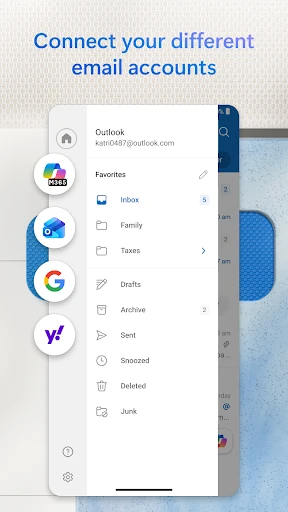
Compared with using separate Gmail, calendar and file apps, Outlook’s main advantage is having multiple accounts and calendars together. It supports Microsoft services as well as Gmail, Yahoo Mail, iCloud, Exchange, IMAP and POP3, so it can suit a mixed-account setup. The calendar, meeting links and file access add useful context around messages. For someone who already handles several accounts, fewer app switches can make a noticeable difference.
That breadth is not automatically a win for everyone. If all I need is a quiet place to read one personal inbox, the extra calendar, task and meeting features may feel like more surface area than I want. Outlook is a productivity hub, not a dedicated project-management tool or a replacement for the full desktop versions of Microsoft Office. Its strongest case is bringing everyday communication and planning into one mobile workspace.
Small Habits That Help
A few simple habits make Outlook easier to manage. I would flag messages that need a later response instead of relying on memory, and use swipe actions to archive, delete, snooze or move routine mail quickly. Pinning a small number of genuinely important messages can keep them easy to find. These actions help prevent the inbox from becoming a long list of items that all seem equally urgent.
I’d also check the calendar alongside email at the start of the day, especially when several calendars are involved. Search can help locate a person, event, file or message without scrolling through old threads, and voice search offers another way to find things. For longer email exchanges, thread grouping keeps replies together. The point is to use Outlook’s organizing tools consistently, not to turn every message into a separate system.
Reads About Microsoft Outlook
More From Our News Desk

Zoom Meetings, Google Meet, or Teams: Which Is Easiest to Join?

How I Build a Free Streaming Lineup With Tubi

Why Crunchyroll Is the Default Anime App for So Many Fans

YouTube TV: A Practical Guide to Cutting Cable

Rummikub and the Small Comfort of Phone Games

TeamViewer Remote Control or AnyDesk for Helping Family?
Who Will Get the Most From It
I’d recommend Outlook to people who manage more than one email account, schedule meetings regularly, or want calendar and inbox activity in the same app. It is particularly relevant for anyone already using Microsoft services, but support for Gmail, Yahoo Mail, iCloud and other account types means it is not limited to a Microsoft-only setup. The mix of account support and planning tools gives it room to fit into both work and personal routines.
It may be less appealing if you want a minimal email reader with very few extra features, or if you prefer to keep mail, calendar and files completely separate. Some advanced experiences, including Copilot features and email encryption, require a qualifying Microsoft 365 subscription. That makes Outlook’s free personal use a useful starting point, but not every capability is included on the same terms. I’d choose it for consolidation, not simplicity at any cost.
Microsoft Outlook is developed by Microsoft Corporation and is listed in Google Play under Productivity. The app has over a billion installs and a 4.3-star rating from around 10.7 million ratings. It is free for personal use, with in-app purchases priced from $1.99 to $12.99 per item. Google Play also indicates that it contains ads, so the free experience is not entirely ad-free.
The app is rated Everyone on Google Play. The supplied version is 5.2641.2; it was released on January 28, 2015, and its last update is dated October 24, 2026. The supported minimum Android version can vary by device and app release, so it is worth checking the Google Play store page for the requirement shown for your phone or tablet.
How Outlook Fits Into My Day
First Open and Setup
My first impression of Outlook is that it wants to be a central workspace, not just a mailbox. That can be reassuring if my accounts and appointments are scattered, but it also means there is more to take in than a bare-bones email app. Outlook supports a broad range of account types, including Microsoft Exchange, Microsoft 365, Outlook.com, Gmail, Yahoo Mail, iCloud, IMAP and POP3.
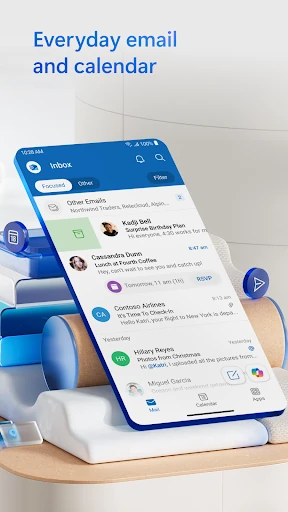
Once the relevant accounts are connected, the unified inbox and calendar views give the app its purpose. I can see messages from different services in one place and check multiple calendars side by side. The key setup decision is how much of that I actually want in my daily view. People who only need one inbox can keep their expectations modest; those with several accounts have more reason to explore the combined setup.
Email in Everyday Use
The everyday email tools are built around quick triage. Swipe gestures can delete, archive, snooze or move a message, while filters and folders provide additional ways to sort mail. Pinning and flagging serve different purposes: one keeps an important message prominent, and the other marks something for follow-up. Used with a little consistency, these actions can make a crowded inbox feel more manageable.
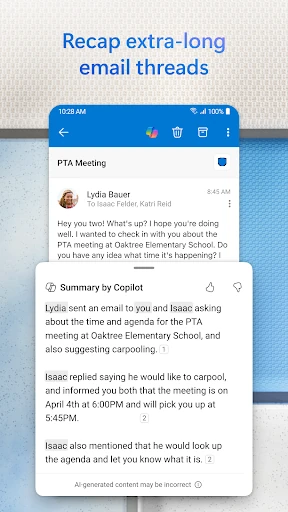
Search is another useful part of the routine. Outlook can find emails, events, people and files, and it supports voice search as well as tapping through the interface. Conversation threading keeps related replies together, which is helpful when a long exchange has drifted across several messages. Suggested replies can speed up short responses, though I would still read them before sending rather than treating them as a substitute for attention.
Calendar, Files and Extras
Outlook’s calendar features give email more context. Multiple calendars can be viewed side by side, and the app supports RSVPs, meeting notes, tasks and reminders. Travel and delivery updates can be added to the calendar automatically. For someone whose plans arrive in the inbox, that connection may save a bit of manual re-entry and make it easier to see what is coming up.
Files are part of the same workflow. Outlook can attach items from OneDrive, the device or other cloud storage, and open Word, Excel and PowerPoint files from the inbox. The description also includes access to recent attachments and connections to OneNote. Those options are handy when a message is the starting point for working with a document, though Outlook is not a replacement for the full-featured Office apps.
A Practical Daily Routine
A workable morning routine might start with a quick inbox scan, followed by a look at the day’s calendars. I’d flag messages that need a thoughtful reply, snooze items that can wait and archive mail that is already handled. Checking meeting invitations and reminders at the same time helps connect the day’s plans with the conversations that created them. It is a modest routine, but it uses Outlook’s combined layout well.
Later, search can bring an old conversation or attachment back without a long scroll through the inbox. If a meeting link arrives in email, Outlook can be used to join online meetings from Teams, Zoom or other services. For hands-free listening, the app includes Play My Emails. These are optional ways to handle specific moments; the core routine still works perfectly well as ordinary email and calendar management.
Limits to Keep in Mind
Outlook’s range is also its main trade-off. Email, calendars, contacts, files, reminders and meeting tools share space, so the experience may feel crowded to someone who wants a single-purpose mail app. Consolidation is useful only if I like having those pieces together. People who prefer a clean separation between work and personal accounts may also want to think carefully about how they organize their setup.
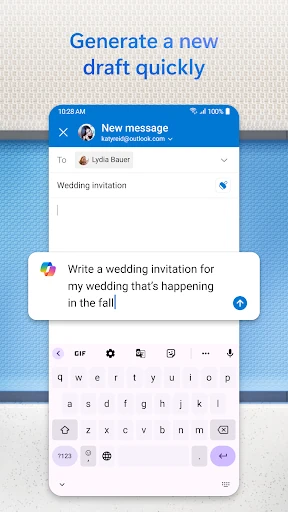
Some capabilities depend on a subscription. Microsoft 365 is required for email encryption, and Copilot features are described as part of qualifying premium Outlook and Microsoft 365 experiences. Google Play also reports ads and in-app purchases. Those details do not prevent basic personal use, but they are worth keeping in mind if I expect every advanced tool to be available at no extra cost.
Microsoft Outlook is a capable mobile home for people whose day moves between inboxes, calendars, meetings and documents. Its account compatibility and practical organizing tools make it more flexible than a basic email reader, while the unified approach can cut down on app switching. The experience asks for some willingness to manage a broader set of features.
I’d recommend giving Outlook a try if you handle multiple accounts or want email and scheduling in one place. If your needs stop at reading a single inbox, a lighter app may suit you better. Outlook’s strongest value is not any one feature; it is having everyday communication and planning connected in a single app.
Microsoft Outlook Frequently Asked Questions
What is Microsoft Outlook used for?
Microsoft Outlook is used to manage email accounts, calendars, contacts and files in one app. It supports organizing messages with filters, folders, flags, pins and swipe actions, along with meeting invitations, reminders and online meeting links. It can also open supported Office files from the inbox. The app is intended for communication and everyday productivity rather than as a dedicated project-management tool.
Can I use Microsoft Outlook on my phone or tablet?
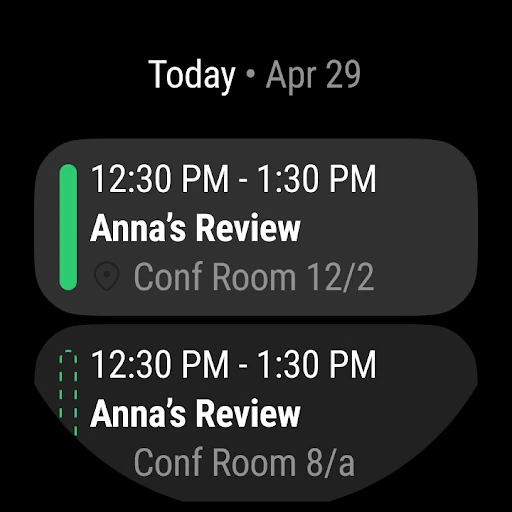
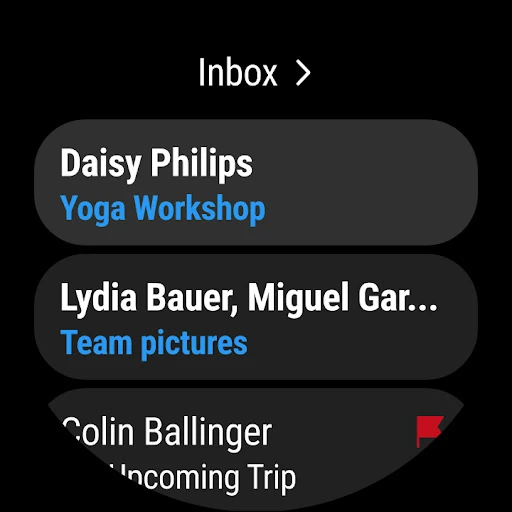
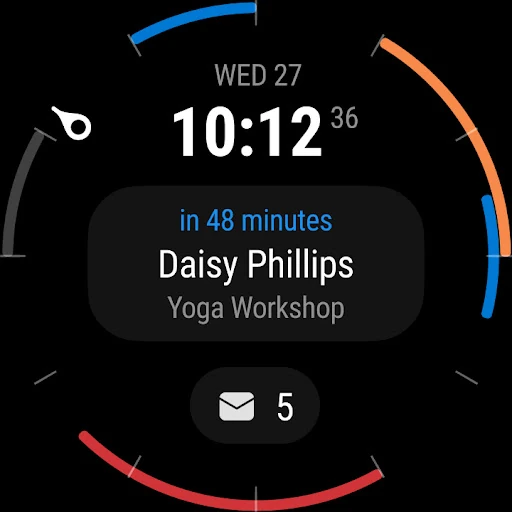
Microsoft Outlook is available as an Android app through Google Play. Its description also mentions a Wear OS companion app for viewing emails and events, including an Up Next tile and complications. The supported Android version can depend on the device and current release, so check the Google Play store page for the requirement that applies to your phone or tablet.
What Android version does Microsoft Outlook require?
The minimum Android version can vary with the device and the app release. Google Play shows the compatibility information for the version available to your phone or tablet, so that is the best place to check before installing or updating. The supplied app details identify version 5.2641.2, but do not provide a minimum Android requirement.
Is Microsoft Outlook free, and does it have purchases?
Outlook is free for personal use on Google Play. The store reports in-app purchases priced from $1.99 to $12.99 per item and indicates that the app contains ads. Some advanced features have subscription requirements: for example, email encryption requires Microsoft 365, and Copilot features are associated with qualifying premium Outlook and Microsoft 365 experiences.
Who should use Microsoft Outlook?
Outlook is a good fit for people who manage multiple email accounts, rely on calendars and meetings, or want to handle files from their inbox. It supports Microsoft accounts alongside services such as Gmail, Yahoo Mail and iCloud. It may be less suitable if you want a very simple email-only app or prefer to keep mail, scheduling and files in separate tools.
Pros
- Brings Microsoft, Gmail, Yahoo Mail, iCloud and other supported accounts together.
- Combines inbox organization with multiple calendars, reminders and meeting links.
- Search, swipe actions, flags and pins help manage follow-ups and clutter.
- Can open supported Office files and attach documents from several storage locations.
Cons
- The range of email, calendar and file tools may feel busy to minimalists.
- Ads and in-app purchases are reported on Google Play.
- Some advanced features require a qualifying Microsoft 365 subscription.
- Category
- Productivity
- Version
- 5.2641.2