Samsung My Files
- 555.29K
- 4.1
- Installs
- 5.00B
- Price
- Free

Screenshots
Analysis by Reviewed APKs
Samsung My Files is a file manager for browsing and organizing files on a smartphone, memory card, USB drive, or connected cloud storage. I found it most useful for everyday chores: tracking down a recent download, moving photos into a folder, or checking what is taking up space. It suits people who want practical file tools in one place, though it is more utility than all-purpose productivity app.
A Download, Then a Cleanup
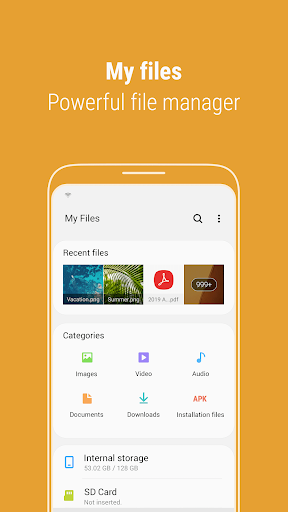
When I first opened Samsung My Files, I imagined the small task that tends to start a bigger cleanup: finding a document I had just downloaded. The Recent Files list gives me a direct place to look, while the Categories view can narrow the browse to documents, images, audio, video, downloads, or installation files. Once I find something, I can check its details or move it into a folder instead of leaving it buried.
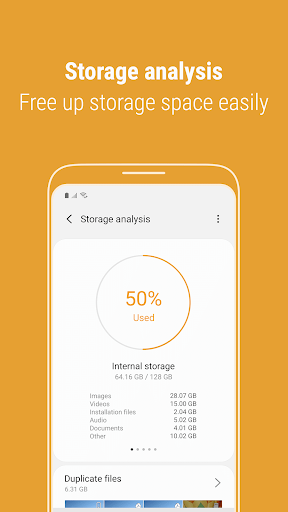
That same session can turn into a bit of housekeeping. I can make a folder, copy or move files, and use Storage Analysis to review space and free some up. The workflow is refreshingly practical: find the file, decide where it belongs, and take the action from the same file manager. It is the kind of app I would reach for between other tasks, rather than something that needs a dedicated daily appointment.
A Manager, Not a Workspace
Compared with opening separate folders through a basic file browser, My Files brings together device storage, SD cards, USB drives, and supported cloud storage. That makes it useful when a file is on removable storage or in Google Drive or OneDrive, rather than in the phone’s internal folders. It also handles ordinary file chores such as creating folders, sharing, compressing, and decompressing files.
I would not mistake it for a document editor, photo organizer, or full cloud service. Its job is to help me locate and manage files, not create or revise their contents. Cloud access is convenient, but the service names in the description are Google Drive and OneDrive; I would not assume every provider is supported. For people who only need a quick look at one recent download, its broader tools may be more than necessary.
Small Habits That Help
A simple habit that pays off is sorting downloads into folders when I am already opening them. My Files supports folder creation and shortcuts on both the device home screen and the app’s main screen, so frequently used locations can be easier to reach. I also like the option to adjust which storage locations appear on the main screen; hiding unused spaces can make the starting view feel less crowded.
When I am checking space, I would use Storage Analysis as a prompt to review what is stored rather than deleting things on autopilot. For a file with a long name, the Listview option can show the full name without ellipses. Those are modest touches, but they help during the little in-between moments: checking a download, finding a folder again, or making a more informed cleanup.
More From Our News Desk

Zoom Meetings, Google Meet, or Teams: Which Is Easiest to Join?

How I Build a Free Streaming Lineup With Tubi

Why Crunchyroll Is the Default Anime App for So Many Fans

YouTube TV: A Practical Guide to Cutting Cable

Rummikub and the Small Comfort of Phone Games

TeamViewer Remote Control or AnyDesk for Helping Family?
Who Might Find It Useful
I would recommend Samsung My Files to people who regularly move files around on a phone, use removable storage, or want one place to browse local and supported cloud files. The Recent Files and Categories views are especially handy when I remember what kind of file I need but not where I saved it. Storage Analysis is another useful reason to open it when a device is running short on room.
It may be less appealing if your file handling is limited to opening an occasional attachment, or if you want an app that edits documents and media as well as organizing them. The available features can differ by device model, so the experience may not be identical for everyone. I see it as a straightforward utility for routine file management, not a reason to change how you create or work with content.
Samsung My Files is developed by Samsung Electronics Co., Ltd. On Google Play, it has over 5 billion installs and a 4.1-star rating from around 555,000 ratings. The app is free, with no in-app purchases or ads. Its content rating is Everyone. Those figures make it a widely used utility, though the rating alone does not say whether its particular file-management features fit your routine.
The app’s version varies with device. It was released on April 8, 2018, and the supplied update date is June 28, 2026. No minimum Android version is specified in the provided app details, so compatibility is best checked on Google Play for the device in question. My Files requires storage access for file operations on versions below Android 13, and notifications for showing progress on ongoing actions such as copying or moving.
A Practical Look at Everyday File Management
A Straightforward Starting Point
My first impression was of a utility meant to get out of the way. The main screen brings file locations and useful entry points together, including Storage Analysis and the option to edit which storage spaces appear there. I can see the appeal for anyone who prefers a familiar starting place over digging through folders one by one.
The app’s setup is closely tied to the storage and services available on the device. It can work with files on the phone, SD cards, USB drives, and connected cloud storage, though supported features can differ by model. That makes the first browse a useful way to see which locations are relevant to my own setup, rather than assuming every device presents the same choices.
Everyday File Tasks
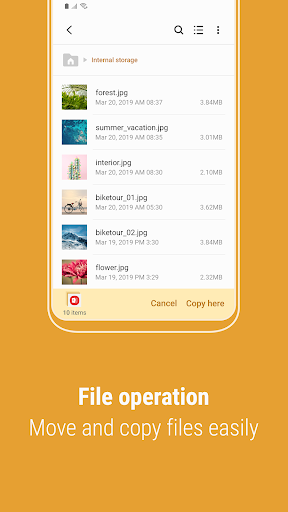
Most of the day-to-day experience is about locating a file and deciding what to do with it. I can browse folders, check Recent Files, or start from a category such as images, documents, or downloads. After finding an item, the available actions include moving, copying, sharing, and viewing file details. That covers the small administrative jobs that otherwise tend to interrupt whatever I was doing.
I appreciate that the app can handle both internal and external storage in the same general workflow. If I have a USB drive connected or an SD card in use, My Files is designed to browse those too. That is more useful than a manager limited to the phone’s built-in folders, especially when I need to locate or sort something stored elsewhere.
Helpful Extras, Not Frills
Storage Analysis is the standout feature when my reason for opening the app is making room. It gives me a dedicated route to review storage and free up space, instead of treating cleanup as an unrelated chore. I would still look carefully at what I intend to remove, but having that analysis accessible from the main screen makes the first step easy to find.
Two smaller options also caught my attention. I can hide unused storage spaces from the home screen, which helps keep the view focused, and Listview can display long file names without cutting them off with ellipses. Neither changes what a file manager does, but both address practical annoyances that appear when I am navigating a crowded collection.
A Useful Weekly Routine
A realistic routine for me would be to open Recent Files when looking for something I downloaded, then move anything worth keeping into a folder I can recognize later. If I need to share or copy it, those actions are available in the same file-management flow. This keeps a quick search from becoming a longer hunt the next time I need the same item.
Every so often, I would also visit Storage Analysis and check whether space needs attention. If I use an SD card, USB drive, or Google Drive or OneDrive, I can include those locations in my file browsing as needed. I would keep shortcuts for frequently visited folders on the home screen or My Files main screen, turning repeat destinations into easier stops.
Keep the Scope in Mind
My Files is a manager, so its usefulness depends on whether I need to browse, organize, or move files. It is not presented as a tool for editing the contents of documents, photos, or videos. If I open it expecting a creative workspace or a general-purpose cloud service, I will be looking for jobs outside its core purpose.
There are also a couple of practical caveats. The supported features can vary between device models, and the app’s version varies with the device. Cloud browsing is described for Google Drive and OneDrive, so I would not count on every cloud provider behaving the same way. Those limits do not undermine the everyday basics, but they are worth keeping in mind when planning a workflow.
Samsung My Files earns its place as a practical phone utility by making common jobs—finding, sorting, sharing, and moving files—easy to approach. I especially like the combination of Recent Files, categories, removable-storage support, and Storage Analysis. It is not flashy, but file management rarely needs to be.
I would try it if I often handle downloads, folders, or storage beyond the phone’s internal space. If I only open the occasional attachment, I may not need its wider set of tools. For routine file housekeeping, though, it is a sensible place to start.
Samsung My Files Frequently Asked Questions
What is Samsung My Files used for?
Samsung My Files is a file manager for browsing and managing files on a smartphone, SD card, USB drive, and supported connected cloud storage. It can create folders, move, copy, share, compress, and decompress files, and show file details. Recent Files, file categories, and Storage Analysis help with finding items and reviewing storage.
Which devices can run Samsung My Files?
Samsung My Files is an Android app on Google Play. It is designed to manage files on a smartphone, and its supported features can differ depending on the device model. Check the Google Play page on the device you plan to use for current compatibility and availability.
What Android version does Samsung My Files require?
The minimum Android version is not specified in the app details provided here, and the app version varies with the device. For the requirement that applies to a particular phone, check Samsung My Files on Google Play. The description notes a storage permission for file operations on Android versions below 13.
Does Samsung My Files cost money?
Samsung My Files is free on Google Play. It has no in-app purchases and contains no ads, according to the provided app details. Store availability or other details can vary, so it is worth checking the Google Play page for the current information that applies to your device.
Is Samsung My Files a good fit for everyone?
It is a good fit for people who want to browse and organize phone files, use removable storage, or access supported cloud storage through a file manager. Someone who only opens occasional attachments may not need the broader tools. Features can vary by device model, so check the store page for your device.
Pros
- Combines browsing of phone storage, SD cards, USB drives, and supported cloud files.
- Recent Files and file categories offer practical ways to locate items.
- Includes folder management, file sharing, compression, and file details.
- Storage Analysis, shortcuts, and long-name viewing add useful everyday touches.
Cons
- Supported features can differ depending on the device model.
- Cloud services named in the description are limited to Google Drive and OneDrive.
- It manages files rather than editing document, photo, or video contents.
- Category
- Tools