Microsoft Word: Edit Documents
- 17.71M
- 4.8
- Installs
- 1.00B
- Price
- Free

Screenshots
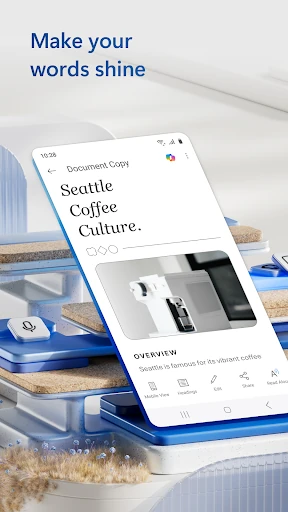
Analysis by Reviewed APKs
Microsoft Word: Edit Documents is a mobile writing and document app for creating, reading, editing, and sharing files when a computer is out of reach. It suits students, office workers, and anyone who needs to handle familiar Word-style documents on a phone or tablet. After considering its mix of editing, PDF tools, templates, and collaboration, I see it as a capable pocket companion, though a small screen still shapes the experience.
A document between errands
When I first opened Word on my phone, I pictured the kind of ordinary task that tends to land at an inconvenient moment: checking a document attachment, correcting a line, and sending the updated copy before heading out. Word is built for that sort of stopgap work as well as for writing from scratch. It can open documents in its reader, let me edit text and formatting, and share the result without needing to wait until I’m back at a desk.
For a new piece of writing, templates can give me a starting point for things like a CV, letter, proposal, invoice, or script. That’s useful when a blank page feels like one more decision to make. Once I’m working, familiar formatting and layout tools help me shape the document rather than treating it as plain text. I would still save long, intricate formatting sessions for a larger screen, but the phone version covers many everyday edits.
A companion, not a replacement
Word makes the most sense when the document itself is the center of the task. Compared with a basic notes app, it offers richer formatting, document layouts, templates, and tools for working with Word files and PDFs. It also has sharing and collaboration features for people who need to comment, track changes, or work on the same document. That makes it more useful than a simple scratchpad when a draft has to look presentable or move through review.
I wouldn’t treat the mobile app as a full substitute for every desktop writing session. Long documents and detailed layout work are harder to manage on a phone, even when the editing tools are familiar. Nor is Word mainly a place for casual reminders or quick lists; a lightweight notes tool is usually simpler for those. Its strongest fit is document work that needs to travel, with the option to continue or polish it on another device.
Small habits that help
I get more from Word when I decide what needs doing before opening a file. On a short break, that might mean reading an attachment and fixing a typo; for a longer window, I can revise a section or apply formatting. Templates can speed up a first draft, while comments and tracked changes give feedback a place to live beside the text. Keeping those jobs distinct makes the mobile screen feel less crowded and the edits easier to review.
For shared work, I’d use the permission controls deliberately and check who is in the document before sending an invitation. Version history is handy when a draft has changed enough that I want to revisit an earlier version. I also like the option to copy formatted content into an email or attach a file directly. These are small workflow choices, but they help Word work as a practical handoff tool rather than just a place where a document sits.
Reads About Microsoft Word
More From Our News Desk

Zoom Meetings, Google Meet, or Teams: Which Is Easiest to Join?

How I Build a Free Streaming Lineup With Tubi

Why Crunchyroll Is the Default Anime App for So Many Fans

YouTube TV: A Practical Guide to Cutting Cable

Rummikub and the Small Comfort of Phone Games

TeamViewer Remote Control or AnyDesk for Helping Family?
Who will find it useful
I’d recommend Word to people who regularly receive, create, or revise documents and want a way to keep those tasks moving away from a computer. Students can work on assignments, job seekers can prepare CVs, and office teams can review drafts or exchange comments. It is also a sensible choice for anyone who needs to read an attachment, make a few edits, and share it back without turning a small job into a trip to a desk.
It may be less appealing if nearly all your writing is short notes, or if your work depends on precise page layout and extended editing sessions. A phone can handle useful changes, but the limited screen area remains a real constraint. People who want the full Microsoft 365 experience should also pay attention to the subscription requirement described for some features, including Copilot assistance. For straightforward document access and editing, though, Word has a clear purpose.
Microsoft Word: Edit Documents is a productivity app from Microsoft Corporation. On Google Play it has more than 1 billion installs and a 4.8-star rating from about 17.7 million ratings. The app is free to download and contains no ads. Google Play lists in-app purchases ranging from $0.99 to $199.99 per item, so some purchases or subscription options can add cost.
The app is rated Everyone. Its Android version varies with the device, and Google Play gives the release date as January 6, 2015, with the latest update dated October 25, 2026. The app description says it requires 1 GB of RAM or higher. A minimum Android version is not included in the supplied app details, so check Google Play for the requirement that applies to your device.
How Word Fits Into a Mobile Day
Opening a familiar workspace
My first impression is that Word brings a recognizable document-editing approach to a smaller device. The app is meant for creating, reading, editing, and sharing documents, so it can serve as both a viewer for something someone sends and a place to start a fresh draft. That range matters: I don’t have to think of it only as a writing app or only as a document reader.
Starting from a template is a helpful option when I need a structured document rather than a blank page. The available examples include CVs, newsletters, brochures, letters, proposals, invoices, and scripts. I’d choose the closest fit and then adapt the wording, rather than expecting a template to finish the work for me. For a quick draft, that little head start can make the first few minutes feel less fussy.
Editing through the day
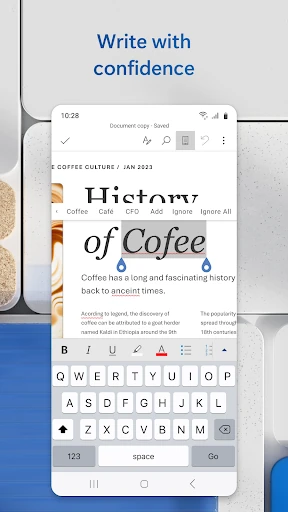
The everyday appeal is being able to continue document work while away from a computer. Word’s description highlights familiar writing and formatting tools, including support for editing long documents. In practice, I’d use the phone for a focused pass: correcting wording, adding a note, or making a modest formatting change. When the goal is a meaningful update rather than a complete redesign, having the document available in my pocket is genuinely convenient.
The built-in document viewer also gives Word a role before editing even begins. I can open an attachment to read it, decide what needs changing, and then move into the edit itself. That keeps a small task together instead of forcing a separate reader and writing app into the routine. The convenience is most noticeable in brief moments, such as checking a draft while waiting or reviewing a file before replying to a message.
Tools beyond plain text
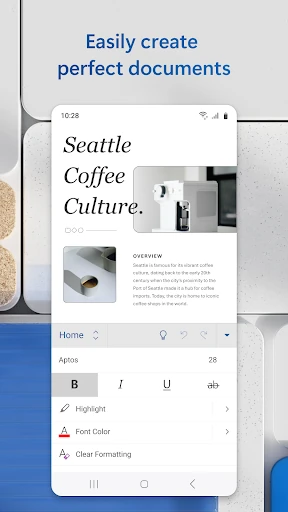
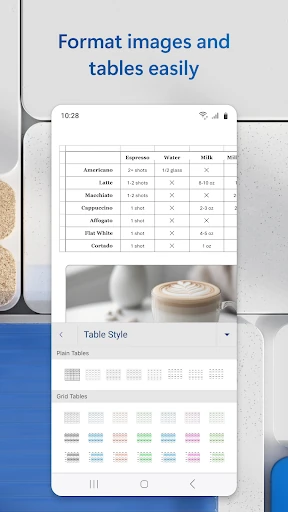
Word’s formatting and layout controls are an important difference from a basic text editor. A document can contain more structure than a stream of paragraphs, and the app is designed to help preserve that presentation across devices. The template collection adds another layer, with starting points for work and personal documents. Those options are useful when I want a polished-looking draft without assembling every section from scratch.
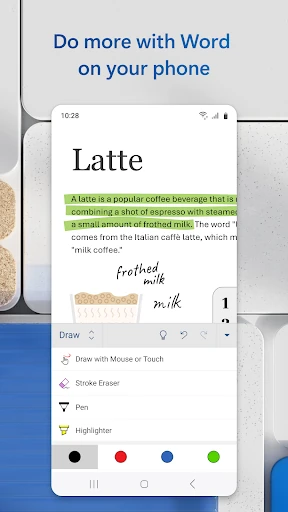
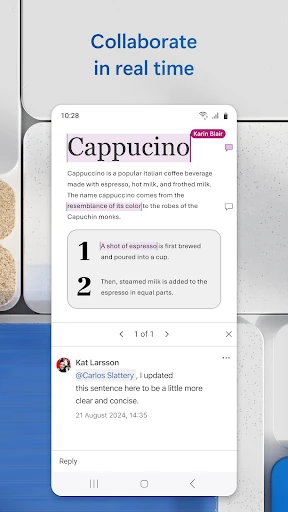
The collaboration features are another standout. People can comment alongside text, work together in real time, and track changes to wording and layout. Sharing controls let me invite others to view or edit, manage permissions, and see who is in the document. Version history can show or restore earlier drafts. These features make Word more than a solo editor when a file has to pass through feedback and revision.
PDF handling adds flexibility to that document workflow. Word can convert between Word and PDF, and the description specifically calls out converting PDFs to Word for editing. I’d find that useful when a document arrives in a format that needs changes rather than just a read-through. The app also offers ways to share a file directly or copy formatted content into an email, which can make a handoff less awkward.
A practical review routine
A simple routine I’d use is to open an incoming document, read it once in the built-in viewer, and make a short list of the changes needed before editing. I could then work through that list, use comments where another person’s input belongs, and share the updated version with the right viewing or editing permissions. This keeps the phone session focused instead of encouraging aimless fiddling with a long file.
For a document I’m building myself, I’d start with a relevant template, write the substance first, and save detailed layout decisions for a later pass. If someone else needs to review the draft, comments and tracked changes provide a clearer feedback trail than sending a succession of loosely named copies. If I make a substantial change and want to compare, version history offers a way to revisit an earlier draft.
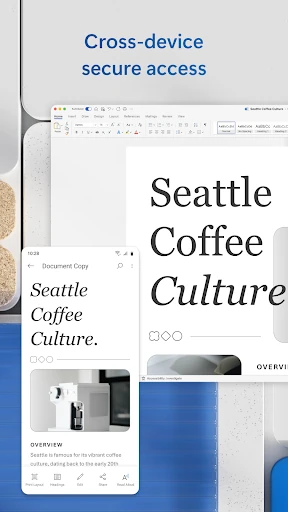
The app’s description also mentions access to files from anywhere. That makes Word a natural part of a routine where the same document may need attention at different times and places. I’d use it for the quick edits and reviews that fit a mobile screen, then choose a larger device when the work calls for careful page-by-page inspection. That division of labor feels more realistic than expecting a phone to do everything.
Limits to keep in mind
The main practical limit is the screen. Even with familiar editing tools, navigating a long document and judging its layout can be less comfortable on a phone than on a computer. Word supports long-document editing, but that doesn’t make a small display ideal for every kind of revision. I’d be comfortable making focused changes on mobile and more cautious about relying on it for a complicated final formatting check.
Some capabilities are tied to the full Microsoft 365 experience and require a qualifying Microsoft 365 subscription, according to the app description. Copilot assistance is described as a way to draft, refine, summarize, organize, and format content. I’d treat those tools as an optional part of the experience rather than assume every user gets the same access. In-app purchases are available, so it is worth checking the current Google Play details before buying anything.
Word is also more app than some people need. If I only want to jot down a grocery item or capture a passing thought, a simpler notes app may get me there with less ceremony. Word earns its place when a file needs real document formatting, sharing, or collaboration. Knowing that distinction helps keep the app useful without expecting it to be the best tool for every kind of writing.
Microsoft Word: Edit Documents is a capable mobile workspace for people whose writing already lives in documents. Templates, editing, PDF conversion, sharing, comments, tracked changes, and version history cover a broad range of practical needs. The phone screen places a limit on more involved work, but it can keep routine reading and revisions moving.
I’d recommend it to students, professionals, and anyone who often handles Word documents away from a desk. If you mostly write short notes, or need to make exacting layout decisions, a simpler tool or a larger screen may suit you better. For mobile document work with a path to collaboration, Word is a useful companion.
Microsoft Word Frequently Asked Questions
What is Microsoft Word: Edit Documents used for?
Microsoft Word: Edit Documents is used to create, read, edit, and share documents on a mobile device. It includes templates, formatting and layout tools, PDF conversion, and collaboration features such as comments and tracked changes. It can suit both a quick edit to an attachment and the early stages of a longer document.
Which devices can run Microsoft Word: Edit Documents?
The app is available for Android devices through Google Play. Its Android version varies with the device, and the description says it requires at least 1 GB of RAM. Check the Google Play page for the Android version and compatibility details that apply to your particular phone or tablet.
What Android version does Microsoft Word: Edit Documents require?
The Android version requirement can vary by device, and the app details provided here do not give a single minimum version. Google Play is the best place to check compatibility for your phone or tablet. The description does state a memory requirement of 1 GB of RAM or higher.
Does Microsoft Word: Edit Documents cost money?
The app is free to download and does not contain ads. It offers in-app purchases, with Google Play showing items from $0.99 to $199.99. The description says a qualifying Microsoft 365 subscription is needed for the full Microsoft 365 experience, including the described Copilot assistance. Check Google Play for current purchase details.
Is Microsoft Word: Edit Documents good for everyday use?
It is a good fit if you regularly read, edit, or share documents and want to handle some of that work from a phone or tablet. Templates and collaboration tools add flexibility. It may be less comfortable for extensive layout work on a small screen, or more than you need for simple personal notes.
Pros
- Templates provide starting points for CVs, letters, proposals, invoices, and other documents.
- Comments, tracked changes, and version history support collaborative review.
- The built-in viewer and PDF conversion help with incoming document files.
- Free to download, with no ads.
Cons
- A phone screen can make long documents and detailed layout work harder to manage.
- Some Microsoft 365 features require a qualifying subscription.
- The broad document toolkit may feel excessive for quick notes and simple lists.
- Category
- Productivity