Google Sheets
- 2.66M
- 4.7
- Installs
- 1.00B
- Price
- Free

Screenshots
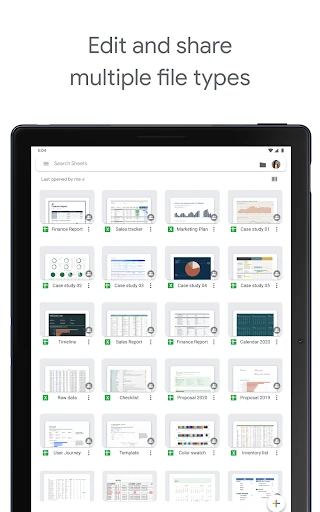
Analysis by Reviewed APKs
Google Sheets is a mobile spreadsheet app for creating, editing, and sharing spreadsheets on an Android phone or tablet. I’d recommend it to people who need to check figures on the go, make quick edits between tasks, or work with others on the same file. After spending time with it, my take is that it brings a useful slice of spreadsheet work to mobile, while larger or more intricate tasks are easier to handle on a bigger screen.
A Spreadsheet Between Errands
When I first opened Google Sheets, I thought about the small jobs that tend to pile up between desk sessions: adding a few expenses, checking a shared list, or correcting a number someone needs that afternoon. The app lets me create or edit a spreadsheet from my phone, then enter and sort data without needing to wait until I’m back at a computer. Automatic saving is especially welcome when I’m making a quick change and moving on.
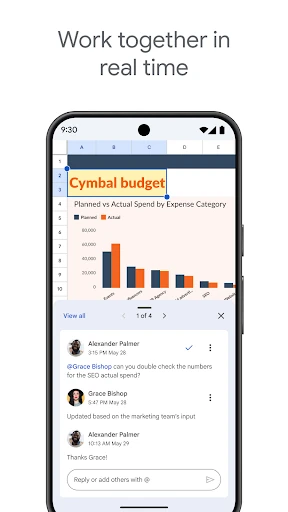
A shared household budget or a group plan is a good fit for this kind of use. I can add information, leave a comment, or respond to someone else’s note while the spreadsheet remains a shared working document. If I’m away from a reliable connection, the app also supports offline work. That makes it practical for brief edits during a commute or while travelling, though I still prefer a larger display for prolonged, detailed spreadsheet sessions.
Mobile Sheets Versus Alternatives
The clearest alternative is a desktop spreadsheet, where a larger screen gives me more room to inspect data and work through complex sheets. Google Sheets on Android is better understood as a portable companion: it covers everyday editing, sorting, comments, charts, formulas, and spreadsheet sharing without requiring a laptop for every small update. It can also open, edit, and save Excel files, which is useful when a colleague or organization already uses that format.
I wouldn’t choose the phone app as my first option for building a very large spreadsheet or doing long stretches of careful data entry. That is less a judgment on its core tools than a practical limit of working on a small screen. It is also not a general-purpose project-management or messaging app: its central job is spreadsheet work, with collaboration and comments attached to that work. Workspace subscribers can access additional features, but the basic app still has a clear spreadsheet focus.
Small Habits That Help
I get more from a mobile spreadsheet when I treat it as a place for focused updates rather than trying to do everything at once. I might enter a few figures, sort a list, check a chart, or use find and replace to locate something specific. Comments are handy when a cell needs context from another person, because the conversation stays connected to the spreadsheet instead of becoming a separate task to remember.
For a shared file, I find it useful to make a change as soon as I notice it, then let automatic saving take care of the handoff. Offline access can help when I expect to be without a connection, while charts and formatting can make a quick review more readable. These habits don’t replace a larger-screen work session for complicated edits, but they make short visits to a spreadsheet more productive.
More From Our News Desk

Zoom Meetings, Google Meet, or Teams: Which Is Easiest to Join?

How I Build a Free Streaming Lineup With Tubi

Why Crunchyroll Is the Default Anime App for So Many Fans

YouTube TV: A Practical Guide to Cutting Cable

Rummikub and the Small Comfort of Phone Games

TeamViewer Remote Control or AnyDesk for Helping Family?
Who should give it a try
I’d recommend Google Sheets to students, coworkers, households, and anyone who already relies on spreadsheets and wants to make occasional updates from an Android phone or tablet. It is especially useful when a file is shared, since people can work in the same spreadsheet and use comments to discuss changes. Excel-file support also makes it a flexible option when spreadsheet formats vary across a group.
It may not suit someone who expects a phone to be as comfortable as a computer for extended spreadsheet work. Dense data entry and close inspection are simply easier with more screen space. People who need additional team or business capabilities should also know that some features are available to Google Workspace subscribers. For straightforward mobile spreadsheet tasks, though, the app has a sensible balance of editing, sharing, and access away from a desk.
Google Sheets is a productivity app from Google LLC. On Google Play, it has over a billion installs and a 4.7-star rating from around 2.7 million ratings. The app is free to download, and the store information gives its price as $0. It does not contain ads or offer in-app purchases, making the basic app a straightforward no-cost option for mobile spreadsheet work.
The app is rated Everyone. Its Android version varies with the device, and the current version is also listed as varying with device. Google Sheets was released on April 30, 2014, and its listed last update is October 26, 2026. It works on Android phones and tablets; Google Workspace subscribers can access additional Sheets features.
How Sheets Fits Into a Mobile Day
Opening and Getting Started
My first impression is that Google Sheets is built around getting into a spreadsheet and making a useful change, rather than turning a phone into a full desktop workstation. The main promise is easy to understand: create a spreadsheet or edit an existing one, then work with its data from an Android phone or tablet. That makes the app approachable for a quick check, even if the file itself is part of a bigger project.
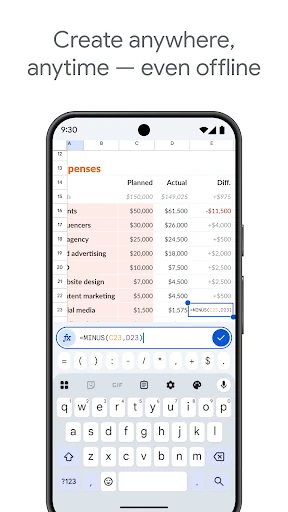
Once I’m working in a sheet, the available tools cover practical basics such as entering data, formatting cells, sorting information, and inserting formulas. The app also supports opening, editing, and saving Excel files. That broadens its usefulness when a spreadsheet arrives in a format used elsewhere. I can get to a small correction or review without first moving the file into a separate desktop-only workflow.
Everyday Editing
Day to day, I see the app as a place for short, purposeful sessions. I can add a value, sort a set of information, look at a chart, or search and replace text. Those tasks are easy to imagine doing while waiting for an appointment or checking a shared document before a conversation. Automatic saving as I type also makes the experience feel less dependent on remembering a separate save step.
The mobile format does ask me to be selective. A small screen is fine for checking a figure or changing a few cells, but it can feel cramped when I need to inspect a large amount of information at once. For me, that distinction sets expectations: Google Sheets is genuinely useful on a phone, but it doesn’t remove the comfort advantage of a bigger display for longer or more involved work.
Collaboration and Useful Tools
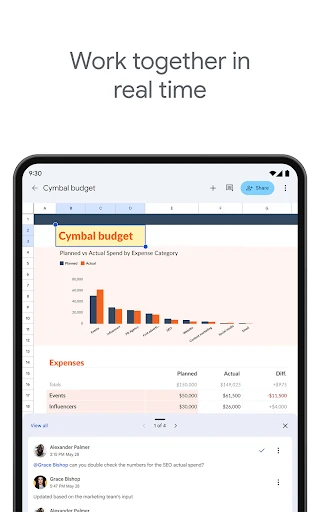
Collaboration is one of the app’s strongest practical advantages. People can share a spreadsheet and work in it at the same time, while comments let me add or respond to context tied to the file. That is more convenient than passing around separate versions when several people need to contribute. It makes sense for a shared plan, a class project, or a work document that needs small updates from different people.
There are also tools for making the sheet easier to understand: I can apply formatting, view or insert charts, and use formulas. Smart suggestions can offer insights, charts, and formatting options. Those features give me ways to move beyond simply typing numbers, while keeping the app’s role focused on spreadsheet tasks. Workspace subscribers have access to additional features, including further collaboration and insight capabilities.
A Practical Weekly Routine
A routine I can picture is keeping a shared list or budget in a spreadsheet, then opening it on my phone when I need to add a new item or check what is already there. I can make the update, sort the data if needed, and leave a comment when another person should understand why something changed. Since changes save automatically, I can return to the rest of my day without treating the edit as a separate file-management chore.
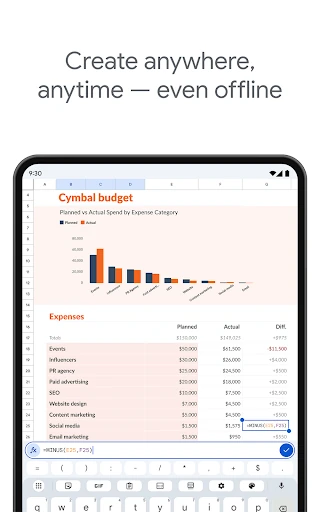
Before a trip or a stretch without dependable internet, offline access is worth considering for creating, viewing, and editing files. When I’m back to reviewing the information, a chart or some formatting can help make it easier to scan. I wouldn’t force every task into a mobile session; the useful habit is to handle quick updates on the go and save demanding spreadsheet work for a more comfortable setup.
Limits to Keep in Mind
The biggest day-to-day limitation is screen space. Spreadsheet work can involve many rows, columns, and details, and a phone makes it harder to see the whole picture at once. I find that less important for checking a number or responding to a comment, but more noticeable when I need to make several precise changes in sequence. A tablet gives more room than a phone, though it remains a mobile app.
The other point to keep in mind is that some capabilities are tied to Google Workspace subscriptions. The core app supports creating, editing, sharing, offline work, and Excel-file handling, but teams looking for additional Workspace features should consider that distinction. Overall, the limits don’t undermine its value as a mobile spreadsheet companion; they simply make it helpful to choose the right device and workflow for the job.
Google Sheets earns a place on my phone because it makes common spreadsheet chores possible away from a desk. Sharing, comments, offline access, automatic saving, and support for Excel files give it more reach than a simple viewer. Its main trade-off is familiar: a phone is convenient, but it is not the most comfortable setting for intensive spreadsheet work.
I recommend it to anyone who already uses spreadsheets and wants a reliable way to review or update them on Android. It is a particularly good fit for shared documents and quick edits throughout the day. If most of your spreadsheet work involves long sessions or dense data, I’d treat the mobile app as a companion to a larger screen rather than a complete replacement.
Google Sheets Frequently Asked Questions
What is Google Sheets used for?
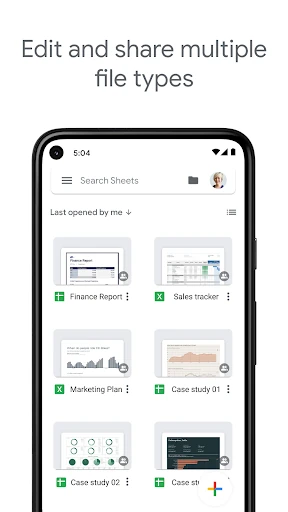
Google Sheets is used to create, edit, and collaborate on spreadsheets from an Android phone or tablet. It supports entering and sorting data, formatting cells, formulas, charts, find and replace, and comments. You can also work offline and open, edit, and save Excel files.
Which devices can run Google Sheets?
Google Sheets is available for Android phones and tablets. The Android version varies with the device, so check the Google Play store listing for the requirements that apply to your particular device. The app supports spreadsheet work on mobile, including creating or editing files and collaborating with others.
Is Google Sheets free, and does it have purchases?
Google Sheets is free to download, with a listed price of $0. It does not contain ads or offer in-app purchases. Some additional features are available to Google Workspace subscribers. Subscription details and availability may vary, so check the Google Play store listing or Google Workspace information for current terms.
Can Google Sheets work with Excel files?
Yes. Google Sheets can open, edit, and save Excel files, as well as work with its own spreadsheets. That can help when people in a group use different spreadsheet formats. The app also supports sharing and simultaneous collaboration, though the best device for a particular file depends on how much editing it requires.
Who is Google Sheets best suited for?
It suits people who want to check, update, or share spreadsheets from an Android phone or tablet, including students, households, and coworkers. It may be less comfortable for extended sessions involving dense data or many precise edits, since a larger screen gives more room to work. Workspace subscribers can access additional features.
Pros
- Supports shared editing, comments, and automatic saving for collaborative spreadsheet work.
- Works offline and can open, edit, and save Excel files.
- Includes practical mobile tools for sorting, formulas, charts, formatting, and search.
- Free to download, with no ads or in-app purchases.
Cons
- A phone screen can feel cramped for dense data and extended editing sessions.
- Some additional capabilities are available only to Google Workspace subscribers.
- Not as comfortable as a larger display for complex spreadsheet work.
- Category
- Productivity