Google Chrome
- 49.50M
- 4.1
- Installs
- 10.00B
- Price
- Free
Screenshots
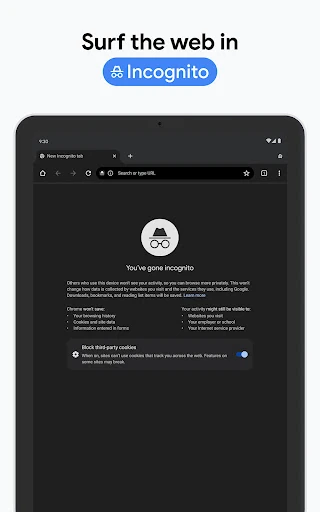
Analysis by Reviewed APKs
Google Chrome is a mobile web browser for searching, reading, translating pages, and keeping everyday browsing organized. I’d recommend it to people who already use Google services or want one familiar browser across a phone, tablet, and computer. After spending time with its search, translation, and safety tools, my overall take is that Chrome is a capable daily browser with useful extras, though its many tabs can still get messy without a little upkeep.
A Browser for Daily Errands
When I first opened Chrome, I treated it like the browser I reach for between other tasks: look up a recipe, check a store’s hours, and find a page I meant to read later. Google search is built right into the experience, and voice search is handy when I’m carrying groceries or don’t want to type a full question. The browser’s main job is straightforward: get me to information on the web without much setup.
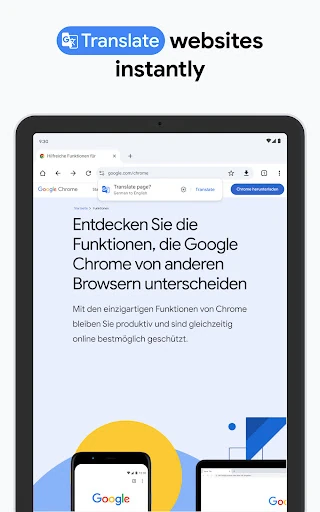
A useful moment came when I ran into a page in another language. Chrome can translate entire sites, which makes browsing across languages less of a stop-and-start exercise. Google Lens adds another route into search: point the camera at something around me and search what I’m seeing. These tools don’t replace careful reading, but they make Chrome more flexible than a bare address bar when a question starts with a picture or an unfamiliar page.
Browser, Not a Research Desk
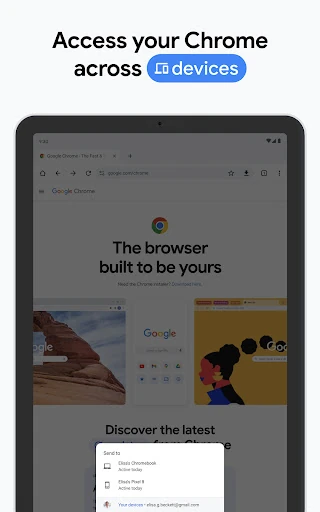
Chrome makes the most sense as an everyday doorway to the web, especially if I already use Google on other devices. Signing in lets me access saved bookmarks, tabs, and passwords across a phone, tablet, or computer. That continuity is useful when I start reading on my phone and want to pick up elsewhere. Tab groups also offer a way to keep related browsing together rather than treating every open page as one long, indistinct row.
It is still a browser, not a dedicated research notebook or a reading app built around one kind of content. Its search, translation, autofill, and password tools help with common browsing tasks, but they don’t turn scattered pages into a finished project for me. If I only need a simple way to open websites, Chrome can do that; if I want a specialized workflow, I may prefer a tool designed specifically for it.
Small Habits, Cleaner Browsing
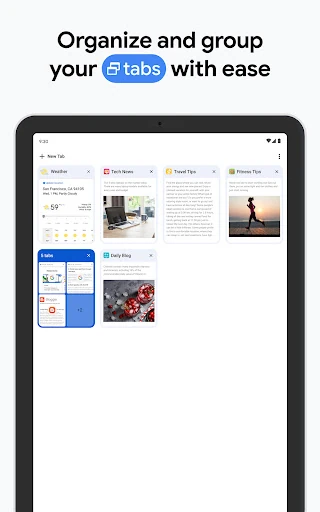
I get more out of Chrome when I pause to group tabs by purpose. A set of pages for planning a weekend can stay separate from work reading, which makes it easier to return to the right place later. Signing in also helps when I move between devices, since bookmarks, tabs, and passwords can be available on the phone and computer. Those habits matter more than any one feature: a browser is only as tidy as the way I use it.
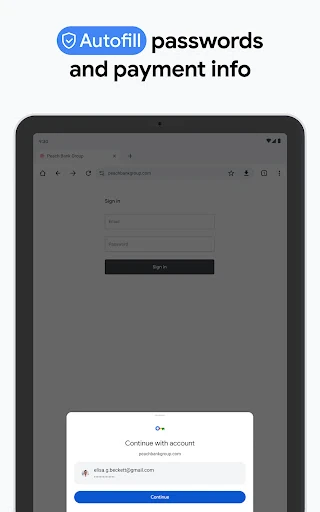
I also make a point of using autofill for saved addresses, payments, and passwords when it fits the situation, rather than retyping familiar details each time. Chrome’s Safety Check and security alerts are worth noticing as part of regular browsing, not something I would treat as a reason to ignore caution. For a page in another language, built-in translation can save a detour to a separate tool. A few small choices keep routine browsing smoother.
More From Our News Desk

Zoom Meetings, Google Meet, or Teams: Which Is Easiest to Join?

How I Build a Free Streaming Lineup With Tubi

Why Crunchyroll Is the Default Anime App for So Many Fans

YouTube TV: A Practical Guide to Cutting Cable

Rummikub and the Small Comfort of Phone Games

TeamViewer Remote Control or AnyDesk for Helping Family?
Who Chrome Suits Best
I’d recommend Chrome to someone who wants a familiar, general-purpose browser and often uses Google services. It works well for quick searches, reading websites, looking up unfamiliar things with Lens, and keeping saved browsing details accessible across devices after signing in. People who regularly open many pages may appreciate tab groups, while travelers and language learners can make practical use of whole-page translation when it is available.
It may be less appealing to someone who wants a browser centered on a specialized reading, research, or productivity workflow. Chrome’s extra tools support everyday browsing, but they don’t remove the need to manage open pages or decide which information matters. Anyone who prefers not to use Google’s connected services may also find the cross-device features less relevant. I see it as a capable all-rounder, rather than a browser that will suit every browsing preference.
Google Chrome is developed by Google LLC and is available on Google Play for Android. The app has over 10 billion installs and a 4.1-star rating from around 49.5 million ratings. It is free to download, and its Google Play information says it contains ads. The content rating is Everyone. Chrome’s listed version varies with the device, so the exact version can differ from one phone to another.
Chrome was released on February 7, 2012, and its listed last update is October 28, 2026. No fixed minimum Android version is provided in the details here, so compatibility depends on the device and is worth checking on Google Play. The app description notes that feature availability can vary by country and language, and that compatibility can vary as well.
How Chrome Fits Into My Day
A Familiar First Look
Chrome’s first impression is practical: it is a way to get onto the web and search with Google, without needing to learn a separate system for every basic task. When I first opened it, I could picture using it for the quick questions that come up during the day as easily as for longer reading. Voice search is a useful alternative when typing is awkward, and Lens gives visual searches a place in the same browser experience.
The more connected parts become useful when I sign in. Chrome can carry bookmarks, tabs, and passwords between a phone, computer, or tablet, so setup can feel worthwhile if I move among those devices. I would not expect every feature to behave identically everywhere, though. The app notes that compatibility and availability vary, and the experience depends on the devices and features I actually use.
The Everyday Browsing Loop
Most of my time in Chrome is ordinary browsing: search, open a page, follow a useful link, and come back later. That sounds unremarkable, but it is exactly why a browser needs to feel convenient. Google search is close at hand, and autofill can save time with stored addresses, payments, and passwords. Those conveniences are most noticeable during repetitive errands, such as checking several sites or filling in familiar details.
The friction arrives when I leave too many pages open. Tab groups offer a way to sort related pages, but they still ask me to make a small organizing decision. If I am rushing from one search to another, I can end up with a collection of tabs I no longer need. Chrome gives me a structure for keeping browsing manageable; it does not automatically decide what I should keep.
Useful Google Extras
The standout features are the ones that turn a normal browser task into a shorter one. Google Lens lets me search what I see around me with the camera, which is a different starting point from typing a description. Google Translate can translate entire websites in more than 130 languages, according to the app description. These are useful options to have close by when a page or object raises a question I cannot phrase neatly.
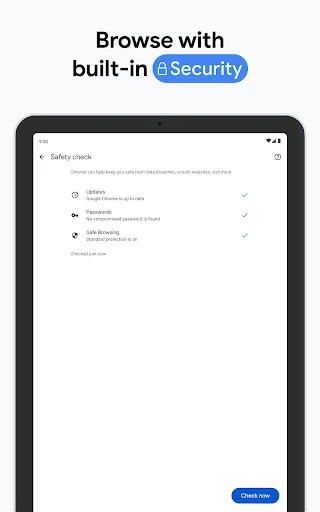
Security and sign-in tools also play a large role in Chrome’s feature set. Enhanced Protection Mode is described as the browser’s highest level of security, while Safety Check provides proactive safety alerts. Google Password Manager can generate and save passwords and alert me if passwords are at risk. I value having those tools available, but I still treat alerts as prompts to pay attention rather than as a substitute for sensible care online.
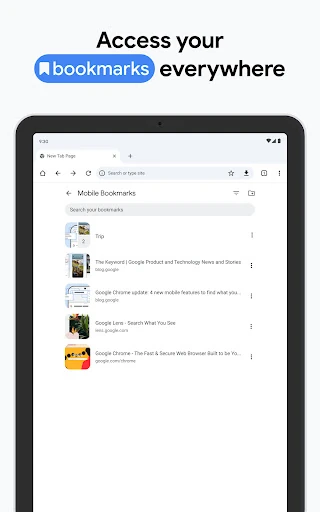
Cross-device sync is the other feature I notice in routine use. Saved bookmarks, tabs, and passwords can be accessed after signing in on a phone, computer, or tablet, and tab groups can help organize pages across devices. That is useful when my browsing doesn’t stay in one place. It is not necessary for someone who uses only one device, but it gives Chrome a more connected feel for people who switch screens.
A Simple Weekend Plan
For a practical routine, I might use Chrome to plan a weekend outing. I can search for places, open a few pages, and group related tabs so I can compare them later. If a site is in another language, translation can help me understand the page without leaving the browser. If I come across something in the real world that I want to identify, Lens offers a visual search route instead of making me guess at the right search terms.
When I return to the plan on another device, signing in can make saved tabs and bookmarks available there too. Autofill can also reduce repeated typing when I use saved details on a site. I’d still close pages once the plan is settled; otherwise, the collection can outlive its usefulness. The routine works best when I use Chrome’s organization tools deliberately instead of expecting them to keep everything neat on their own.
What to Keep in Mind
Chrome’s biggest practical limitation is that its convenience depends on how much of its connected setup I want to use. Sync requires signing in, and features can vary by country, language, and device compatibility. Someone who rarely switches devices may get less from cross-device access, while a person who prefers not to use Google’s connected services may not want those tools at the center of browsing.
There is also the everyday problem of accumulated tabs. Tab groups can help, but maintaining them takes attention, and a browser cannot tell me which pages I should keep. Translation and visual search are helpful additions, though they are not a reason to assume every result or detail will answer a question perfectly. Chrome is a strong general browser, but its extras work best as aids rather than replacements for judgment.
After using Chrome as a daily browser, I see its strengths in convenience: Google search, translation, Lens, password tools, and cross-device access all sit within one familiar app. It handles ordinary browsing well and has useful ways to make common tasks faster. The main trade-off is familiar too: keeping tabs organized is still my responsibility, and some connected features matter more to some people than others.
I’d recommend Google Chrome to Android users who want a flexible browser and value Google’s search and connected tools. It is especially appealing if you move between a phone and other devices or often browse pages in different languages. If you want a narrowly focused browsing experience or prefer to avoid Google’s ecosystem, its advantages may feel less compelling. For general web use, it earns a place on my shortlist.
Google Chrome Frequently Asked Questions
What is Google Chrome used for?
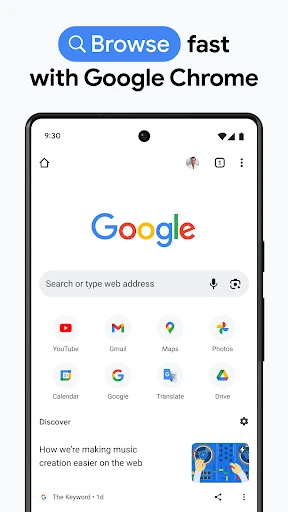
Google Chrome is a web browser for searching and visiting websites. Its features include Google voice search, Lens visual search, translation for entire sites, tab groups, autofill, and tools for passwords and browsing safety. Signing in can also make saved bookmarks, tabs, and passwords available across a phone, computer, or tablet.
Which devices can run Google Chrome?
The Google Play app is for Android, and Chrome’s description also refers to using the browser across a phone, computer, or tablet. Compatibility varies by device, and feature availability can differ by country and language. For a particular device, it is worth checking the Google Play store information before installing.
What Android version does Google Chrome require?
The Android version requirement can vary with the device and app compatibility. Check Google Chrome’s Google Play store information for the requirement shown for your phone or tablet. The app’s listed version itself varies with device, so the installed version may not be identical across devices.
Is Google Chrome free, and does it have purchases?
Google Chrome is free to download on Google Play. Its store information says it contains ads and does not list in-app purchases. Store details can change, so check the current Google Play information if you want the latest details before downloading.
Is Google Chrome a good fit for everyday browsing?
It can suit people who want a general browser with Google search, translation, Lens, autofill, password tools, and optional cross-device access. It may be less suitable if you want a specialized research or reading workflow, or do not want connected Google features. Tab groups help organize pages, but keeping tabs tidy still takes attention.
Pros
- Combines Google search, Lens, and whole-site translation in one everyday browser.
- Sync can make bookmarks, tabs, and passwords accessible across devices.
- Includes tab groups, autofill, Safety Check, and Google Password Manager.
- Voice search offers a convenient option when typing is awkward.
Cons
- Keeping a large collection of open tabs organized still takes effort.
- Some features vary by country, language, and device compatibility.
- Cross-device tools are less useful if you browse on only one device.
- Category
- Communication