- 29.54M
- 4
- Installs
- 10.00B
- Price
- Free

Screenshots
Analysis by Reviewed APKs
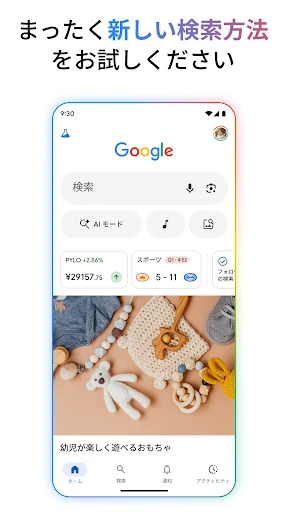
The Google app is a flexible starting point for everyday searches, quick questions, visual lookups and personalized updates. I found it most useful when I wanted to move between a regular web search and tools like Lens or voice search without changing apps. It suits curious, practical users who search in lots of different ways, though its many options can feel like more than a simple search box needs.
A Search That Follows Along
When I first opened the app, I thought about the small questions that interrupt a normal day: what a plant is, how to fix something, or where I had seen a particular item. A typed search handles the straightforward ones, while Lens gives me another route when I can point the camera at the thing itself. The app’s appeal is having several ways to begin, rather than making every question fit the same search box.
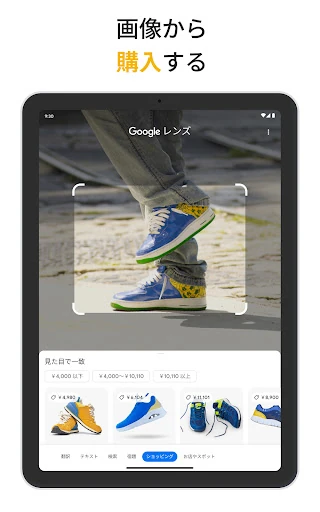
For a typical example, imagine spotting a pair of shoes in a photo and wanting a blue version. Lens can use the image as a starting point, and adding words can refine the search. For a half-remembered song, Hum to Search offers a different shortcut. I like that these are practical variations on finding information, not separate destinations I need to remember to open.
More Than a Search Box
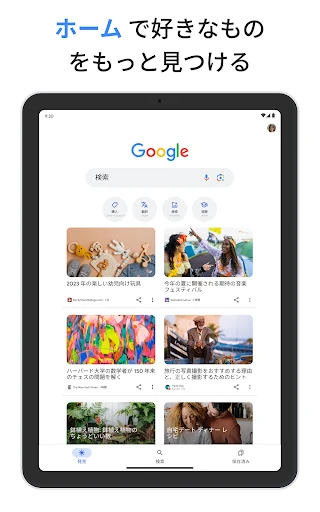
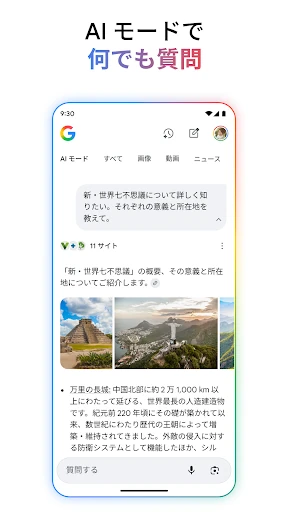
Compared with a browser search, the Google app puts visual, voice and AI-assisted searching close at hand. Lens can identify things, translate text, or find similar images; AI Mode supports follow-up questions; and Discover brings selected news, articles and videos into the same app. The mix is useful when I want to explore a topic from different angles, rather than just enter a phrase and scan a list of results.
It is not a dedicated shopping app, translation course, music player or homework platform. Those activities can be starting points for searches, but the core job is still helping me find information and links. Nor would I treat an AI-generated answer as a reason to stop exploring: the app also presents web links, and I prefer to use them when I want to dig into a subject.
Small Habits That Help
I get more from the app when I choose the input that fits the question. Typing is quickest for a clear phrase, Lens is handy for something in front of me, and voice can make sense when my hands are busy. If a visual search gets close but not quite right, adding a descriptive word can narrow the direction. That little adjustment is more useful than taking several nearly identical pictures.
I also treat Discover as an occasional browse rather than a to-do list. It can surface news, articles and videos related to my interests, so a quick glance can be a pleasant way to catch up. For searches I want to revisit, I keep the available account privacy controls in mind: the profile menu offers a way to delete recent search history from my account.
More From Our News Desk

Zoom Meetings, Google Meet, or Teams: Which Is Easiest to Join?

How I Build a Free Streaming Lineup With Tubi

Why Crunchyroll Is the Default Anime App for So Many Fans

YouTube TV: A Practical Guide to Cutting Cable

Rummikub and the Small Comfort of Phone Games

TeamViewer Remote Control or AnyDesk for Helping Family?
Who Will Get the Most From It
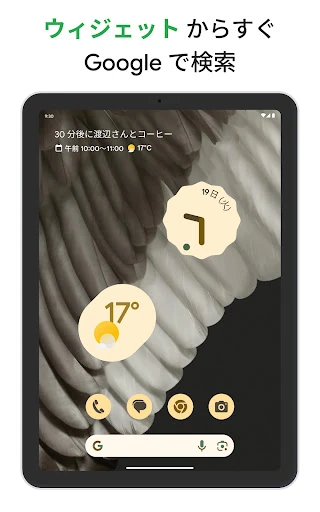
I’d recommend the Google app to people who search throughout the day and appreciate having more than text input. It’s particularly useful if you often identify objects, translate signs or menus with a camera, look up a tune by humming, or want follow-up questions after an initial answer. The home-screen or lock-screen search widget can also make those common searches easier to reach.
It may be less appealing if all you want is a bare search field with no personalized feed or extra modes to explore. Discover and the range of AI and visual tools add breadth, but they also make the app feel busier than a minimal browser shortcut. Some features depend on language, location or device, so I’d check availability before choosing the app for one specific capability.
Google LLC develops the Google app. On Google Play, it has over 10 billion installs and a 4.0-star rating from around 29.5 million ratings. It is free to download, contains ads, and has no in-app purchases. Its content rating is Everyone.
The app first appeared on August 12, 2010. Google Play gives its version as varying by device, and its most recent update is dated October 28, 2026. The minimum Android version is not included in the supplied app details, so check the Google Play page for the requirement that applies to your device.
How Google Fits Into Everyday Searching
First Open and Setup
My first impression was of an app built around the search box, but not limited to it. The description presents typed, spoken and visual searches alongside AI features, so there are several ways to approach a question. I would start with the familiar search rather than trying every option at once; the useful parts become clearer when a real task calls for them.
The home-screen and lock-screen widget is a practical entry point if I search often. It can provide quicker access to search and shortcuts such as Lens and AI Mode. I also appreciate that the profile picture leads to privacy controls, including an option to delete recent search history from an account. Those are straightforward details that matter in everyday use.
The Daily Search Rhythm
For regular questions, the app works as a quick bridge to answers and the wider web. AI Overviews can provide a snapshot of key information, while links offer a path to read more. If the initial response leaves me with a follow-up, AI Mode is designed for a deeper exchange by text, voice or a photo. That progression makes sense for questions that develop as I learn more.
I like being able to shift from a quick lookup to exploration without treating them as separate tasks. Still, I would use the links when a subject deserves context or when I want to compare sources. The app is at its best as a search companion: it helps me get oriented and continue looking, rather than asking me to rely on one answer for everything.
Tools Beyond Text
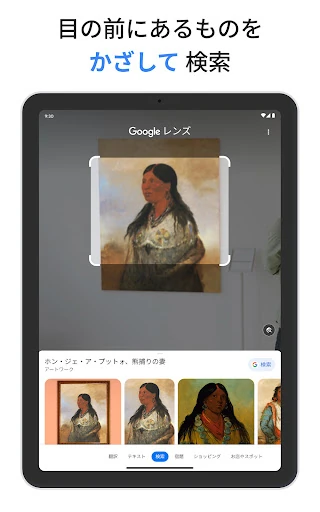
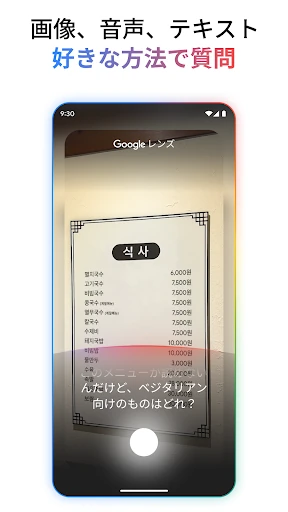
Lens is the feature I’d reach for when the answer is easier to show than describe. The app says it can identify plants and animals, translate text in real time, find related images and products, and help with math problems. For travel, pointing the camera at a sign or menu can be more convenient than typing unfamiliar words. Adding a few words to a visual search can also make the result more specific.
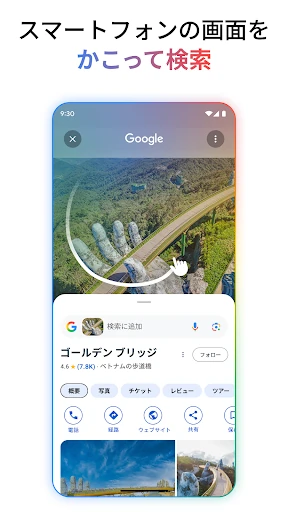
Hum to Search is a memorable alternative for a song stuck in my head: I can hum a tune instead of supplying lyrics or an artist. Search Live offers voice and camera conversations, while Circle to Search can search items on a phone screen without switching apps. Circle to Search is limited to select premium Android phones and some languages and locations, so it is not a feature I’d assume every user has.
Discover rounds out the app with personalized news, articles and videos. I see it as an optional browse, not the main reason to open Google. The combination of search tools and a feed makes the app versatile, but the features are most useful when I reach for them intentionally rather than trying to use every mode in a single session.
A Useful Everyday Routine
A routine I can imagine is opening the widget when a question comes up, using a normal search for a clear phrase, and switching to Lens when the subject is something I can photograph. If the answer raises another question, AI Mode can continue the search with a follow-up. That sequence keeps the app’s different approaches tied to one task instead of turning them into a tour of features.
Later, I might check Discover for a quick update on topics I care about. If I have been searching for something I do not want to keep in my account history, the profile menu gives me a way to delete recent search history. It is a small but useful part of a routine that mixes casual browsing with more deliberate lookups.
Limits to Keep in Mind
The app’s breadth comes with a trade-off: it can feel crowded if I only want a simple search. AI Mode, Lens, Discover, widgets and other tools serve different needs, but not everyone will want them together. I would approach it as a configurable-feeling collection of search options, not as a stripped-down utility with one purpose and one screen.
Availability is another practical caveat. The description says features may not be available in every country, and it specifically limits Circle to Search by device, language and location. AI image creation and other capabilities also have language or location limits. If one of those features is the main reason to install the app, I’d check its availability for my device and region first.
The app contains ads, even though it is free and has no in-app purchases. That is worth knowing if I prefer an entirely ad-free experience. And while AI responses can make a search feel more conversational, I would still follow the supplied web links when I need to explore a topic in greater depth.
After spending time with its range of search methods, I see the Google app as a practical everyday tool rather than just another place to type a query. Lens, voice search, follow-up questions and Discover give it useful range, while links keep the wider web within reach.
I recommend it to people who regularly look things up and want flexible ways to do so. If you prefer a minimal search experience, its extra features and ads may be less welcome. For most curious users, though, the combination is convenient—provided the particular tools they want are available on their device.
Google Frequently Asked Questions
What is the Google app used for?
The Google app helps you search for information and explore topics using text, voice, photos and other tools. It includes Lens for visual searches and translation, AI Mode for follow-up questions, Hum to Search for identifying a tune, and Discover for personalized news, articles and videos.
Which devices can run the Google app?
The app is available for Android devices through Google Play. Some capabilities have narrower requirements: Circle to Search is described for select premium Android phones and certain languages and locations. Check the Google Play page for current device compatibility and feature availability.
What Android version does the Google app require?
The minimum Android version can vary with the app and device. Check the Google Play page for the requirement that applies to your phone or tablet before installing or updating.
Is the Google app free, and does it have purchases?
The Google app is free to download and has no in-app purchases. It does contain ads. Store details can change, so the Google Play page is the best place to check current information before installing.
Is the Google app a good fit for me?
It is a good fit if you want one app for everyday searches, visual lookups, quick translations, song searches and personalized updates. If you prefer a minimal search box, the extra tools and Discover feed may feel unnecessary. Some features also depend on your device, language or location.
Pros
- Search with text, voice, photos or a hummed tune.
- Lens supports visual lookups, translation and related-image searches.
- AI Mode supports follow-up questions and links to continue exploring.
- Free to download, with no in-app purchases.
Cons
- Contains ads, which may bother users seeking an ad-free search tool.
- Some features depend on device, language and location.
- The many search tools and Discover feed may feel busy.
- Category
- Tools