Samsung Mobile Print
- 61.93K
- 2.8
- Installs
- 10.00M
- Price
- Free
Screenshots
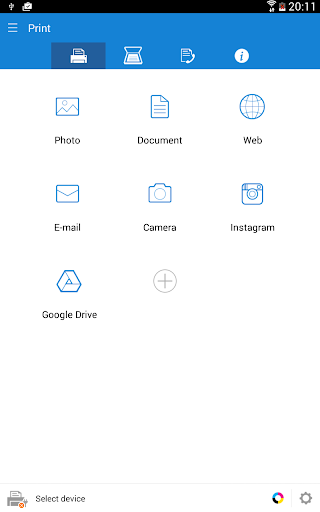
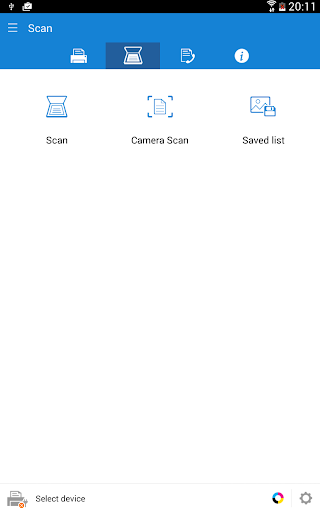
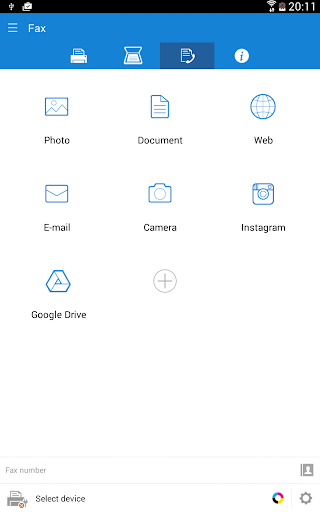
Analysis by Reviewed APKs
Samsung Mobile Print is a companion app for printing, scanning, and, on supported printers, faxing from an Android phone or tablet. It suits people who already have a compatible Samsung printer and want to handle everyday documents without moving to a computer first. I like the breadth of file sources and the option to scan back to a phone, but its usefulness depends heavily on having the right printer.
A document, without the detour
When I picture using Samsung Mobile Print, it is a weekday evening and I need a paper copy of a document that is already on my phone. Rather than transfer it to a laptop, I can open supported content in the app and send it to a compatible Samsung printer on the network. The same basic idea applies to a PDF, an image, an email attachment, or a web page: choose what I need, then print.
That direct route is the app’s core job, and it is most compelling when the printer is already set up and reachable. Automatic discovery is intended to find supported network devices, so I do not have to begin by manually tracking down a printer name. In practice, the printer model and connection matter: Samsung Mobile Print is for Samsung printers, and scanning or faxing requires a supported network multifunction device.
A companion, not a printer service
Compared with moving files to a desktop or sending them through another device, this app keeps a simple print-and-scan task on the phone I already have in hand. It can reach content from several listed services, including Google Drive, Dropbox, OneDrive, Box, Evernote, and Facebook, as well as content shared from other apps. That makes it more flexible than a tool limited to photos stored locally.
It is not a general-purpose printing service for any printer, nor does it replace a computer for editing documents or managing a full office workflow. The app supports Samsung printers only, and its most useful functions depend on the printer’s capabilities. If I do not own a supported model, the app has little to offer; if I need to scan, my printer must also support network scanning.
Small habits that help
I would start by checking the printer model against the supported families before relying on the app for an urgent job. Once a compatible network printer is discovered, keeping the phone and printer in a suitable connection setup makes the next print less of a fresh project. The app also allows content to be shared into it from another app, which is a handy route when a file is already open elsewhere.
For photos, selecting multiple images and using the crop or rotate controls can save a little back-and-forth before printing. The app supports multiple image sizes and more than one image on a page, so it is worth taking a moment to choose a layout that suits the job. For scanning, saving as PDF, PNG, or JPG gives me a straightforward way to keep or share the result.
More From Our News Desk

Zoom Meetings, Google Meet, or Teams: Which Is Easiest to Join?

How I Build a Free Streaming Lineup With Tubi

Why Crunchyroll Is the Default Anime App for So Many Fans

YouTube TV: A Practical Guide to Cutting Cable

Rummikub and the Small Comfort of Phone Games

TeamViewer Remote Control or AnyDesk for Helping Family?
Who gets the most from it
I would recommend Samsung Mobile Print to someone with a supported Samsung laser printer who regularly prints phone-based documents, photos, or web pages. It is especially practical in a home or small workplace where a network multifunction printer is already part of the routine. Being able to send a file from a cloud service or scan a page back to the phone can remove a few unnecessary steps.
It is a poor fit if the printer is from another brand, or if the Samsung model is outside the supported range. People who rarely print may not gain much from installing a dedicated companion app, and those expecting a broad document editor should look elsewhere for that part of the job. I would also check that the specific printer supports the feature I want: the app’s printing, scanning, and fax options are not interchangeable across every model.
Samsung Mobile Print is a free Android productivity app developed by HP Inc. Google Play shows over 10 million installs and a 2.8-star rating from around 62,000 ratings. It is marked for Everyone, has no in-app purchases, and contains no ads. The app is intended for printing to supported Samsung printers, with scanning and faxing available on supported network devices.
The current version shown is 4.08.041, and the recorded release date is January 17, 2011. Its last update was August 23, 2024. The supplied app details do not specify a minimum Android version, so I would check the Google Play page on the device before installing. Printer support also depends on the model and the particular function being used.
Making Phone-to-Printer Work
First steps and expectations
When I first opened an app like this, my first question would be whether it can see the printer I actually own. Samsung Mobile Print is built around discovering supported network devices automatically, which is a sensible starting point for a companion app. The important bit is to match the model to the supported list, rather than assume that every Samsung printer will work simply because the name matches.
The app’s stated scope is clear: print, scan, or send a fax from an Android phone, tablet, or other supported Android device. It can handle common everyday material such as Office documents, PDFs, images, emails, attachments, and web pages. That is a useful range for a print utility, though the exact options available after selecting a file will depend on the printer and the kind of content.
The everyday print flow
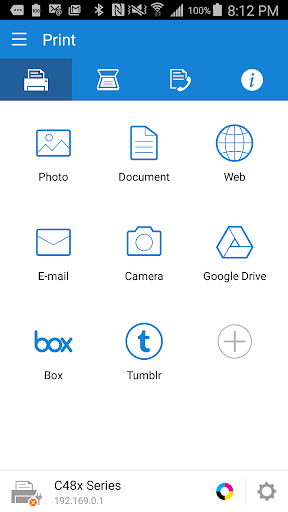
For a routine print, the appeal is avoiding the extra step of getting a phone file onto a computer. I can use content stored on the device, choose supported material from services such as Google Drive or Dropbox, or share content to the app from another app. The described interface uses an action bar style, and automatic device discovery is meant to take some of the setup burden out of finding a printer.
Photos get a few useful handling options rather than being treated as an afterthought. I can select several images, crop or rotate them, choose among image sizes, and place multiple images on a page. The app also supports printing pages as large as A3 when the printer supports that media size. That last qualification matters: the device’s supported paper sizes set the real limit.
Scanning and connected sources
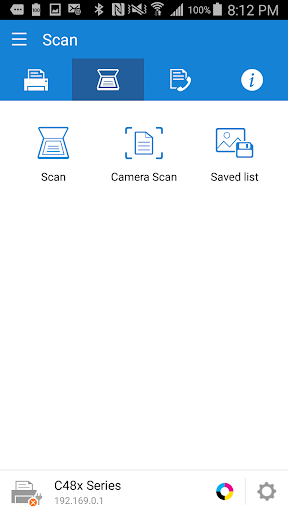
Scanning is one of the more useful reasons to keep the app around if a compatible multifunction printer is available. Samsung Mobile Print can scan from a flatbed or automatic document feeder and save the result as PDF, PNG, or JPG. I like that these familiar formats cover both a shareable document and an image-style copy without requiring a separate conversion step.
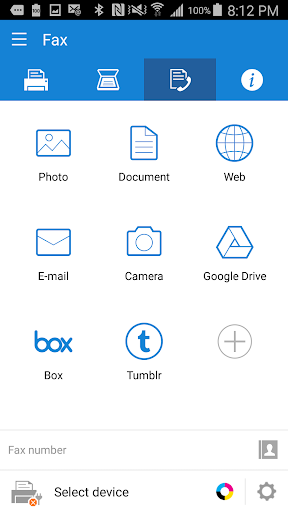
The scanned file can then be shared, while the app can also draw on content from several named services: Google Drive, Dropbox, Evernote, OneDrive, Box, and Facebook. Email content and attachments are among the supported print targets too. This is a practical spread for common personal and work files, though it is not a claim that every file type or every account workflow will behave identically.
A simple weekly routine
A realistic routine might be printing a school form or a return page from the phone, then scanning a signed copy back to the device. I would use the app to select the document, confirm that the discovered printer is the intended one, and send the print job. For the return copy, I would use the multifunction printer’s flatbed or feeder, save the scan in the format I need, and share it onward.
For occasional photo printing, selecting the images together and arranging their size before sending the job is a small but worthwhile pause. For office use, the listed corporate options include Job Accounting, Confidential Print, and Secure Release. Those features may make the app more relevant in a managed printer environment, although the particular printer needs to support them. The goal is to make a repeat task predictable, not to turn the phone into an office suite.
Compatibility is the catch
The main limitation is also the clearest one: Samsung Mobile Print supports Samsung printers only. Even within that family, the supported model list is specific, and features vary by device. Network scanning and faxing are limited to supported network printers, while printing may also work through a print server or shared printer. A quick compatibility check is more useful than installing the app and hoping an older or less common model appears.
The Google Play rating is 2.8 stars, which is a reason to keep expectations measured rather than assume every setup will be effortless. The app’s feature set is focused, not broad: it prints, scans, and can fax where supported, but it is not presented as a document editor. The Android minimum requirement is worth checking on the store page, and paper size and printer functions should be checked against the actual device.
Samsung Mobile Print makes sense as a practical companion when a compatible Samsung printer is already part of daily life. Its support for common documents, image adjustments, cloud content, and scan-to-phone workflows gives it more utility than a basic print button. The strongest case is a known-compatible network printer that gets used often enough to make fewer device handoffs matter.
I would try it if my printer model is supported and I want phone-based printing or scanning without routing every job through a computer. I would skip it if I use another printer brand, or confirm the exact model and functions first if scanning or faxing is essential. It is a focused tool, and its value rises or falls with the printer beside it.
Samsung Mobile Print Frequently Asked Questions
What is Samsung Mobile Print used for?
Samsung Mobile Print is an Android companion app for printing documents, images, emails, attachments, and web pages to supported Samsung printers. It can also scan from supported network multifunction printers and save scans as PDF, PNG, or JPG. Faxing is supported on compatible network devices. Which functions are available depends on the printer model.
Which phones and printers work with Samsung Mobile Print?
The app is described for Android phones, tablets, and other supported Android devices, and it works with Samsung printers rather than printers from any brand. The supported model families are detailed in the app information. Check the Google Play page and your printer’s model and capabilities before relying on a particular feature.
What Android version does Samsung Mobile Print require?
The minimum Android version can vary with the current app release and device, so check the Google Play page from the Android device where you plan to install Samsung Mobile Print. The app is intended for Android phones, tablets, and other supported Android devices. Printer compatibility is a separate requirement from Android compatibility.
Does Samsung Mobile Print cost anything?
Samsung Mobile Print is free on Google Play. Its supplied store details show no in-app purchases and no ads. Availability and store details can vary, so it is sensible to check the current Google Play page before installing. You will also need access to a supported Samsung printer to use the app’s main functions.
Is Samsung Mobile Print a good fit for me?
It is a good fit if you have a supported Samsung printer and want to print from an Android device or scan from a compatible network multifunction printer. It is less useful with a different printer brand, an unsupported model, or if you need document editing rather than print and scan tools. Confirm the functions your specific printer supports.
Pros
- Prints common documents, images, emails, attachments, and web pages from an Android device.
- Scans from supported network multifunction printers into PDF, PNG, or JPG.
- Works with several named cloud services and supports sharing content from other apps.
- Includes image cropping, rotation, multiple-image layouts, and selected business printing features.
Cons
- Works only with supported Samsung printer models, limiting its audience.
- Scanning and faxing require compatible network printer hardware.
- The Google Play rating is 2.8 stars, so expectations should stay measured.
- Category
- Productivity
- Version
- 4.08.041