Epson iProjection
- 18.36K
- 4.2
- Installs
- 5.00M
- Price
- Free
Screenshots
Analysis by Reviewed APKs
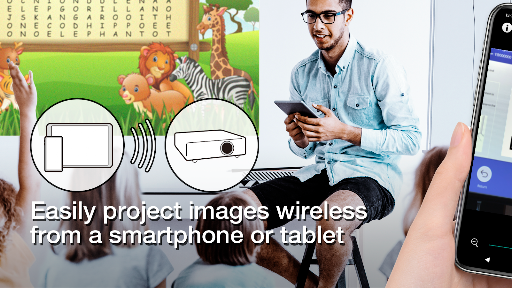
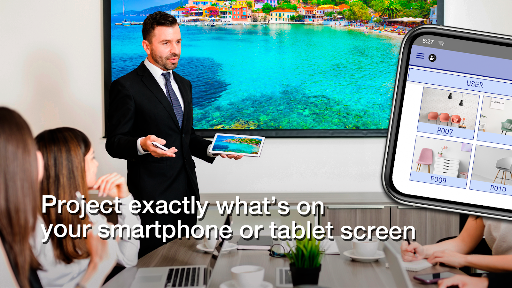
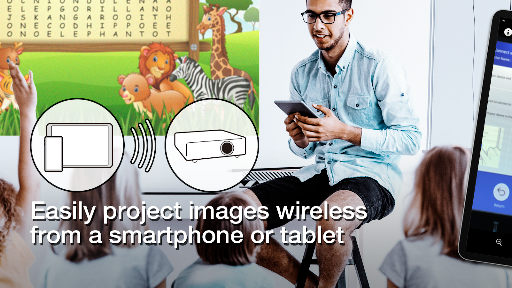
Epson iProjection is a wireless projection app for Android devices and Chromebooks, designed to send a device screen, photos, PDFs, camera video, or web pages to a supported Epson projector. I see it fitting best in classrooms, meeting rooms, and other shared spaces where people need to show material without passing around a cable. It is useful, but the projector and network setup matter as much as the app.
A Meeting Without the Cable
When I picture using Epson iProjection on an ordinary workday, it is just before a small meeting: the projector is on, a PDF is ready on my phone, and I want to get the group looking at the same page without hunting for a cable. The app can connect to a supported Epson projector over the network, then send that PDF or mirror the device screen. That makes it a practical option for quick walkthroughs and impromptu sharing.
The routine depends on having the projector’s network settings in place and connecting the phone or Chromebook to the same network. In the app, I can choose among screen mirroring, Photos, PDF, Web Page, and Camera. If the projector appears in the search, connecting should be straightforward; if not, the app also lets me enter its IP address. It is a useful fallback, though it helps to know the projector’s network details.
A Projector Companion, Not a Presentation Suite
I would compare Epson iProjection with plugging a device directly into a projector: the app’s main appeal is that it can send content wirelessly, and it also provides projector controls and annotation tools. It suits a room where a compatible Epson projector is already part of the setup. The ability to connect multiple devices and show several screens gives it a role in group sharing, rather than limiting it to one presenter’s phone.
This is not a general-purpose screen-sharing service that works with any display, nor is it a replacement for making or editing slide decks. Its target is supported Epson projectors, and the projector must already be configured for network use. I would not choose it if my only goal were to cast to an arbitrary television or if I needed a standalone presentation editor. Compatibility and the room’s network are real boundaries.
Small Steps Before You Present
A little preparation makes this kind of app less stressful. I would check that the projector is set to its LAN input, join the same Wi-Fi network from the Android device, and open iProjection before the audience is waiting. If automatic discovery does not find the projector, having its IP address available gives me another route. For a Chromebook, the connection setup has additional network conditions, so I would test that device in the actual room first.
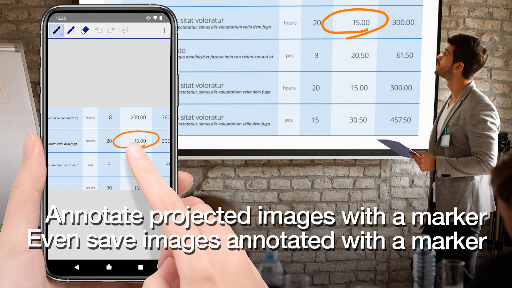
I would also keep the files I plan to show easy to find and use the Photos or PDF option for supported JPG, JPEG, PNG, and PDF files. If I need to demonstrate something live, Camera can project the device camera image. Annotation is handy when a group needs to mark up a projected image, and the app can save the edited image on the device. These are small steps, but they make the app more useful than a last-minute screen mirror.
More From Our News Desk

Zoom Meetings, Google Meet, or Teams: Which Is Easiest to Join?

How I Build a Free Streaming Lineup With Tubi

Why Crunchyroll Is the Default Anime App for So Many Fans

YouTube TV: A Practical Guide to Cutting Cable

Rummikub and the Small Comfort of Phone Games

TeamViewer Remote Control or AnyDesk for Helping Family?
Who Will Find It Useful
I would recommend Epson iProjection to teachers, presenters, and teams who regularly use supported Epson projectors and want to share material from Android devices or Chromebooks. It is especially relevant when the content is already on a device as a photo or PDF, or when showing the device screen is more convenient than finding a separate computer. Groups can also make use of the multi-device connection and simultaneous screen display options.
It may not suit someone who does not have access to a compatible Epson projector, or who expects every projector to appear automatically on any network. Chromebook users should note that QR-code connection is not supported there and that mirroring requires an Epson Chrome extension. I would also look elsewhere for slide creation, file editing, or an all-purpose casting tool. This app’s value is tied to a particular presentation setup.
Epson iProjection is made by Seiko Epson Corporation. On Google Play it has over 5 million installs and a 4.2-star rating from about 18,000 ratings. It is listed in the Productivity category and has an Everyone content rating. The Android version number is 4.2.0, and the app was last updated on October 21, 2025.
The app is free to download, with no in-app purchases or ads. It first appeared on July 11, 2012. A minimum Android version is not included in the available app facts, so check Google Play for the requirement shown for your device. The app is intended for Android devices and Chromebooks, with some Chromebook-specific setup requirements.
Making Wireless Projection Work Smoothly
Getting Connected
My first impression is that Epson iProjection is built around getting content onto a projector, not around a long onboarding process. The practical setup begins outside the app: the projector needs network settings completed and its input set to LAN. Then the Android device or Chromebook needs to join the same network. That is a little more involved than opening a file, but it is the sort of preparation that makes wireless projection possible.
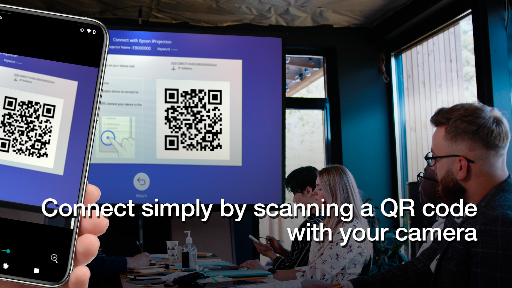
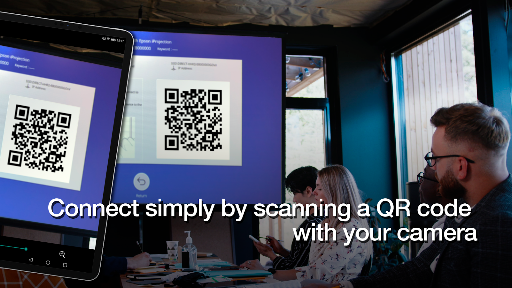
Once those basics are in place, I can start the app and connect to the projector. Automatic search is the simplest route, while IP-address entry is available when the projector is not found. The QR-code option can speed up connection on supported Android use, but it does not work on Chromebooks. I would test the connection before a class or meeting, rather than discovering a network snag in front of everyone.
The Everyday Projection Flow
For day-to-day use, the useful part is choosing the right kind of content instead of treating every task as a full-device mirror. Photos and PDF are available for local files, while Web Page and Camera cover other simple presentation needs. Screen mirroring is there when the material is on the device already and I want the projector to show the broader screen. That range gives the app several practical jobs without turning it into a content-creation tool.
I would choose the mode before people are watching, especially when switching between a document and a live camera view. Screen mirroring can also send device audio to the projector, though performance may depend on the device and network. The app notes that video and audio can be delayed during mirroring. That makes it worth treating wireless projection as convenient rather than assuming it will behave exactly like a direct wired connection.
More Than One Presenter
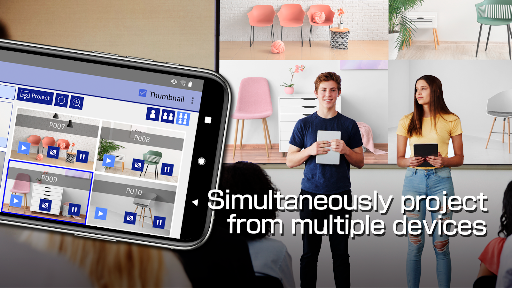
The collaboration options are among the features that make iProjection more than a simple file sender. Up to 50 devices can connect to a projector, and up to four screens can be displayed at once. The projected image can also be shared with other connected devices. I can imagine those options helping a group compare work or bring several contributions into one room without taking turns plugging in equipment.
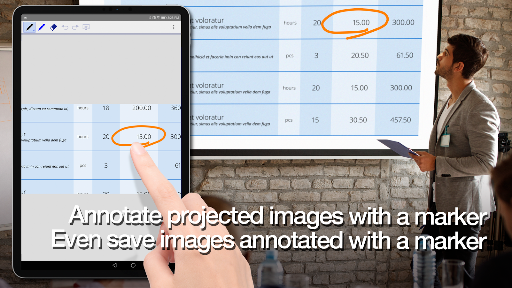
The app also includes a pen tool for annotating projected images, with the option to save edited images on the device. That is useful when a discussion needs a quick mark or clarification on what everyone is viewing. Projector controls are built in as well, so the phone can act like a remote. I would consider these supporting tools: they add convenience around projection, but do not replace the projector’s own capabilities.
A Repeatable Room Routine
For a recurring meeting, I would make a short routine of checking the projector’s LAN input, joining the correct Wi-Fi network, and opening the file I plan to show. Then I would connect in iProjection and choose PDF or Photos rather than mirroring everything by default. That keeps the task focused and reduces the chance of displaying unrelated parts of my device screen while I am trying to present.
If the meeting shifts from a prepared document to a physical object or demonstration, Camera offers a way to project the device camera image. For collaborative sessions, I would decide whether several devices or the four-screen view actually helps the group, rather than using it just because it is available. A quick test of the chosen mode and network is a sensible habit, particularly when audio or video mirroring matters.
The Important Boundaries
Compatibility is the first limit to keep in mind: this app is for supported Epson projectors, not every projector or display. The manufacturer points users to the supported-projector information in the app’s support area. A working network connection is also part of the setup, and a projector that is not discoverable may require its IP address. In other words, the app cannot remove the need for compatible hardware and a properly configured room.
Chromebook use has its own caveats. QR-code connection is not supported, screen mirroring requires the Epson iProjection Extension from the Chrome Web Store, and network configuration can affect whether the projector is found. On Android, some features use optional permissions, including camera access for QR scanning or camera projection and recording access for audio during mirroring. The app can be used without them, but the related features may not work.
Finally, mirroring is not guaranteed to be perfectly immediate. Video and audio may be delayed depending on the device and network, and only unprotected content can be projected. I would avoid relying on it for content that cannot be sent this way and would test important material in advance. Those constraints do not make the app ineffective; they simply set realistic expectations for a wireless presentation tool.
Epson iProjection earns its place when the room already has a supported Epson projector and the job is to share a phone or Chromebook without a cable. The mix of screen mirroring, photo and PDF projection, projector control, and group-display options makes it more versatile than a one-purpose file viewer.
I would recommend it to people who present or teach with compatible Epson equipment and can prepare the network connection ahead of time. If you need universal casting, a presentation editor, or dependable mirroring without checking the room setup, it is not the right fit. For the right projector-and-device combination, it is a practical companion.
Epson iProjection Frequently Asked Questions
What is Epson iProjection used for?
Epson iProjection wirelessly sends an Android device or Chromebook’s screen, photos, PDFs, web pages, or camera image to a supported Epson projector. It also offers projector controls, image annotation, and options for connecting multiple devices. It is intended for presenting or sharing content, rather than creating or editing presentation files.
Which devices and platforms work with Epson iProjection?
The app is for Android devices and Chromebooks and connects to supported Epson projectors. Chromebook screen mirroring requires the Epson iProjection Extension, and QR-code connection is not supported on Chromebooks. Projector compatibility matters, so check the supported-projector information before planning to use the app with a particular model.
What Android version does Epson iProjection require?
The Android version requirement can vary by device and is worth checking on the Google Play store page before installing. The app’s setup also requires the projector to be configured for network use, with the Android device connected to the same network. Chromebook connections have their own network setup conditions.
Does Epson iProjection cost money?
Epson iProjection is free on Google Play. Its store facts show no in-app purchases and no ads. Store details can change over time, so check Google Play for the current information before downloading.
Is Epson iProjection a good fit for my setup?
It is a good fit if you use a supported Epson projector and want to share content from an Android device or Chromebook. It may not suit you if your display is not compatible or you need a general-purpose casting app. Wireless performance and discovery can depend on the device and network, so testing the setup beforehand is worthwhile.
Pros
- Projects screens, photos, PDFs, web pages, and camera images wirelessly to supported Epson projectors.
- Supports up to 50 connected devices and displays up to four screens simultaneously.
- Includes projector controls, image annotation, and saving edited images to the device.
- Free to download, with no in-app purchases or ads.
Cons
- Works only with supported Epson projectors and requires network setup.
- Chromebook mirroring needs a separate extension, and QR-code connection is unsupported.
- Mirrored video and audio may be delayed depending on the device and network.
- Category
- Productivity
- Version
- 4.2.0