Vysor - Android control on PC
- 12.79K
- 3.2
- Installs
- 5.00M
- Price
- Free
Screenshots
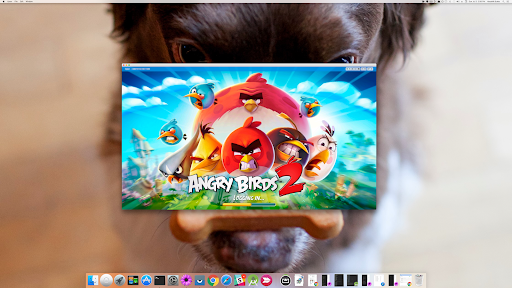
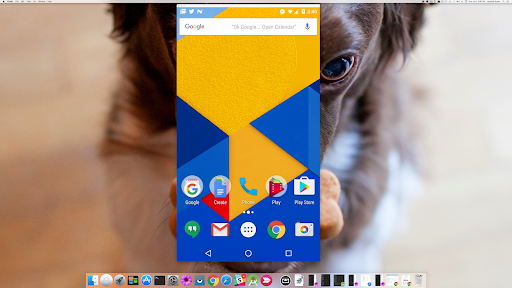
Analysis by Reviewed APKs
Vysor - Android control on PC is a screen-mirroring and remote-control app for people who want to use an Android device from a computer. It can suit developers, presenters, or anyone who would rather reach for a mouse and keyboard than keep picking up a phone. My overall take is that its purpose is appealing and practical, though the setup asks for more patience than a simple plug-and-play tool.
A Phone at Your Desk
I can imagine Vysor fitting into a workday when my phone is beside the laptop but I need to keep my attention on a larger screen. After connecting the device and completing the setup, I can view its screen on the computer and use a mouse and keyboard to interact with Android apps. That is handy for answering a message, checking an app, or demonstrating a phone screen without constantly picking up the device.
The same idea works for a presentation or a quick troubleshooting session. Instead of passing a phone around, I can mirror its display to a desktop and show what is happening on the device. Vysor Share adds the option to share a screen with someone else for remote assistance. These are focused uses rather than a promise that every phone task feels better on a computer, but they make the app's central job easy to understand.
A Desktop Companion, Not a Replacement
Compared with simply using a phone in my hand, Vysor trades portability for a larger view and computer controls. That shift is most useful when I am already at a desk, need to show a screen to another person, or want to test an app on a real Android device. Developers may also find the remote device access relevant when debugging or testing across devices, rather than relying only on an emulator.
I would not treat Vysor as a general-purpose desktop productivity suite or a way to replace Android itself. Its job is to display and control a connected phone, not to provide a separate collection of desktop apps. It also is not the most effortless choice for someone who wants instant mirroring without setup: enabling USB debugging and preparing the computer are part of the described process. For casual use, that extra work may outweigh the benefit.
Make Setup Repeatable
The best way to get more from Vysor is to treat the initial connection as a small setup project, not something to improvise each time. I would read through the USB debugging instructions first, install the computer-side tools the setup calls for, and test the connection before a meeting or presentation. That gives me time to deal with any device or computer configuration questions while there is no audience waiting.
Once the basics are in place, I would keep a few recurring uses in mind: checking an app from the desk, showing a screen during a demonstration, or using Vysor Share when remote assistance is needed. Developers can think of it as a way to work with a real device rather than handling it constantly. The app's wireless option can be useful too, although the initial setup still deserves attention.
More From Our News Desk

Zoom Meetings, Google Meet, or Teams: Which Is Easiest to Join?

How I Build a Free Streaming Lineup With Tubi

Why Crunchyroll Is the Default Anime App for So Many Fans

YouTube TV: A Practical Guide to Cutting Cable

Rummikub and the Small Comfort of Phone Games

TeamViewer Remote Control or AnyDesk for Helping Family?
Who May Find It Useful
I would recommend Vysor to Android users who regularly work at a computer and have a concrete reason to see or control their phone there. Developers testing on physical devices, people who demonstrate mobile apps, and users helping someone troubleshoot a screen are the clearest fits. If you already spend time at a desk, mouse-and-keyboard access can make some phone interactions easier to follow and show.
It may be a poor match for someone who only wants occasional, effortless screen casting or dislikes following setup steps. The described process involves enabling USB debugging and using computer-side software, so the experience is more hands-on than opening a lightweight viewer. I would also keep expectations focused: Vysor is about viewing and controlling Android, not turning a computer into a full replacement phone or a broad device-management platform.
Vysor - Android control on PC is a Productivity app from ClockworkMod. Google Play shows more than 5 million installs and a 3.2-star rating from 12,793 ratings. It is free to install, contains ads, and has an Everyone content rating. The current version is 4.2.2. The app first appeared on July 3, 2016, and its recorded last update is August 11, 2026.
The supplied app details do not specify a minimum Android version, so check Google Play for the requirement that applies to your device. The described workflow also uses computer-side software: Vysor says to install its Chrome app to view Android from a PC, and Windows users are directed to install ADB drivers. Computer compatibility and setup details are worth checking before planning a presentation or test session.
What Using Vysor Actually Takes
A Setup With Several Steps
When I first opened the idea of using Vysor, the appeal was immediate: seeing Android on a computer and controlling it with familiar input devices is easy to picture. The setup instructions make clear, though, that this is not simply an app to open and forget. They call for enabling USB debugging, installing Vysor's Chrome app on the computer, and, for Windows users, installing ADB drivers.
That sequence is manageable if I have time to prepare, but it changes my first impression from casual screen mirroring to a tool that needs some configuration. I would follow the instructions carefully and try a connection before relying on it for a live presentation or a work task. The app's concept is straightforward; getting the surrounding pieces ready is the part that asks for attention.
Control From the Computer
The everyday experience Vysor describes is direct: the Android display appears on the computer, and I can use the mouse and keyboard to control the phone. That can make routine interactions more comfortable when I am already working at a desk. It also gives me a larger view of what is happening on the device, which can be useful when I need to explain a screen or follow a sequence of steps.
I would still choose the phone itself when I am away from the computer or when a task is more natural on a handheld screen. Vysor's strength is the handoff between Android and a desktop setup, not making every mobile action feel like a native computer task. Its wireless option broadens how I can use that connection, while the central experience remains viewing and controlling the Android device.
Sharing and Real Devices
One feature that gives Vysor a use beyond solo control is Vysor Share. The app describes sharing a screen with other people for remote assistance, which makes sense when someone needs to see what is on a phone rather than rely on a verbal description. I can see that being more useful than trying to explain a sequence of taps over a call, especially when the screen itself is the thing that needs attention.
For developers, the more distinctive angle is working with a real Android device rather than an emulator. Vysor's description also points to using Share for device farms and remotely debugging or testing applications across a range of devices. Those are specialized workflows, not something every casual user needs, but they help explain why the app includes screen access and sharing in the same overall tool.
A Practical Desk Routine
A sensible routine would start before the moment I need the phone on a larger screen. I would complete the USB debugging and computer-side setup, connect the device, and confirm that I can see and control it. For a presentation, I would open the relevant app and check the mirrored screen in advance. That way, I am not learning the connection steps while people are waiting for a demonstration.
For regular desk work, I would use Vysor when a task genuinely benefits from the computer: checking an Android app while keeping my hands on the keyboard, or following a device issue with another person. If I need a remote helper to see the screen, Vysor Share is the related option described by the app. Keeping those uses distinct helps the tool feel purposeful rather than adding another step to every phone interaction.
Keep the Tradeoffs in View
The main limitation is the setup overhead. USB debugging and computer-side software are part of the instructions, and Windows users have an additional driver step. That is reasonable for a tool aimed at desktop control and development, but it can feel like too much for someone who only wants to glance at a phone screen now and then. Preparing ahead is especially important when the connection supports a presentation or a time-sensitive task.
The app also depends on having both an Android device and a computer workflow that suits it. Its listed rating is 3.2 stars, so I would approach it with practical expectations rather than assuming every user will find the experience seamless. The description covers control, mirroring, wireless use, screen sharing, and development tasks; it does not make Vysor a universal solution for every kind of phone-to-computer interaction.
Vysor has a clear, useful idea: bring an Android screen to a computer and control it there. I like that the same general setup can serve everyday desk use, presentations, remote assistance, and real-device testing. Its appeal is strongest when those tasks come up often enough to justify the initial configuration.
I would try Vysor if I were an Android user who regularly demonstrates or tests apps, or needs computer-based access to a phone. For occasional mirroring, I would first weigh the setup steps against how often I expect to use it. It is a focused tool with practical uses, provided its desktop-oriented workflow fits my routine.
Vysor Frequently Asked Questions
What is Vysor - Android control on PC used for?
Vysor lets you view and control an Android device from a computer, including using a mouse and keyboard. It supports mirroring, wireless use, and screen sharing for remote assistance. The description also covers developer workflows involving real devices, remote debugging, and testing. Its main purpose is connecting Android use with a desktop environment rather than replacing the phone.
Which devices and platforms work with Vysor?
Vysor is an Android app intended to work with a computer. Its setup instructions refer to installing a Chrome app to view Android from a PC, and say Windows users need ADB drivers. The exact computer and device compatibility can depend on your setup, so check the Google Play information and Vysor's current instructions before relying on a particular configuration.
What Android version does Vysor require?
The minimum Android version can vary with the current app release and device, so check the Google Play information for the requirement that applies to your phone or tablet. Vysor's setup also involves enabling USB debugging. Before planning a presentation or development session, it is sensible to review the instructions and confirm that your device can complete the connection process.
Does Vysor cost money or include purchases?
Vysor is free to install on Google Play and contains ads. The supplied app details show no in-app purchases. Store details can change over time, so check the current Google Play information for the latest pricing and any changes before installing. The described setup also involves computer-side software, so consider those requirements alongside the Android app.
Is Vysor a good fit for everyday users?
It can suit Android users who want to control a phone from a computer, demonstrate an app, get remote assistance, or work with real devices for testing. It may be less appealing if you want occasional mirroring with minimal setup, since the instructions include USB debugging and computer-side preparation. Whether it fits depends on how often those desktop workflows are useful to you.
Pros
- Mirrors Android to a computer and supports mouse-and-keyboard control.
- Includes wireless use and screen sharing for remote assistance.
- Can support developer workflows using real Android devices.
- Useful for demonstrations when a larger screen helps.
Cons
- Setup involves USB debugging and computer-side software.
- Windows users are directed to install ADB drivers.
- The desktop workflow may be excessive for occasional mirroring.
- Category
- Productivity
- Version
- 4.2.2