Voice Access
- 247.64K
- 3.8
- Installs
- 1.00B
- Price
- Free

Screenshots
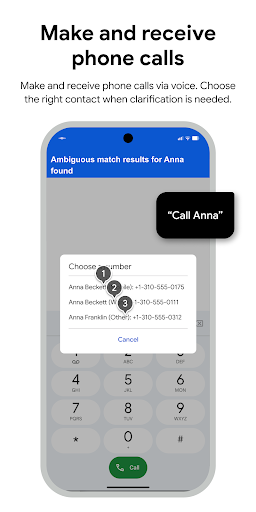
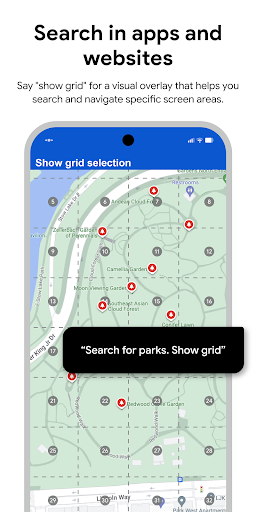
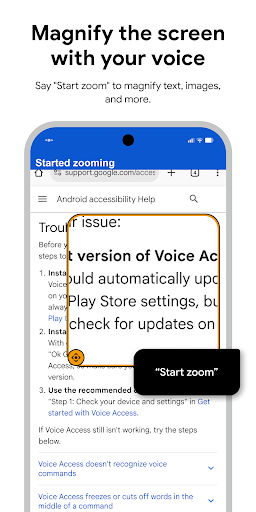
Analysis by Reviewed APKs
Voice Access is an Android accessibility app that lets you navigate your phone, control what is on screen and edit text with spoken commands. It is designed for people who have difficulty using a touchscreen, whether that is a lasting motor impairment or a temporary injury. After looking at how its commands fit into ordinary phone tasks, I see it as a practical hands-free option, though it takes a little learning to use comfortably.
A hands-free phone session
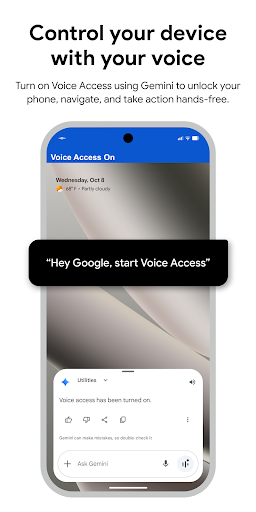
Picture settling in to read a message when reaching for the screen is uncomfortable or difficult. With Voice Access, you can start it through the Google Assistant if Hey Google detection is enabled, tap its notification, or use the blue Voice Access button. From there, commands such as “go back,” “go home” and “open Gmail” let you move around without relying on touch for every step.
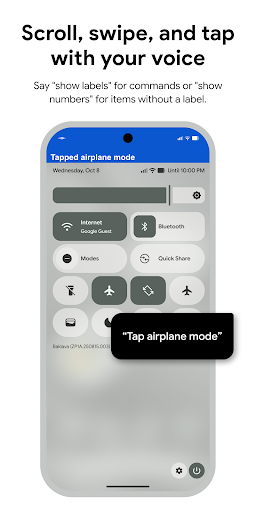
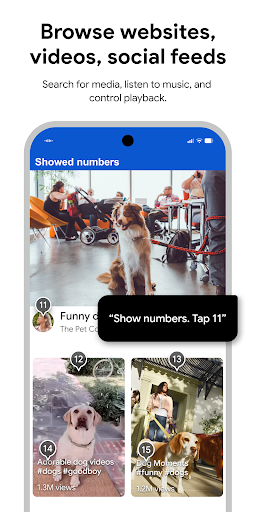
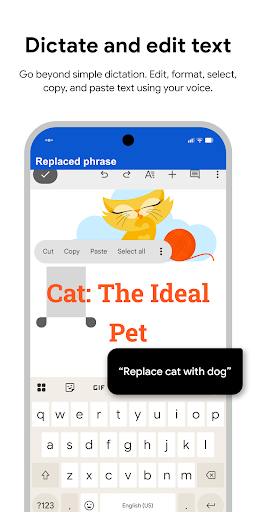
Once an app is open, Voice Access can help you interact with the current screen. You might say “tap next” to activate a control or “scroll down” to move through content. If you need to answer someone, dictation and text-editing commands let you say what to type or ask to replace a word. The appeal is not one dramatic trick; it is having several common phone actions available by voice.
A different kind of control
Voice Access is best understood as a way to operate an Android device, not simply a voice assistant for asking questions or launching a single task. The command set covers navigation, screen controls and text editing, so it can stay useful after an app has opened. That makes it a different choice from reaching for the screen whenever you need to tap, scroll or correct a short message.
It is also not a replacement for every way of using a phone. Its purpose is accessibility for people who have difficulty manipulating a touchscreen, and speaking commands may not suit every place or moment. If you only want occasional voice dictation, the wider navigation controls may be more than you need. I would consider it most when reducing touch interaction is the main goal.
Build a useful command habit
I would begin with the included tutorial rather than trying to memorize a long list. It introduces starting Voice Access, tapping, scrolling, basic text editing and getting help. Those basics map neatly to everyday actions, so a few short practice sessions can make the commands feel less like a separate language and more like another way to handle routine phone tasks.
A helpful habit is to keep the “Help” command in mind whenever you get stuck. Voice Access can show a short list of commands, which is easier than guessing what phrasing might work. I would also use “stop listening” when I want to pause temporarily, then start again through one of the available controls. That keeps the workflow flexible without needing to disable the feature entirely.
More From Our News Desk

Zoom Meetings, Google Meet, or Teams: Which Is Easiest to Join?

How I Build a Free Streaming Lineup With Tubi

Why Crunchyroll Is the Default Anime App for So Many Fans

YouTube TV: A Practical Guide to Cutting Cable

Rummikub and the Small Comfort of Phone Games

TeamViewer Remote Control or AnyDesk for Helping Family?
Who may find it useful
I would recommend Voice Access to Android users who have difficulty operating a touchscreen because of paralysis, tremor or a temporary injury. Its combination of navigation, screen control and text editing is more useful than a single voice shortcut when a person wants to handle several parts of a phone interaction. The tutorial and spoken help also give newcomers a place to start instead of requiring them to know every command in advance.
It may be less appealing if you are comfortable using touch and only want a narrow voice feature, or if speaking commands is inconvenient in your usual surroundings. Voice Access is built around spoken instructions, so that interaction style is central rather than optional decoration. I would judge it by trying the tutorial and a few real tasks, then deciding whether voice control fits the way you actually use your phone.
Voice Access is developed by Google LLC and is categorized as a Tools app. On Google Play, it has over a billion installs and a 3.8-star rating from about 248,000 ratings. The app is free, with no in-app purchases and no ads. Its content rating is Everyone, and the supplied release date is September 25, 2018.
The current version is listed as varying with device, and the supplied last update date is September 28, 2026. A minimum Android version is not provided in the available app details, so users should check Google Play for compatibility with their device. Voice Access uses Android’s AccessibilityService API to read screen controls and act on them according to spoken instructions.
Making Everyday Phone Tasks Voice-Driven
A guided first start
My first impression is that Voice Access is aimed at getting someone into a working routine, not showing off voice technology. The tutorial introduces the main types of commands in manageable pieces: starting the service, tapping, scrolling, editing text and asking for help. That practical order matters because each skill builds toward a real phone session rather than sitting as an isolated feature.
There are several ways to start speaking to the app. You can use the Google Assistant by saying “Hey Google, Voice Access,” provided Hey Google detection is enabled, or tap the Voice Access notification or blue button. I like having these alternatives because they let people choose a starting method that suits their existing setup and comfort.
The everyday command flow
The day-to-day experience is built around short instructions. Basic navigation commands can take you home, go back or open Gmail; screen commands can tap a control or scroll. This range gives Voice Access a practical role in moving between apps and working within them. It is not just about launching something and then handing control back to touch.
Text entry adds another useful layer. You can dictate words with a command such as “type hello,” then make a correction with an instruction like “replace coffee with tea.” When I think about ordinary phone use, that pairing feels important: composing a message is often more than getting the first sentence onto the screen. Editing by voice helps make the interaction more complete.
Small features with purpose
The most useful detail may be the “Help” command. Instead of needing to remember every phrase, you can ask for help and see a short list of available commands. That makes the app feel more approachable during a task, especially while you are still learning which instructions cover navigation, screen controls or editing.
I also appreciate the distinction between pausing and turning the feature off. Saying “stop listening” pauses Voice Access temporarily, while disabling it completely means going to Settings, then Accessibility, then Voice Access and switching it off. That gives users a quick way to stop listening for a while without treating every pause as a full setup change.
A simple daily routine
A sensible way to work Voice Access into a routine is to start with a task you already know well, such as opening an app, moving through a screen and returning home. That gives you a familiar destination while you practice the commands. I would add text dictation and replacement only after the basic navigation feels comfortable, rather than learning everything at once.
When a command slips your mind, use Help rather than turning the session into a guessing game. Once you have finished, “stop listening” offers a straightforward pause. If you want Voice Access disabled altogether, the Accessibility settings provide that switch. This simple start, task, pause pattern keeps the feature tied to what you need at that moment.
A few limits to consider
Voice Access depends on spoken instructions, so it will not be a good fit for every setting or for everyone who would rather interact quietly. It is also a feature with commands to learn; the tutorial and Help command make that easier, but they do not remove the adjustment period. I would give it a fair trial with routine tasks before deciding whether the approach feels natural.
The app’s role is focused on accessibility and controlling an Android screen by voice. It should not be mistaken for a general-purpose answer to every phone task or for a feature that suits every user’s needs. Compatibility requirements can vary by device, so checking Google Play is sensible before installing. The best measure is whether its navigation, tapping, scrolling and editing commands help with your own daily use.
Voice Access makes a clear case for voice as a practical way to navigate and use an Android phone, not just dictate text. Its tutorial, spoken help and range of basic commands give users a grounded way to learn. The main trade-off is becoming comfortable speaking instructions and remembering the commands that suit your routine.
I recommend giving it a try if touchscreen use is difficult and hands-free control could make ordinary phone tasks easier. Start with the tutorial and a familiar task, then see whether navigation and text editing fit your needs. If voice interaction does not suit your surroundings or habits, the app’s particular approach may not be the right one.
Voice Access Frequently Asked Questions
What is Voice Access used for?
Voice Access helps people who have difficulty manipulating a touchscreen use an Android device by voice. Its commands cover basic navigation, controls on the current screen, scrolling and text editing or dictation. A tutorial introduces common commands, and saying “Help” brings up a short list. It is designed for hands-free phone interaction rather than only voice dictation.
Which devices support Voice Access?
Voice Access is an Android app for use with an Android device. The supplied app details do not specify a minimum Android version, and compatibility can depend on the device. Check the Voice Access page on Google Play for the requirements that apply to your phone or tablet before installing.
Does Voice Access cost money?
Voice Access is free on Google Play. The supplied details say it has no in-app purchases and contains no ads. Store information can change over time, so it is worth checking Google Play for current availability and details before you install.
How do I start using Voice Access?
The app includes a tutorial covering how to start Voice Access, tap, scroll, edit basic text and get help. You can start it through Google Assistant by saying “Hey Google, Voice Access” if Hey Google detection is enabled, or tap the Voice Access notification or blue button. The tutorial is a good first stop.
Who is Voice Access best suited to?
It is intended for people who have difficulty using a touchscreen, including people with paralysis or tremor and those dealing with a temporary injury. It may also suit someone who wants to control phone tasks by voice. Because spoken commands are central to its design, it may not suit users or situations where voice interaction is inconvenient.
Pros
- Handles navigation, screen controls and text editing through spoken commands.
- Includes a tutorial for starting, tapping, scrolling, editing and getting help.
- Offers a Help command for a short list of available instructions.
- Free to use, with no ads or in-app purchases.
Cons
- Requires learning spoken commands to make the most of its controls.
- Voice interaction may be inconvenient in some surroundings or routines.
- Android compatibility requirements can vary by device.
- Category
- Tools