Google Lens
- 2.87M
- 4.7
- Installs
- 1.00B
- Price
- Free

Screenshots
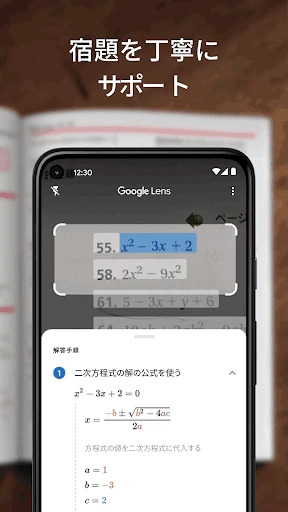
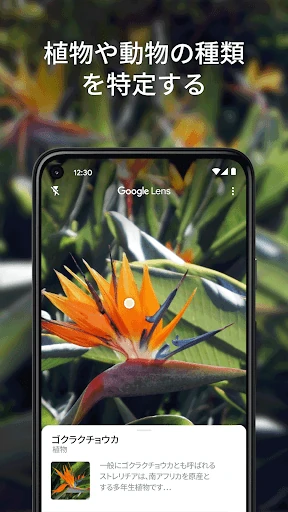
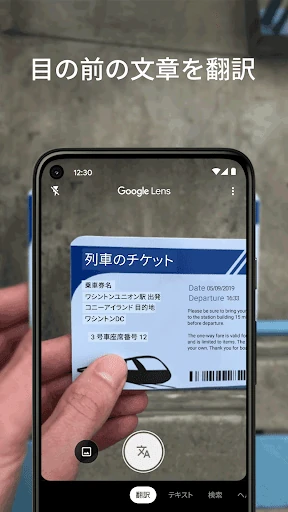
Analysis by Reviewed APKs
Google Lens turns a phone camera or saved photo into a way to look up what is in front of you. I found it most useful for quick, practical questions: what a sign says, what kind of plant I am looking at, or where to find a similar chair. It suits curious people and busy errands, though visual results are best treated as a helpful starting point.
A Camera for Quick Questions
Imagine walking through a neighborhood and spotting a storefront you have never noticed, or finding a plant in a friend's home that you would like to identify. With Google Lens, I can point the camera at the subject and use the image to search for information. It is a handy bridge between seeing something and knowing what to search for, especially when I do not know the right words to type.
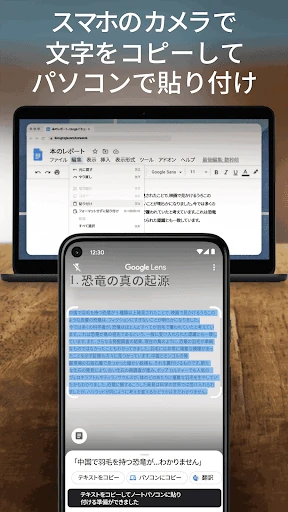
The same idea works for everyday text. I have used Lens as a way to copy a long passage or a difficult code from a physical source instead of typing it character by character. It can translate words, too, which is useful when a label or sign is unfamiliar. For small tasks like these, the camera becomes a practical input method rather than just a way to take pictures.
Visual Search, Not a Full Guide
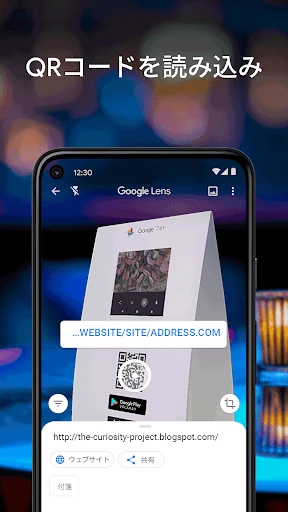
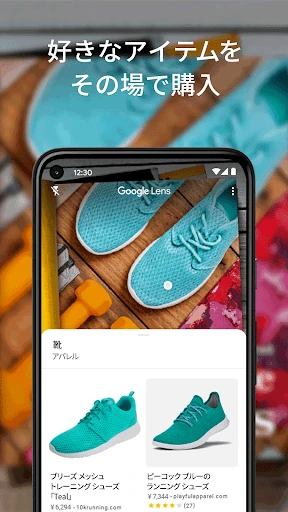
Compared with a regular web search, Lens is most helpful when the thing I want to ask about is right in front of me and hard to describe. A photo can lead to similar clothes, furniture, or home decor, and Lens can identify landmarks, restaurants, and storefronts. It also scans QR codes and barcodes. These jobs make it feel more like a visual shortcut than a replacement for every kind of search.
Lens is not a dedicated travel planner, shopping checkout, or language course. It can surface information such as ratings, hours, and historical facts for places, but the app's role is to help me look things up from an image. Results can be limited by language or region, and some features need an internet connection. I would use it to get oriented, then follow up when I need more detail.
Small Habits That Help
I get more from Lens when I pause long enough to frame the thing I care about. If I want to identify a plant, I try to center the plant rather than the whole room; for a sign, I make sure the words are readable. That simple habit makes the image more useful as a search starting point and reduces the chance that surrounding clutter becomes the main subject.
For a recurring task, I think of Lens as an occasional helper rather than something that needs a complicated routine. I can use it when a code needs scanning, when a poster contains an event detail I want to copy, or when a menu item catches my eye. Keeping expectations modest helps: Lens can point me toward information, but I still need to decide whether the result answers my question.
More From Our News Desk

Zoom Meetings, Google Meet, or Teams: Which Is Easiest to Join?

How I Build a Free Streaming Lineup With Tubi

Why Crunchyroll Is the Default Anime App for So Many Fans

YouTube TV: A Practical Guide to Cutting Cable

Rummikub and the Small Comfort of Phone Games

TeamViewer Remote Control or AnyDesk for Helping Family?
Who Might Find It Useful
I would recommend Google Lens to people who often run into small visual questions during the day. Travelers may appreciate translating words or looking up a landmark; shoppers can search for similar clothes or furnishings; and anyone who regularly copies text from printed material can save some typing. It is also an easy tool to try when a QR code or barcode needs a quick scan.
It may be less compelling for someone who prefers typing searches or wants a specialized app with a narrow, detailed workflow. Lens does several kinds of visual lookup, but that breadth does not make every result definitive. Availability varies by language and region, and some features require internet access. If a task is important, I would use the results as a lead and check the relevant source directly.
Google Lens is published by Google LLC and is listed in the Tools category on Google Play. The app has over a billion installs and a 4.7-star rating from about 2.9 million ratings. Its content rating is Everyone. The Google Play version is described as varying with the device, so the version a user sees may differ across phones.
Google Lens is free to download. The provided store facts say it contains no ads and offers no in-app purchases. It was released on June 4, 2018, and its most recent update in these facts was August 5, 2025. A minimum Android version is not included in the available store details, so it is worth checking Google Play for device compatibility.
A Closer Look at Everyday Lens
Getting Started
My first impression is that Google Lens makes sense as soon as I have something in view that I want to understand. I can use the phone camera or a photo, so the idea is not limited to pointing the camera at a subject in real time. That flexibility suits both spontaneous questions and moments when I already have an image to examine.
The app's range is apparent in the kinds of tasks it supports: reading and translating text, recognizing plants and animals, exploring nearby places, finding similar products, and scanning codes. I like that these uses all start from an image. It gives the app a clear purpose without requiring me to decide in advance which specialist tool might fit a small question.
Useful in the Moment
The daily appeal is the short path from seeing something to looking it up. Instead of describing a chair in a search box, I can use its image to look for similar furniture or decor. Instead of trying to name a plant before searching, I can start with the plant itself. For occasional errands and bits of curiosity, that change in input can save effort.
Text tasks give Lens a different kind of usefulness. It can translate words and help copy complicated codes or longer passages into a phone. I can also use it with a business card or event poster to save details such as contact information or calendar information. These functions are especially practical when retyping would be tedious, though I still check that the captured text is right.
More Than Recognition
Place lookup is one of the more rounded uses described for Lens. It can help identify landmarks, restaurants, and storefronts, and show details such as ratings, operating hours, and historical facts. That combination can be useful when I am already out and want a quick orientation. It does not turn the app into a complete guide, but it can give me a sensible first set of leads.
I also like the small, everyday range of supported searches. Lens can help find similar clothing, furniture, and home decor, and it can show popular menu dishes based on Google Maps reviews. QR codes and barcodes are covered as well. Rather than one elaborate feature, the standout is the way a camera-based search can be applied to different objects and situations.
A Practical Routine
On a normal day, I would reach for Lens only when a visual question comes up. At a restaurant, I might use it to understand a menu or see which dishes are popular based on reviews. While walking, I could look up a storefront or landmark. At home, I might point it at a plant or an item of furniture. There is no need to make every moment a search.
For text, the most straightforward habit is to use Lens when the alternative is slow manual typing. A poster, printed passage, or awkward code can be a good candidate. For translation, I would make sure the relevant words are visible and remember that availability can depend on language and region. A clear image and a specific question help keep the result focused.
I would treat the information Lens returns as a starting point, especially for place details or visual matches. If I am comparing styles, similar-looking results can help me explore without making the choice for me. If I need a current detail, I would check it with the relevant business or source. That balanced routine takes advantage of Lens without expecting a camera search to settle every question.
Limits to Keep in Mind
Lens depends on having a useful image to work with, so a crowded frame or hard-to-read text can make the first step less effective. It is also a broad tool, not a specialist service for every subject it can recognize. I would not assume that a quick visual match contains all the context I need; the result is a pointer toward information, not a substitute for checking it.
Some Lens features require an internet connection, and availability is limited in some languages and regions. That matters if I am relying on a particular function while traveling or trying a less widely supported language. The version can vary with the device, too. These are practical considerations rather than dealbreakers, but they make it sensible to check compatibility and feature availability before depending on Lens for a specific task.
Google Lens is a useful everyday tool when the camera is a better way to ask a question than the keyboard. Its mix of text translation and copying, visual identification, place information, product inspiration, and code scanning gives it plenty of small jobs to handle. I especially like it for moments when I know what I am looking at but not what to call it.
I recommend it to curious users who want a free, flexible way to search from images and do not mind checking important results. People who need a highly specialized workflow may prefer a dedicated tool, but Lens earns a place for quick lookups. Its best quality is not magic; it is making a surprising number of ordinary questions easier to start.
Google Lens Frequently Asked Questions
What is Google Lens used for?
Google Lens lets you search using a phone camera or a photo. It can translate and copy text, identify plants and animals, explore places, find similar clothes or furnishings, show popular menu dishes based on Google Maps reviews, and scan QR codes and barcodes.
Which phones and platforms support Google Lens?
The app in these facts is listed on Google Play for Android. The version varies with the device. Check Google Play for the current device compatibility details, since supported requirements can vary. Some features may also depend on language, region, or an internet connection.
What Android version does Google Lens require?
A minimum Android version is not included in the provided store facts. Requirements can vary as the app and devices change, so check the Google Play listing on the phone you plan to use before installing Google Lens.
Does Google Lens cost money?
Google Lens is free to download on Google Play. The provided facts say it has no in-app purchases and contains no ads. Store details can change, so it is sensible to check the current Google Play listing for the latest information.
Is Google Lens right for everyday use?
It can suit people who want quick visual searches, text translation or copying, place lookups, or code scanning. It may be less useful if you need a specialized tool or expect every image result to be definitive. Some features need internet access and are not available in every language or region.
Pros
- Turns a camera or photo into a useful starting point for visual searches.
- Combines text translation, copying, place lookups, and code scanning.
- Free to download, with no ads or in-app purchases in the store facts.
- Useful for quick questions about plants, places, products, and printed text.
Cons
- Some features require internet access and availability varies by language or region.
- Visual results are starting points, so important details may need checking.
- The broad feature mix may not replace a dedicated specialist app.
- Category
- Tools