QuickEdit Text Editor
- 52.57K
- 4
- Installs
- 10.00M
- Price
- Free

Screenshots
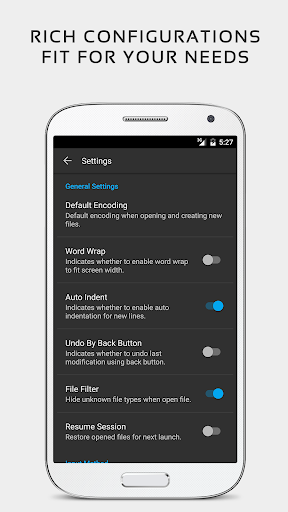
Analysis by Reviewed APKs
QuickEdit Text Editor is a phone- and tablet-friendly place to write plain text, edit code, and handle files such as logs or configuration documents. I found its appeal in the way it bridges a simple notepad and a more capable coding editor without making either use case feel like an afterthought. It suits people who regularly work with text on Android and want useful editing tools close at hand.
A quick edit on the go
Picture opening a text file while you have a few minutes between tasks: perhaps you need to correct a line in a note, check a setting in an INI file, or make a small change to a script. QuickEdit is built for that sort of practical stop-in. I like that the same editor can handle ordinary text and programming files, so I do not have to switch apps just because the document is more structured.
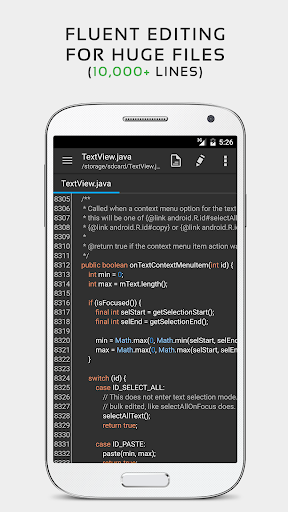
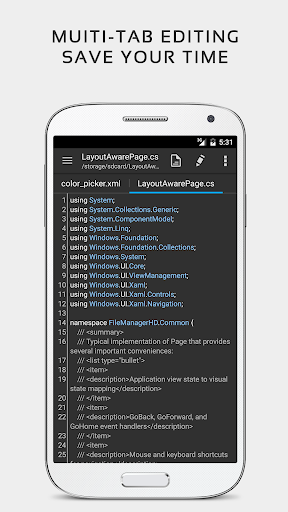
For a longer session, the details matter. QuickEdit supports multiple open tabs, line numbers, search and replace, and jumping straight to a chosen line. I can imagine using those tools to revisit a long log or pick up a code file where I left off. Its stated support for files over 10,000 lines is also reassuring when a document is too big for a casual notepad.
More than a basic notepad
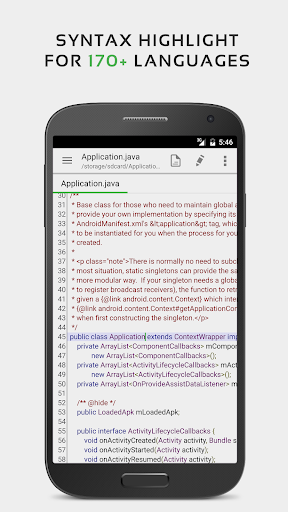
The obvious comparison is a basic notes app, but QuickEdit is aimed at editing files rather than collecting polished notes or managing a personal knowledge base. It adds code-oriented features such as syntax highlighting for more than 170 languages, while retaining the familiar job of opening and changing plain text. That mix makes it more flexible than a minimal notepad for people who routinely handle both kinds of documents.
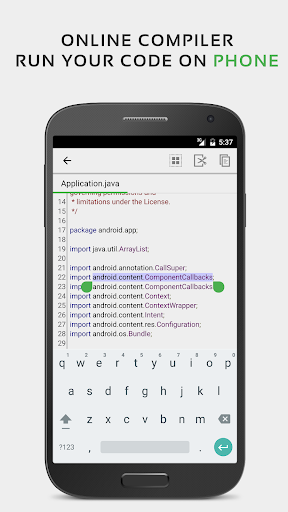
It is also not presented as a full desktop development environment. The description includes an online compiler for compiling and running more than 30 common languages, but the app's central role remains editing text and code on a mobile device. If your work depends on a broader development setup, this may be a useful companion rather than a replacement. For quick edits, inspections, and small changes, its focus makes more sense.
Small habits that help
I would start by using tabs deliberately: keep the handful of files needed for a task open, then move between them instead of repeatedly reopening documents. For code, line numbers and the jump-to-line option can make a specific passage easier to reach. Search and replace is handy for repeated text, while undo and redo give me room to make edits without treating every change as final.
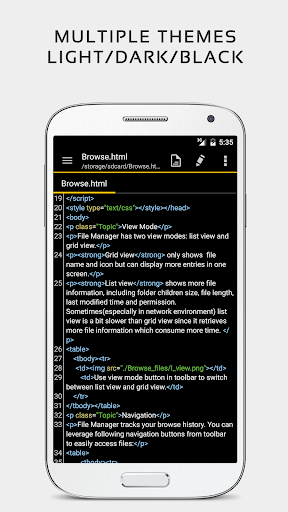
A physical keyboard can make a phone or tablet feel more comfortable for longer edits, and QuickEdit supports keyboard combinations. I would also choose a font size that keeps the current task readable, then use the light or dark theme that works for the setting. If files live in supported services such as Google Drive or Dropbox, access from the editor can fit into an existing document routine.
More From Our News Desk

Zoom Meetings, Google Meet, or Teams: Which Is Easiest to Join?

How I Build a Free Streaming Lineup With Tubi

Why Crunchyroll Is the Default Anime App for So Many Fans

YouTube TV: A Practical Guide to Cutting Cable

Rummikub and the Small Comfort of Phone Games

TeamViewer Remote Control or AnyDesk for Helping Family?
Who will get the most from it
I would recommend QuickEdit to students, developers, and practical tinkerers who sometimes need to open code or plain-text files away from a computer. It is also a sensible option for anyone who edits TXT, LOG, or INI files and wants more control than a basic notes app usually provides. The range of supported languages and the ability to work with multiple tabs give it room to serve both quick fixes and more involved reading.
It may be less appealing if you mainly want a rich-text writing space, a place to organize notes, or a complete desktop-style programming environment. QuickEdit is centered on text and code editing, not on those broader workflows. People who prefer a very minimal interface may also find its many editing options unnecessary. Its strongest fit is someone who values practical file handling and is willing to use a few tools to make mobile editing more efficient.
QuickEdit Text Editor is a productivity app from Rhythm Software. Google Play shows more than 10 million installs and a 4.0-star rating from around 52,570 ratings. The app is free to download, and the supplied store facts indicate that it contains ads. There are no in-app purchases listed in the supplied facts.
The content rating is Everyone. The current version in the supplied facts is 1.12.12. QuickEdit was released on September 17, 2014, and its listed last update is October 24, 2026. Google Play requirements can change over time, so check the store page for the Android version required by the device you plan to use.
A closer look at mobile editing
Opening and getting situated
My first impression of QuickEdit is that it is meant to get out of the way and let the document be the main event. The description frames it as both an enhanced notepad and a code editor, which is a useful promise for an app that might be used for very different files in the same week. I would approach it as a working editor, not as a place to build a whole writing system.
It is optimized for phones and tablets, and the feature set reflects both kinds of use. On a phone, direct access to recent or added files can help when I need to return to something quickly. On a tablet, the same text tools may be more comfortable for a longer pass. The option to use different fonts and sizes also gives me a way to adapt the reading surface to the document.
The everyday editing loop
The basic loop is straightforward: open a file, make a change, and use the editing controls to inspect or refine it. QuickEdit includes line numbers that can be shown or hidden, indentation controls, automatic indentation for new lines, and smooth vertical and horizontal scrolling. Those are modest details, but they matter when a file is structured or wider than the phone screen.
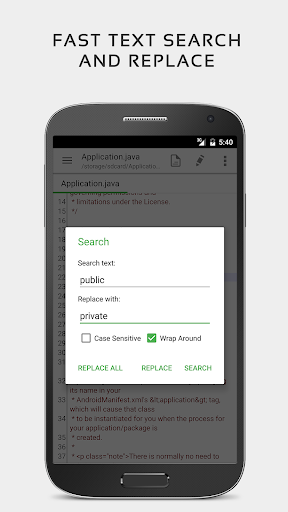
Search and replace, fast selection, and unlimited undo and redo make the editing side feel more considered than a plain text viewer. I would especially value those tools when making repeated corrections or trying a change in a file I do not want to damage. Multiple tabs help when the task involves comparing or alternating between documents, rather than treating every edit as an isolated visit.
Tools for code and markup
Syntax highlighting is one of QuickEdit's clearest differences from a general-purpose notes app. It supports more than 170 languages, with examples including Java, Python, XML, JavaScript, C++, and Markdown. That breadth is useful even if I only work with a few formats: I can keep one editor available for different kinds of code and text without searching for a specialized app each time.
The description also includes an online compiler that can compile and run more than 30 common languages. That makes QuickEdit more than a passive place to read source files, although it does not change the app's main identity as an editor. For markup, it can preview HTML, CSS, AsciiDoc, and Markdown files. These options make it easier to check certain documents in a more readable form.
A practical file routine
A useful routine might begin with a small task: open a configuration file, search for the relevant text, make a careful edit, and use undo if the result is not right. On another day, the same app could serve as a place to inspect a long log or tidy up a Markdown document. QuickEdit supports recently opened and added file collections, which can help make returning to active work less of a chore.
File access is another part of that routine. The description names FTP, Google Drive, Dropbox, and OneDrive as supported sources, as well as integration and easy access to GitHub and GitLab. I would treat those as useful routes for people whose files already live in those places. Physical keyboard support, including key combinations, may also make a tablet-based editing session feel less cramped.
Keep its scope in mind
QuickEdit has a broad feature list, but that does not make every feature necessary for every person. Someone who only writes short, informal notes may not need language highlighting, line navigation, or compiler access. In that case, the extra capability can feel like more editor than the task calls for. I would choose it because I expect to work with files, not simply because I want another place to jot down a thought.
The app contains ads, which is worth factoring into the experience if you prefer a fully ad-free workspace. The supplied facts do not specify an Android minimum version, so I would check Google Play before installing on an older device. Editing system files is described as an option on rooted devices; that is a specialized use, not a requirement for ordinary text editing.
QuickEdit Text Editor makes a convincing case as a versatile mobile editor: it handles plain text, supports a wide range of programming languages, and includes the navigation and editing tools that make longer files less awkward. Its range is its main strength, particularly for people who move between notes, code, and configuration files.
I would recommend giving it a try if you regularly edit text or code on an Android phone or tablet. If you only need simple note-taking, or expect a full desktop development suite, it is probably not the right match. For practical, file-focused editing, QuickEdit covers a lot of ground.
QuickEdit Text Editor Frequently Asked Questions
What is QuickEdit Text Editor used for?
QuickEdit is used to create and edit plain-text files and programming files on Android. It includes syntax highlighting for more than 170 languages, tools such as search and replace and line navigation, and previews for HTML, CSS, AsciiDoc, and Markdown. The description also includes an online compiler for more than 30 common languages.
Which devices can run QuickEdit Text Editor?
QuickEdit is an Android app optimized for both phones and tablets. It also supports physical keyboards and key combinations, which may be useful when editing on a tablet. The Android version required can vary with the current app release and device, so check the Google Play store page for the requirement that applies to your device.
What Android version does QuickEdit Text Editor require?
The Android minimum requirement can vary, so check QuickEdit's Google Play store page before installing, especially if you use an older device. The app is described as optimized for phones and tablets, but that does not specify a particular Android version. The store page is the best place to confirm compatibility for your device.
Does QuickEdit Text Editor cost money?
QuickEdit is free to download, and the supplied store facts indicate that it contains ads. No in-app purchases are listed in those facts. Store details can change over time, so check the Google Play page for the current cost and any changes to its ad or purchase information.
Is QuickEdit Text Editor suitable for beginners?
It can suit beginners who want to edit ordinary text or learn their way around code files, since its core job is editing and it also offers syntax highlighting. Its many developer-oriented tools may be more than someone needs for simple notes. I would recommend it most to people who expect to work with files regularly.
Pros
- Handles plain-text documents and code in one editor, with highlighting for more than 170 languages.
- Includes useful navigation, search, indentation, and undo tools for longer editing sessions.
- Supports phone and tablet use, physical keyboards, and access to several file services.
- Offers previews for HTML, CSS, AsciiDoc, and Markdown documents.
Cons
- Contains ads, which may distract users who want a completely uninterrupted editing space.
- Its extensive code-oriented toolkit may feel unnecessary for people who only want basic notes.
- The Android version requirement should be checked in Google Play before installing.
- Category
- Productivity
- Version
- 1.12.12