Adobe Acrobat Reader: Edit PDF
- 8.05M
- 4.5
- Installs
- 500.00M
- Price
- Free
Screenshots
Analysis by Reviewed APKs
Adobe Acrobat Reader: Edit PDF is a mobile PDF reader for opening, reviewing, signing, and working with documents. It suits anyone who regularly handles forms, work files, or study materials on a phone. After spending time with its mix of free reading tools and paid editing options, I see it as a capable everyday document companion, though its broader feature set can feel like more than a casual reader needs.
A Form-Filling Afternoon
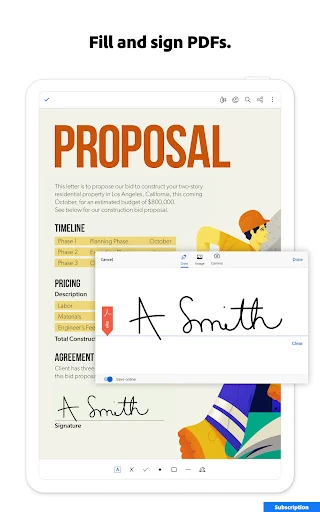
When I first opened a form that needed a quick signature, Acrobat Reader’s appeal was straightforward: I could read the PDF, fill it in, and sign it without switching to a separate signing app. The free Fill & Sign tools are built into the reader, so the basic job feels like part of one workflow rather than a separate product. For routine paperwork, that convenience matters more than a long list of advanced features.
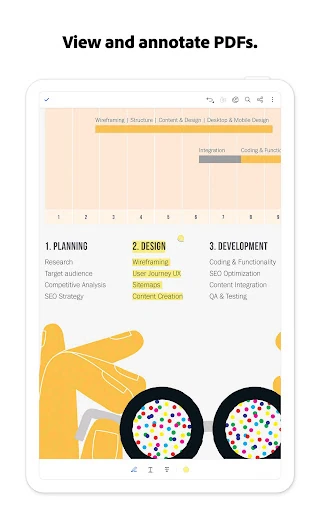
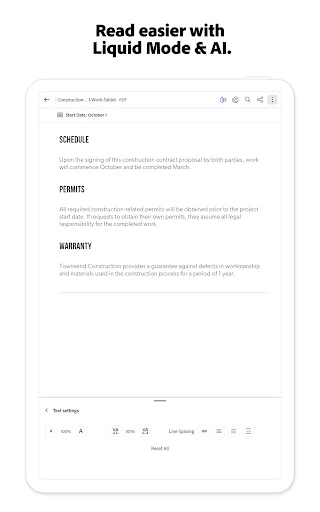
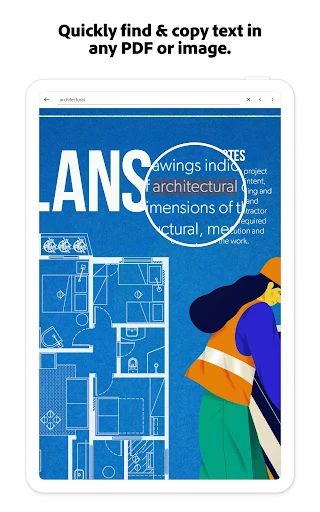
I also found the reading tools useful when a document was too dense for a small screen. Liquid mode lets me adjust text size and spacing, while search and navigation help me find the relevant section. If I needed to mark up a draft, I could add notes, comments, or highlights. Those are practical touches for reviewing a file between errands or during a short break, rather than waiting until I am back at a computer.
Reader First, Editor Too
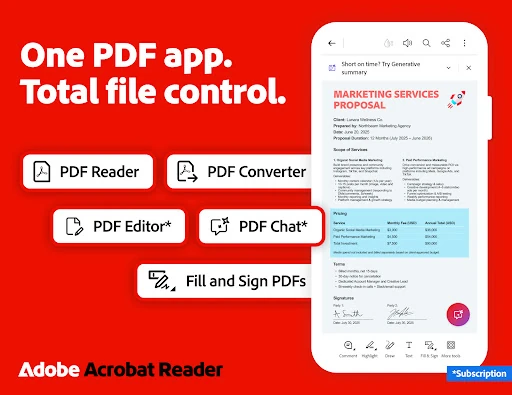
Compared with a basic PDF viewer, Acrobat Reader is aimed at people who want to do more than open a file and scroll. It combines viewing and annotation with signing, file storage connections, and a wide range of paid document tools. The free features cover common reading and form-filling tasks, while editing text, converting files, and organizing pages sit among the paid options. That division makes it useful to occasional users and heavier document workers alike.
It is not a general office suite or a replacement for every desktop document workflow. The app focuses on PDFs, and its more involved editing and conversion tools may be unnecessary if I only read the occasional attachment. Some capabilities require a subscription, so I would not install it expecting every tool to be free. Its strength is keeping many PDF jobs together, not handling every kind of work file from start to finish.
Small Habits, Smoother PDFs
A few simple habits make the app easier to use. I would star documents I expect to revisit, then link a supported online storage account if I already keep files in OneDrive, Dropbox, or Google Drive. That way, important PDFs are easier to return to, and I can work from familiar storage rather than first hunting through unrelated folders on my phone.
For longer reading, I would adjust the text size and spacing in Liquid mode and use search to jump to a name or phrase. For a form, I would check every filled field before signing and sharing it. If a file needs more substantial changes, it helps to know in advance that editing, page rearrangement, or conversion may require a subscription. That keeps a simple task from turning into an unexpected detour.
More From Our News Desk

Zoom Meetings, Google Meet, or Teams: Which Is Easiest to Join?

How I Build a Free Streaming Lineup With Tubi

Why Crunchyroll Is the Default Anime App for So Many Fans

YouTube TV: A Practical Guide to Cutting Cable

Rummikub and the Small Comfort of Phone Games

TeamViewer Remote Control or AnyDesk for Helping Family?
Who May Find It Useful
I would recommend Acrobat Reader to people who regularly receive PDFs for work, school, or everyday paperwork and want to read, annotate, or sign them from a phone. It is especially practical when documents arrive at inconvenient times and a quick review cannot wait for a laptop. The free reading, highlighting, commenting, and Fill & Sign tools give occasional users a useful starting point without requiring them to use the full paid toolkit.
It may be less appealing if you only open a PDF once in a while and want the simplest possible viewer. The app has many capabilities beyond basic reading, and some of its editing, conversion, and AI options are paid. I would also weigh the subscription features against how often I actually handle documents. For someone who mainly needs to view a file, those broader tools may add complexity without changing their routine.
Adobe develops Acrobat Reader: Edit PDF, a productivity app released on May 24, 2010. Google Play shows over 500 million installs and a 4.5-star rating from about 8.1 million ratings. The app is free to download, and the store reports in-app purchases ranging from $0.99 to $299.99 per item. It contains ads and has an Everyone content rating.
The Android version is listed as varying with device, and the app version also varies with device. Google Play gives October 28, 2026 as the last update date. The description says a seven-day free trial is available for trying all features, and that subscriptions unlock paid tools across mobile and web. The exact purchase a user may need depends on which features they want.
A Closer Look at Everyday PDF Work
Getting Started
My first impression is of an app built to cover a lot of PDF ground. The starting point is familiar: open a document, read it, and use search or navigation to find what matters. From there, the options extend into markup, signing, file connections, and paid editing tools. That range is useful, but it also means a new user may want to focus on the few tasks they actually came to do.
I would begin with a real document rather than trying to understand every tool at once. Open a file that needs reading, test the text size and spacing, then try a highlight or comment if review is part of the task. If I need to fill and sign a form, those tools are available in the app as well. The subscription prompt is worth considering only when a specific paid feature becomes relevant.
Daily Reading and Review
For everyday reading, the useful details are often small. Liquid mode provides controls for adjusting the text presentation to fit a phone screen, and search helps with documents that would otherwise mean a lot of scrolling. I can also annotate with sticky notes, comments, and highlights. Together, these features make Acrobat Reader suitable for reviewing a brief, checking a form, or marking a document to revisit.
I like that the reader can also connect with Microsoft OneDrive, Dropbox, and Google Drive. That can make a familiar storage setup more convenient, especially when documents live in different places. The app also lets users star files for faster access. I would not expect every connected-file action to be free, though: the description says editing, compressing, and exporting Google Drive files require a subscription.
More Than Viewing
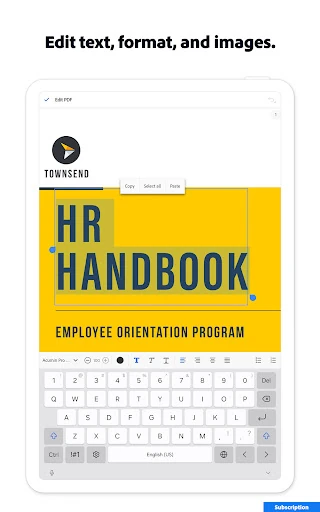
The standout feature is the breadth of document work gathered around the reader. Paid tools include editing PDF text and images on mobile, correcting typos, changing page order, and combining or splitting files. The app also describes OCR for turning scanned PDFs into searchable and editable text. These features could save a trip to a computer when a document needs a direct change, although they go beyond the core free reading experience.
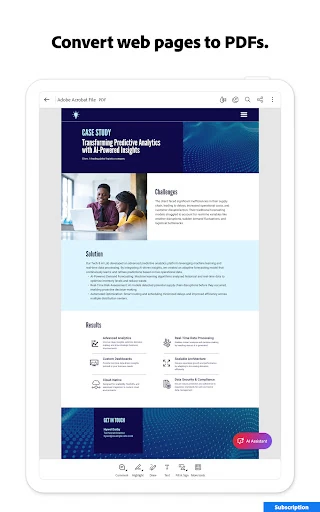
There are also conversion options for making PDFs from other file types and exporting PDFs to formats such as Word, Excel, PowerPoint, or image files. Users can compress and password-protect PDFs, too. For people working across several documents, the description highlights PDF Spaces and AI Assistant tools, including document questions and generated summaries. These are paid features, with the AI Assistant described as free for a limited time.
A Practical Document Routine
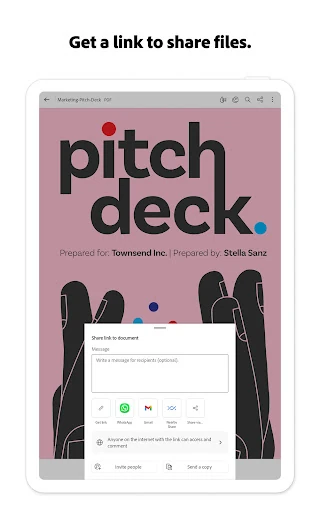
A routine I can imagine is handling a document as soon as it arrives: open it, search for the important section, and use Liquid mode if the page is awkward to read on a phone. If it needs review, add a comment or highlight. If it is a form, fill and sign it with the free tools, then share it. Keeping the steps together is the app’s most obvious everyday advantage.
For a heavier workday, I would connect the storage service where my files already live and star the documents I need again. If I receive scanned paperwork, the description says scanned PDFs from Adobe Scan can be accessed in Acrobat for filling, signing, and sharing. I would save conversion or page-editing tasks for when I know I need them, since those tools are among the paid features.
Limits to Keep in Mind
The biggest practical limit is the split between free and paid features. Reading, annotating, and filling and signing forms are described as free, but direct text and image edits, many conversion tools, and other advanced document actions require a subscription. That is reasonable for a broad toolset, but it can be frustrating if I discover a paid requirement only after opening a file and starting a task.
The app’s wide scope may also be more than a simple reader needs. Acrobat Reader covers many PDF workflows, but that does not mean every user will want to learn or pay for them. Its version varies with device, and some storage actions also depend on a subscription. I would treat it as a strong choice for regular PDF work, rather than an essential install for someone who rarely opens documents.
Adobe Acrobat Reader: Edit PDF earns its place when PDFs are a regular part of my day. It handles reading, markup, and form signing in one app, with more advanced editing, conversion, and AI tools available for users who need them. The combination is useful, but the paid-feature boundary is important to understand.
I recommend trying it if you often review or sign documents on your phone, especially when a connected storage service is part of your routine. If you only need to view an occasional PDF, a simpler reader may suit you better. For everyone else, Acrobat Reader offers a capable set of tools, provided its subscription options match the work you actually do.
PDF Reader Frequently Asked Questions
What is Adobe Acrobat Reader: Edit PDF used for?
Adobe Acrobat Reader: Edit PDF is used to read, search, annotate, fill in, and sign PDF documents. Its description also includes paid tools for editing text and images, organizing or converting files, OCR, compression, and AI features. It can connect with online storage services, while the free tools cover common reading and form-signing tasks.
Which devices can run Adobe Acrobat Reader: Edit PDF?
The app is available for Android through Google Play, and its description says subscriptions can be used across mobile and web platforms. The Android version varies with device. For current device compatibility and any other supported access options, check the Google Play store information and Adobe’s current product details.
What Android version does Adobe Acrobat Reader: Edit PDF require?
The Android requirement can vary by device and app release, so check the Google Play store page on the device where you plan to install it. The app’s listed version also varies with device. The store is the best place to review current compatibility details before installing.
Is Adobe Acrobat Reader: Edit PDF free?
The app is free to download, and free features include PDF reading, annotation, and Fill & Sign. Other capabilities require paid access, and Google Play reports in-app purchases from $0.99 to $299.99 per item. The description mentions a seven-day free trial; available plans and purchase details may vary, so check Google Play.
Is Adobe Acrobat Reader: Edit PDF a good fit for occasional users?
It can be a good fit if you occasionally need to read, mark up, or sign a PDF on your phone, since those core tasks are covered. If you only view documents and want a very simple app, its broader tools may be unnecessary. Editing and conversion features are paid, so consider how often you would use them.
Pros
- Combines PDF reading, annotations, and free form signing in one mobile app.
- Liquid mode, search, and navigation make longer documents easier to handle on a phone.
- Connects with OneDrive, Dropbox, and Google Drive for working with stored files.
- Offers advanced editing, conversion, OCR, and AI features for broader document needs.
Cons
- Many editing, conversion, and AI capabilities require paid access.
- Its broad feature set may feel excessive for people who only view PDFs.
- Google Play reports ads alongside in-app purchases.
- Category
- Productivity