Magnifier
- 1.58K
- 3.8
- Installs
- —
- Price
- Free
Screenshots
Analysis by Reviewed APKs
Magnifier turns an iOS device’s camera into a practical aid for looking more closely at text, objects, and nearby surroundings. It is aimed especially at people who are blind or have low vision, though anyone who occasionally struggles with small print may find it useful. I like that it goes beyond simple zoom, with controls for contrast, lighting, and reading documents, while keeping its purpose focused.
A Closer Look at Everyday Details
Imagine sitting at the kitchen table with a small-print label in one hand and your phone in the other. Magnifier lets you point the camera at the label and enlarge what appears on screen, rather than juggling a separate magnifying glass. If the room is dim, you can turn on the flashlight; if the text still blends into its background, brightness, contrast, and color filters give you more ways to make the view easier to inspect.
I can also see it fitting into a quick errand: checking a sign, looking over a printed page, or making out a detail on an object before putting it away. Freezing a frame is useful when holding the phone steady is awkward, since it lets you pause on one or more views. For someone who wants more information than ordinary camera zoom provides, those small adjustments can make a routine task feel less like guesswork.
More Than Camera Zoom
A phone camera can enlarge a scene, but Magnifier is built around making nearby details easier to view and interact with. Its high-contrast, large-text interface is designed with low vision in mind, and its image controls are part of the core job rather than an afterthought. For documents, it can frame the page, let you adjust its corners, and present the text through Accessibility Reader in a format adapted for easier reading.
That focus also defines what the app is not. It is not a general photo editor, a document-management system, or a replacement for every accessibility tool someone might use. Its job is to help you inspect what is in front of the camera, with additional descriptions and supported-device features for context. If your main goal is capturing polished photos or storing files, this is a narrower tool than you need.
Small Habits, Better Views
A useful habit is to adjust the view before deciding that a detail is unreadable. Try changing brightness or contrast, then switch to a color filter if that suits the text or object better. The flashlight can help in low light, while freezing a frame gives you a moment to examine what the camera has already picked up without continually trying to hold the same position.
For a page, taking a moment to frame it and drag the corners can make the resulting perspective easier to work with. I would treat that as a separate workflow from simply magnifying a short label: get the document in view, adjust its outline, then use Accessibility Reader for the adapted text presentation. If the device supports the relevant capabilities, descriptions or questions about the camera view can add another way to interpret a scene.
More From Our News Desk

Zoom Meetings, Google Meet, or Teams: Which Is Easiest to Join?

How I Build a Free Streaming Lineup With Tubi

Why Crunchyroll Is the Default Anime App for So Many Fans

YouTube TV: A Practical Guide to Cutting Cable

Rummikub and the Small Comfort of Phone Games

TeamViewer Remote Control or AnyDesk for Helping Family?
Who May Find It Useful
I would recommend Magnifier to iOS users who want an on-hand way to enlarge nearby text and objects, particularly people who are blind or have low vision. The large-text, high-contrast interface and adjustable image controls reflect that audience, while document framing and Accessibility Reader offer a more considered option for printed pages. It may also be handy for anyone who periodically needs to inspect small details without carrying a separate magnifier.
It may be less appealing if you want a broad camera app, a way to save and organize a library of captured images, or a tool that works the same on every device. Some of its more advanced scene features depend on supported hardware or Apple Intelligence-capable devices. I would also keep in mind that a phone camera is still a camera: the app helps present a view, but does not make every object or situation equally easy to interpret.
Magnifier is an iOS app from Apple Inc. It is free, with a listed price of $0.00, and has a 4+ content rating. On the App Store, it has a 3.8 rating from about 1,600 ratings. The available version is 8.5. These details give a basic picture of the app, but the rating alone cannot say whether its controls and viewing approach will suit a particular person.
The listed minimum requirement is iOS 14.4. Magnifier was released on June 7, 2021, and its last update is dated September 14, 2026. The supplied store details do not give an install count. Features that rely on Apple Intelligence or the built-in LiDAR Scanner apply only to supported devices, so it is worth checking device compatibility if those capabilities are important to your plans.
A Practical Tool for Looking Closer
A Focused First Impression
When I first open an app like this, I want to get from the phone to the thing I am trying to see without turning the task into a project. Magnifier’s purpose is immediately clear: use the camera to enlarge nearby objects or text. That straightforward role gives it a useful place among accessibility tools, especially when the need is occasional and tied to something physically in front of you.
The interface is described as high contrast and large text, with low vision users in mind. That matters because an enlargement tool would be less useful if its own controls were difficult to distinguish. The available description does not spell out a setup sequence, so I would avoid expecting a particular onboarding tour; the strength of the concept is that the viewing task itself is familiar.
The Everyday Viewing Loop
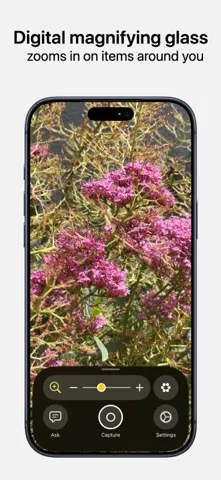
The basic routine is simple: point the camera at the nearby detail, enlarge it, and adjust the image to make it more comfortable to inspect. Brightness and contrast can be changed, color filters can be applied, and the flashlight can be switched on. Those controls give you options when the problem is not just distance, but also dim lighting or a lack of separation between text and background.
I spent an evening imagining the common stop-and-check moments this is suited to: a line on a printed page, a small mark on an object, or a sign you want to read without moving closer. Freezing one or more frames can help when a live view is hard to hold steady. It is a practical loop, though the view still depends on camera positioning and the device in your hand.
Features With a Clear Purpose
The document tools are among the more distinctive parts of Magnifier. You can frame a document, drag its corners to adjust the perspective, and view its text through Accessibility Reader in a format adapted for easier reading. That makes the app more than a live magnifying glass for a page: it offers a specific path for handling printed material when a straight camera view is not comfortable to read.
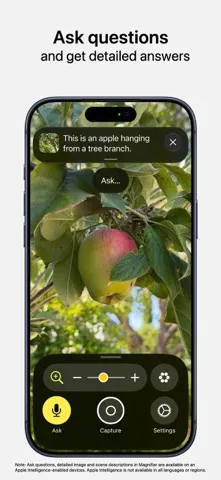
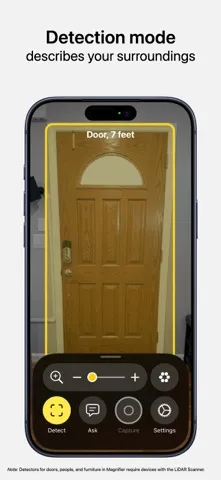
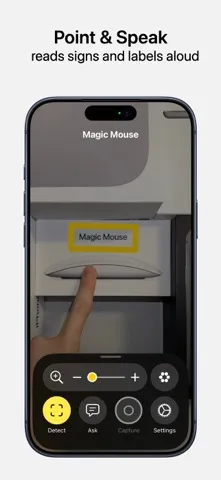
Magnifier can also describe surroundings, including people, furniture, and text on signs. On Apple Intelligence-capable devices, it can provide richer descriptions and answer questions about what the camera sees. On supported devices with a built-in LiDAR Scanner, it can help users understand relative distance to nearby people, locate a door and hear about its attributes, or find an unoccupied seat. These options depend on device support.
A Routine for Print and Places
For a printed document, I would start by getting the page within the camera view and adjusting the frame corners until the perspective is more useful. Then I would use Accessibility Reader to see the text in its adapted format. That sequence is more purposeful than repeatedly zooming in and out on a page, and it gives the document tools a clear role in an everyday reading routine.
For a quick look at a sign or object, the workflow can stay lighter: point the camera, try contrast or a filter if needed, and switch on the flashlight when the surroundings are dim. If the view is moving too much, freezing a frame offers a pause for inspection. Descriptions may be useful when you want context beyond magnification, while supported LiDAR features address specific nearby navigation details.
Keep the Boundaries in View
Magnifier is best understood as a focused visual aid, not a universal answer for every reading or navigation situation. A phone camera needs to be aimed at the subject, and the result depends on the view available to it. The app’s controls help tailor that view, but the description does not promise that every fine detail will always be legible or that every scene can be fully understood.
There is also a difference between the core magnification tools and features that require particular hardware. Apple Intelligence descriptions need a capable device, and the LiDAR-related options are for supported devices with the built-in scanner. If those advanced functions are a deciding factor, checking compatibility before relying on them is sensible. The app’s value remains clearest in its direct job: enlarging and adapting a view of nearby surroundings.
Magnifier makes a focused case for itself by combining enlargement with practical viewing adjustments, document handling, and optional scene descriptions. I especially like that its tools address different obstacles: lighting, contrast, shaky framing, and perspective. It stays narrower than a full camera or document app, and that is part of its appeal when the immediate need is simply to see something more clearly.
I would recommend giving it a try if you use an iOS device and want an accessible way to inspect nearby text, objects, or surroundings. People who need the most advanced descriptions should check whether their device supports them. If you are looking for photo storage or a general-purpose visual assistant, Magnifier may not cover that broader job.
Magnifier Frequently Asked Questions
What is Magnifier used for?
Magnifier uses an iOS device’s camera to enlarge nearby objects and text. You can adjust brightness and contrast, use color filters or the flashlight, and freeze frames for closer inspection. It also offers document framing with Accessibility Reader, descriptions of surroundings, and additional capabilities on supported devices.
Which devices can run Magnifier?
Magnifier is an iOS app, and the listed minimum requirement is iOS 14.4. Some features have additional device requirements: Apple Intelligence descriptions need a capable device, while LiDAR options require a supported device with the built-in scanner. Check the App Store information for current compatibility details.
Does Magnifier cost anything?
Magnifier is listed as free, with a price of $0.00. The supplied app details do not give information about in-app purchases, so those details may vary and are worth checking on the App Store. The core described purpose is enlarging nearby views and adjusting how they appear.
What iOS version does Magnifier require?
The listed minimum is iOS 14.4. Magnifier’s version is 8.5, and the supplied release details give June 7, 2021, as its release date and September 14, 2026, as its last update. Store information can change, so check the App Store for current requirements before installing.
Is Magnifier a good fit for me?
It may suit iOS users who want help viewing nearby text, objects, documents, or surroundings, especially people who are blind or have low vision. Its controls include contrast, brightness, filters, and frame freezing. Whether the advanced descriptions fit your needs depends in part on device support; the App Store is worth checking.
Pros
- Combines magnification with brightness, contrast, color filters, and a flashlight.
- Document framing and Accessibility Reader offer a distinct option for printed pages.
- Large-text, high-contrast interface is designed with low vision users in mind.
- Scene descriptions and LiDAR tools add options on supported devices.
Cons
- Some advanced features depend on Apple Intelligence or supported LiDAR hardware.
- The app is focused on viewing nearby scenes, not organizing captured content.
- A useful view still depends on aiming and holding the device toward the subject.
- Category
- Tools
- Version
- 8.5