3D Modeling App: Sculpt & Draw
- 19.73K
- 4.2
- Installs
- 10.00M
- Price
- Free

Screenshots
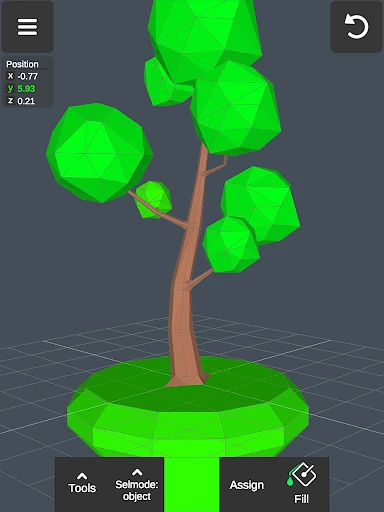
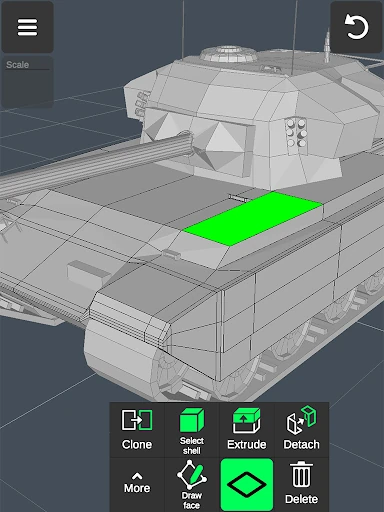
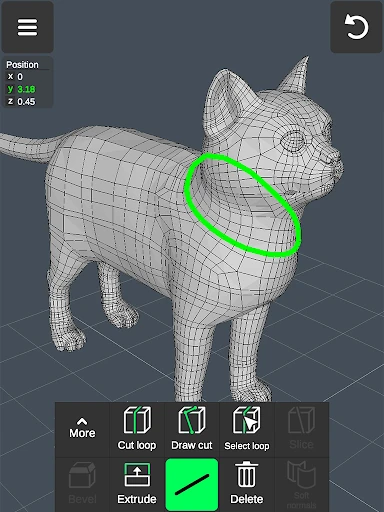
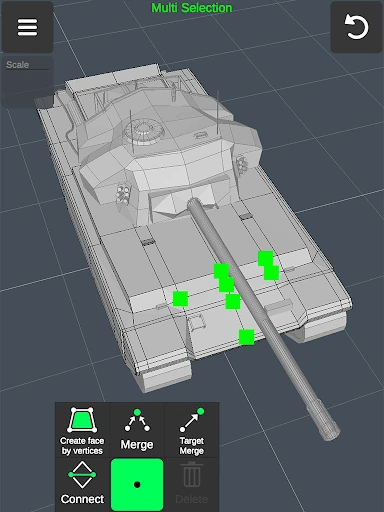
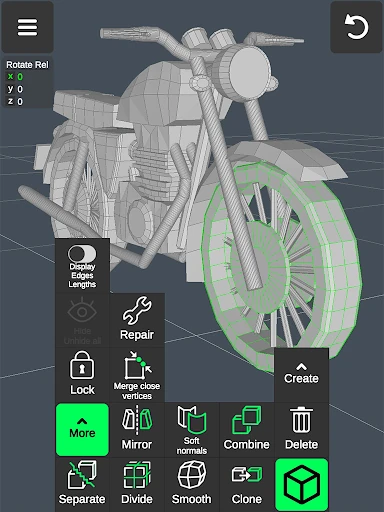
Analysis by Reviewed APKs
3D Modeling App: Sculpt & Draw is a mobile workspace for making and editing 3D objects, from quick shape studies to more detailed models. I found its mix of direct gestures, mesh-editing tools, sculpting, and painting more substantial than the name first suggests. It suits curious beginners and modelers who want to work on a phone or tablet, though the dense toolset takes patience to learn.
A Model in a Spare Hour
When I imagine using this app in an ordinary week, I picture a spare hour with a rough idea for a small object: perhaps a simple prop for a game or a piece of furniture worth sketching in three dimensions. I can move, rotate, and scale objects with gestures, then switch to vertex, edge, or face tools to shape the mesh. That makes the app feel suited to turning a loose visual idea into something I can inspect from different angles.
A practical session could start with broad changes and get more precise as the shape takes form. I might select a face, extrude it, and smooth an awkward area with a sculpting brush. Grid snapping and precise move, rotate, and scale values offer a way to rein in gestures when accuracy matters. Auto-save is a welcome safety net for an interrupted session, although I would still make a habit of exporting work I want to use elsewhere.
A Different Kind of Sketchbook
Compared with a conventional drawing app, this is much more about geometry than flat marks on a page. It includes tools for editing vertices, edges, faces, and whole objects, plus vertex-color painting and up to 20 materials per object. I would reach for it when I want to build or alter a three-dimensional form on a mobile device, rather than when I simply want to make a quick illustration or annotate a photo.
It also sits at a different level from a dedicated desktop modeling workflow. The app can import and export OBJ files, which gives its models a path into other 3D and CAD software, but the presence of those tools does not make every professional workflow a comfortable fit on a phone. I see it as a portable modeling workspace for sketching and editing, not a substitute for every specialist production tool or a complete game-development environment.
Small Habits, Better Control
The fastest way to get more from the app is to separate rough shaping from cleanup. I would start with broad gestures, then use the grid, snapping options, and precise values when parts need to line up. The display options can help me check a form from another angle: wireframe makes the underlying mesh visible, while shaded display and shadows offer a different read of the surface.
Selection shortcuts are worth learning early. Long taps and frame selection can select multiple vertices, edges, faces, or objects, while grow selection and selection conversion help adjust what is included. I would also isolate a selection when the rest of the model gets in the way. For a portable workflow, exporting an OBJ at a useful stopping point is a sensible habit, especially when the next step is in another modeling or CAD application.
More From Our News Desk

Zoom Meetings, Google Meet, or Teams: Which Is Easiest to Join?

How I Build a Free Streaming Lineup With Tubi

Why Crunchyroll Is the Default Anime App for So Many Fans

YouTube TV: A Practical Guide to Cutting Cable

Rummikub and the Small Comfort of Phone Games

TeamViewer Remote Control or AnyDesk for Helping Family?
Who May Enjoy Modeling Here
I would recommend 3D Modeling App: Sculpt & Draw to people who want to explore 3D modeling on a phone or tablet, especially those who like learning by manipulating shapes directly. The combination of mesh editing, sculpting brushes, color painting, materials, and OBJ import and export gives curious makers several ways to experiment. A stylus is supported, but the app description says it is not required, so touch-based use is part of the intended experience.
It may be less appealing if you want a very simple drawing pad or expect to master a full modeling toolkit without a learning curve. The app exposes many kinds of geometry and selection tools, and that breadth can make the interface feel busy at first. I would also hesitate to treat a mobile app as the only tool for a demanding professional pipeline. It makes more sense as a place to practice, sketch, and handle model edits on the go.
On Google Play, 3D Modeling App: Sculpt & Draw is published by 3D Modeling Apps and has over 10 million installs. It holds a 4.2-star rating from 19,729 ratings. The app is free to download, contains ads, and offers in-app purchases priced from $0.99 to $34.99 per item. Its content rating is Everyone.
The listed version is 1.20.18. The app was released on August 20, 2024, and its last update is dated October 23, 2026. The minimum Android version is not included in the supplied app details, so check the Google Play page on your device for compatibility information before installing.
A Hands-On Look at Mobile Modeling
Opening the Workbench
My first impression is that this is not a one-button 3D toy. It puts a wide set of modeling actions within reach, including object transforms, mesh selection, sculpting, and display controls. That range is promising, but it also means a newcomer may need a little time to understand which tool applies to which part of a model.
The mobile focus is clear in the gesture-based workflow. Moving, rotating, and scaling objects or the camera are built around touch, while the app also supports a stylus for people who prefer one. I would start with a simple object and experiment with selection and camera movement before trying to make something complicated. That modest first project gives the toolset room to make sense.
Working with the Shape
Day to day, the app's strength is how many levels of a model it lets me work on. I can choose individual vertices, edges, or faces, or select objects, then use tools such as extrude, connect, detach, clone, or mirror. For shaping a surface more freely, the sculpting tools include move, screen, push, pull, and smooth, with brush size and strength adjustable.
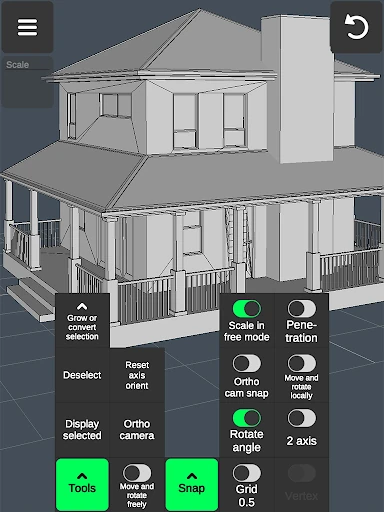
When a model starts to feel crowded, selection and display controls become useful rather than decorative. I can isolate a selection, grow it, or convert between selection types, and turn wireframe, shading, shadows, or axes on and off. The grid has adjustable size and snapping values. Together, these options provide ways to move between broad visual work and more controlled edits.
Tools Beyond Basic Sculpting
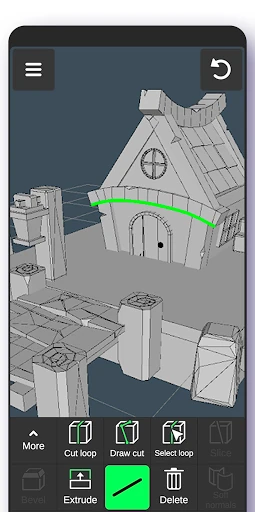
The geometry tools go further than pushing a surface around. Edge work includes cuts, loop cuts, loop and ring selection, extrusion, and filling a hole from border edges. Face tools include drawing a face from points, reversing, deleting, cloning, and selecting a shell. Object-level options include combining or separating objects, smoothing, dividing, and adjusting normals.
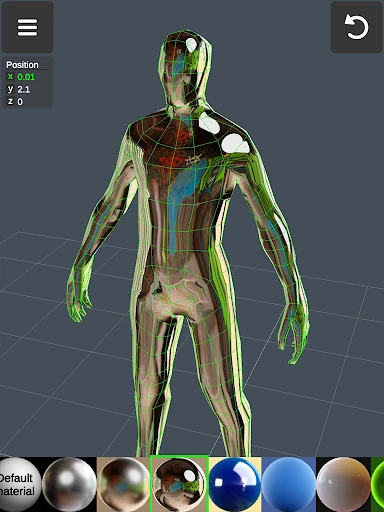
I also like that the app gives practical ways to inspect and color a model. It can show triangle counts, distances between vertices, and edge lengths, and it supports vertex-color painting as well as applying up to 20 materials to an object. Orthographic camera support, axis controls, and several snapping modes make the workspace more useful for deliberate modeling than a purely freeform sculpting tool would be.
A Portable Model Routine
A useful routine would be to block out a shape first, keeping the early edits broad and simple. I could then switch to more exact transforms, use grid or angle snapping where appropriate, and inspect the mesh with wireframe enabled. If a section needs more attention, isolating the selection should reduce visual clutter. Auto-save helps with continuity, but exporting an OBJ at a natural checkpoint gives the project a portable handoff.
That export and import support is one of the app's more practical bridges to other work. The description names compatibility with a range of modeling and CAD software through OBJ files, and mentions third-party converters for other formats. I would treat those conversions as a separate step, not as built-in export options. For a hobby project or early design study, the ability to move an OBJ elsewhere is still valuable.
Keep the Scope Realistic
The biggest limitation I would keep in mind is the amount of technique packed into a mobile interface. Terms such as edge loops, normals, and shell selection are familiar to some modelers and less so to casual artists. Even with gestures and shortcuts, a small screen can make detailed selection feel demanding. Starting with a basic form is likely to be more rewarding than expecting instant fluency across every tool.
The app also covers a broad set of possible uses, from sculpting and painting to engineering-oriented design and game assets. That breadth is appealing, but it does not mean every specialized task will be equally comfortable on a phone. I would use it for portable modeling, exploration, or edits that suit its available tools, and keep expectations grounded when a project needs a more focused production workflow.
3D Modeling App: Sculpt & Draw packs a substantial set of modeling, sculpting, selection, display, and painting tools into a mobile workspace. Its gesture controls and OBJ support make it more than a simple 3D doodler, while the range of options asks for a little patience and practice.
I recommend giving it a try if you want to learn or experiment with 3D models on a phone or tablet, and are comfortable exploring a fairly broad toolset. If you only need quick flat sketches, or want a streamlined experience with minimal controls, this may be more app than you need.
3D Modeling App Frequently Asked Questions
What is 3D Modeling App: Sculpt & Draw used for?
3D Modeling App: Sculpt & Draw is used to create and edit 3D models and objects on a mobile device. Its tools cover mesh editing, sculpting, vertex-color painting, materials, and OBJ import and export. People can use it for personal design studies, creative projects, or model work they plan to continue in compatible software.
What devices can run 3D Modeling App: Sculpt & Draw?
The app is listed for Android, and its description refers to use on a mobile phone or tablet. It supports touch gestures and also supports a stylus, which is optional. Check the Google Play page for the current device and compatibility details relevant to your phone or tablet.
What Android version does 3D Modeling App: Sculpt & Draw require?
The minimum Android version can vary with the app and device, so check the Google Play page before installing. The app's listed version is 1.20.18, but that does not by itself indicate which Android versions are supported.
Does 3D Modeling App: Sculpt & Draw cost money?
3D Modeling App: Sculpt & Draw is free to download and contains ads. It also offers in-app purchases, with listed item prices ranging from $0.99 to $34.99. Store prices and purchase options may vary, so check Google Play for the current details in your region.
Is 3D Modeling App: Sculpt & Draw suitable for beginners?
It can suit beginners who are interested in learning 3D modeling and willing to explore a substantial collection of tools. The app includes sculpting and gesture-based editing, but also more technical options for vertices, edges, faces, and snapping. Someone looking for a very simple drawing app may prefer a less specialized tool.
Pros
- Offers mesh editing, sculpting, vertex-color painting, and materials in one mobile workspace.
- Gesture controls support moving, rotating, and scaling models and the camera.
- OBJ import and export can connect mobile work with compatible modeling software.
- Selection, snapping, and display controls support more precise edits.
Cons
- The range of geometry tools may take time for beginners to learn.
- Detailed selections and edits can feel demanding on a small screen.
- Contains ads and offers in-app purchases.
- Category
- Art & Design
- Version
- 1.20.18