Mimo
- 5.76K
- 2.4
- Installs
- 1.00M
- Price
- Free
Screenshots
Analysis by Reviewed APKs
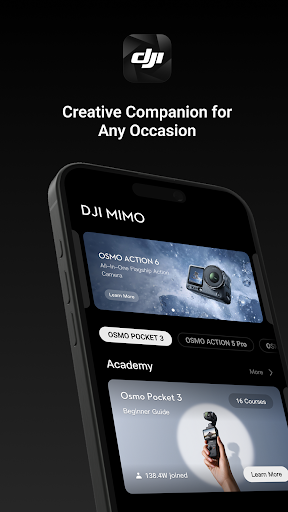
Mimo is DJI’s companion app for controlling and working with footage from its handheld imaging devices, including Osmo cameras, gimbals and DJI Mic. It suits people who already use that gear and want a live view, remote controls and editing tools in one place. My overall take is that it has a focused job and useful creative options, but its appeal depends heavily on owning compatible DJI hardware.
A camera session in your pocket
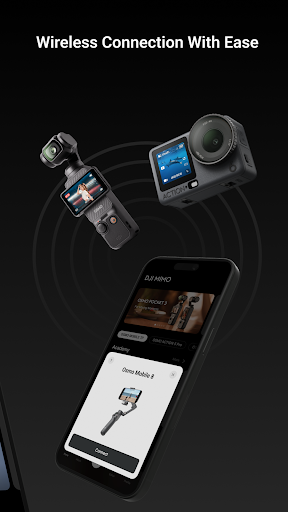
Imagine setting up an Osmo Pocket for a family gathering and wanting to frame the shot without hovering over the camera. Mimo’s live view lets you see what the camera sees, while remote control over Bluetooth or Wi-Fi gives you a way to adjust the camera or gimbal from your handheld device. That kind of setup is the app’s clearest everyday purpose: making a supported DJI device easier to operate while you shoot.
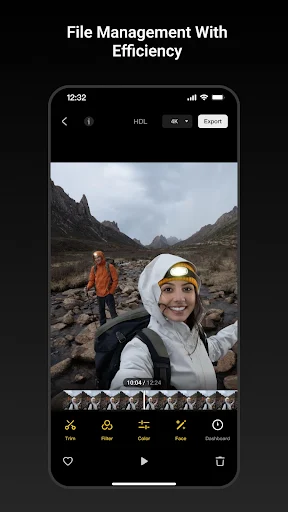
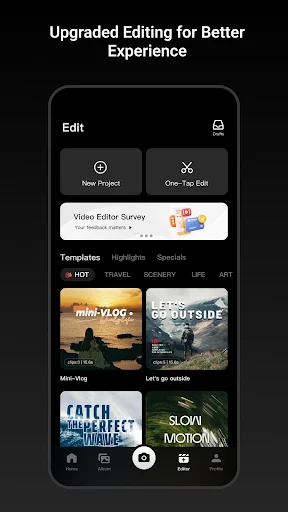
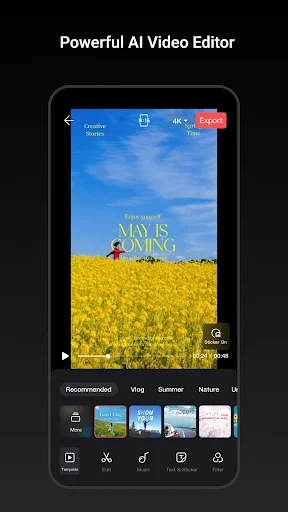
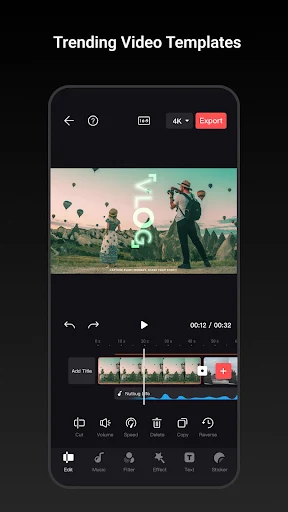
When I think through a simple outing, the useful part is having capture and follow-up work connected. You can use Mimo to preview a scene, control a compatible device, then move into editing tools for the result. Filters, color grading and beauty mode offer ways to change the look, while templates help shape a video. It is a more joined-up workflow than using a camera control app and a separate editor for every step.
A companion, not a camera
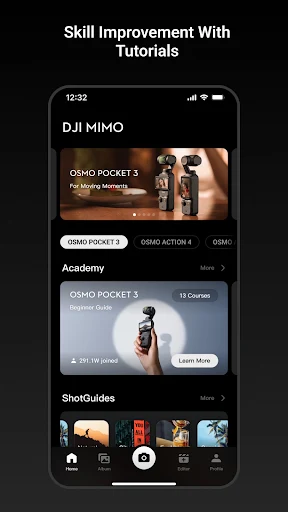
Mimo is best understood as a companion for DJI handheld imaging gear, rather than a general-purpose camera app that replaces your phone camera. Its support covers products in the Osmo Pocket, Osmo Action, Osmo 360 and Osmo Mobile families, as well as DJI Mic. If you own one of those devices, the live preview and remote control can make the phone part of the shooting setup instead of just a place to store finished clips.
If you only want to take casual pictures on your phone, Mimo is probably more app than you need. Its central controls are designed around compatible DJI devices, and its editing options are an added part of that workflow rather than the whole reason to install it. I would not choose it as a standalone photo editor or expect it to control unrelated cameras. The best comparison is a device companion with editing tools attached.
Small habits for smoother shoots
I’d make a quick preview part of the setup routine before recording anything important. Framing on the phone’s live view can help you check what the camera is pointed at without relying only on the device’s own screen. When the gear is positioned out of easy reach, remote control over Bluetooth or Wi-Fi is another practical reason to have Mimo ready before the moment starts.
After shooting, it helps to think of the app as a place to give a clip a deliberate finish rather than applying every effect at once. A filter or a color adjustment can shift the mood, and a video template can provide a more structured starting point. Live screenshots and the Osmo Logo feature are also among the listed output options. I’d try these tools on a casual clip first, then settle on a repeatable style.
More From Our News Desk

Zoom Meetings, Google Meet, or Teams: Which Is Easiest to Join?

How I Build a Free Streaming Lineup With Tubi

Why Crunchyroll Is the Default Anime App for So Many Fans

YouTube TV: A Practical Guide to Cutting Cable

Rummikub and the Small Comfort of Phone Games

TeamViewer Remote Control or AnyDesk for Helping Family?
Who will get the most from Mimo
I’d recommend Mimo to DJI handheld-device owners who want a phone-based preview and remote control alongside basic creative finishing tools. It is especially relevant if you already use an Osmo Pocket, Osmo Action, Osmo 360 or Osmo Mobile product, or DJI Mic, and want one app associated with that kit. The combination of camera control, live view and editing gives it a clear role in a compact shooting routine.
It may be a poor fit if you do not own supported DJI equipment, or if all you need is a simple phone camera or an editor with no connection to capture hardware. The Google Play rating is 2.4 from around 5,800 ratings, so I would approach it with measured expectations and check current user feedback before relying on it for an important shoot. Its usefulness is tied to your device and workflow.
Mimo is developed by SZ DJI Osmo Technology Co., Ltd. On Google Play it has over one million installs and a 2.4-star rating from 5,765 ratings. The app is listed as free, with no in-app purchases and no ads. Its content rating is Everyone, making the store’s rating suitable for a broad audience.
The current version provided is 2.12.4. Mimo was released on March 6, 2025, and its last update is dated October 11, 2026. It is an Android app, but the minimum Android version is not included in the available app details, so check the Google Play page on your device for the current requirement.
How Mimo Fits a DJI Shoot
Getting started with the gear
My first impression of Mimo is that its purpose is specific rather than broad: it is built around DJI handheld imaging devices. That focus helps explain why a live camera view and remote control sit at the center of the experience. Before making it part of a regular routine, I’d confirm that the DJI device I plan to use is among the supported families, then see how the phone fits alongside it during a short test shoot.
The app supports remote control through Bluetooth or Wi-Fi, depending on the connection used with the camera or gimbal. I would treat the first setup as a chance to check that the phone can preview the scene and operate the device as expected before heading out. Once those basics are working, the editing tools make more sense as a follow-up to capture, rather than a separate reason to open the app.
The day-to-day capture flow
In regular use, Mimo’s most practical feature is the live preview. It gives you a phone view of the shot, which can be handy when the camera is mounted or positioned so checking its own screen is awkward. Remote control adds to that setup, letting the phone communicate with a supported camera or gimbal. Those features make the app feel like an extension of the gear instead of just a gallery or editor.
The everyday flow also reaches beyond recording. Mimo includes editing tools for working on video, so the same app can help take a clip from capture toward a shareable result. I like that idea for small outings or personal footage where a full desktop editing process would feel excessive. Still, the app’s central value remains strongest when it is paired with a compatible DJI device.
Creative tools worth exploring
Mimo’s editing options include beauty mode, color grading and filters. These give you a few different ways to adjust how footage looks, from a general visual treatment to a more direct change in color. I’d approach them as optional finishing touches, not automatic improvements. A quick comparison with the original clip is a sensible way to decide whether a change suits the scene.
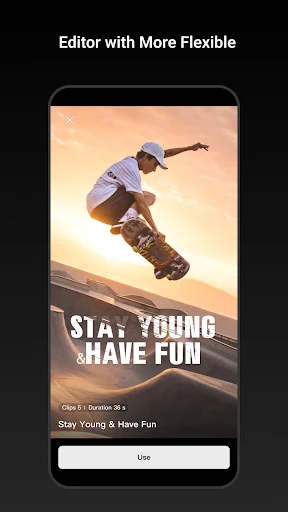
The app also offers video editing tools and professional video templates, which can be useful when you want more structure than a raw clip provides. Live screenshots and the Osmo Logo feature are listed among its content-output options. Together, these features suggest Mimo is meant to cover both operating the device and preparing material afterward, although the precise appeal will depend on how much editing you prefer to do on your phone.
A simple outing routine
For a casual day out, I’d start by checking the live preview and framing a scene before recording. If the device is set up away from me, I’d use the phone as a remote control over Bluetooth or Wi-Fi. That gives the camera companion role a real purpose: I can manage the shot from the device I already have in hand, rather than treating the camera and phone as disconnected parts of the day.
Afterward, I’d pick one or two clips and try a filter, color grading or a template, then compare the edited result with the original. That keeps the process light and makes it easier to learn what each option contributes. If I wanted a still output, the listed live screenshot option is another tool to explore. The point is not to use every feature, but to build a small workflow that matches the footage.
Keep the limits in view
Mimo’s biggest limitation is also its defining choice: it is made for DJI handheld imaging devices. Without compatible gear, the app’s live view and remote controls have little relevance, so I would not install it expecting a general camera-control solution. Its editing features may still sound appealing, but the app is presented as an all-in-one companion for DJI equipment rather than a universal editing suite.
The Google Play rating is 2.4 stars, which is a reason to read current feedback and test the app with your own setup rather than assume it will suit every user. That score does not explain individual experiences, and I would not read a single number as a complete verdict. I’d also verify the Android requirement on the store page before installing, since the minimum version can affect whether it runs on a particular phone.
Mimo has a clear job: help DJI handheld-device owners preview and control a shoot, then work on the footage with phone-based editing tools. I like the way those steps sit together, especially for informal filming where a quick, connected workflow is more useful than a larger editing setup.
I’d recommend trying it if you own supported DJI gear and want its controls and editing options in one place. If you do not use compatible equipment, there is little reason to make it part of your routine. Check the current Play Store feedback and device requirements, then test it on a low-stakes shoot before depending on it.
Mimo Frequently Asked Questions
What is Mimo used for?
Mimo is a DJI companion app for handheld imaging devices. It supports live camera preview and remote control of a camera or gimbal over Bluetooth or Wi-Fi, and it includes tools such as filters, color grading, beauty mode, video editing and templates. It is intended to connect capture and editing in a phone-based workflow.
Which devices and platforms does Mimo support?
Mimo is an Android app for use with DJI handheld imaging devices. Supported product families include Osmo Pocket, Osmo Action, Osmo 360 and Osmo Mobile, as well as DJI Mic. Check the Google Play page and DJI device information for current compatibility details before relying on it with a particular phone and piece of gear.
What Android version does Mimo require?
The minimum Android version can vary as app requirements change, so check Mimo’s Google Play page for the current requirement on your device. The app is listed for Android, and the store page is the best place to confirm whether a particular phone can install the current version.
Does Mimo cost money or include purchases?
Mimo is listed as free on Google Play, with no in-app purchases and no ads in the supplied app details. Store information can change, so it is worth checking the current page before installing if you want to confirm the latest pricing and purchase details.
Is Mimo a good fit for casual phone photography?
It is most useful if you own supported DJI handheld imaging gear and want phone-based preview, control and editing tools. If you only take pictures with your phone and do not use compatible DJI devices, Mimo is unlikely to be the right fit. Its feature set is centered on that equipment rather than general phone photography.
Pros
- Combines live camera preview and remote control for supported DJI handheld devices.
- Offers filters, color grading, beauty mode and video templates for finishing clips.
- Free to install, with no ads or in-app purchases listed.
- Supports several Osmo product families and DJI Mic.
Cons
- Its main controls are useful only with compatible DJI equipment.
- The 2.4-star Google Play rating suggests checking recent user feedback first.
- The minimum Android version should be checked on the current store page.
- Category
- Photography
- Version
- 2.12.4