Canon Camera Connect
- 359.75K
- 4.5
- Installs
- 50.00M
- Price
- Free
Screenshots
Analysis by Reviewed APKs
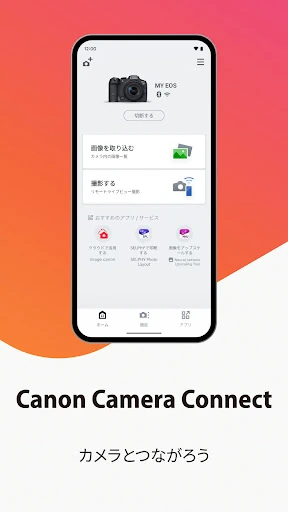
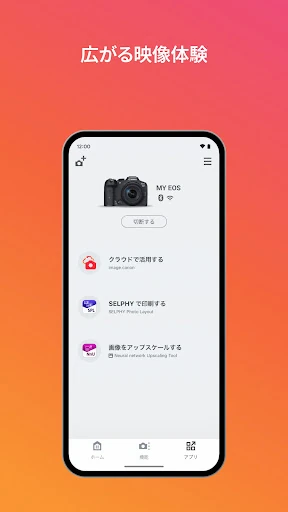
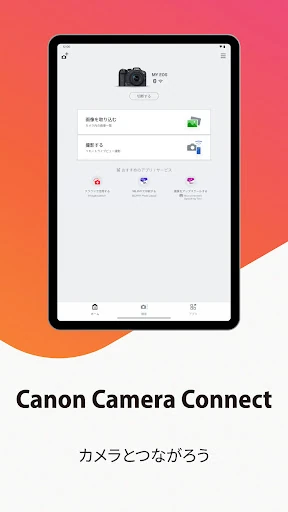
Canon Camera Connect gives compatible Canon cameras a practical link to an Android phone or tablet. It is mainly for photographers who want to move JPEGs or supported videos onto a mobile device, check a camera’s live view remotely, or use a phone for location information. I like the clear, camera-first purpose: it extends a shooting setup rather than trying to replace a camera or become a full photo-editing suite.
From Camera to Phone
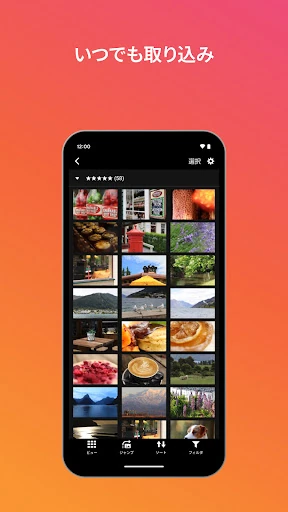
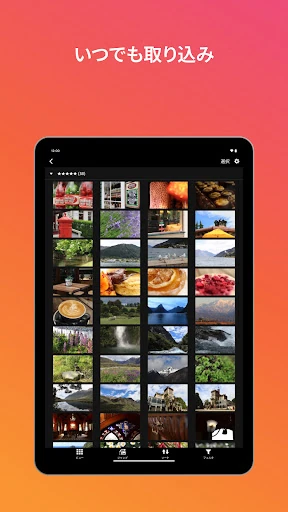
Picture coming home from a walk with a camera full of shots and wanting a few on your phone before the evening is over. Canon Camera Connect is built for that handoff: connect a compatible camera over Wi-Fi, browse or transfer images, and save selected files to the mobile device. It is a useful bridge when I want to share a photo from my camera without first moving everything through a computer.
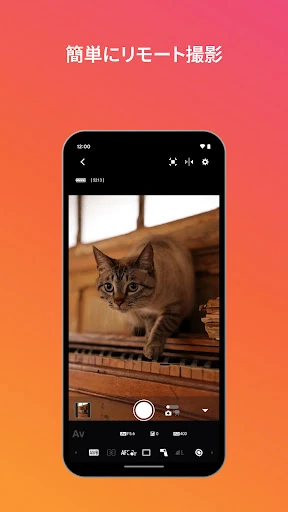
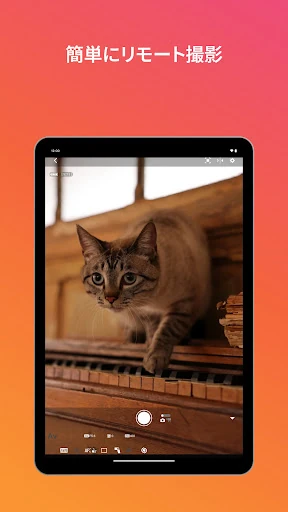
Remote shooting gives the app another role in the same routine. With the camera connected, the phone can show a live view and trigger a shot, so I can frame a group photo or place the camera somewhere that is awkward to reach. The exact controls depend on the camera model, but the basic idea is straightforward: keep the camera doing the photography while the phone provides a screen and a remote control.
A Companion, Not an Editor
The obvious alternative is using a phone camera and keeping everything on the phone. That is simpler when convenience matters more than using a Canon camera, but it does not provide the same camera-to-phone transfer or remote shooting link. Canon Camera Connect makes most sense when a compatible Canon camera is already part of the routine and a mobile device is useful as a viewing, transfer, or remote-control companion.
I would not treat it as a general photo editor, a cloud backup service, or a replacement for a camera’s own controls. Its stated jobs are connecting, transferring, remote shooting, and a few camera-related utilities. File support also has boundaries: original RAW files are not imported as RAW, and some video formats cannot be saved. For editing or managing a broader photo library, another tool may be needed.
Make Transfers Predictable
A small habit that helps is deciding what I actually want on the phone before starting a transfer. Moving a short selection is more useful for quick sharing than treating the app as a way to copy an entire shoot. It also keeps the camera-to-phone step focused on the images that matter now, while the camera or another storage workflow can remain the home for the rest.
For remote shooting, I would connect and check the live view before arranging people or setting up the camera out of reach. Bluetooth shutter release is available with compatible equipment, and the app can switch to Wi-Fi from a Bluetooth pairing state with supported cameras. Location information is another optional part of the workflow: the phone can provide it for addition to images on compatible cameras.
More From Our News Desk

Zoom Meetings, Google Meet, or Teams: Which Is Easiest to Join?

How I Build a Free Streaming Lineup With Tubi

Why Crunchyroll Is the Default Anime App for So Many Fans

YouTube TV: A Practical Guide to Cutting Cable

Rummikub and the Small Comfort of Phone Games

TeamViewer Remote Control or AnyDesk for Helping Family?
Who Will Find It Useful
I’d recommend Canon Camera Connect to Canon camera owners who regularly want a few camera images on a phone or tablet, or who would benefit from seeing the camera’s live view remotely. It can suit travel, family gatherings, and casual self-timer setups, as well as everyday sharing. The strongest reason to install it is having a compatible camera and wanting a direct mobile connection for the tasks Canon describes.
It may be less useful if you mainly shoot with a phone, need broad file-format support, or expect a complete editing and photo-library app. Compatibility matters: supported features vary by camera, and the app is not guaranteed to work properly on every Android device. Anyone relying on Bluetooth features should also check the Bluetooth requirements. I’d confirm the camera’s compatibility before building a workflow around a particular feature.
Canon Camera Connect is made by Canon Inc. On Google Play, it has more than 50 million installs and a 4.5-star rating from about 360,000 ratings. The app is free to download, with no in-app purchases or ads. Google Play gives it an Everyone content rating. Its version varies with device, so the version shown can differ between phones and tablets.
The app’s listed release date is January 5, 2015, and its last update date is September 30, 2026. The stated Android system requirements are Android 13 through Android 17. Bluetooth use has a separate stated requirement: the Android device needs Bluetooth 4.0 or later with Bluetooth Low Energy, and Android 5.0 or later. Camera compatibility and supported functions depend on the model.
A Closer Look at the Camera Link
First Connection
When I first think about setting up Canon Camera Connect, the key question is not which phone feature to explore first; it is whether the camera model supports the function I want. Canon describes Wi-Fi connections either directly or through a wireless router. That gives the app a clear starting point, but the actual pairing steps and available options depend on the camera.
I would begin with one simple goal, such as transferring a JPEG, then try live view or remote shooting after the connection is working. That keeps setup from feeling like a checklist of every possible feature. The app is available for Android phones and tablets, though Canon cautions that operation is not guaranteed on every Android device.
Everyday Transfers
The central day-to-day job is getting images from a compatible Canon camera onto a mobile device. That is useful after a short outing when I want to share a particular frame, or when I want to review camera images on a larger phone screen. The transfer feature makes the phone part of the camera workflow without requiring it to take the original picture.
There are important file limits to keep in mind. JPEG and MP4 are among the supported types, but importing original RAW files is not supported; RAW files are resized to JPEG. Some camera video files also cannot be saved, including MOV files and 8K movies shot with EOS cameras. HEIF 10-bit, RAW movie, and AVCHD camcorder files have additional restrictions.
Remote Control Options
Remote shooting with live view is the feature that most changes how I would use the app. Instead of walking back and forth to check framing, I can use the phone’s view of the camera image and trigger the shot remotely. That can help with a group picture or a fixed camera position, provided the camera supports the relevant feature.
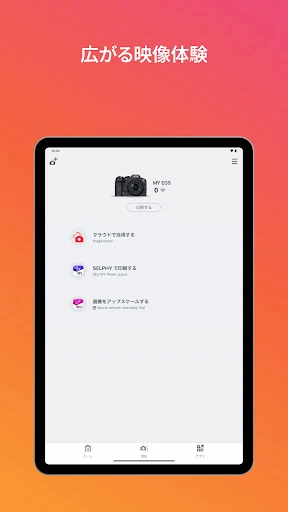
Canon also describes Bluetooth shutter release for compatible cameras, plus a way to move from Bluetooth pairing to Wi-Fi. NFC-enabled cameras can use touch operation for that transition. These are not universal promises for every Canon camera: the app’s available functions are tied to compatible models, so it is worth checking model support before counting on a particular connection method.
A Practical Photo Routine
For a simple routine, I’d use the app after a shoot rather than leave it open as a constant companion. Connect the camera, select the images I want to keep handy, and transfer those to the phone for viewing or sharing. That keeps the app’s role specific and avoids confusing mobile copies with a complete archive of the camera’s contents.
On a day when I need a remote frame, I’d switch the routine around: set up the camera, connect the phone, check the live view, and use the remote control to take the picture. If location information is useful, the app can acquire it from the phone and add it to images on compatible cameras. Since images may contain GPS data, I’d consider that information before posting them publicly.
Limits to Remember
Compatibility is the biggest practical caveat. The camera model determines which app features are available, and Canon does not guarantee operation on all Android devices. Android support is stated for versions 13 through 17, while Bluetooth has its own requirements. If a connection behaves oddly, Canon’s guidance includes shutting down the app and trying again.
File handling is another boundary, especially for photographers who work in RAW or with less common video formats. RAW files become JPEGs rather than transferring as original RAW files, and several video types cannot be saved. The app is therefore best viewed as a convenient mobile connection for supported images and camera controls, not as a universal route for every file a Canon camera can create.
Canon Camera Connect has a focused purpose and a useful range: transfer supported camera images, use a phone for live-view remote shooting, and access selected connection tools. I like that it complements a Canon camera rather than asking the phone to do everything. Its value depends heavily on having compatible equipment and being comfortable with the file-format limits.
If you own a supported Canon camera and want a direct way to move selected images or take a shot remotely, it is worth trying. If you need RAW originals, broad video support, or a complete editing and backup workflow, look elsewhere for those jobs. Check your camera’s supported features first, then use the app for the specific connection tasks it handles.
Canon Camera Connect Frequently Asked Questions
What is Canon Camera Connect used for?
Canon Camera Connect links compatible Canon cameras with an Android phone or tablet. It can transfer and save supported camera images, provide remote shooting with live view, and offer camera-related functions such as adding phone location information to images on compatible models. Available features depend on the camera, and some image and video formats cannot be saved.
Which phones and cameras work with Canon Camera Connect?
The app is for Android phones and tablets, and it works with compatible Canon cameras using supported connection features. Canon says camera compatibility varies by model and does not guarantee operation on every Android device. For Bluetooth features, the phone needs Bluetooth 4.0 or later with Bluetooth Low Energy. Check the camera’s compatibility details in the store or Canon’s information for your model.
What Android version does Canon Camera Connect require?
The stated system requirement for Canon Camera Connect is Android 13 through Android 17. Bluetooth functions have a separate requirement of Android 5.0 or later, along with Bluetooth 4.0 or later and Bluetooth Low Energy support. Requirements can change with updates, so it is worth checking the Google Play store entry for the current details before installing.
Is Canon Camera Connect free, and does it have purchases?
Canon Camera Connect is free to download on Google Play. The available facts indicate that it has no in-app purchases and contains no ads. Store details can change over time, so check the current Google Play entry if you want to confirm the latest cost and purchase information before downloading.
Is Canon Camera Connect a good fit for casual photographers?
It can be a good fit for casual photographers who own a compatible Canon camera and want to transfer selected images or take remote shots from a phone. It is less suited to someone looking for a full editing or backup app, or who needs original RAW transfers and unrestricted video support. Confirm camera compatibility and file needs before relying on it.
Pros
- Transfers supported Canon camera images to an Android phone or tablet.
- Live-view remote shooting can help with group photos and fixed camera setups.
- Offers Bluetooth shutter release and phone-based location information on compatible equipment.
- Free to download, with no ads or in-app purchases.
Cons
- Available features depend on camera compatibility and may vary by model.
- Original RAW files are converted to JPEG rather than imported in their original form.
- Several video formats, including EOS 8K movies, cannot be saved.
- Category
- Photography