Microsoft Teams
- 8.83M
- 4.6
- Installs
- 500.00M
- Price
- Free

Screenshots


Analysis by Reviewed APKs
Microsoft Teams is a communication and collaboration app for work groups, communities, families, and friends. It brings chats, calls, meetings, shared files, events, and task lists together, which can be useful when a group’s plans are scattered across several conversations. After looking at what it offers, I see its appeal in that breadth: it can support both quick everyday coordination and more structured project work, though it may feel like more than a simple chat app needs.
From Chat to Shared Plan
Picture a volunteer group trying to arrange a weekend event. One person needs to settle the time, someone else is sharing photos and documents, and the organizer wants a list of jobs with due dates. In Teams, those conversations can happen in a group chat or a dedicated community, while an event and task list help keep the practical details together. That is the app’s central promise: less hunting through unrelated messages to work out what happens next.
I’d use the chat for the quick questions and move recurring topics into a community or channel when the group needs more structure. If a conversation reaches the point where typing is slowing everyone down, Teams also supports audio and video calls, including turning a group chat into a call. Shared files and photos give people a place to refer back to, so the group can return to the plan instead of asking someone to resend the same information.
More Than a Messenger
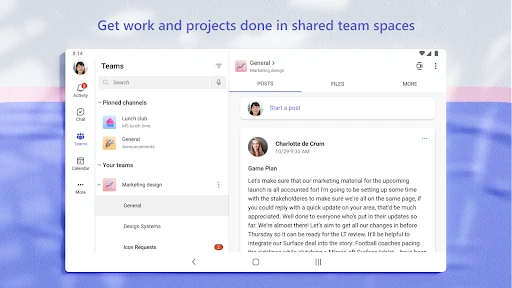
Teams sits somewhere between a messaging app and a shared workspace. A basic messenger is often the faster, lighter choice for a quick note to one person; Teams makes more sense when people need organized conversations, meetings, shared documents, calendars, or assigned tasks as well. Work groups can use teams and channels to separate topics and projects, while communities can bring people together around plans and interests.
That extra range is also a reason not to choose it for every situation. If all I need is an occasional one-to-one message, the wider set of collaboration tools may feel unnecessary. Teams is not a replacement for a dedicated project-management system in every organization, either; its task lists and shared workspace are useful for group coordination, but the right fit depends on how much structure a team needs and which Microsoft services it already uses.
Keep the Group Tidy
A little organization makes the app easier to live with. I’d keep casual, time-sensitive questions in chat and use a channel for a topic that will keep coming up. Naming the group’s purpose clearly and sharing related files in the right place gives people a better chance of finding them later. Mentions can draw someone’s attention to a message without making every update feel like it needs to reach the whole group.
For a project or event, I’d turn loose promises into a shared task list, assign the work, and add due dates so everyone can see what remains. A meeting link or calendar invitation can help with the actual discussion, while photos, documents, and links can stay with the community’s shared content. These small habits do not make a group magically organized, but they reduce the need to reconstruct decisions from a long chat.
Reads About Microsoft Teams
More From Our News Desk

How I Build a Free Streaming Lineup With Tubi

Why Crunchyroll Is the Default Anime App for So Many Fans

YouTube TV: A Practical Guide to Cutting Cable

Rummikub and the Small Comfort of Phone Games

TeamViewer Remote Control or AnyDesk for Helping Family?

Gmail, Yahoo Mail and Outlook: A Calmer Phone Inbox
Who Will Get the Most From It
I’d recommend Microsoft Teams to people who already coordinate with groups and want chat, calls, meetings, shared files, and task lists in one app. It can suit a workplace project, a community planning an activity, or a family trying to keep an event’s details in view. The flexibility is the draw: groups can keep things conversational or add channels and task lists when a plan becomes more involved.
It may be a poor match for someone who wants only a very simple messenger and has no interest in meetings, shared content, or group organization. Teams can also feel like a lot of app for a small group that rarely needs to coordinate. Work users should keep in mind that commercial features require a paid Microsoft 365 commercial subscription or a trial subscription of Teams for work.
Microsoft Teams is developed by Microsoft Corporation and is listed in the Business category. On Google Play it has over 500 million installs and a 4.6-star rating from around 8.8 million ratings. It is free to download, contains no ads, and offers in-app purchases. The listed in-app product prices range from $9.99 to $129.99 per item.
Google Play gives Microsoft Teams an Everyone content rating. The listed version is 1416/1.0.0.2026193004. It was released on November 2, 2016, and was last updated on October 29, 2026. Commercial Teams features require a paid Microsoft 365 commercial subscription or a trial subscription of Teams for work.
A Closer Look at Teams in Use
A Broad First Impression
When I first considered Teams, what stood out was how many kinds of group activity it tries to support. This is not only a place to send messages: the description also includes communities, events, meetings, channels, storage, tasks, and calendars. That range can make it a natural hub for a group with several ongoing needs, but it also means new users may need a moment to decide where each conversation belongs.
The best starting point is a real, modest need rather than trying every tool at once. A group can begin with a chat and a meeting, then add a channel or shared task list when the conversation calls for it. Teams supports both personal connections and work collaboration, though commercial features have a subscription requirement. That distinction matters when deciding whether it suits a workplace setup.
The Everyday Rhythm
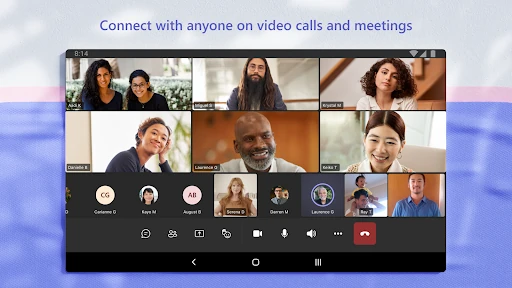
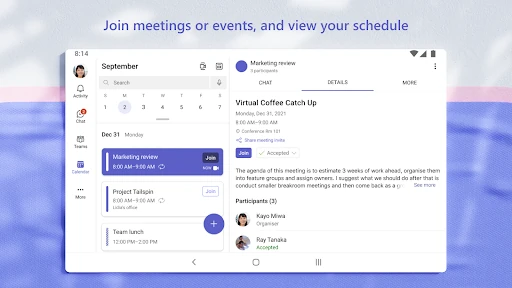
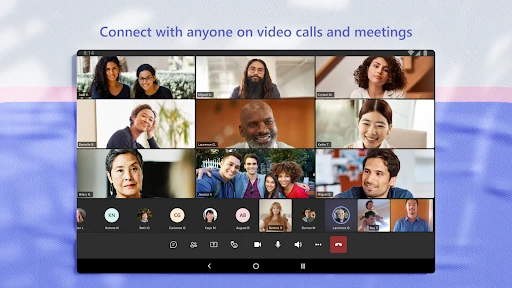
Day to day, chat handles direct questions and group updates, while audio and video calls cover conversations that are easier to have aloud. Teams can start a call directly or let a group convert its chat into one. For a scheduled discussion, users can set up a meeting and invite people with a link or calendar invitation. That gives a group a few ways to move from a message to a conversation without changing the overall purpose.
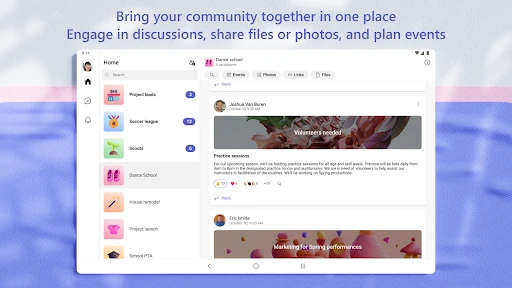
Shared files and photos are useful when a discussion needs more than text. Cloud storage lets people access shared documents and files on the go, while messages can carry photos and videos. The practical benefit is continuity: someone who missed a conversation can refer to shared material instead of relying entirely on another person’s recap. It still helps to keep content organized, especially when a group has several projects underway.
Useful Group Tools
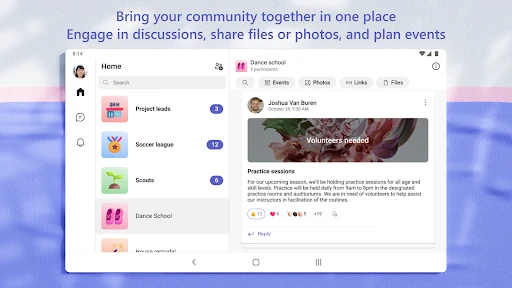
Communities and channels give groups different ways to organize. A community can bring people together around a shared interest or activity, and channels can separate work conversations by topic or project. Owners can remove inappropriate content or members in communities. For a group that has a reason to gather repeatedly, these tools offer more shape than one endless thread, while still keeping conversation and shared material connected.
Teams also includes meeting tools such as screen sharing, a whiteboard, and breakout rooms. Task lists support assigning work, setting due dates, and marking items complete. Those features can be handy when a discussion needs to lead to action rather than simply end with a vague agreement. The app’s description also highlights managing access to information as people join or leave projects, a useful consideration for groups handling shared material.
Small expressive touches have a place, too. Chats support GIFs, emojis, and message animations, and users can mention people to get their attention. These do not replace the organizational tools, but they make a group conversation feel less formal when that is appropriate. Teams also brings Skype chats, calls, and contacts into Teams Free, according to its description, which may matter to people continuing those conversations.
A Routine That Works
For a recurring project, I’d start the week by checking the relevant channel and task list rather than scanning every conversation from the beginning. I’d look for due dates, confirm who owns each item, and use a direct message or mention when one person needs to respond. If a decision needs several people at once, a meeting can be more efficient than a chain of short messages.
After the meeting, the group can share documents or photos and keep the next steps in the task list. For an event, a community can hold related discussions and shared content, while an event or calendar invitation helps people keep the date in view. This routine works best when the group agrees on where updates belong. Without that shared habit, even a capable app can become another place to search.
The Trade-Offs to Notice
The main trade-off is breadth. Teams offers tools for many kinds of collaboration, but a group that only wants quick messaging may find its broader workspace unnecessary. Communities, channels, task lists, files, and meetings are most valuable when people actually use them consistently. If everyone keeps putting important details in different places, the app cannot make those decisions easy to find on its own.
There is also a distinction between personal use and work use. The app supports communities, friends, and family as well as workplace collaboration, but commercial features require a paid Microsoft 365 commercial subscription or a trial subscription of Teams for work. That can affect whether a particular organization can use the tools it expects. It is worth checking the available access and store details before settling on Teams for a specific group.
Microsoft Teams makes the strongest case when a group needs more than messages: meetings, files, topic-based conversations, and shared tasks can all support the same plan. Its range is useful, but not every group needs that much structure. I’d treat it as a shared workbench for coordination rather than simply another place to send a quick note.
I’d recommend it to teams and communities that will use its organization tools regularly, and to people who want group conversations alongside meetings and shared content. If your needs stop at basic messaging, a simpler app may be easier to keep tidy. For workplace use, check which commercial features your Microsoft 365 access includes.
Microsoft Teams Frequently Asked Questions
What is Microsoft Teams used for?
Microsoft Teams is used for chats, audio and video calls, meetings, and collaboration among workmates, communities, friends, or family. Groups can organize conversations with teams and channels, share files and photos, plan events, and use task lists with assignments and due dates. It is most useful when a group needs to coordinate more than a few occasional messages.
Which devices and platforms support Microsoft Teams?
The app in this review is the Android version of Microsoft Teams, available through Google Play. Its description covers using Teams to chat, call, join meetings, and access shared content on the go. Device compatibility and the Android version required can vary, so check the current Google Play store entry for the requirements that apply to your device.
Does Microsoft Teams cost money?
Microsoft Teams is free to download and contains no ads, but it offers in-app purchases. Google Play lists in-app product prices from $9.99 to $129.99 per item. Commercial features require a paid Microsoft 365 commercial subscription or a trial subscription of Teams for work, so the cost and access relevant to a particular workplace may vary.
What Android version does Microsoft Teams require?
The minimum Android version can vary with the app and device, so check Microsoft Teams on Google Play for the current requirement before installing. The app supports group communication and collaboration, but whether a particular phone or tablet can run the current version depends on its software and compatibility.
Is Microsoft Teams a good fit for personal use?
It can suit friends, family, and communities that want shared chats, calls, events, files, and plans in one place. A group that only needs simple one-to-one messaging may find its wider collaboration tools unnecessary. For work, some commercial features require an eligible Microsoft 365 commercial subscription or trial, so suitability depends on the group’s needs and access.
Pros
- Combines chats, calls, meetings, shared files, and task lists for group coordination.
- Channels and communities help keep recurring topics separate from general conversation.
- Supports meeting links, calendar invitations, screen sharing, whiteboards, and breakout rooms.
- Free to download, with no ads and broad Google Play adoption.
Cons
- The wide range of tools can feel excessive for groups that only need simple messaging.
- Commercial features require a paid Microsoft 365 subscription or a work trial.
- Groups need consistent habits to keep conversations and shared content easy to find.
- Category
- Business
- Version
- 1416/1.0.0.2026193004