Microsoft Authenticator
- 2.84M
- 4.6
- Installs
- 100.00M
- Price
- Free

Screenshots
Analysis by Reviewed APKs
Microsoft Authenticator is a phone app for adding an extra sign-in check to online accounts, with passwordless sign-in for Microsoft accounts as another option. I see it as most useful for people who regularly access Microsoft services or want one place for verification codes from several accounts. It keeps the basic job focused, though work or school setup can involve extra steps set by an organization.
A Sign-In, Then a Check
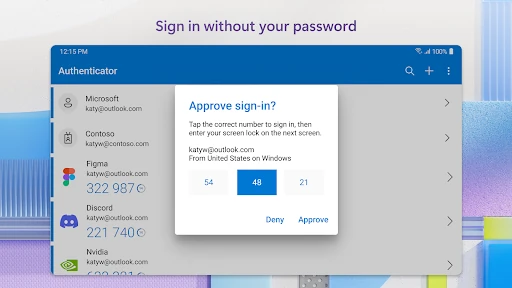
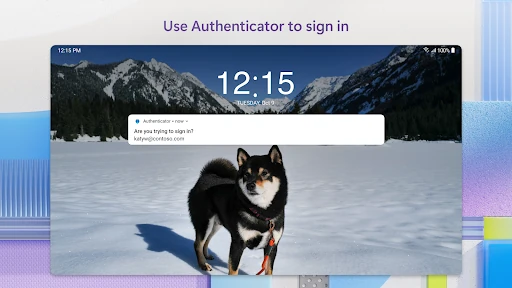
Imagine signing in to an account at the end of a busy day. You enter your usual password, then the service asks for a second check. With Microsoft Authenticator, that may mean approving a notification on your phone or entering a one-time code generated in the app. I like that these are simple actions to understand: the app is there to help verify a sign-in, not to make you remember another code.
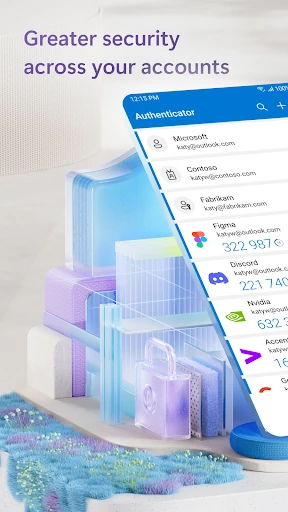
When I picture using it in a routine, the value is having the second step ready when a sign-in asks for it. The codes refresh on a 30-second timer, so I would use the current one rather than save it for later. The app can generate these codes without a network connection. That is a practical detail if I am signing in somewhere with a poor connection, though the account service still controls its own sign-in process.
More Than Microsoft Logins
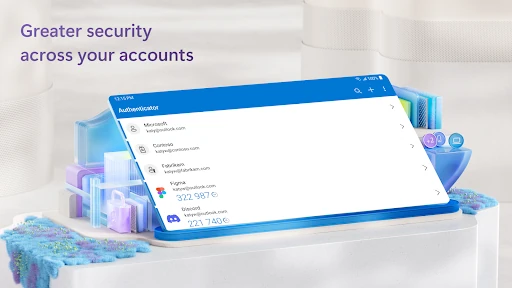
The obvious comparison is using a separate verification method for every service, or relying only on a password. Authenticator can hold multiple accounts, including non-Microsoft accounts such as Google, Amazon, Facebook, Dropbox, LinkedIn and GitHub. That makes it more flexible than a tool limited to Microsoft sign-ins. Its role is still specific: it provides verification and sign-in options, rather than replacing the services or accounts being protected.
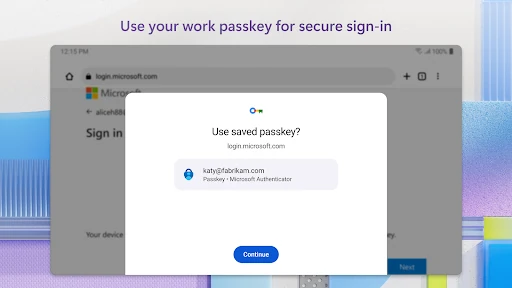
For Microsoft accounts, passwordless sign-in is an option: enter a username and approve a phone notification, then use a fingerprint, face ID or PIN as the second layer. Work and school accounts can also have organization-specific requirements. I would not treat the app as a general password manager or expect it to organize every part of online life. It is best understood as a sign-in companion, with some features dependent on the account or workplace.
Make Setup a Small Habit
A useful habit is adding an account when you are already setting up its multi-factor authentication, rather than waiting until a rushed sign-in. The app can scan a QR code when adding a work, school or non-Microsoft account, using camera permission for that step. Once accounts are in place, the routine is straightforward: respond to an approval request or open the app to read the current one-time code.
I would also pay attention to which account is being requested before approving a notification, especially when managing several accounts. That is a practical sign-in habit, not a special feature. For a work or school account, it is worth following the organization’s setup instructions; it may require registering the device or applying a policy. Optional permissions can be declined if they are not needed for the service being used.
More From Our News Desk

Zoom Meetings, Google Meet, or Teams: Which Is Easiest to Join?

How I Build a Free Streaming Lineup With Tubi

Why Crunchyroll Is the Default Anime App for So Many Fans

YouTube TV: A Practical Guide to Cutting Cable

Rummikub and the Small Comfort of Phone Games

TeamViewer Remote Control or AnyDesk for Helping Family?
Who Will Find It Useful
I would recommend Microsoft Authenticator to anyone who uses multi-factor authentication and wants phone-based approvals or one-time codes in one app. It is particularly fitting for people who sign in to Microsoft personal, work or school accounts, since it also offers passwordless sign-in for Microsoft accounts and organization-related account management. People with a mix of services may appreciate being able to add non-Microsoft accounts too.
It may be less appealing if you rarely encounter second-step sign-ins, or if you expect a complete password-management tool rather than an authenticator. Work and school users should be prepared for setup requirements that come from their organization, such as device registration. I also would not recommend approving prompts automatically; taking a moment to check a request is a sensible part of using any sign-in approval app.
Microsoft Authenticator is made by Microsoft Corporation. On Google Play, it has more than 100 million installs and a 4.6-star rating from about 2.8 million ratings. The app is free, with no in-app purchases and no ads. Its content rating is Everyone, making the store classification suitable for general audiences.
The supplied app details give version 6.2609.6214, a release date of January 13, 2015, and a last update date of October 26, 2026. The minimum Android version is not included in the available app details, so check Google Play for the requirement that applies to your device. Requirements can change as the app is updated.
A Practical Look at Everyday Sign-Ins
First Open and Setup
When I first opened an authenticator app, I would want the purpose to be obvious before anything else: it helps with account sign-ins that need an additional proof of identity. Microsoft Authenticator covers that job for Microsoft and other accounts. Getting the most from it means adding accounts as their services ask for multi-factor authentication, rather than expecting the app to discover or protect every account automatically.
One setup detail is scanning a QR code when adding a work, school or non-Microsoft account. That requires camera permission for the scan, but the permission is optional. The app says users can still use services that do not need an optional permission when they decline it. For an organization account, setup may also include registering the device, so I would follow the instructions provided by work or school.
The Daily Sign-In Flow
The everyday experience centers on two kinds of second step: approving a notification or entering a one-time password. A code stays available for a short window, with a 30-second countdown, which makes it clear why I should use the current code rather than copy it into a note. The app’s codes do not need a network connection, a useful distinction when the phone’s connection is unreliable.
For a Microsoft account using passwordless sign-in, the flow starts with a username and a notification to approve on the phone. A fingerprint, face ID or PIN provides an additional check. I like that this makes the phone part of the sign-in rather than asking me to recall a password, but it is a specific option for Microsoft accounts, not a universal passwordless method for every service.
Account Options That Matter
The ability to add several accounts is one of the app’s most useful practical strengths. Microsoft Authenticator supports non-Microsoft accounts, with examples including Google, Facebook, Amazon, Dropbox, LinkedIn and GitHub. That means a person who already uses verification codes across different services can bring those accounts into the same app instead of needing a different code app for each one.
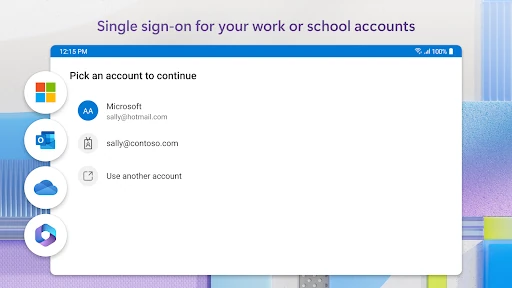
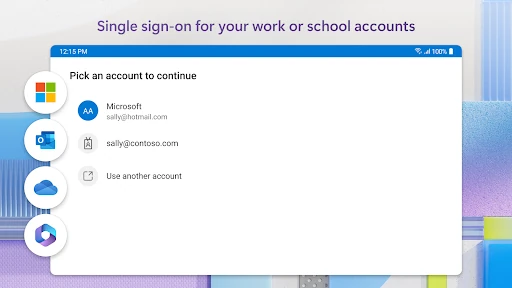
Microsoft personal, work and school accounts have additional management possibilities. Organizations may require device registration or use certificate-based authentication, where a certificate on the device helps establish that the sign-in comes from a trusted device. The app also supports single sign-on for Microsoft apps and services, so after proving identity once, users may not need to sign in again to other Microsoft apps on that device.
A Routine for Busy Days
A practical routine is to add an account when enabling its second-step verification, then use the app only when the service asks for an approval or code. That keeps the app’s purpose clear and reduces the chance of scrambling through setup during a time-sensitive sign-in. If I am using a one-time code, I would wait until the service asks for it, open the app, and enter the live code before its timer runs out.
For work and school access, I would set aside a few minutes to follow the organization’s directions instead of treating setup like a personal account. A workplace may request location permission if its policy requires location before access to certain resources. The app describes that permission as conditional, so it is not something every user necessarily needs to grant for every account.
Limits to Keep in Mind
Authenticator helps with verification, but it does not replace the accounts and services it works with. Each service still determines whether it uses approval notifications, one-time codes or another sign-in method. Likewise, passwordless sign-in described here applies to Microsoft accounts; someone adding other services should expect the options those services support rather than assume they will get the same flow everywhere.
Organization policies can add friction, particularly if device registration, certificates or permissions are required. Optional access also includes storage access when reporting a technical problem through app settings, where some storage information may be collected for diagnosis. Those details are worth understanding before granting permissions. The app remains focused on authentication, so it is not the right choice for someone seeking a broader account or password organizer.
Microsoft Authenticator earns its place as a practical sign-in companion. Its mix of approval notifications, timed codes and Microsoft passwordless sign-in covers common verification needs without adding ads or a purchase barrier. Support for non-Microsoft accounts makes it more useful than a Microsoft-only tool, while work and school options give it extra relevance for organization accounts.
I recommend it to people who regularly use multi-factor authentication, particularly those who sign in to Microsoft services or manage several accounts. It is less suited to someone looking for a full password manager or a tool that works identically across every service. For its specific job, it is straightforward and useful once the accounts are set up.
Microsoft Authenticator Frequently Asked Questions
What is Microsoft Authenticator used for?
Microsoft Authenticator helps verify sign-ins using an approval notification or a one-time password code. It supports Microsoft personal, work and school accounts, as well as multiple non-Microsoft accounts. Microsoft accounts can also use passwordless sign-in by approving a phone notification and confirming with a fingerprint, face ID or PIN.
Which devices support Microsoft Authenticator?
The app is available for Android through Google Play. The supplied details do not include a minimum Android version, and device requirements can vary as updates are released. Check the Google Play store page for the requirement that applies to your phone before installing or updating.
Does Microsoft Authenticator cost money?
Microsoft Authenticator is free on Google Play. The supplied app details say it has no in-app purchases and contains no ads. Store information can change over time, so the Google Play page is the best place to check current availability and terms.
Can Microsoft Authenticator hold other accounts?
Yes. In addition to Microsoft accounts, the app can add multiple non-Microsoft accounts, including services such as Google, Amazon, Facebook, Dropbox, LinkedIn and GitHub. Those accounts can use the app for one-time codes; the sign-in methods available still depend on each service.
Is Microsoft Authenticator a good fit for work or school?
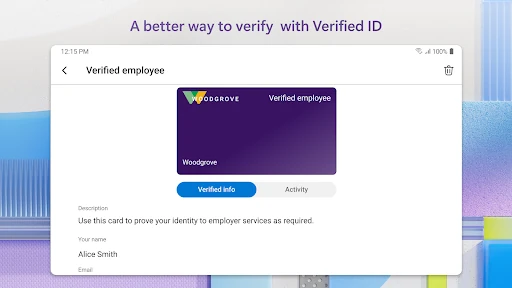
It can be a good fit when an organization requires it for sign-ins to files, email or apps. Work or school setup may involve adding the account, registering the device, or following organization policies. If you want only a general password manager, this app is more specialized than you need.
Pros
- Supports approval notifications and timed one-time codes for multi-factor sign-ins.
- Can hold multiple Microsoft and non-Microsoft accounts in one app.
- Microsoft account passwordless sign-in can use a phone approval and device check.
- Free to use, with no ads or in-app purchases.
Cons
- Work and school accounts may require organization-specific setup or device registration.
- Passwordless sign-in described here is for Microsoft accounts, not every added service.
- It handles authentication rather than broader password organization.
- Category
- Business
- Version
- 6.2609.6214