Kodi
- 339.13K
- 3.6
- Installs
- 50.00M
- Price
- Free
Screenshots
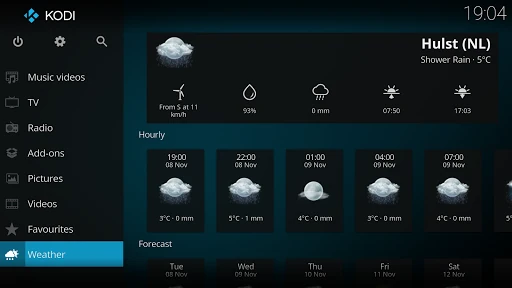
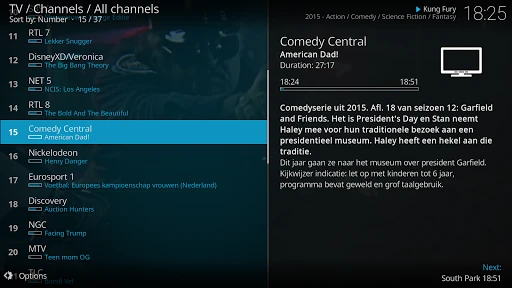
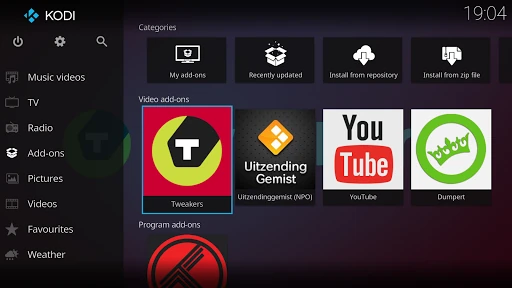
Analysis by Reviewed APKs
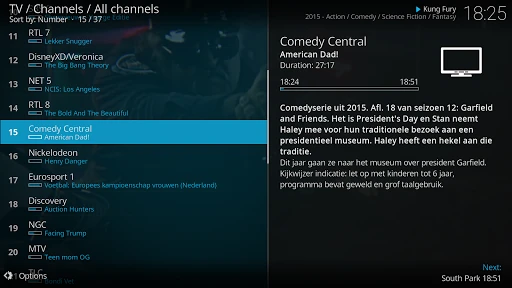
Kodi is a free media center for browsing and playing your own videos, music, photos, and podcasts from local storage, discs, a network, or the internet. I see it as a better fit for a living-room setup or a larger Android screen than for quick phone viewing. Its flexibility is appealing, but it asks you to bring your own media and spend some time getting things organized.
A living-room media routine
When I picture Kodi at its best, it is the end of an ordinary day: I settle onto the couch, pick up a remote, and browse a collection stored on a computer or local network. Kodi’s large-screen interface is built around that kind of use, with videos, music, photos, and podcasts available through a consistent media-center interface. It can also browse content from a hard drive or optical disc, rather than treating online streaming as its only purpose.
The important first step is having media to point it at. Kodi does not come with movies, shows, or music; you provide your own files or connect to storage that holds them. Once the collection is available, the appeal is having a single place to browse different kinds of media instead of opening separate players. I would expect to spend a little time getting sources in place before a relaxed evening of watching feels straightforward.
A player, not a subscription hub
Compared with a conventional streaming service, Kodi is more of a customizable media center than a ready-made catalogue. It does not supply a library of titles to browse after installation. Instead, it is intended to play your own content from storage, discs, a local network, or the internet. That distinction matters: if I want something that works immediately with a built-in selection of shows, Kodi is not the simplest route.
Kodi also differs from a basic video player because it brings videos, photos, podcasts, and music into a broader browsing interface. Third-party plugins can be installed, but Kodi does not provide or endorse those plugins, and their content is not the same as content included with the app. I would treat Kodi as a way to organize and play media I already have access to, not as a replacement for paid services or a source of unauthorized streams.
Small setup habits help
A little organization before opening Kodi can make browsing less of a chore. I would start by deciding where my media lives, then connect the relevant local or network storage and check that the files I want are available. Keeping that source consistent makes it easier to return to a collection later, rather than hunting across several locations each time I want to play something.
I would also match the setup to the screen and controls. Kodi’s standard interface is designed around a television and remote, while its Estouchy skin is intended to work better on larger phones and tablets. Trying it on a small phone is less appealing because Kodi is not designed or recommended for smaller screens. For a smoother routine, I would use a tablet or living-room display and keep the remote or touch controls suited to that device.
More From Our News Desk

Zoom Meetings, Google Meet, or Teams: Which Is Easiest to Join?

How I Build a Free Streaming Lineup With Tubi

Why Crunchyroll Is the Default Anime App for So Many Fans

YouTube TV: A Practical Guide to Cutting Cable

Rummikub and the Small Comfort of Phone Games

TeamViewer Remote Control or AnyDesk for Helping Family?
Who Kodi suits best
I would recommend Kodi to people who already keep a personal collection of videos, music, photos, or podcasts and want a shared interface for browsing it. It makes particular sense for someone building a living-room media setup around a computer, remote, and local or network storage. The open-source approach and ability to install third-party plugins may also appeal to users who like shaping their own media environment.
It may frustrate anyone expecting a ready-to-watch catalogue, a simple streaming subscription, or an interface designed first for a small phone. Kodi requires you to provide the media or connect to a source, and getting that arrangement right is part of the experience. If I only want to tap an app and immediately browse a supplied library, I would choose a service built for that instead.
Kodi is developed by Kodi Foundation and is free to download on Google Play. The app has over 50 million installs and a 3.6-star rating from about 339,000 ratings. It contains no ads and offers no in-app purchases, so there are no app purchases to budget for. Those figures give a useful sense of its reach, though the rating suggests experiences are mixed.
The Google Play content rating is Everyone, and Kodi requires Android 5.0 or later. The current version in the supplied app information is 21.2. It was released on June 14, 2015, and last updated on February 5, 2025. Kodi is described as cross-platform software, but these version and device requirements refer specifically to the Android app.
A hands-on look at Kodi’s media center
First setup impressions
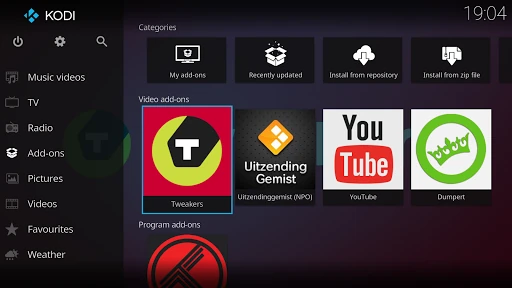
When I first opened Kodi, the main thing I wanted to understand was where my media would come from. That is a more useful starting question than expecting an included catalogue: Kodi is a player and organizer, not a bundle of movies or music. Its standard Estuary skin is designed to be fast and user-friendly, but the app still depends on you having a source to browse.
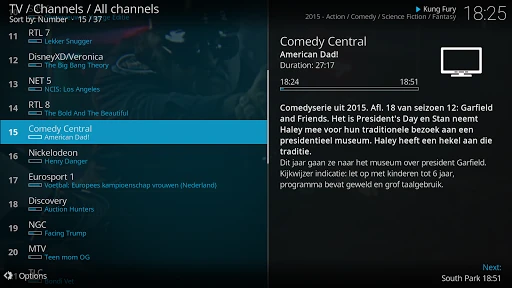
The screen design makes its living-room roots clear. Kodi describes its interface as a 10-foot experience meant to be viewed from across a room and controlled primarily with a remote. On larger phones and tablets, the Estouchy skin is intended to make the app more suitable for touch. I would choose the device and controls first, then connect the media location I plan to use.
Day-to-day browsing
Once a media source is available, Kodi’s everyday job is to let me browse and play different kinds of digital content from one place. That includes videos, photos, podcasts, and music, with sources ranging from a hard drive and optical disc to a local network or the internet. For a household collection, that breadth is more useful than installing a separate viewer for every file type.
The experience is shaped by the source I bring and by the screen I use. A living-room setup with a remote fits the interface’s original design better than holding a small phone for an extended session. I would use Kodi when I want to browse a collection deliberately, rather than when I need a quick, minimal player for a single clip.
What stands out
The standout feature is the combination of media types in one entertainment hub. Videos are only part of the picture: Kodi also supports browsing photos, podcasts, and music. That makes it useful for more than movie night, especially if I want a large-screen place to revisit a music collection or look through photos without switching to a separate app.
The other notable quality is its flexibility as open-source software. Kodi supports third-party plugins, and its interface includes a standard skin plus Estouchy for larger touchscreens. Those options can extend or reshape a setup, but they do not mean Kodi itself supplies the media behind a plugin. I would evaluate each source separately and keep the distinction between the player and outside content clear.
A practical evening routine
For a practical routine, I would keep the collection on a drive or local network location that Kodi can reach, then open the app from the device connected to the television. With a remote in hand, I can browse the available media and choose what fits the evening, whether that is a video, music, or photos. This is the kind of repeated, familiar use where a media center can feel more convenient than searching through folders.
I would also make the first session a setup session rather than expecting instant results. Check that the intended storage is accessible and that the collection is where I expect it to be. After that, returning to the same source should make the routine easier. Kodi’s value comes from bringing my own media into a browseable interface, not from removing the need to manage that media.
Limits to keep in mind
The biggest limitation is also easy to misunderstand: Kodi includes no media or content. It will not provide a ready-made set of films, channels, or songs when installed. Users need their own content or a source they can access, and any third-party plugins are separate from Kodi. That makes the app less convenient for people who want a complete entertainment service without setup.
The mobile experience has a clear caveat too. Kodi is not designed or recommended for smaller phones, even though Estouchy is meant to improve use on larger phones and tablets. The remote-focused interface may feel unusual if I expect a conventional touch-first app. I would also avoid assuming that a plugin is endorsed by Kodi or that it provides permitted access to every source it may describe.
Kodi is a capable media center for people who know where their content lives and want to browse it on a larger screen. I like the range of media it can bring together and the option to use local, disc, network, or internet sources. Its main tradeoff is that setup and content sourcing are yours to handle.
I recommend Kodi for personal media collections and living-room setups, especially when a remote and larger display are part of the plan. I would skip it if I wanted a ready-made streaming catalogue or a polished small-phone player. Go in expecting a flexible organizer and playback hub, not a source of included entertainment.
Kodi Frequently Asked Questions
What is Kodi used for?
Kodi is a media player and entertainment hub for browsing and playing videos, photos, podcasts, and music. It can use media from a hard drive, optical disc, local network, or the internet. The app does not include media, so you need to provide your own content or connect to an available source.
Which devices can I use Kodi on?
This review covers Kodi on Android, where it is available through Google Play. Kodi is described as cross-platform software, but device availability and requirements can vary by platform, so check the relevant store or source for the device you plan to use. Its interface is designed with living-room screens and remote controls in mind.
What Android version does Kodi require?
The Android app requires Android 5.0 or later. Kodi is designed around a large-screen, remote-controlled experience, and its Estouchy skin is intended to work better on larger phones and tablets. The developer does not recommend it for smaller phones, so screen size is worth considering along with the Android requirement.
Is Kodi free, and does it have in-app purchases?
Kodi is free on Google Play, with no in-app purchases and no ads according to the supplied app information. The app itself does not provide media. If you use outside services or third-party plugins, any costs or terms connected with those sources may vary, so check the relevant store or provider.
Is Kodi a good choice for casual phone viewing?
It can play and browse media, but Kodi is not designed or recommended for smaller phones. Its interface was built for a living-room screen and remote, while Estouchy is intended to improve use on larger phones and tablets. I would recommend it more readily for a television, tablet, or personal media setup than quick phone viewing.
Pros
- Brings videos, photos, podcasts, and music into one media-center interface.
- Can browse content from drives, optical discs, local networks, and the internet.
- Free on Google Play, with no ads or in-app purchases.
- Offers a standard skin and a touch-oriented option for larger screens.
Cons
- Includes no media, so users must provide content or connect a source.
- Its remote-focused design is a poor fit for smaller phones.
- Third-party plugins are separate and are not endorsed by Kodi.
- Category
- Video Players & Editors
- Version
- 21.2