CapCut - Video Editor
- 13.13M
- 3.5
- Installs
- 1.00B
- Price
- Free

Screenshots
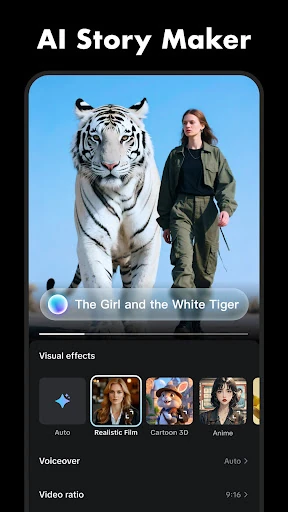
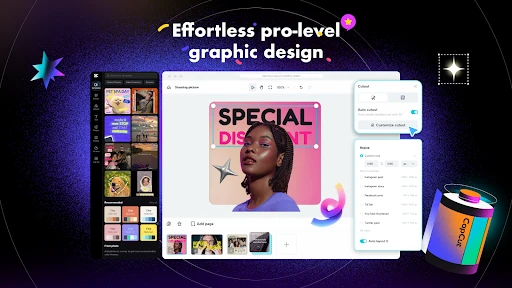
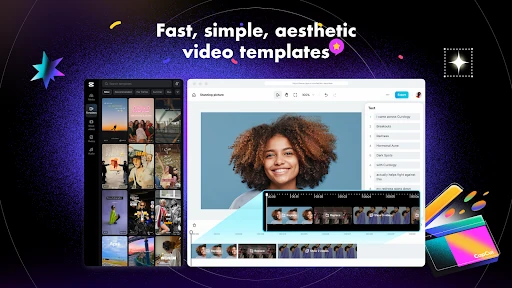
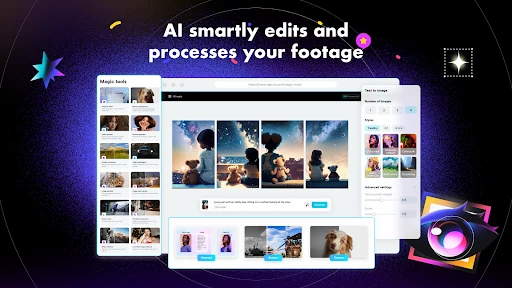
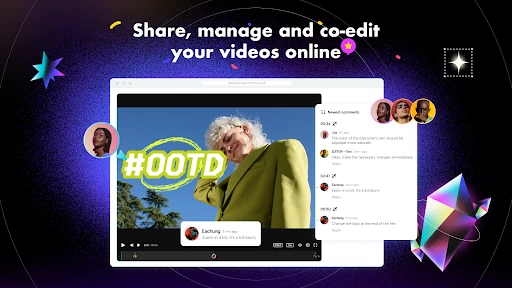
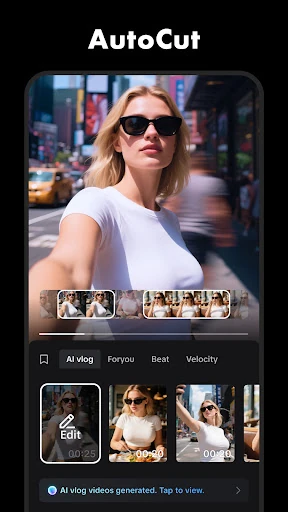
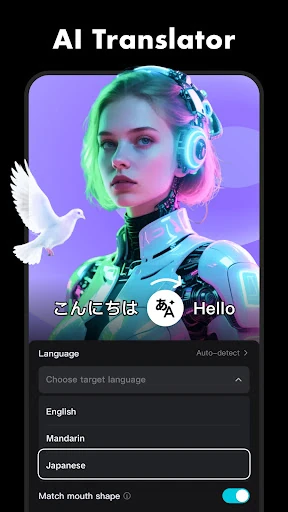
Analysis by Reviewed APKs
CapCut is a mobile video editor for turning phone clips into finished videos, from quick trims to layered edits with captions, effects, and sound. It suits casual creators as well as people who want more control over timing and motion without moving to desktop software. I like its broad range: the basics are approachable, while features such as keyframes and chroma key give a project room to grow.
A Quick Clip After the Day
When I first opened CapCut, I pictured a familiar job: trimming a few phone clips into a short recap before sending it to friends or posting it. The basic tools cover the practical steps, including shortening clips, splitting them, joining them, and arranging them on a timeline. I could imagine using a quiet moment on the bus or at home to shape a rough collection of footage into something with a clear beginning and end.
From there, a little polish does not require changing apps. I can add text, choose a transition, adjust the pace, and place music or a sound effect under the images. If somebody is speaking, auto captions offer another way to make the video easier to follow. That combination makes CapCut useful for everyday highlights, quick explainers, and social clips where a few thoughtful edits matter more than a complicated production setup.
More Than a Trim Tool
Compared with a very basic phone editor, CapCut offers more ways to shape a clip after the initial cut. Its multi-track timeline, keyframe animation, speed curves, stabilization, chroma key, and background removal point toward projects that need more control than a simple crop and export. At the same time, the basic editing tools remain part of the package, so a short edit does not have to become an advanced production exercise.
I would think of it as a flexible mobile editing workspace, not as a replacement for every kind of video production. It is designed around editing clips, adding visual and audio treatments, and exporting a finished video. Someone looking mainly to organize a large media library, record a long-form production, or do detailed desktop post-production may want a different tool. CapCut makes most sense when the source material and the intended result are both video.
Small Habits, Better Edits
A useful habit is to decide on the shape of the edit before layering on effects. I would first trim and arrange the strongest moments, then check whether the pacing needs a speed change or a freeze, and only then add transitions, text, or filters. That order helps keep a short video readable instead of letting the effects compete with the footage. The timeline makes it possible to preview clips together as the edit takes shape.
For speech-led clips, I would leave time to review auto captions and adjust subtitle placement on the timeline. For a more visual edit, I might test a speed curve or keyframe movement on just one moment rather than applying motion everywhere. It is also worth choosing an export resolution with the destination in mind. CapCut supports custom export resolution and advertises 4K at 60 frames per second, so there is flexibility when a project calls for it.
Reads About CapCut
More From Our News Desk

Zoom Meetings, Google Meet, or Teams: Which Is Easiest to Join?

How I Build a Free Streaming Lineup With Tubi

Why Crunchyroll Is the Default Anime App for So Many Fans

YouTube TV: A Practical Guide to Cutting Cable

Rummikub and the Small Comfort of Phone Games

TeamViewer Remote Control or AnyDesk for Helping Family?
Who May Enjoy CapCut
I would recommend CapCut to people who regularly turn phone footage into social videos, family recaps, short tutorials, or other compact projects. Beginners can start with trimming and text, then explore more involved tools as their confidence grows. Creators who like experimenting with captions, filters, motion, background removal, or sound will find plenty to try without having to build every edit around a single effect or template.
It may be less appealing to someone who wants only a bare-bones cutter with very few choices, or to a creator whose work depends on a full desktop editing setup. CapCut’s breadth means there are many controls and creative options to consider, which can be more than a one-off edit needs. Its Google Play rating is 3.5 from around 13.1 million ratings, a useful reminder that the experience does not suit everyone equally.
CapCut - Video Editor is published by Bytedance Pte. Ltd. on Google Play. The app is free to install and has more than a billion installs. It has a 3.5-star rating from around 13.1 million ratings, and its content rating is Teen. The listed Android version is 19.9.0. Google Play identifies the app as containing in-app purchases, with listed item prices ranging from $0.49 to $900.00.
The app is listed without ads. Its release date is April 10, 2020, and the listed last update date is October 28, 2026. CapCut’s editing features include trimming, transitions, captions, text-to-speech, effects, audio tools, and adjustable exports. The available Android requirement can vary by device and app update, so it is worth checking the Google Play store page for compatibility before installing.
A Flexible Editor for Everyday Video
First Look and Setup
My first impression of CapCut is that it tries to serve two kinds of editors at once: someone who needs to shorten a clip, and someone who wants to animate it or work across multiple tracks. That can sound like a lot, but the basic editing jobs are easy to understand. Importing clips into an edit and arranging them into a sequence is a natural place to begin.
I would start a new project with a small batch of footage rather than trying every option at once. Trim away the parts that do not help, join the moments that belong together, and preview the sequence. Once the core is working, text, music, or a transition can add a clearer sense of style. This gradual approach makes the app’s range feel more manageable.
The Day-to-Day Timeline
The timeline is the center of the editing experience. Clips can be arranged and previewed across multiple tracks, and the basic controls cover splitting, merging, shortening, and changing speed. That matters in ordinary use: a pause can be removed, two moments can be brought together, and a change in pace can emphasize a particular beat without rebuilding the whole video.
I appreciate that CapCut supports both straightforward and more deliberate edits. A quick clip might need only a trim and a title, while a more carefully paced sequence can use speed curves, transitions, or a freeze. It is easy to imagine returning to the same project for a small adjustment, such as changing subtitle placement or altering a clip’s timing, rather than treating editing as one all-or-nothing step.
Tools Beyond the Basics
Several of CapCut’s more distinctive tools are aimed at motion and compositing. Keyframe animation is available for settings, and the app includes chroma key for removing selected colors, stabilization for steadier footage, and background removal. Optical flow and speed curves support smooth slow-motion work. These options give an editor ways to shape footage more deeply than simply placing clips in order.
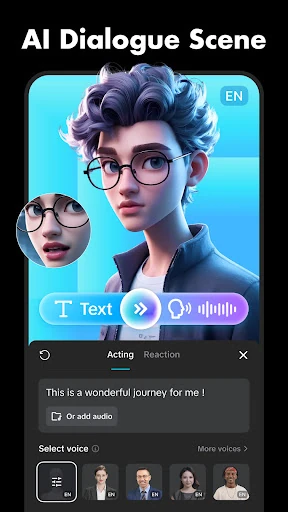
Text and sound add another layer of usefulness. The app offers text styles and templates, locally imported fonts, subtitles that can be moved and adjusted on the timeline, and text-to-speech in multiple languages and voices. It can also extract audio from videos and includes music clips and sound effects. For a short video, those tools can help make spoken content easier to follow or give a sequence a more complete feel.
There is also a steady stream of visual choices to explore, including filters and effects that the description says are updated weekly. The effects range from treatments such as glitch and blur to 3D-style options, alongside adjustments for brightness and contrast. Export controls include custom resolution, 4K at 60 frames per second, and smart HDR, providing options for different kinds of finished videos.
A Practical Editing Routine
For a simple weekend recap, I would begin by gathering the clips that tell the story and trimming the dead space from each one. Then I would arrange them on the timeline, check that the sequence flows, and use a transition only where it helps the change between scenes. This keeps the edit focused on the moments themselves rather than on a pile of effects.
If people are speaking, I would try auto captions and then inspect the result as part of the edit. Text can be repositioned on the timeline, and a title or short label can give context without covering the important action. I would add music or a sound effect only after the visual sequence is settled, so it supports the clip instead of distracting from it.
Before sharing, I would preview the full video and choose a suitable export resolution. CapCut supports sharing-oriented formats and custom resolution, with 4K 60fps export available according to its feature description. A quick final check of pacing, captions, and text placement is a practical way to catch small issues before sending the finished file to friends or a social platform.
Limits to Keep in Mind
CapCut’s range is also its main trade-off. A person who only wants to cut a clip down may find the many effects, animation choices, and editing controls unnecessary. The app can handle simple work, but its broader creative toolkit invites experimentation, and that may take longer than a minimalist editor would for a one-step task.
Some features are described at a high level, but how useful they feel depends on the footage and the project. Automatic captions, background removal, stabilization, and slow-motion tools all address specific editing needs rather than improving every clip. I would treat them as options to test on the material at hand, not as a reason to apply a treatment automatically.
The app is free to install but includes in-app purchases, with listed item prices spanning a wide range. That is worth bearing in mind if you prefer a predictable, one-time cost. The store rating is 3.5 stars, so I would check the current Google Play details and consider whether CapCut’s mix of free access and paid items fits the way I expect to edit.
CapCut is a capable choice for mobile video editing because it covers the full path from trimming clips to adding captions, sound, motion, and export choices. I especially like the balance between approachable basics and deeper tools such as keyframes and chroma key. Its feature set makes sense for people who create videos often enough to appreciate having options close at hand.
I would recommend trying CapCut if you want one app for short social videos, personal recaps, or small creative projects, and you are comfortable exploring a range of tools. If you only need occasional cuts or want a very minimal interface, the extra breadth may not be worthwhile. The in-app purchases are another reason to check the store details before settling in.
CapCut Frequently Asked Questions
What is CapCut - Video Editor used for?
CapCut is used to edit videos on a mobile device. It includes tools for trimming and joining clips, arranging footage on a multi-track timeline, changing speed, adding transitions and effects, creating captions, working with text and sound, and exporting finished videos. It can suit quick edits as well as more layered projects.
Which devices and platforms support CapCut?
CapCut - Video Editor is available on Android through Google Play. The Android version required can vary with the device and app updates, so check the current Google Play store page for compatibility with your phone or tablet. The store details are the best place to verify the requirements for a particular device.
Is CapCut free, and does it have in-app purchases?
CapCut is free to install on Google Play and includes in-app purchases. The listed prices for individual items range from $0.49 to $900.00, so costs can depend on what you choose to buy. Check the current store page for the details that apply to your account and the items available.
Does CapCut - Video Editor show ads?
The Google Play details identify CapCut as an app that does not contain ads. It does offer in-app purchases, however, and those are separate from the free installation. Store information and available purchase options can change, so it is worth checking the current page if that distinction matters to you.
Is CapCut suitable for beginner video editors?
CapCut can suit beginners because its basic tools cover familiar tasks such as trimming, splitting, joining, and adding text. It also has advanced options, including keyframe animation and chroma key, which are there for more involved edits. Someone seeking a very minimal editor may prefer fewer choices, while curious users can explore the tools gradually.
Pros
- Covers everyday trimming and more advanced editing in one mobile app.
- Includes captions, text-to-speech, background removal, and audio tools.
- Multi-track timeline supports arranging and previewing layered clips.
- Offers custom export resolution, including 4K at 60 frames per second.
Cons
- The number of effects and controls may feel excessive for simple edits.
- In-app purchases have a broad listed price range.
- Its 3.5-star Google Play rating suggests the experience is not universal.
- Category
- Video Players & Editors
- Version
- 19.9.0