GoPro Quik: Video Editor
- 1.10M
- 4.5
- Installs
- 50.00M
- Price
- Free

Screenshots
Analysis by Reviewed APKs
GoPro Quik: Video Editor is for turning action-camera clips and everyday phone footage into finished videos without starting every edit from scratch. Its automatic highlights, music sync, and manual editing tools make it especially appealing to GoPro owners, though the app also handles footage from other cameras. I like the balance between quick results and room to adjust; the main thing to keep in mind is that many features require a subscription.
From clips to a highlight
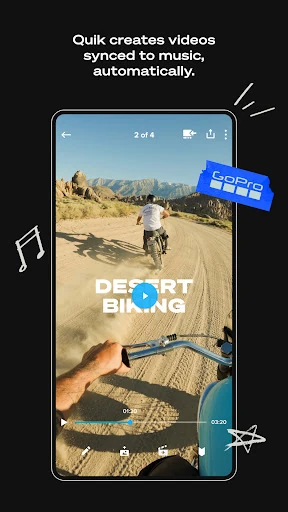
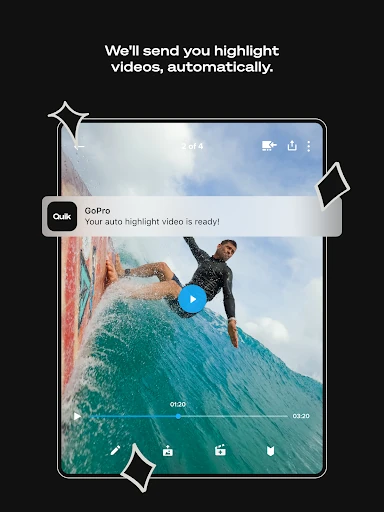
After a weekend outing, I can easily end up with a jumble of short clips: a scenic view, a few shaky seconds, and one moment worth showing friends. Quik’s automatic editing is designed for exactly that pile. It finds standout shots, puts them together with transitions, and syncs the result to music. Instead of sorting through every clip and building a timeline by hand, I can start with a shareable video and decide whether it needs more attention.
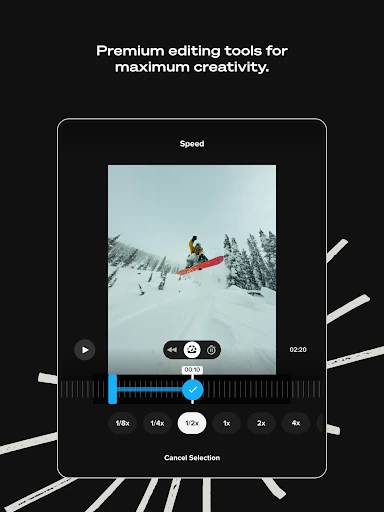
What I like about that approach is how it treats editing as part of remembering an outing, rather than a separate project that needs a free evening. If I want to shape the result, the app also offers tools for trimming, adjusting color and light, adding text, and changing the frame. For someone who would otherwise leave footage untouched on a camera or phone, that combination makes the step from recording to watching feel more manageable.
A shortcut, not a full studio
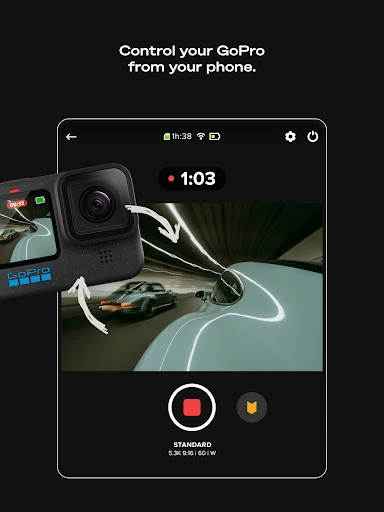
Quik sits between a one-tap video maker and a more hands-on editing workflow. Automatic highlights and beat sync are useful when I want a quick montage, while the editing tools let me refine footage instead of accepting the first version. GoPro camera owners also get camera detection and wired transfers, giving the app a role beyond editing clips already sitting on a phone.
I would not choose Quik just because I need a general-purpose tool for every kind of video project. Its strongest identity is helping people shape photos and footage into personal highlights, especially material from a GoPro. If I want complete control over every cut, or I am not interested in the GoPro camera and cloud workflow, the automatic-first approach may feel less central to my needs. It is a practical editor, not a promise that editing requires no decisions.
Small habits that help
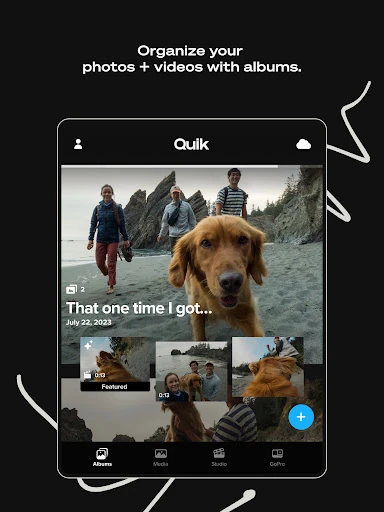
A useful habit is to import footage soon after recording, while the trip or activity is still fresh in my mind. Quik can automatically upload imported photos, videos, and edits to the cloud for backup and cross-device syncing, subject to the relevant subscription. That can make it easier to return to an edit elsewhere instead of relying on one device, and it gives the footage a place in the app’s media management view.
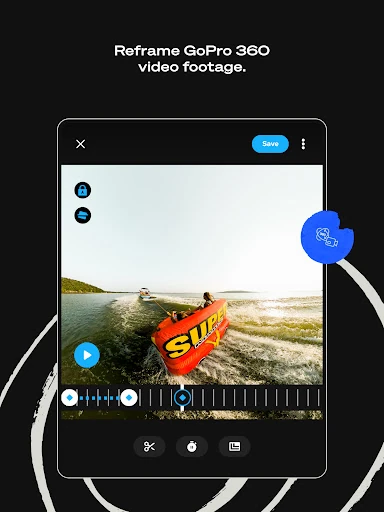
I would also treat the first automatic edit as a draft, not a final verdict. Trim the parts that drag, try a theme, and adjust the aspect ratio for the way the video will be viewed. If the footage came from a 360 camera, Reframe offers a way to choose views and turn them into traditional video or photos. A little targeted tweaking can preserve the quick workflow without making every edit a long session.
More From Our News Desk

Zoom Meetings, Google Meet, or Teams: Which Is Easiest to Join?

How I Build a Free Streaming Lineup With Tubi

Why Crunchyroll Is the Default Anime App for So Many Fans

YouTube TV: A Practical Guide to Cutting Cable

Rummikub and the Small Comfort of Phone Games

TeamViewer Remote Control or AnyDesk for Helping Family?
Who will enjoy Quik
I’d recommend Quik to GoPro owners who regularly collect more footage than they have time to edit. The camera detection and wired transfer features can help bring clips into the app, while automatic highlights offer a starting point for a recap. It also makes sense for people who shoot on a phone or other camera and want an editor with music sync, themes, filters, and straightforward adjustments.
It may be a weaker fit if you want every useful feature with no subscription, since the description ties several tools and cloud benefits to Premium or Premium+. People who prefer to build each edit from the ground up may also find the automatic highlight approach less appealing. For casual creators who want a faster route from a collection of clips to a polished personal video, though, Quik has a clear purpose.
GoPro Quik: Video Editor is made by GoPro and is available on Google Play for Android. It has more than 50 million installs and a 4.5-star rating from about 1.1 million ratings. The app is rated Everyone. Its listed version varies with the device, and the store information gives a release date of November 12, 2012, with a last update dated November 1, 2026.
The app is free to download and contains no ads. It offers in-app purchases, with listed item prices ranging from $1.99 to $99.99. Some editing and cloud features require a Premium or Premium+ subscription, with availability in select countries. Cloud storage allowances depend on the subscription and the source of the footage. The Android version requirement varies, so check the Google Play page for the requirement that applies to your device.
A Faster Route From Footage to Story
A direct first step
When I first opened Quik, the most appealing idea was that I would not have to begin by arranging every shot myself. The app’s automatic highlight editing gives a collection of footage a starting structure, with selected clips, transitions, and music. That is a welcome prospect after recording a lot of material and realizing that the hard part is not capturing it but deciding what to keep.
The setup makes most sense when I think about what I want to do with my footage. GoPro owners can connect a camera through a wired USB connection for detection and transfer. Imported material can also be backed up and synced through the cloud with the applicable subscription. Those options give the app a practical place in a camera owner’s routine, rather than limiting it to a last-minute editing stop.
Editing around real life
Day to day, Quik’s main advantage is flexibility in how much effort I put in. I can let automatic editing do the first pass when I want a quick recap, then use the editing tools to trim clips or adjust color and light. That fits the way many personal videos get made: a few minutes between other tasks, not a dedicated afternoon at a desk.
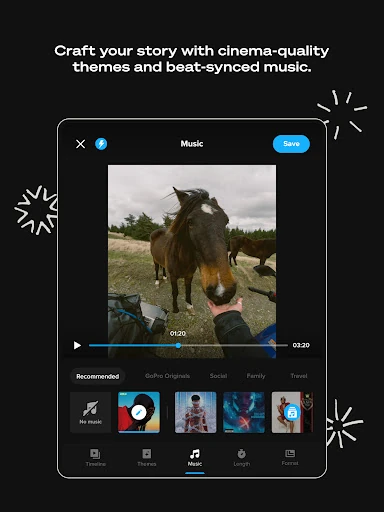
Music sync can help connect clips into a more coherent sequence, and the app can align transitions and effects to a track’s beat. I like that the fast option is not the only option. If a generated video includes a moment I do not want, trimming and other adjustments offer ways to make it feel more like my own edit. The result still depends on the footage I bring in, of course.
Tools with a GoPro angle
Some of Quik’s features are particularly suited to footage from active or unusual environments. Its filters are optimized for settings such as snow and water, while themes add combinations of transitions, filters, and effects. For a clip from a ski day or a day on the water, those options can help give a collection of shots a more consistent feel without requiring me to tune every detail individually.
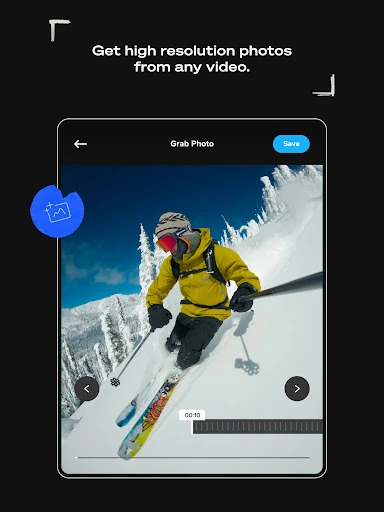
I also appreciate the less flashy tools. Frame Grab captures a high-resolution photo from a video, and Frame Adjust lets me change aspect ratio, level the horizon, rotate, or flip media. Reframe is aimed at 360 footage, letting me explore different views and create traditional video or photos. These tools give the app more uses than simply stitching clips to music.
A weekend recap routine
For a practical routine, I would import the clips after an outing, let Quik create an automatic highlight, and watch through it once before editing. That first viewing helps me spot a clip that should be shortened or a moment that deserves more room. Then I could try a theme, adjust the frame for the intended format, and add a text overlay if a simple label would help tell the story.
If I used a GoPro, I could transfer camera footage over a wired USB connection and review camera media before deciding what to transfer or delete. Imported content and edits can sync across devices with the relevant subscription. I would still keep an eye on what I have actually imported and what I want to preserve, but this workflow makes a short recap feel like a manageable habit rather than a major editing task.
Keep the subscription in view
The biggest practical limitation is that some of the features that make Quik especially appealing are tied to Premium or Premium+. That includes automatic edits and cloud-related benefits described for subscribers. Cloud storage allowances also differ for GoPro and non-GoPro footage, and support for non-GoPro media is subject to supported file types. I would check the subscription terms before building a routine around those capabilities.
There is also a difference between quick editing and complete creative control. Quik provides trimming and adjustments, but its pitch is strongest when a fast starting point is useful. If I am in the mood to make every editorial choice myself, automatic highlights may be less helpful than a workflow built around manual editing. And while the app supports footage from other cameras and phones, some cloud features are specifically organized around GoPro footage.
Quik makes the most sense as a practical companion for people who want to do something with the footage they already record. Automatic highlights lower the effort of getting started, while trimming, themes, filters, frame tools, and Reframe give me ways to make a video feel more personal. GoPro owners get the clearest reason to keep it close.
I’d recommend trying it if quick recaps sound more appealing than leaving clips untouched, especially if you already use a GoPro. Just check which features need a subscription before relying on them. If you want a fully hands-on editing process or do not need its camera and cloud connections, Quik may be less compelling.
GoPro Quik Frequently Asked Questions
What is GoPro Quik: Video Editor used for?
GoPro Quik: Video Editor is used to turn photos and videos into edited highlights. It can select shots, add transitions, and sync a video to music, and it also includes tools for trimming, color and light adjustments, text, themes, and frame changes. GoPro owners can use it to detect and transfer footage from a connected camera.
Which devices support GoPro Quik: Video Editor?
GoPro Quik: Video Editor is available for Android through Google Play. The app description also refers to syncing and editing across devices, but the platform details can vary. Check the Google Play page and GoPro’s current information to confirm what works with your particular devices and setup.
What Android version does GoPro Quik require?
The Android requirement for GoPro Quik: Video Editor can vary with the device and app version. Check the Google Play page for the minimum requirement that applies to your phone or tablet before installing. The listed app version also varies with the device.
Is GoPro Quik: Video Editor free?
GoPro Quik: Video Editor is free to download and has no ads, but it offers in-app purchases. Listed in-app item prices range from $1.99 to $99.99. Some editing and cloud features require Premium or Premium+, and availability can vary by country, so check Google Play for current purchase details.
Who should use GoPro Quik: Video Editor?
GoPro Quik: Video Editor is a good option for GoPro owners and casual creators who want help turning a batch of clips into a recap. It also supports footage from phones and other cameras. People who want every editing and cloud feature without a subscription, or prefer a fully manual editing workflow, may want to compare their options first.
Pros
- Automatic highlights create a useful starting point from photos and video clips.
- Music sync, themes, and filters offer several ways to shape a recap.
- Frame Grab, Frame Adjust, and Reframe add practical tools beyond basic trimming.
- GoPro owners can detect and transfer camera footage over a wired USB connection.
Cons
- Some appealing editing and cloud features require a Premium or Premium+ subscription.
- Cloud storage allowances vary by subscription and whether footage comes from a GoPro.
- Automatic highlights may not suit people who prefer to build every edit manually.
- Category
- Video Players & Editors