TP-Link Tether
- 857.02K
- 4.7
- Installs
- 50.00M
- Price
- Free
Screenshots
Analysis by Reviewed APKs
TP-Link Tether is a mobile companion for setting up and managing compatible TP-Link routers, xDSL routers and range extenders. It suits people who want to handle common network tasks from a phone instead of digging through a more technical interface. My overall take is that it keeps useful controls close at hand, provided your device is supported and you are connected in a way the app can work with.
A quick home network check
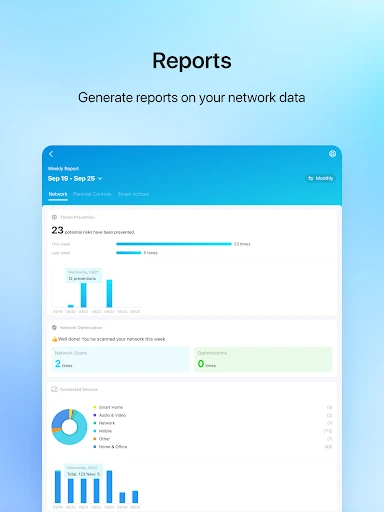
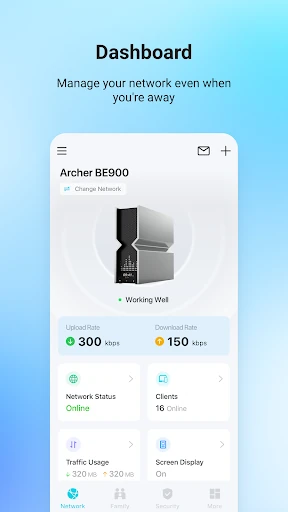
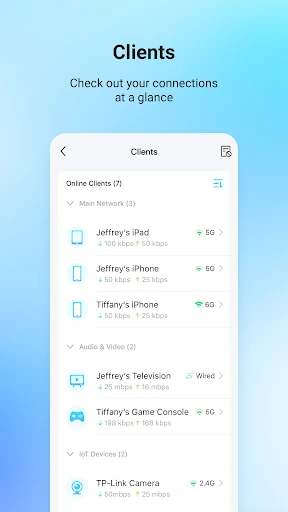
When I want to check what is happening on a home network, the first useful thing is seeing the router’s status and which client devices are online. Tether is built around that sort of practical check. It gives me a mobile view of connected clients and their privileges, so I can spot a device I do not recognize or review who is allowed to use the network without starting from a computer.
The app also brings setup tasks into the same place. I can use it to change the network name and password, adjust internet settings, or manage permissions for client devices. That makes it a reasonable companion for the occasional household change, such as updating access after replacing a router or reviewing who can connect. It is not a general-purpose Wi-Fi scanner; its job is managing supported TP-Link equipment.
A companion, not a router
Tether makes most sense alongside compatible TP-Link hardware. Rather than replacing the router’s role or providing internet service itself, it offers a phone-based way to manage settings and see device status. Compared with handling those jobs from a browser or a computer, the appeal is having common controls in a mobile app. The benefit depends on the particular router or extender being on Tether’s supported-device list.
I would not choose it as a standalone networking tool, and it is not meant to manage equipment from every manufacturer. The description also says it does not work while connected to a guest network, an important limitation if that is the only network available to your phone. If a setting is missing or a device will not appear, compatibility and connection conditions are sensible first things to check.
Small habits that help
A useful habit is to check the online client list when something seems off, then review the listed devices and their privileges before changing anything. Tether supports blocking unauthorized users and managing client permissions, so the app can bring those checks together. I would treat the list as a prompt to investigate rather than assume that an unfamiliar name automatically belongs to someone unwanted.
For a range extender, the location-finding feature can help when deciding where to place it. Other small jobs include setting a schedule for parental controls or choosing when the device LEDs turn off. These are occasional adjustments rather than things I would expect to revisit every day. The app is most useful when I have a clear task in mind and compatible hardware on hand.
More From Our News Desk

Zoom Meetings, Google Meet, or Teams: Which Is Easiest to Join?

How I Build a Free Streaming Lineup With Tubi

Why Crunchyroll Is the Default Anime App for So Many Fans

YouTube TV: A Practical Guide to Cutting Cable

Rummikub and the Small Comfort of Phone Games

TeamViewer Remote Control or AnyDesk for Helping Family?
Who may find it useful
I would recommend TP-Link Tether to people who already own a compatible TP-Link router, xDSL router or range extender and want a straightforward mobile route to common management tasks. It can be handy for a household that sometimes needs to check connected clients, update network details, manage access or set parental-control schedules. The range-extender placement and LED scheduling options also give it uses beyond basic setup.
It may not suit someone with networking equipment from another brand, or anyone expecting a general tool that works independently of a TP-Link device. It is also a poor fit for managing the device while connected to a guest network, according to the app’s description. Before relying on a particular feature, I would check that the exact model is compatible and that its firmware meets the stated requirements.
TP-Link Tether is published by TP-LINK SYSTEMS INC. for Android. Google Play shows over 50 million installs, a 4.7-star rating from about 857,000 ratings, and an Everyone content rating. The app is free to download and contains no ads. Google Play also reports in-app purchases, with listed item prices ranging from $2.99 to $159.99.
The supplied app details give version 4.16.27, an original release date of July 23, 2013, and a last update date of October 23, 2026. A minimum Android version is not included in those details, so check Google Play for the requirement that applies to your device. The app’s supported equipment list is also worth checking before installing if you have a particular TP-Link model in mind.
Managing TP-Link gear from a phone
Getting started
My first impression is that Tether is aimed at practical management rather than teaching networking concepts. Its advertised scope runs from setup to device status and access controls, which gives the app a clear job. It is not trying to be a full network diagnostic suite; it is a mobile companion for compatible TP-Link devices and the settings their owners may need to reach.
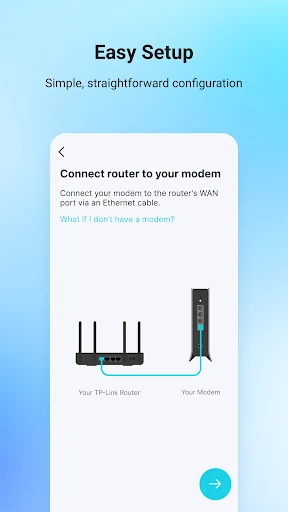
Before making it part of a setup routine, I would check the supported-device list for the exact router or extender. The description also calls for a firmware upgrade and directs users to TP-Link’s support resources for the appropriate version. That preparation matters: an app can only be useful if the hardware is supported and ready to work with it.
One connection detail is easy to overlook: Tether does not work when the phone is connected to a guest network. If access is unavailable, I would check that first rather than immediately assume the router or app has failed. Keeping that limitation in mind makes the initial experience more predictable.
Everyday controls
Day to day, the most practical role is checking device status and reviewing online clients. That can help when a family member asks whether a device is connected or when I want to look over which clients have network privileges. It puts those checks in a mobile context, which is convenient for quick household questions that do not justify opening a laptop.
The app also supports changing the SSID, password and internet settings for compatible equipment. Those are settings I would approach deliberately, especially if other people rely on the connection. Tether supplies a route to manage them, but it does not remove the need to understand that changing network details can affect how devices connect.
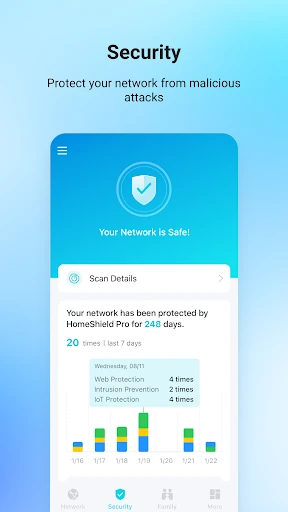
Access management is another everyday task. The description says users can block unauthorized clients and manage permissions for connected devices. I like that these controls sit within the same basic management purpose as checking status. Still, the app is a control point, not a substitute for taking care when identifying devices and deciding what access they should have.
Standout practical tools
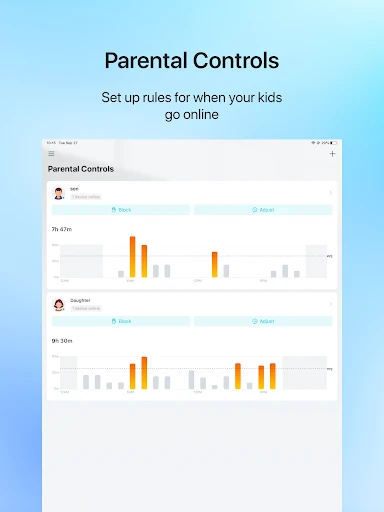
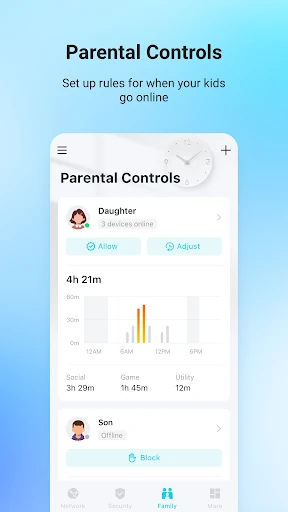
Parental controls are one of the more specific features here. Tether supports schedules and URL-based management of internet access, giving households a way to set boundaries through compatible equipment. That is more concrete than a generic promise of router management, though how useful it is will depend on the device and the needs of the people using the network.
For owners of range extenders, Tether can help find a suitable placement. That is a focused convenience: extender location can be an annoying trial-and-error task, and guidance in the companion app may help narrow down where to put it. The feature is relevant to extenders rather than a reason for every router owner to install the app.
There is also an option to automatically turn off device LEDs at a specified time, along with support for managing most TP-Link devices simultaneously. Those features broaden the app beyond initial setup. Their usefulness is naturally tied to the equipment in the home, so I would not assume every control applies to every model.
A sensible home routine
A low-effort routine could start with checking the device status when the internet setup needs attention, then reviewing online clients if access seems unexpected. If I recognize the devices, there may be nothing to change. If something looks unfamiliar, the app’s permission and blocking controls provide a next step, while still leaving room to verify what the device actually is.
For households using parental controls, the schedule and URL-based access tools can be reviewed as needs change. I would keep those settings tied to a clear household routine instead of repeatedly adjusting them without a reason. Similarly, LED timing is a set-and-forget kind of option: choose a suitable time once, then revisit it only if the room or device use changes.
An extender owner might use the placement feature during setup, then return to Tether later for status or other supported settings. That makes the app less of a daily destination and more of a convenient utility for occasional tasks. It is a good fit for people who prefer having those controls available on a phone when a specific need comes up.
Limits to keep in mind
Compatibility is the biggest practical qualifier. Tether manages supported TP-Link routers, xDSL routers and range extenders; it is not described as a universal control panel for other brands. The exact model matters, so checking the product list is a better first step than assuming the app will recognize every piece of TP-Link equipment.
The guest-network restriction can also catch people out. If the phone is connected to a guest network, the app will not work as intended, so the connection context matters as much as the app itself. The description also says a firmware upgrade is required and points users to TP-Link support for the correct download.
Finally, the app’s value depends on whether its particular controls match the device and the task at hand. Someone seeking broad diagnostics or a one-stop manager for mixed-brand equipment should look elsewhere. Tether stays focused on supported TP-Link hardware, which is useful when that is exactly what you own, but limiting when it is not.
TP-Link Tether earns its place as a companion app by bringing setup, connected-client checks and several access controls together for compatible devices. I especially like the practical touches for extender placement and scheduled LED shutoff. The main caveats are straightforward: confirm model support, keep firmware requirements in mind, and do not expect it to work from a guest network.
If your home uses supported TP-Link equipment and you want common management tasks on your phone, I would give Tether a try. If you need cross-brand control or a general networking toolkit, it is not the right match. Its appeal is focused rather than universal, and that focus is exactly what makes it useful for the right setup.
TP-Link Tether Frequently Asked Questions
What is TP-Link Tether used for?
TP-Link Tether is used to set up and manage compatible TP-Link routers, xDSL routers and range extenders from a mobile device. Its described tools include checking device status and online clients, changing network settings, managing client permissions, parental controls, extender placement help and scheduled LED shutoff.
Which platforms and devices support TP-Link Tether?
The app is available for Android and is intended to work with compatible TP-Link routers, xDSL routers and range extenders. It does not work when the phone is connected to a guest network. The exact equipment supported can vary by model, so check the device list on Google Play or TP-Link’s product information.
What Android version does TP-Link Tether require?
The Android version requirement may vary with the current app release and your device. Check the Google Play page for the requirement that applies to your phone or tablet before installing. The app description also says a firmware upgrade is required for the TP-Link device being managed.
Is TP-Link Tether free, and does it have purchases?
TP-Link Tether is free to download on Google Play and contains no ads. Google Play reports in-app purchases, with item prices ranging from $2.99 to $159.99. Prices and purchase details can change, so check the current store information for the latest details.
Is TP-Link Tether a good fit for my home?
It may suit you if you own a compatible TP-Link router, xDSL router or range extender and want mobile access to common management tasks. It is less suitable if you use other brands or need a general networking tool. Check your model’s compatibility and remember that the app does not work on a guest network.
Pros
- Brings network setup and common management controls together on a phone.
- Includes connected-client review, permission management and unauthorized-user blocking.
- Offers parental-control schedules and URL-based internet access management.
- Adds practical options for extender placement and scheduled LED shutoff.
Cons
- Limited to compatible TP-Link routers, xDSL routers and range extenders.
- Does not work when the phone is connected to a guest network.
- Requires a firmware upgrade for the managed device.
- Category
- Tools
- Version
- 4.16.27