ZArchiver
- 1.45M
- 4.2
- Installs
- 100.00M
- Price
- Free

Screenshots
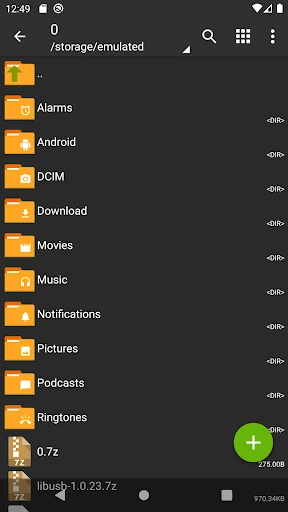
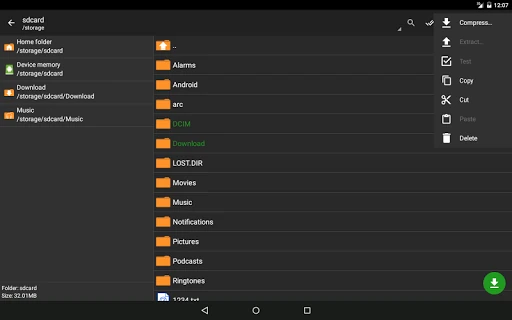
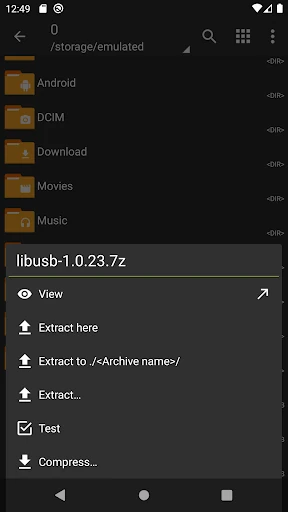
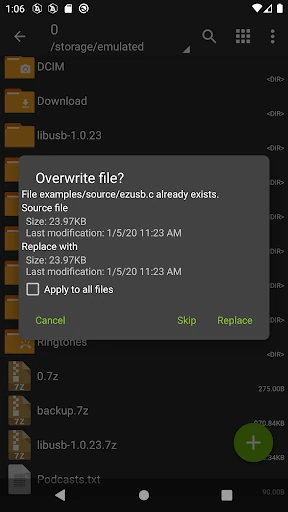
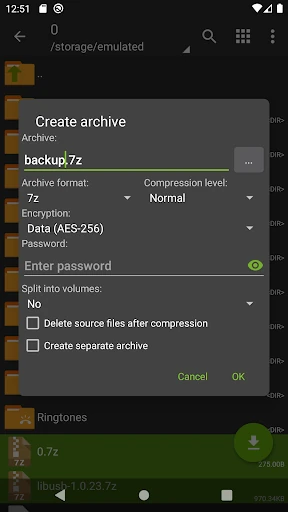
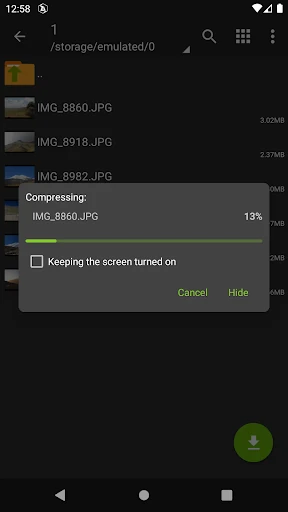
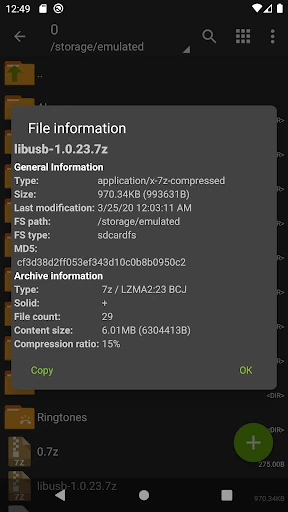
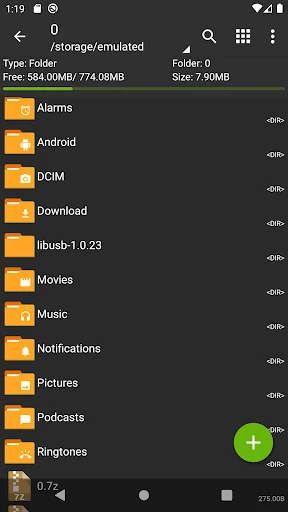
Analysis by Reviewed APKs
ZArchiver is a file-archive manager for Android, built for opening compressed folders, extracting files, and making archives of your own. I found it most useful for the small file jobs that otherwise interrupt a normal phone routine: checking an attachment, unpacking a download, or bundling documents to share. Its format support is broad, and the interface keeps the focus on getting files in and out rather than adding extra distractions.
A quick file handoff
When I first opened an archive sent through an email app, ZArchiver gave me a straightforward way to inspect it and choose how to unpack its contents. That matters when I only need one document from a bundle, or when I want to check what is inside before extracting everything. The app can open archives from mail apps, view their contents, and extract files, so the job stays centered on the item I actually need.
For a typical afternoon task, I might download a compressed folder of photos, open it in ZArchiver, and extract the files where I can find them again. The extraction choices make it possible to unpack an archive in place or choose another option. If I am preparing a group of files instead, I can select them and create an archive. It feels like a practical utility for occasional chores as well as regular file handling.
A focused alternative
Compared with a basic file browser, ZArchiver is specifically geared toward archive work. It can create several common archive types, open a much larger range, and let me view contents before extracting. That broader format support is its main reason to sit alongside the file tools already on a phone. It is also useful when someone sends a less familiar compressed format and the built-in tools do not make the next step obvious.
I would not treat ZArchiver as a general cloud-storage service, a document editor, or a full replacement for every file-management task. Its job is to manage archives, including application backups stored in them, rather than organize a whole digital life. If I only need to browse ordinary folders, a simpler file browser may be enough. ZArchiver makes more sense when compressing, extracting, or inspecting bundled files is a recurring need.
Small workflow wins
A useful habit is to inspect an archive before extracting it. ZArchiver can show contents for many supported formats, which helps me avoid unpacking a bundle just to discover whether it contains the right files. When I know I want everything, choosing an extraction option directly from the archive name keeps the process simple. For a password-protected archive, I also need the archive’s password, not my phone’s unlock code.
When I make an archive, I can select files by tapping the icons beside their names, then choose Compress and set the available options. That selection-first approach is handy when a folder contains unrelated items I do not want to bundle. I also keep split archives together before extracting them, since pieces such as numbered parts belong to the same archive. These small checks make a utility app feel less like a troubleshooting tool.
More From Our News Desk

Zoom Meetings, Google Meet, or Teams: Which Is Easiest to Join?

How I Build a Free Streaming Lineup With Tubi

Why Crunchyroll Is the Default Anime App for So Many Fans

YouTube TV: A Practical Guide to Cutting Cable

Rummikub and the Small Comfort of Phone Games

TeamViewer Remote Control or AnyDesk for Helping Family?
Who will find it useful
I would recommend ZArchiver to anyone who regularly receives compressed files, moves collections of documents, or needs to make archives directly on an Android device. It is especially appealing if file formats vary, since it can create a selection of archive types and decompress or inspect many others. People who keep backups in archives may also appreciate having a dedicated tool for opening and managing those bundles.
It may be more than some people need if they rarely download archives and only work with ordinary folders. The interface is functional rather than decorative, and the app is centered on file operations rather than guiding a new user through a broader productivity system. I would not choose it expecting cloud syncing or document editing. For occasional archive chores, though, the focused approach can be a plus rather than a limitation.
ZArchiver is made by ZDevs and is available on Google Play for Android. Google Play shows over 100 million installs, a 4.2-star rating from around 1.4 million ratings, and an Everyone content rating. The app is free to download, with no in-app purchases or ads. Its listed version is 1.0.10.
The app was first released on January 24, 2012, and its last update was June 24, 2024. A minimum Android version is not included in the supplied app details, so it is worth checking Google Play for compatibility with a particular device. The description notes that Android 9 is needed for a specific small-file behavior, not as a general minimum requirement.
A closer look at archive handling
Opening the app
My first impression was that ZArchiver is built to get to the file task quickly. The description calls its interface simple and functional, and that matches the app’s practical role: choose an archive, inspect or extract it, or select files to compress. There is no need to learn a separate workflow for browsing a library of content; the focus stays on the archives and files I want to handle.
I would start by opening an archive I already have and checking its contents. For a password-protected bundle, the password has to come from whoever created it. That distinction is easy to overlook when a file refuses to open, but it is not the same as the phone’s screen-lock password. Once the right password is available, the app can work with encrypted archives as well as ordinary ones.
Everyday archive work
The routine is direct: tap an archive and choose an extraction option, or select a set of files and start a compression job. I like that the app can also open archive files from mail applications, because attachments are a common reason to need this kind of tool in the first place. Instead of treating every compressed file as a mystery, I can check what it contains and decide what to do next.
For everyday use, archive creation is useful when I want to gather several related items into one bundle. ZArchiver supports formats such as ZIP and 7z, along with several others, and lets users set compression options. I would still keep the source files in mind before changing or removing anything. The appeal is that these common archive chores can happen on the device, without a separate desktop step.
Broad format support
One standout is the difference between the formats ZArchiver can create and the larger set it can decompress or display. Creation includes 7z, ZIP, tar, gzip, XZ, and several additional formats. It can also open and show contents for formats including RAR, ISO, CAB, and many others. That breadth is useful when a file arrives in a format I would not choose myself, but still need to inspect.
The app can create and unpack password-protected archives, and it supports multipart archives in several forms. It can extract split archives such as numbered 7z or ZIP parts and RAR sets. Editing is available for selected archive formats, with the ability to add or remove files. Those options make it more than a one-tap extractor, although I would check that a particular format is supported for the exact operation I need.
A practical weekly routine
A simple routine could be to use ZArchiver whenever a compressed attachment arrives: open it, inspect the contents, then extract only when I know what I need. For a group of files I plan to send or keep together, I can select the relevant items and compress them into one archive. That sequence keeps the app’s two main jobs—opening and creating archives—easy to remember without turning them into a project.
If I am working with files that use non-English names, the description says the app supports UTF-8 and UTF-16 filenames. That can help preserve national symbols rather than leaving me with confusing names. The app also supports multithreading, which is useful on multicore processors. I would not expect every archive to finish instantly, but these details show that the tool is designed for more than just the simplest ZIP file.
Limits to keep in mind
ZArchiver is a focused utility, so its value depends on whether archive handling comes up in my routine. It does not aim to be a general-purpose workspace, and the description does not present it as a cloud service or a document editor. People who only open an occasional compressed file may find a basic built-in option sufficient. Those with a wider mix of formats or frequent archive tasks have a clearer reason to keep it around.
Some archive behavior depends on the file itself. Encrypted archives need the correct password, and multipart files need their pieces available together. The description also notes a particular direct-opening behavior for small files on Android 9, but that is a specific capability rather than a general compatibility statement. I would check the store information for a device’s requirements, and check format support before relying on a less common operation.
ZArchiver is a capable, no-cost choice for the unglamorous but useful work of opening, inspecting, extracting, and creating archives. Its broad format support gives it an edge over a bare-bones extractor, while the straightforward workflow keeps routine jobs manageable. I would keep it installed if compressed attachments or bundled files show up in my week with any regularity.
My recommendation is strongest for Android users who want a dedicated archive manager and do not need it to do everything else. If archive files are rare in your day-to-day life, you may not notice much difference from a simpler option. For everyone else, ZArchiver is a practical tool with plenty of format flexibility and few distractions.
ZArchiver Frequently Asked Questions
What is ZArchiver used for?
ZArchiver manages compressed archives on Android. It can create archives in formats such as ZIP and 7z, decompress many formats, view archive contents, and work with password-protected files. It can also open archive files from mail applications. It is intended for handling archives and backups stored inside them, rather than serving as a general document editor or cloud-storage service.
What devices can run ZArchiver?
ZArchiver is an Android app available through Google Play. The supplied details do not give a minimum Android version, so compatibility can vary by device and is worth checking on the store page. The description mentions Android 9 for a particular small-file opening behavior; that detail should not be read as the app’s overall minimum requirement.
Does ZArchiver cost money?
ZArchiver is free to download on Google Play. The supplied app facts say it has no in-app purchases and contains no ads. Store information can change over time, so check the current Google Play page if you want to confirm the terms before installing.
Can ZArchiver open password-protected files?
Yes. ZArchiver can create and decompress password-protected archives. The password must belong to the archive; the app’s description specifically cautions that it is not the same as the phone’s unlock password. If you do not have the archive password, you will need to ask the person who created or sent the file.
Is ZArchiver suitable for occasional use?
It can be useful even if archive work is occasional, especially when a compressed email attachment or download arrives. The interface is focused on archive tasks, so people who regularly need to inspect several formats may get more from it. If you rarely encounter compressed files, a simpler file tool may already cover your needs.
Pros
- Opens and displays a wide range of archive formats.
- Creates several common archive types, including ZIP and 7z.
- Handles password-protected and multipart archives.
- Free to download, with no ads or in-app purchases.
Cons
- Its focused archive tools may be unnecessary for occasional users.
- Some encrypted files require a password from the archive creator.
- A device’s compatibility should be checked on Google Play.
- Category
- Tools
- Version
- 1.0.10











