Windows Calculator
- —
- —
- Installs
- —
- Price
- Free
Analysis by Reviewed APKs
Windows Calculator is a built-in Windows tool for everyday arithmetic and more specialized calculations, including scientific, programming, date, and graphing work. I like that it can handle a quick sum without making the same app feel limited when a problem gets more involved. It suits Windows users who want a practical calculator close at hand, though it is a desktop utility rather than a phone-first calculator.
From quick sums to graphs
When I need to total a few grocery costs or check the difference between two figures, a standard calculator is usually all I want. Windows Calculator keeps that kind of task straightforward with its number pad and arithmetic buttons. I can open it, enter the numbers, and get back to what I was doing without reaching for a separate device or turning a simple calculation into a bigger project.
The app also makes sense when a calculation grows beyond basic addition and subtraction. I might start with an ordinary sum, then switch to scientific mode for an exponent or trigonometric function, or use date calculation when I need to work out a span between dates. The different modes give the tool room to handle more than one kind of problem while keeping its central job clear: calculating.
A calculator, not a spreadsheet
Compared with a basic pocket calculator, Windows Calculator covers more ground. Its scientific mode adds functions such as exponents and trigonometry, programmer mode handles operations related to programming, and graphing mode can plot equations on a coordinate plane. That makes it useful when I want a focused calculation tool with several specialized modes, rather than a device that only handles the four familiar arithmetic operations.
It is still a calculator, not a replacement for a spreadsheet or a broad data-analysis tool. I would use it to work through a calculation or view an equation as a graph, not to organize a budget table or manage a large set of records. Its strongest fit is a Windows desktop routine where I want a calculation close by, with more capable modes available when the occasional task calls for them.
Small habits that help
I get more from the app by matching the mode to the question before I start typing. For a quick total, standard mode keeps things simple; for a trigonometric calculation, scientific mode is the more appropriate place to work. That small pause helps me avoid treating every task as ordinary arithmetic and makes the app’s additional modes feel useful rather than like extra buttons I never touch.
It also helps to think of programmer, date calculation, and graphing as tools for particular moments, not modes I need to keep open all day. When a programming-related operation comes up, I can use programmer mode; when I need a date calculation, I can switch to that mode. For an equation I want to see on a coordinate plane, graphing offers a more visual way to examine it.
More From Our News Desk

Zoom Meetings, Google Meet, or Teams: Which Is Easiest to Join?

How I Build a Free Streaming Lineup With Tubi

Why Crunchyroll Is the Default Anime App for So Many Fans

YouTube TV: A Practical Guide to Cutting Cable

Rummikub and the Small Comfort of Phone Games

TeamViewer Remote Control or AnyDesk for Helping Family?
Who will appreciate it
I would recommend Windows Calculator to people who use a Windows computer and want a readily available tool for quick arithmetic, with scientific and other specialized modes there when needed. Students, people doing occasional technical calculations, and anyone who sometimes needs to compare dates or graph an equation may find the range handy. Its appeal is practical: one familiar utility can serve several calculation habits without requiring a separate calculator for each.
It may be less suitable for someone looking specifically for a mobile calculator, since this is Windows software. It is also not aimed at people who need spreadsheet-style organization or extensive data work. If all you ever need is a very basic calculator, its extra modes may not matter much; if you do use them now and then, they add flexibility without changing the app’s basic purpose.
Windows Calculator is developed by Microsoft and is included in Windows. It is desktop software for Windows, rather than an Android or iOS app. The available description covers standard, scientific, programmer, date calculation, and graphing modes, but does not provide a specific Windows system requirement or current software version.
The supplied product details do not give a rating, rating count, install count, release date, or last update date, so I’m leaving those figures out. They also do not specify a separate price, in-app purchases, ads, or a content rating. For current availability and any applicable purchase or system details, check the official Windows source.
A Familiar Tool With More Range
An easy first impression
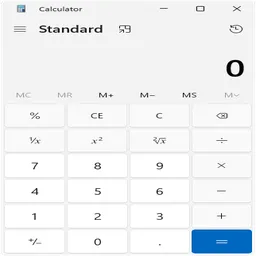
The first thing I appreciate about a built-in calculator is that it has a clear purpose. Windows Calculator is included in Windows, so it belongs naturally in a desktop routine rather than asking me to think of it as a separate piece of equipment. The standard mode is immediately recognizable: a number pad and buttons for arithmetic give me the essentials for the quick calculations that come up during ordinary computer use.
Getting started is less about learning a complicated workflow and more about deciding which kind of calculation I need. Standard mode is a comfortable place to begin, while scientific, programmer, date calculation, and graphing modes are available for different tasks. I find that arrangement appealing because I can keep simple work simple and explore the extra capabilities only when a particular question makes them relevant.
Useful in daily work
Day to day, the calculator’s value is its range. A quick arithmetic check and a more specialized calculation are both within the same Windows tool, so I don’t have to treat every problem as a reason to find a different calculator. That is especially helpful for occasional needs: I can use the basic mode most of the time and still have a scientific or programming-related mode ready when a task takes a turn.
I also like that the modes correspond to distinct kinds of work. Date calculation is there for date-related questions, while graphing offers a visual way to look at equations. This does not turn the app into a complete work suite, and it doesn’t need to. It covers a useful set of calculation needs while remaining a calculator first, which is a sensible role for a built-in desktop utility.
Five calculation modes
The five modes are the main reason this calculator can serve more than a quick sum. Standard mode handles arithmetic with a number pad and operation buttons. Scientific mode adds functions such as exponents and trigonometry. When I need something beyond ordinary arithmetic, those additions give me a more suitable workspace without changing the app’s central purpose.
Programmer mode is designed for operations related to computer programming, while date calculation focuses on working with dates. Graphing mode can plot equations on a coordinate plane, giving an equation a visual form instead of leaving it only as a calculation. These are distinct capabilities rather than vague promises of versatility, and each is most useful when its particular kind of question comes up.
A simple desktop routine
A practical way I use a multi-mode calculator is to start with the question, not the mode list. If I’m checking a total, I stay with standard arithmetic. If I’m handling an exponent or trigonometric function, I use scientific mode. When the problem is about dates, I move to date calculation. That keeps the tool from feeling busier than it needs to be and makes the specialized options easier to remember.
For a programming-related operation, programmer mode is the relevant stop; for an equation I want to see on a coordinate plane, graphing mode is the one to try. I find it useful to reserve those modes for the tasks they are meant to serve rather than exploring them at random every time I open the app. The result is a small, repeatable habit: choose the calculation type, then work in the matching mode.
Keep its scope in mind
The app’s breadth should not be confused with being an all-purpose data tool. It can calculate and graph equations, but the supplied feature set does not describe spreadsheet-style tables or broad record keeping. If I need to arrange lots of figures into a larger project, I would look for a tool built for that kind of work instead of expecting a calculator to take over.
Its platform is another practical limit: Windows Calculator is desktop software, so it is not the right choice for someone who wants an Android or iOS calculator. The extra modes may also be more than a person needs if their only requirement is a basic four-operation calculator. For Windows users who occasionally need those added capabilities, though, the range is a useful bonus rather than a burden.
Windows Calculator is a capable everyday utility that keeps basic arithmetic approachable while offering scientific, programmer, date calculation, and graphing modes for more specific jobs. I like the balance: it can stay in the background until a task calls for something beyond a quick sum, then provide a more suitable way to work.
I recommend it to Windows users who want a built-in calculator with room to handle varied calculations. It is less compelling if you need a mobile app, spreadsheet functions, or only the most minimal calculator possible. For occasional calculations across several modes, it is a practical tool to keep in the desktop routine.
Windows Calculator Frequently Asked Questions
What is Windows Calculator used for?
Windows Calculator handles everyday arithmetic and offers scientific, programmer, date calculation, and graphing modes. Scientific mode includes functions such as exponents and trigonometry, programmer mode supports programming-related operations, and graphing can plot equations on a coordinate plane. It is a calculation tool, rather than a spreadsheet or general-purpose data organizer.
Which devices can run Windows Calculator?
Windows Calculator is desktop software included in Windows. The supplied details do not specify a minimum Windows system requirement, so check the official Windows source for current compatibility information. It is not described as an Android or iOS app.
Does Windows Calculator cost money?
Windows Calculator is described as included in Windows. The available product details do not specify a separate price, in-app purchases, or advertising. For current access and any applicable cost details, check the official Windows source, as availability or terms may vary.
What Windows version does Windows Calculator require?
A minimum Windows version is not provided in the available details. Since system compatibility can depend on the current software and your device, check the official Windows source for the requirement that applies to your computer.
Is Windows Calculator suitable for students?
It may suit students who use Windows and need everyday arithmetic or occasional scientific calculations, date calculations, or equation graphing. Programmer mode also covers operations related to programming. It is less suitable for someone who needs a mobile calculator or spreadsheet-style tools for organizing larger sets of information.
Pros
- Included in Windows, with a familiar standard calculator for everyday arithmetic.
- Scientific mode adds exponents and trigonometric functions for more involved calculations.
- Programmer, date calculation, and graphing modes cover several distinct needs.
- Graphing mode can plot equations on a coordinate plane.
Cons
- It is Windows desktop software, not a mobile calculator for Android or iOS.
- Its calculator-focused scope does not replace spreadsheet-style data organization.
- The additional modes may be unnecessary for users who only need basic arithmetic.
- Category
- Tools











