VIP Access
- 18.96K
- 3.4
- Installs
- 10.00M
- Price
- Free

Screenshots
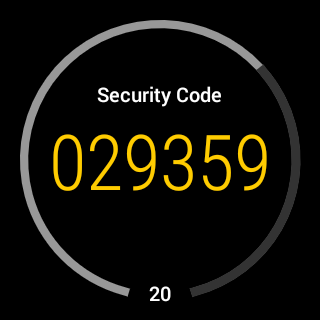
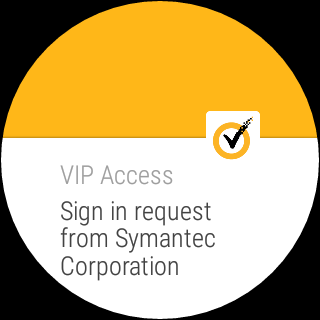

Analysis by Reviewed APKs
VIP Access is a two-factor authentication app for adding an extra sign-in step to accounts at participating organizations. It suits people who already use a VIP-enabled service and want security codes or approval prompts on their phone. After looking at how its options fit into an everyday login routine, my take is straightforward: it has a focused job and useful offline code generation, but it is only relevant if the service you use supports it.
A second step at sign-in
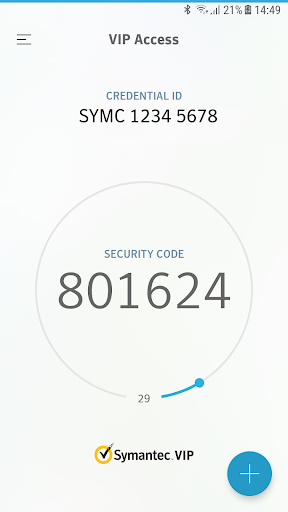
Picture signing in to a participating account at the end of a busy day. You enter your usual username and password, then open VIP Access for a one-time security code. The app generates a code on the phone, which you enter as the additional check. That extra step takes a little attention, but it is easy to understand: the password gets you to the next screen, and the code helps complete authentication.
The exact flow depends on the organization behind the account. It may ask you to approve a push notification, enter a challenge number, or provide a code instead. I like that this keeps the app’s job clear rather than making it a general account manager. One practical detail is especially welcome: VIP Access can generate a security code without a network or mobile connection, which can help when reception is poor.
For participating accounts only
VIP Access is best understood as a companion to services that use the VIP Network, not as a universal authenticator that works with every account. The description names participating organizations and says there are hundreds of sites in the network. That gives it a specific audience: people whose bank, website, or other organization has chosen this authentication method and tells them to use VIP Access.
Compared with relying on a password alone, it adds another authentication step. Compared with a broad password manager, it does not claim to store or organize passwords, and it is not a place to manage all your online accounts. I would not install it expecting it to secure any arbitrary login. First check whether the organization you need to access supports VIP, since that determines whether the app has a role in your routine.
Make sign-ins less fussy
A small habit that helps is keeping your phone nearby when you expect to sign in. If your organization uses security codes, opening the app and entering the current code becomes part of the login rather than a last-minute search for another device. If it uses push approval or a challenge, follow the prompt shown during authentication; the organization determines which method applies.
When setting up access to a participating site, the QR-code option can be part of the process. The description says scanning a QR code can generate site-specific security codes, and that QR codes can also be used to migrate a VIP credential to a new phone. I would treat a phone change as a task to plan rather than assume the credential transfers automatically. Keeping the account’s own setup instructions handy makes the handoff less confusing.
More From Our News Desk

Zoom Meetings, Google Meet, or Teams: Which Is Easiest to Join?

How I Build a Free Streaming Lineup With Tubi

Why Crunchyroll Is the Default Anime App for So Many Fans

YouTube TV: A Practical Guide to Cutting Cable

Rummikub and the Small Comfort of Phone Games

TeamViewer Remote Control or AnyDesk for Helping Family?
Who will find it useful
I would recommend VIP Access to someone whose organization specifically asks for it, or to someone who has confirmed that a service they use supports VIP authentication. It is also a reasonable fit for people who prefer having a code available on their phone, including when the phone has no network connection. The mix of code, push, and challenge-based authentication gives participating organizations more than one way to handle that extra sign-in step.
It may not suit someone looking for a universal tool to protect every online account, or a password manager with a broad set of account features. Its usefulness is tied to participating services, and the authentication method is determined by the organization. If you do not have an account that uses VIP, there may be little reason to keep it in your regular routine. People who dislike adding a step to sign-ins should also weigh that small inconvenience against the service’s requirements.
VIP Access is developed by Symantec VIP, Broadcom Inc. On Google Play it has over 10 million installs and a 3.4-star rating from 18,961 ratings. The app is free to download, with no in-app purchases and no ads according to the supplied store facts. Its content rating is Everyone, and the listed release date is January 28, 2010.
The current version is listed as varying with device, and the last update date is October 12, 2026. A minimum Android version is not provided in the supplied facts, so check the Google Play entry on your device for compatibility. These store details are useful context, but the main practical question is whether the organization whose account you need to access supports VIP authentication.
How VIP Access Fits Into Login
A focused first impression
When I first opened VIP Access, the most important thing to understand was not a long list of tools but whether it matched a service I use. This app is built around authentication for VIP-enabled accounts. That makes the first step outside the app: check the participating organization’s sign-in instructions and see whether it asks for VIP Access.
Once you know it is relevant, setup can involve scanning a QR code at a participating organization. The app describes QR scanning both for generating site-specific security codes and for migrating a VIP credential to a new mobile device. Those are practical entry points, though the exact setup depends on the organization. I would follow its instructions carefully instead of assuming every account uses the same process.
The everyday sign-in
In daily use, VIP Access comes into play when a participating account requests the second authentication step. For a code-based login, the routine is familiar: enter your normal account details, get a one-time code from the app, and enter that code where prompted. It is a small detour from a password-only login, but the steps are easy to keep straight once they become part of the sign-in.
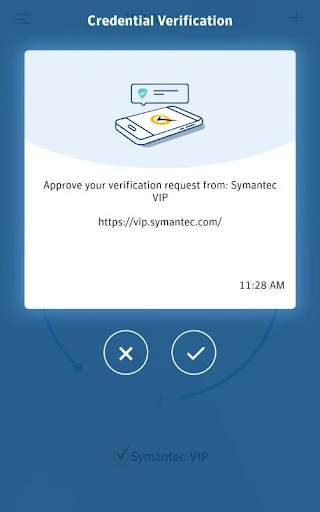
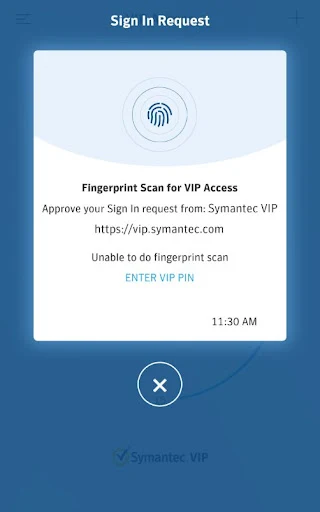
Other organizations may use a push notification or a challenge number instead. A push approval can ask for an additional local authentication method, such as a PIN, pattern, password, or fingerprint, if the organization requires it. The app’s role is therefore not identical every time. I would pay attention to the prompt on the account’s sign-in page rather than expect one fixed flow across all services.
Codes and QR options
Offline code generation is one of the more useful details for a travel day or a spot with unreliable reception. The app says it can generate a security code without a network or mobile connection. That does not mean every authentication method works offline; push approval, for example, depends on the organization’s chosen process. Still, having a code available without connectivity can remove one common snag from a login.
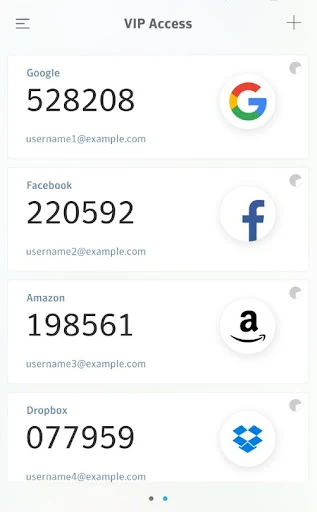
QR codes serve two distinct purposes in the description. A participating organization can use one to set up site-specific security codes, which refresh every 30 seconds, and a QR code can be generated to migrate a credential to a new phone. I appreciate that the migration use case is mentioned, since changing devices is precisely when authentication setups can become inconvenient. It is worth planning that process around the organization’s guidance.
A practical weekly routine
For someone who signs into a VIP-enabled account only occasionally, the simplest routine is to keep VIP Access available and open it when the account asks for verification. If codes are the method, use the code displayed for that sign-in rather than treating the app as a place to collect account passwords. If the service sends a push or challenge, follow those instructions instead.
If you are moving to a new phone, make that a deliberate part of the changeover. The description supports credential migration by QR code, but your participating organization’s setup determines what you need to do. I would avoid waiting until a time-sensitive login to figure it out. A quick check of the service’s instructions while both devices are available can make the transition feel much less rushed.
Keep the limits in view
The main limitation is also the app’s defining boundary: it works with VIP-enabled accounts, not necessarily every website or service where you have a login. That means it can be essential for one person and irrelevant to another. Before installing it as a general security solution, check the organization’s own authentication guidance and confirm that VIP Access is among its supported options.
There is also some variation in the sign-in experience because each participating organization chooses its authentication method. Fingerprint authentication requires a fingerprint-capable phone with a fingerprint registered, and other local checks may be requested when the organization requires them. Those dependencies make the experience less predictable than a single, universal code flow. For the right account, though, VIP Access stays focused on adding an authentication step rather than expanding into unrelated tools.
VIP Access is a focused authentication companion, not an all-purpose account security toolkit. Its offline security codes, push approvals, challenge numbers, and QR-based setup or migration cover practical ways to complete a second sign-in step. The experience depends on the participating organization, so its value is determined less by how many features you want and more by whether your account uses VIP.
I would try VIP Access if a service you rely on specifically supports it, especially if you want a phone-based code that can work without connectivity. I would skip it if you are looking for a universal authenticator or password manager. Check the service’s setup instructions first, then decide whether this narrowly focused tool belongs in your login routine.
VIP Access Frequently Asked Questions
What is VIP Access used for?
VIP Access adds a second authentication step when you sign in to accounts at participating organizations. Depending on the organization’s setup, that can mean entering a one-time security code, approving a push notification, or responding to a challenge. The app can generate security codes without a network or mobile connection, but only services that support VIP can use it.
Which devices can run VIP Access?
VIP Access is an Android app on Google Play and is also described as compatible with Android-based smart watches running Wear OS. The supplied facts do not give a minimum Android version, so check the Google Play entry on your device for current compatibility. Fingerprint authentication requires a fingerprint-capable device with a fingerprint registered.
What Android version does VIP Access require?
The minimum Android version is not included in the supplied store facts. Requirements can vary as app versions change, so check the VIP Access Google Play entry from the Android device you plan to use. The listed version itself varies with device. Also confirm that your organization supports VIP Access before relying on it for a particular account.
Does VIP Access cost money?
The supplied Google Play facts say VIP Access is free, with no in-app purchases and no ads. Store information and availability can change, so it is worth checking the current Google Play entry before installing. You will also need an account at an organization that supports VIP authentication for the app to be useful.
Is VIP Access right for every account?
No. VIP Access is for accounts at participating organizations, and each organization determines which authentication method it uses. It is not presented as a password manager or a universal tool for every website login. It is a better fit if a service you use specifically supports VIP and asks you to add this authentication step.
Pros
- Generates security codes even when the phone has no network or mobile connection.
- Supports code, push-notification, and challenge-based authentication for participating organizations.
- QR codes support site-specific codes and credential migration to a new device.
- Works with Android-based smart watches running Wear OS.
Cons
- Useful only for accounts at organizations that support VIP authentication.
- The authentication flow varies according to each participating organization’s setup.
- A phone change may require a deliberate credential migration process.
- Category
- Tools











