Splashtop SOS – Remote Support
- 522
- 3.8
- Installs
- 100.00K
- Price
- Free

Screenshots
Analysis by Reviewed APKs
Splashtop SOS – Remote Support is a support-session app for people who need an IT technician to see what is happening on their mobile device or computer. I see it as a practical tool for fixing a specific problem with someone’s help, rather than an app to explore on your own. Its straightforward, on-demand purpose is appealing, though sharing its connection code calls for care.
When a problem needs help
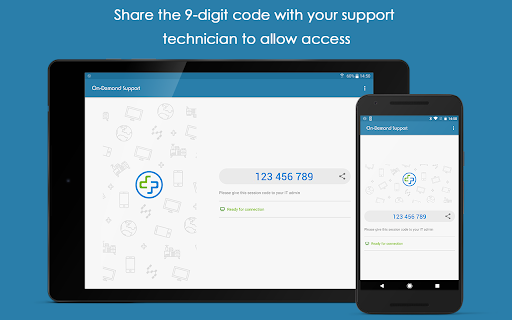
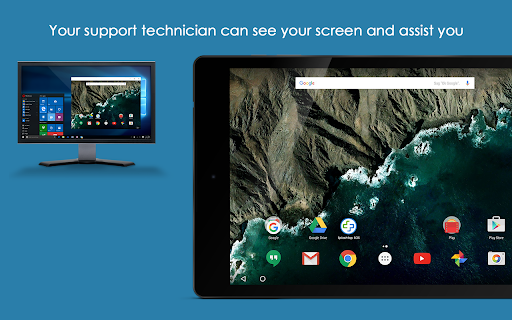
Imagine your phone is behaving oddly and a technician asks you to show them what you see. With Splashtop SOS, the basic flow is to open the app and share its session ID with that technician. They can then view your screen and guide you through troubleshooting in real time. That feels more useful than trying to describe a confusing settings page over the phone.
I would treat this as a tool for a scheduled support call, not something I keep open throughout the day. The app’s job is to connect you with an expert when you need help, while you remain at your device. If a technician needs more than a view of the screen, remote control may be possible with the appropriate permissions or add-on support.
A support tool, not a fix-it guide
Compared with searching help pages or watching a tutorial, Splashtop SOS puts a technician in the loop. That can be a relief when a problem is hard to explain or when you are unsure which steps to take. The app also supports connections from desktops and other mobile devices, so the support session is not limited to one kind of computer.
It is not a general remote desktop app for casual access to your own devices, nor does it promise to diagnose problems by itself. Its purpose is on-demand help from a technician. If you want to solve an issue independently, a guide may be enough; if you want someone to see the problem and talk you through it, SOS is the more relevant fit.
A few habits make sessions smoother
Before a session, I would make sure the device with the problem is nearby and ready to use, then open SOS when the technician is prepared to connect. Sharing the session ID only with the person you expect to help is an important part of that routine. The app explicitly warns that the code can allow remote access, so it is not something to post or send casually.
During a call, keep the conversation going while the technician views the screen. Chat is available as another way to communicate, and file management or remote printing may be useful when those tasks are part of the support request. I would grant only the permissions needed for the session and pay attention to who is connected, rather than treating remote help as an always-on arrangement.
More From Our News Desk

Zoom Meetings, Google Meet, or Teams: Which Is Easiest to Join?

How I Build a Free Streaming Lineup With Tubi

Why Crunchyroll Is the Default Anime App for So Many Fans

YouTube TV: A Practical Guide to Cutting Cable

Rummikub and the Small Comfort of Phone Games

TeamViewer Remote Control or AnyDesk for Helping Family?
Who should give it a try
I would recommend Splashtop SOS to people whose workplace, school, or support provider uses Splashtop for remote assistance. It suits someone who is comfortable following an expert’s instructions and wants a technician to see the device screen instead of relying on a long description. The session ID makes the handoff central to the experience, so it is most useful when you already have a trusted support person to contact.
It may be less appealing if you are looking for self-guided troubleshooting, everyday device management, or a way to connect to computers without a technician. People who are wary of screen sharing should take time to understand the session and permissions before starting. I would also avoid sharing the connection code with anyone unexpected; the app’s own warning makes that boundary worth taking seriously.
Splashtop SOS – Remote Support is made by Splashtop and appears in the Tools category. On Google Play, it has over 100,000 installs and a 3.8-star rating from 522 ratings. The app is free, with no in-app purchases and no ads. Its content rating is Everyone, making its store classification broad, though the remote-access purpose still deserves sensible attention.
The current version shown is 3.8.405. The app was released on May 22, 2017, and its most recent update is dated October 8, 2026. A minimum Android version is not included in the available app details, so check Google Play on your device for compatibility. The app supports remote assistance sessions involving mobile devices and desktops.
A closer look at guided remote support
A focused first impression
When I first considered the app, its purpose was refreshingly narrow: help a technician connect when there is a problem to solve. The process described is simple. You install SOS on the device that needs help, give the session ID to your technician, and begin the support interaction. There is no need to treat it as a general-purpose utility between sessions.
That simple handoff also sets a clear expectation. The app does not replace the technician; it gives them a way to see the device and help in real time. I would start a session only when I knew who was connecting and why. That is a sensible first step for any remote-support tool, especially one whose code can enable access.
The day-to-day experience
In ordinary use, SOS is likely to sit quietly until something goes wrong. When a support call begins, the useful part is having the technician look at the same screen you are looking at. That can cut down on vague descriptions such as “the button near the bottom” and make it easier to follow instructions one step at a time.
The experience depends on an active support conversation. Screen sharing lets the technician observe and guide, while chat offers another way to communicate. If a session requires hands-on interaction, remote control may depend on suitable device support or an additional permission. I would not assume every device offers identical control behavior; the practical goal is to work with the technician and the options available.
Useful tools within a session
Beyond screen sharing, the app describes file management, remote printing, and chat with an expert. Those extras make sense in a support context: a technician may need to discuss an issue, help with a file-related task, or assist with printing. They are not reasons to install the app on their own, but they can broaden what a support session can cover.
Remote control is also tied to device permissions. Splashtop says users can grant AccessibilityService access to enable control when there is no suitable add-on app for the device. I would treat that as an optional, deliberate choice rather than a routine setup step. A technician can explain whether it is needed for the issue at hand.
A practical support routine
For a smooth session, I would contact the technician first, open SOS when they are ready, and share the session ID directly with them. I would keep the device in hand and describe what I was trying to do when the problem appeared. Once the technician can see the screen, I would follow one instruction at a time and ask for clarification before granting any additional access.
At the end, I would make sure the support conversation is finished and avoid reusing or casually sharing the connection code. That routine is not complicated, but it keeps the session tied to a specific person and task. The app is most helpful when it is part of a clear support appointment, rather than an open-ended connection with no agreed purpose.
Keep the boundaries clear
The biggest limitation is also part of the design: SOS is useful when a technician is available and willing to help. It is not a standalone repair service, and installing it does not explain what is wrong with a device. People who prefer to troubleshoot alone may get more value from instructions or a direct conversation with support before starting a remote session.
Remote access also deserves attention. The app warns users not to share the session code with people they do not know or trust, and that is advice I would follow closely. Control features can involve permissions, while device support may vary. I would check the specific requirements and agree on the session’s purpose before connecting, especially if the technician requests additional access.
Splashtop SOS does one job that can be genuinely helpful: it gives a trusted technician a way to view a device and guide its owner through a problem. Screen sharing, chat, and related support tools make sense together, and the session-based approach keeps the app’s purpose clear.
I would recommend it when your support provider uses Splashtop and you want live help with a device issue. It is less compelling as an everyday app or a self-service troubleshooting tool. Use the session code carefully, understand any requested permissions, and treat each connection as a specific support session.
Splashtop SOS Frequently Asked Questions
What is Splashtop SOS – Remote Support used for?
Splashtop SOS lets a technician provide remote support by viewing your device screen and guiding you through an issue in real time. The app describes chat, file management, and remote printing as additional session tools. It is intended for on-demand assistance, rather than independent diagnosis or everyday device management.
What devices and platforms work with Splashtop SOS?
The app is available for Android, and its description says technicians can connect from desktops or other mobile devices. The specific support experience may depend on the device and any permissions or suitable add-on support needed for remote control. Check Google Play and your support provider for details about your particular setup.
What Android version does Splashtop SOS require?
The minimum Android version can vary by app release and device compatibility. Check the Splashtop SOS page on Google Play from the Android device you plan to use for the current requirement. If remote control is part of your session, the available permissions and device support may also affect how it works.
Does Splashtop SOS cost money or include purchases?
Splashtop SOS is free to download on Google Play. The available app information says it has no in-app purchases and contains no ads. If your support provider has separate requirements or arrangements for its service, check with that provider; the app itself is described as a tool for connecting with a technician.
Is Splashtop SOS suitable for personal use?
It can suit anyone who needs a trusted technician to help with a device problem and uses Splashtop for support. It may not suit people seeking self-guided fixes or general remote access. Share the session ID only with someone you know and trust, since the app warns that it can allow remote access.
Pros
- Lets a technician view your screen and guide you through problems in real time.
- Supports chat, file management, and remote printing during support scenarios.
- Connects with support from desktops or other mobile devices.
- Free to download, with no ads or in-app purchases.
Cons
- Most useful when a trusted technician is available to start a session.
- Sharing the session ID carelessly can expose the device to remote access.
- Remote control may require permissions or suitable add-on support.
- Category
- Tools
- Version
- 3.8.405











