Send files to TV
- 97.98K
- 4.2
- Installs
- 10.00M
- Price
- Free

Screenshots
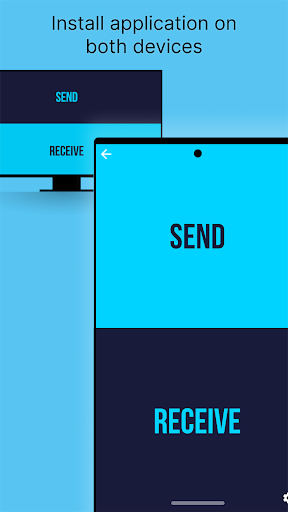
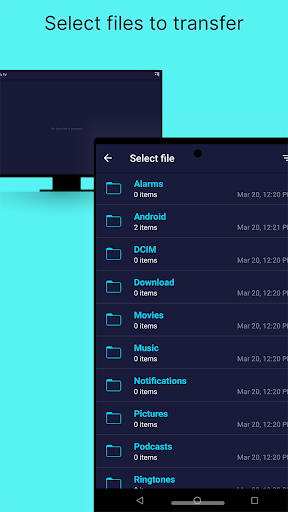
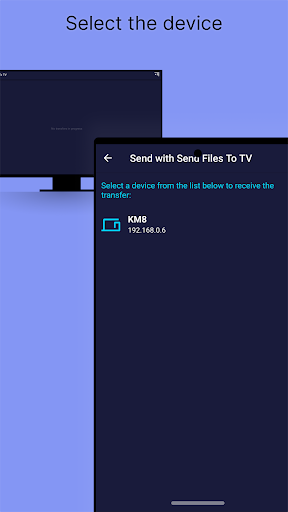
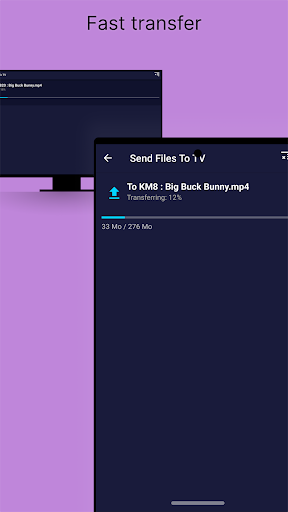
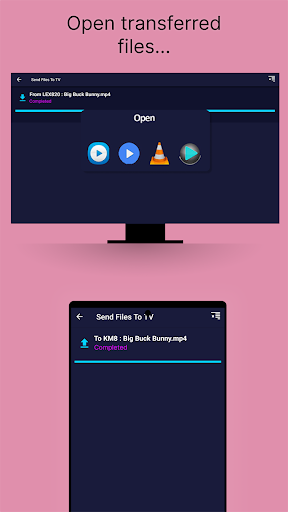
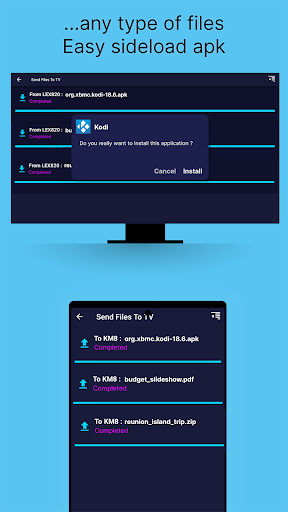
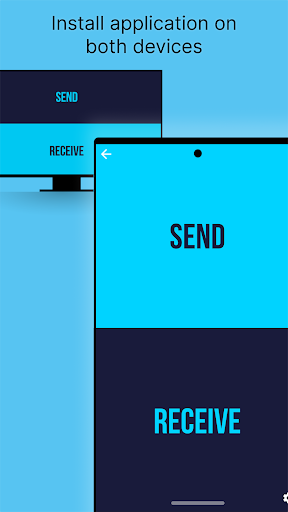
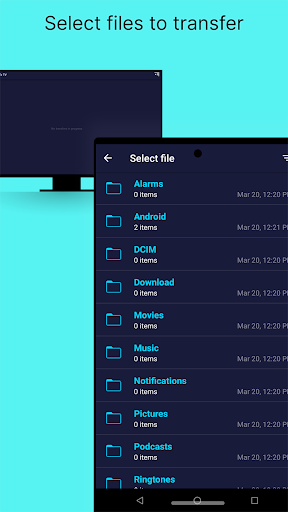
Analysis by Reviewed APKs
Send files to TV is a straightforward way to move files between an Android phone, an Android TV, and a computer on the same local network. I’d point it toward anyone who wants to get a video or other file onto a TV without relying on a cable or the internet. Its appeal is practical rather than flashy: install it on the devices you want to connect, select what to send, and keep the transfer simple.
A living-room transfer
Picture a quiet evening when a video is on your phone but you would rather watch it on the television. With Send files to TV, I can use the phone and Android TV as the two ends of a local-network transfer instead of trying to get the file onto the TV through an internet service. The app is built for this kind of small domestic task: move a file from one device to another, then use it where it is more convenient.
The important setup detail is that the app needs to be installed on the Android TV and on each device involved in sending files. Once the devices are on the local network, the app says it can discover other SFTTV devices automatically. I like that this keeps the process focused on transferring a file rather than setting up a broader media library. It is a useful distinction when all I want is to move one item across the room.
A focused alternative
Compared with Bluetooth, the app is intended for faster transfers, particularly when a file is large. It also works across a local network without requiring internet access. That makes it a more direct option than sending a file through an online service and then retrieving it on the TV. I see its role as a practical bridge between devices I already use, not as a replacement for every way of watching or sharing media.
This is not a streaming service, a screen-mirroring tool, or a remote control. Its stated job is to transfer files between supported devices, including Android TV, Android mobile devices, and computers running Windows, macOS, or Linux. You need the app on each device you want to connect. If the goal is to browse an online catalogue or play a file directly from a phone without transferring it, this is not the tool I would reach for.
Small habits that help
I would treat Send files to TV as a handy utility to keep ready for occasional transfers rather than something that needs a complicated routine. Before sending, I would check that the TV and phone are on the same local network and that the app is installed on both. Since the app discovers other SFTTV devices on that network, having the receiving device open and available is a sensible first step when I want the transfer to go smoothly.
I would also take a moment to check the settings panel if I need to find where received files are stored. The app’s description specifically points to settings for checking or changing the download path, so knowing that location can save a little searching later. For computer-to-TV transfers, the same principle applies: install the relevant version on the devices involved and keep the workflow centered on the file rather than expecting the app to organize or play a whole collection.
More From Our News Desk

Zoom Meetings, Google Meet, or Teams: Which Is Easiest to Join?

How I Build a Free Streaming Lineup With Tubi

Why Crunchyroll Is the Default Anime App for So Many Fans

YouTube TV: A Practical Guide to Cutting Cable

Rummikub and the Small Comfort of Phone Games

TeamViewer Remote Control or AnyDesk for Helping Family?
Who may find it useful
I’d recommend Send files to TV to people who occasionally need to move a video, show, or other file from an Android phone or computer to an Android TV. It suits a household where the devices share a local network and where a simple transfer is more useful than setting up a larger media system. The cross-platform support is a welcome extra when the sender is a Windows, macOS, or Linux computer rather than a phone.
It may not suit someone looking for streaming, casting, playback controls, or a service that supplies content. The app’s job is file transfer, and the other devices need it installed too. People who rarely move files to their TV may not need a dedicated tool, while anyone expecting a one-tap connection across devices without local-network setup may find the requirements less convenient. I’d consider it for a specific transfer need, not as an all-purpose TV companion.
Send files to TV is developed by Yablio and is listed in the Tools category on Google Play. The app has more than 10 million installs and a 4.2-star rating from about 98,000 ratings. It is rated Everyone. The current version is 1.4.22, and the release date shown is April 3, 2019.
The app is free to download and contains ads. Google Play also lists in-app purchases, with individual items priced from $0.99 to $2.99. Its last update was September 17, 2025. The Android version requirement can vary by device and app release, so I’d check the Google Play page for the version currently available to a particular device.
Making Local File Transfers Feel Simple
First setup impressions
When I first opened the idea of using Send files to TV, what stood out was how narrowly it defines its purpose. This is for connecting an Android TV, an Android phone, or a computer through the local network and moving files between them. There is no need to frame it as a general entertainment app. That straightforward scope makes it easy to understand what it is meant to do before I start moving anything.
The key setup step is installing the app on the Android TV and on every device I intend to use for transfers. That requirement is worth noticing before reaching for the phone, especially if the TV is the receiving end. The app describes automatic discovery of other SFTTV devices on the local network. I find that a practical starting point: get the participating devices ready, then use the app for the transfer rather than treating it as a cloud service.
Day-to-day transfers
In everyday use, I’d reach for this when a file is on one device and I want it available on another, especially when the destination is an Android TV. The app supports transferring movies, TV shows, and other files across the local network. That makes it useful for an occasional household task: move a file to the screen where I want to use it, without making internet access part of the transfer.
The local-network approach also shapes when I would use it. The devices need to be connected to that network, and SFTTV needs to be installed on each one. In return, the app is designed to transfer files without internet access and is described as faster than Bluetooth. For larger items, that is an appealing alternative to waiting on a slower device-to-device method, though the actual experience will depend on the network and devices.
Useful device flexibility
The feature that makes Send files to TV more flexible than a phone-only transfer tool is its computer support. The app also runs on Windows, macOS, and Linux, so the sender does not have to be an Android mobile device. That matters in a home where a file lives on a laptop and the TV is the destination. I appreciate that the same basic purpose can cover different combinations of devices without changing the task into a media-server project.
Automatic discovery is another helpful idea for this kind of utility. The app says it can find other devices running SFTTV on the local network, which avoids making the user manually describe the connection in the app’s basic workflow. The description also notes that the download location can be checked or changed in settings. I would keep that in mind after a transfer, since knowing where the received file lands is part of making the feature useful.
A simple home routine
For a practical routine, I would start by deciding which device has the file and which one should receive it. Then I’d make sure the app is installed on both, connect them through the local network, and use the transfer workflow for that particular file. This keeps the process purposeful. I would not expect the app to find or manage a whole library; the useful outcome is simply having the selected file on the other device.
After sending something to the TV, I’d check the app settings if I needed to locate the downloaded file or change its path. For a computer sender, I would follow the same device-by-device approach, using the available Windows, macOS, or Linux version alongside the Android TV app. A little preparation—especially checking that the receiving device is ready—makes this kind of occasional transfer less fiddly.
Limits to keep in mind
The biggest limitation is also part of the design: this is a file-transfer app, not an app for streaming content from the internet or controlling TV playback. It requires installation on each device involved, including the Android TV, and depends on the devices being on the local network. If I only want to watch something from an online service, this app does not solve that problem.
There are also a few practical details to consider before making it part of a routine. The app contains ads and offers in-app purchases, and the Android version requirement may vary by device and release. I would check the current store information and compatibility before relying on it for a particular setup. Still, for people with the right devices and a clear need to transfer files, its focused role is easy to understand.
Send files to TV makes sense when I need a direct way to move files among Android TV, Android phones, and computers on a local network. Its support for Windows, macOS, and Linux gives it some welcome flexibility, while its narrow purpose keeps the idea simple. The main trade-off is that every participating device needs the app, and it is not a streaming or playback tool.
I’d recommend it to anyone who regularly moves personal files to an Android TV and wants a local-network option that does not depend on internet access. If that is only an occasional need, it may still be handy to have available. If what you want is casting, an online video service, or TV controls, look elsewhere; those are different jobs.
Send files to TV Frequently Asked Questions
What is Send files to TV used for?
Send files to TV transfers files between an Android TV, Android mobile devices, and computers running Windows, macOS, or Linux. The devices need the app installed and use a local network for transfers. It is intended for moving files, such as movies or shows, rather than streaming an online catalogue or controlling TV playback.
Which devices and platforms work with Send files to TV?
The app is available for Android devices, including Android TV, and its description also names Windows, macOS, and Linux versions. For a local-network transfer, install it on the TV and each device you want to use. Check the relevant store or software source for current availability and device compatibility.
What Android version does Send files to TV require?
The minimum Android version can vary depending on the device and the app release. I’d check the Google Play page for Send files to TV on the specific phone or TV before installing, since its compatibility details are the best guide for that device.
Does Send files to TV cost money?
Send files to TV is free to download on Google Play, contains ads, and offers in-app purchases. Listed individual purchase prices range from $0.99 to $2.99. Prices and available purchase options can change, so check the current Google Play page for the latest details.
Is Send files to TV right for my setup?
It may suit you if you want to transfer files between an Android TV and a phone or computer on the same local network. You need the app installed on each participating device. It may not fit if you want streaming, casting, or playback controls; those are outside its stated file-transfer purpose.
Pros
- Transfers files across a local network without requiring internet access.
- Supports Android TV, Android mobile devices, Windows, macOS, and Linux.
- Can automatically discover other SFTTV devices on the local network.
- Settings include a way to check or change the download path.
Cons
- The app needs to be installed on every device involved in a transfer.
- It transfers files rather than providing streaming or TV playback controls.
- The app contains ads and offers in-app purchases.
- Category
- Tools
- Version
- 1.4.22











