Remote control for TCL TVs
- 39.50K
- 3.8
- Installs
- 5.00M
- Price
- Free
Screenshots
Analysis by Reviewed APKs
Remote control for TCL TVs turns an Android phone into a companion remote for compatible TCL televisions. It is aimed at people who have misplaced a physical remote, want another way to navigate the TV, or have an older set that can use infrared. I like the range of connection options and control screens, though getting a connection working depends on the TV and setup.
When the remote goes missing
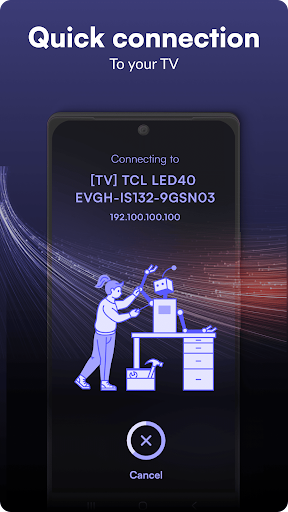
When I first opened the app, I pictured the familiar living-room scramble: the show is paused, the usual remote has slipped between sofa cushions, and nobody wants to get up and search. With a compatible TCL TV, the app offers a phone-based alternative. For a Wi-Fi connection, I would put the phone and TV on the same network, choose the TV if it appears, and use the on-screen controls.
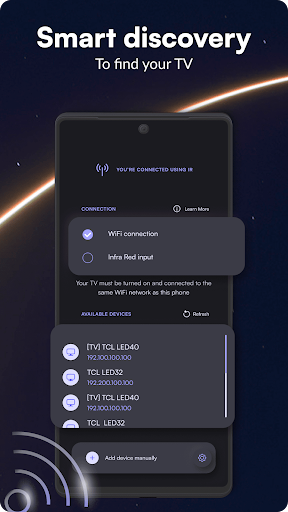
If the TV does not show up automatically, the app provides a manual-add option using the TV’s IP address, with video instructions for finding it. I like that there is a fallback rather than only a discovery button. For an older television, the app also offers an infrared connection mode, which avoids the shared-Wi-Fi setup when the phone supports infrared. The useful part is having both routes in one app.
A phone remote, not a TV service
The app’s role is practical: it provides ways to control a TCL TV from an Android phone. It is not a replacement streaming service or a way to watch television on the phone. Compared with keeping a spare physical remote nearby, it trades a separate device for a phone you may already have in hand. Its Wi-Fi and infrared options also make it more flexible than a remote app built around just one connection method.
That flexibility still has limits. The description focuses on TCL Roku, Android TV, and smart TV models, plus older sets that can use infrared; it does not present the app as a universal remote for every brand. Wi-Fi control depends on the phone and TV sharing a network, while infrared use depends on suitable phone hardware. I would treat it as a useful backup or companion, not a reason to discard the TV’s regular remote.
Make setup easier next time
A small bit of preparation can make the first connection less annoying. I would check that the TV is on the same Wi-Fi network as the phone before opening the app, then give device discovery a try. If the TV is not found, the manual-add route is there, and the included video instructions can help with the IP-address step. That is more useful than repeatedly tapping discovery without changing anything.
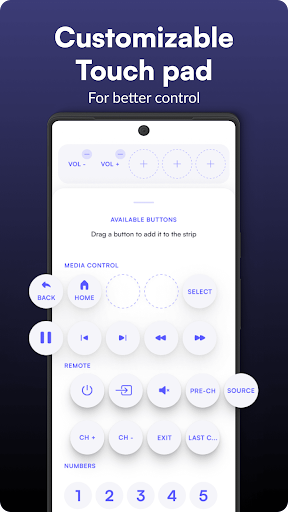
Once connected, I would choose the control screen that suits the moment rather than treating every screen as interchangeable. The regular remote layout is familiar for button-by-button use; the touchpad screen is suited to navigating with a touch area and favorite buttons; and the app and media screens have their own roles. Saving favorite apps in the app screen can also make repeat visits more direct.
More From Our News Desk

Zoom Meetings, Google Meet, or Teams: Which Is Easiest to Join?

How I Build a Free Streaming Lineup With Tubi

Why Crunchyroll Is the Default Anime App for So Many Fans

YouTube TV: A Practical Guide to Cutting Cable

Rummikub and the Small Comfort of Phone Games

TeamViewer Remote Control or AnyDesk for Helping Family?
Who may find it useful
I would recommend Remote control for TCL TVs to TCL owners who want a backup in their pocket, especially households where the physical remote often goes wandering. It may also suit someone who prefers touch navigation or wants to open apps installed on the TV from a phone. The combination of Wi-Fi and infrared modes is a practical plus for people whose television setup does not fit one single connection route.
It may be a poor fit if you need a remote for a non-TCL television, expect the app to stream shows to your phone, or want to avoid ads and paid options altogether. Wi-Fi control requires the phone and TV to share a network, and infrared control relies on compatible phone hardware. I would also keep the regular remote handy until I had tested the app with my particular TV.
On Google Play, Remote control for TCL TVs is published by osApps in the Tools category. It has more than 5 million installs and a 3.8-star rating from about 39,500 ratings. The app is free to download, contains ads, and offers in-app purchases listed at $4.49 per item. Its content rating is Everyone.
The current version shown is 9.5.48. Google Play gives its release date as December 13, 2021, and its last update as October 23, 2026. A minimum Android version is not included in the supplied app facts, so check the Google Play page for the requirement that applies to your device.
Getting More From a Phone Remote
A straightforward first look
The first task is choosing how to connect. For a smart TV connection, the basic checklist is simple: keep the TV and Android phone on the same Wi-Fi network, open the app, and select the TV from the available devices if it appears. That is a sensible first attempt for a TCL Roku or Android TV setup, and it avoids typing network details when discovery works.
If discovery does not turn up the television, manual setup asks for the TV’s IP address. The app’s description points to video instructions for finding it, which is a welcome bit of help for a step that can otherwise interrupt a quick setup. There is also an infrared mode to select for older TVs. The first impression is of an app built around several possible setups, not a single universal connection.
Everyday control choices
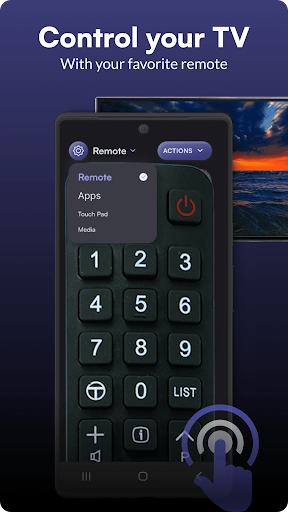
For ordinary use, the full-screen remote interface is the most familiar option: the phone displays a remote-like layout, and you tap its buttons. I can see the appeal when I am already holding my phone and want to navigate without getting up to find the physical remote. It keeps the app’s central job clear and does not ask the user to learn a wholly different way of controlling the TV.
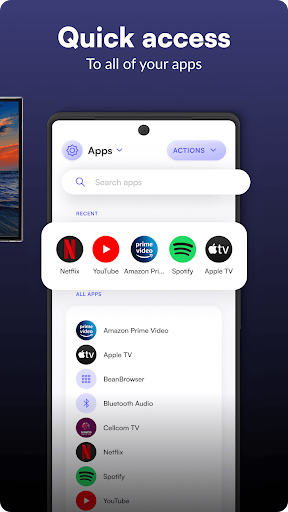
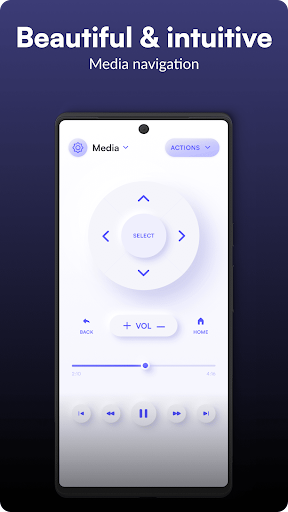
Other screens offer a different style of navigation. The touchpad view includes a built-in touch area and a strip where favorite buttons can be placed. The media screen is intended for media navigation, while the apps screen shows apps installed on the TV and can open them. Favorite apps are saved there. These options give the app more range than a single remote-shaped screen, though the basic remote remains the simplest place to start.
Connection and interface range
The most notable feature is the choice between Wi-Fi and infrared control. Wi-Fi supports the described smart TV use, provided the phone and TV share a network. Infrared is offered for older televisions without Wi-Fi, with the connection type changed in the app. That matters because the same household can have a newer connected TV or an older set, and the app at least provides different paths rather than assuming every television is alike.
The interface selection is another useful distinction. Users can pick a standard remote layout, a touchpad screen, an apps screen, or a media screen. The apps view can show what is installed on the TV, open those apps, and keep favorites available. I would not mistake these controls for extra television content; they are different ways to interact with the TV and its installed apps.
A simple evening routine
A realistic routine would start with the phone and TV on the same Wi-Fi network, then a quick connection in the app before settling in for the evening. I would use the regular remote screen for familiar button taps, switch to the apps screen when I want to open something already installed on the TV, and return to the remote layout for general navigation. The app’s different screens are most useful when chosen for a particular task.
If the television is not discovered, I would try the manual-add instructions once and keep the IP-address detail available for future use. For an older set, I would switch to infrared instead, assuming the phone supports it. After connecting, placing favorite buttons in the touchpad screen’s top strip or using the saved app favorites could make repeated use more convenient. The payoff is modest but clear: fewer setup steps each time.
Limits to keep in mind
Compatibility is the first thing I would test rather than assume. The app describes support for TCL Roku, Android TV, and smart TV use, but a particular model and connection setup still matter. Wi-Fi operation calls for the phone and television to share a network. Infrared is presented as an option for older TVs, but it depends on the phone being able to send infrared signals.
The app is not the official TCL app, and it is described as an independent tool for controlling TVs. It also contains ads and offers in-app purchases, so a free download does not mean every aspect is ad-free or without paid options. Finally, a phone is not always as convenient as a physical remote, particularly when it is charging elsewhere or its battery is low. I would test it before relying on it as my only control.
Remote control for TCL TVs makes a convincing backup for the right household: it covers Wi-Fi control, offers infrared for suitable older setups, and includes several ways to navigate. Its best quality is flexibility, not a promise that every TV and phone will work the same way. I would install it, test the connection, and keep the physical remote nearby until the routine feels dependable.
I recommend giving it a try if you own a compatible TCL TV and regularly reach for a phone when the remote is missing. The multiple control screens and manual connection option make it more than a bare remote replica. If you need support for other brands, dislike ads, or do not have the required connection or infrared hardware, it may not suit your setup.
Remote control for TCL TVs Frequently Asked Questions
What is Remote control for TCL TVs used for?
Remote control for TCL TVs lets an Android phone act as a remote for compatible TCL televisions. It offers a standard remote screen, a touchpad screen, an apps screen for opening apps installed on the TV, and a media screen. It can connect over Wi-Fi or, for suitable older TVs and phones, through infrared.
Which devices can use Remote control for TCL TVs?
The app is for Android phones. Its description covers TCL Roku, Android TV, and smart TV use, plus infrared control for older televisions. Wi-Fi control requires the phone and TV to be on the same network. For a specific TV model or phone, check the Google Play details and test the connection before relying on it.
What Android version does Remote control for TCL TVs require?
The Android requirement can vary by device and app release. Check the Google Play page for the minimum version currently required for your phone before installing. The app description also explains that Wi-Fi control needs the phone and TV on the same network, while infrared control depends on suitable phone hardware.
Is Remote control for TCL TVs free, and does it have purchases?
The app is free to download on Google Play, contains ads, and offers in-app purchases. The listed in-app price is $4.49 per item. Store prices and availability can change, so check the Google Play page for current purchase details before deciding whether the free version and its ad-supported experience suit you.
Is Remote control for TCL TVs right for me?
It may suit TCL owners who want a phone-based backup or another way to navigate their TV. It is less suitable if you need a remote for another brand, want to watch TV content on your phone, or cannot use the required Wi-Fi or infrared connection. Compatibility depends on the particular setup, so check the store information and test your TV.
Pros
- Offers Wi-Fi and infrared connection options for different TCL television setups.
- Includes remote, touchpad, apps, and media screens for varied navigation.
- Manual device addition is available when automatic discovery does not find the TV.
- The apps screen can show installed TV apps and save favorites.
Cons
- Wi-Fi control requires the phone and TV to share a network.
- Infrared use depends on compatible phone hardware.
- The app contains ads and offers in-app purchases.
- Category
- Tools
- Version
- 9.5.48











