OP Auto Clicker - Auto Tap
- 14.65K
- 4.3
- Installs
- 5.00M
- Price
- Free

Screenshots
Analysis by Reviewed APKs
OP Auto Clicker - Auto Tap automates repeated taps and swipes on Android, with controls for where and how often they happen. I see it as a practical utility for people who need to repeat a screen action, whether in a compatible game or another app. The setup takes a little care because it needs Accessibility Service authorization, but the single- and multi-target modes make its purpose clear.
Put Repeated Taps on Autopilot
When I first opened OP Auto Clicker, I pictured a familiar bit of phone busywork: a screen action that needs to happen again and again while I would rather not keep tapping manually. The app lets me choose a single target or work with multiple targets, then adjust click timing and repetition. For a task that can be handled by a tap or swipe, that gives the routine a more deliberate setup than simply holding my thumb in place.
A practical example is a repetitive in-app action where the same spot needs attention at a chosen interval. I can set a delay, touch time, and number of repetitions, or define a time-based run. For more involved sequences, the app supports multiple click points and swipes, and it can save and load scripts. Those controls make it easier to reuse a setup instead of rebuilding the same sequence each time.
A Utility, Not a Game
Compared with tapping manually, the appeal is consistency: the app can repeat a configured action without requiring a person to keep pressing the screen. Compared with a simple one-tap helper, its multiple targets, swipes, timing options, and saved scripts give it more room for a sequence. It is still a focused tool rather than a general phone assistant, and its value depends on whether a particular app task can be expressed as taps or swipes.
I would not treat it as a way to make a game easier in every sense, or as a replacement for learning an app's controls. It automates input; it does not supply content or decide what a task should be. It also is not a desktop or cross-platform tool: the app is for Android. Since it uses Accessibility Service to carry out its core actions, authorization is part of the setup rather than an optional extra.
Make a Setup Reusable
I would start with the smallest useful sequence: one target, a modest repetition count, and a delay that matches the task. Once that behaves as intended, adding other points or a swipe is easier to reason about. The app also lets me change the operator interface's size and opacity, which is useful when its controls need to stay visible without taking over too much of the screen.
For a task I expect to repeat, saving a script is the habit that seems most worthwhile. It avoids setting the same points and parameters from scratch on the next occasion, while loading a script brings that arrangement back. I would still review the settings before running it, especially the repetition count and timing; a saved configuration is convenient, but it should match the screen task at hand.
More From Our News Desk

Zoom Meetings, Google Meet, or Teams: Which Is Easiest to Join?

How I Build a Free Streaming Lineup With Tubi

Why Crunchyroll Is the Default Anime App for So Many Fans

YouTube TV: A Practical Guide to Cutting Cable

Rummikub and the Small Comfort of Phone Games

TeamViewer Remote Control or AnyDesk for Helping Family?
Who may find it useful
I would recommend OP Auto Clicker to Android users who regularly face repetitive touch actions and want control over their timing, targets, and repetition. It may suit someone experimenting with a short sequence as well as someone who wants to save a more involved arrangement for later. The lack of a root requirement lowers one technical barrier, though it does not remove the need to grant the Accessibility Service authorization the app uses.
It may not suit people who only need to tap something occasionally, or anyone uncomfortable granting an accessibility permission to a tool. The controls also make more sense when a task is repeatable and predictable; they are less useful when an app changes its layout or requires judgment between actions. I would check the target app's own rules before automating interactions, and keep expectations focused on input repetition rather than broader automation.
OP Auto Clicker - Auto Tap is a Tools app from mouse tool. Google Play shows over 5 million installs and a 4.3-star rating from around 14,700 ratings. It is free, with no in-app purchases and no ads. Its content rating is Everyone, and the current version is 2.0.0.
The app was released on June 28, 2021, and its latest update was January 14, 2026. It is available for Android 7.0 and above, according to the app's requirements. The central setup detail is its use of Accessibility Service for automated clicks and swipes, which requires the user to authorize that service.
A Closer Look at Repeated Touches
First Open and Setup
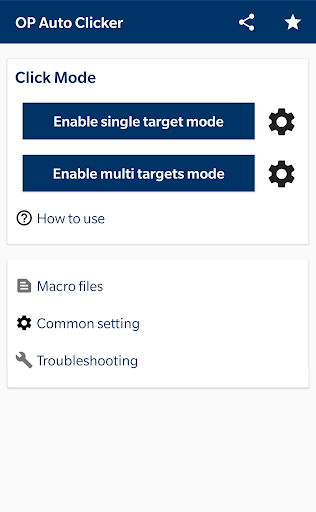
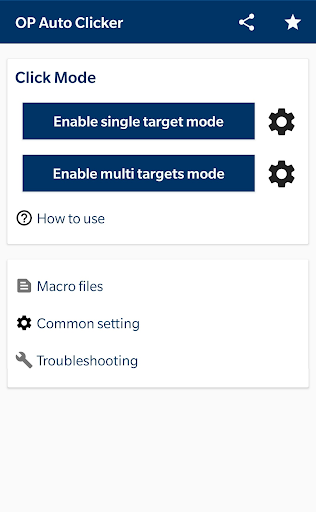
My first impression is that this is a purpose-built utility, not an app trying to do several unrelated jobs. The central choice is between a single target and multiple targets, which gives me a quick sense of how much setup a task may need. Before anything can run, I need to authorize Accessibility Service; the app explains that this permission is used for its tapping and swiping functions.
That permission step deserves a moment of attention. The app says it does not collect private data through this approach, but the service is still what enables its core functionality, so I would read the permission prompt and make an informed choice. The app does not require root, and its stated Android support begins at version 7.0, making those two practical checks easy to establish before getting started.
The Day-to-Day Controls
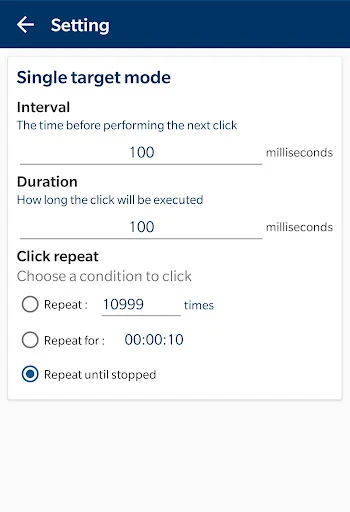
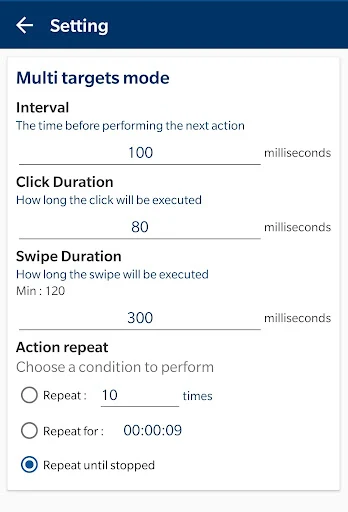
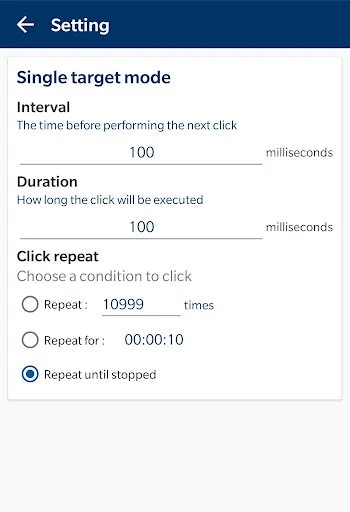
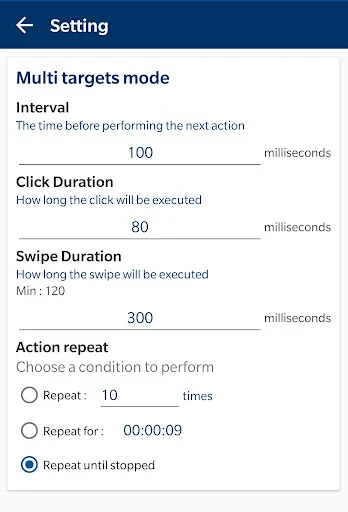
The useful part of the experience is being able to specify how an action repeats rather than relying on one generic rapid tap setting. Delay, touch time, and repetitions can be adjusted separately. I like that those parameters describe different parts of the action: when the next one happens, how long the touch lasts, and how many times it should repeat.
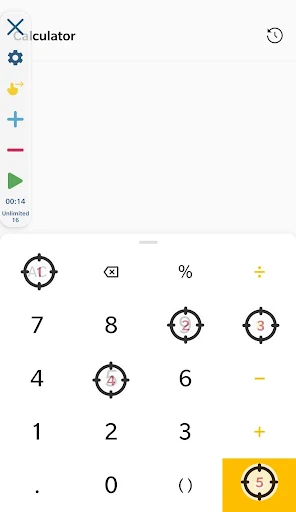
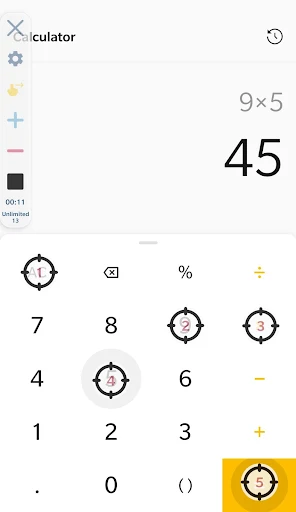
Single-target mode is the simpler starting point, while multiple targets and swipes are there for a sequence involving more than one screen location or gesture. I would build up gradually and check that the chosen points correspond to the intended actions. A small timing adjustment can matter when an app needs a pause between screens or a touch of a particular duration.
Small Features, Useful Difference
The ability to save and load scripts stands out because it turns a one-off configuration into something reusable. If I have already arranged target points and repetition settings for a recurring task, saving the script can spare me from entering those details again. It is a modest feature, but it fits the app's job better than a long list of unrelated extras would.
The operator interface can also be resized and made more or less opaque. That gives me a way to adjust how prominent the controls feel while using the app. Alongside multiple click points and multiple swipes, these options help accommodate different kinds of repetitive input without implying that the app can automate every possible interaction.
A Sensible Working Routine
For a new task, I would first identify the exact screen locations and whether the sequence needs a swipe. Then I would choose single or multiple targets, set a conservative repetition count, and adjust delay and touch time to fit the interaction. Starting small makes it easier to tell whether the chosen points and timing are right before relying on a longer run.
After a configuration works, saving it gives me a starting point for the next session. I would still load it with the intended app and screen in mind, because the usefulness of fixed touch points depends on the task being consistent. If the screen or action has changed, checking the setup again is more sensible than assuming an old script will fit.
Limits to Keep in Mind
This is a narrow tool, and that focus is both its strength and its main limitation. It handles automated taps and swipes, but the material does not describe broader app automation or decision-making. Tasks that require reacting to changing content may not fit a fixed sequence of points and timings, and a manual tap remains simpler for occasional actions.
Accessibility Service authorization is essential to the app's described method, so users who do not want to grant it may decide the tool is not for them. I would also keep the target app's own rules in mind before automating input. The app's controls can repeat actions, but they cannot guarantee that every screen, game, or workflow will respond as expected.
OP Auto Clicker - Auto Tap is a focused Android utility with more control than a bare-bones repeat tap: it supports multiple targets, swipes, adjustable timing, and reusable scripts. I like that its options map directly to the job rather than dressing it up as a broader assistant. The Accessibility Service requirement is the main setup consideration.
I would try it if repeated touch actions are a regular nuisance and I am comfortable authorizing the service it needs. For occasional taps or tasks that change from moment to moment, it may be more setup than I need. Its free, ad-free listing makes it easy to consider, while the best fit is still a predictable task it can repeat.
OP Auto Clicker Frequently Asked Questions
What is OP Auto Clicker - Auto Tap used for?
OP Auto Clicker - Auto Tap automates taps and swipes on Android. It offers single-target and multiple-target modes, adjustable delay, touch time, and repetition settings, plus the option to save and load scripts. It is intended for repeatable screen actions rather than general-purpose automation, so its usefulness depends on whether a task can be described as touch input.
Which devices can run OP Auto Clicker - Auto Tap?
The app is for Android and supports Android 7.0 or above. It uses Accessibility Service to carry out its automated clicks and swipes, so authorization is required. It is not described as an iOS, Windows, or Mac app. Device compatibility details can vary, so it is worth checking the Google Play store information for your device.
Does OP Auto Clicker - Auto Tap cost money?
OP Auto Clicker - Auto Tap is free on Google Play. The provided app facts say it has no in-app purchases and contains no ads. Store details can change over time, so check the current Google Play entry if you want to confirm the latest cost and purchase information before installing.
Does OP Auto Clicker - Auto Tap need root?
No root access is required. The app does need Accessibility Service authorization, which it uses to perform clicks, swipes, and other core functions. That permission is separate from root access, and users should review the Android permission prompt and decide whether they are comfortable enabling it for this purpose.
Who should use OP Auto Clicker - Auto Tap?
It may suit Android users who want to repeat predictable taps or swipes, adjust their timing, and reuse a saved setup. It may be less appealing if you only tap occasionally, need an automation tool that reacts to changing situations, or do not want to grant Accessibility Service authorization. Check the target app's rules before automating interactions.
Pros
- Single- and multiple-target modes cover simple taps and more involved sequences.
- Delay, touch time, and repetition settings offer useful control over input.
- Scripts can be saved and loaded for recurring configurations.
- Free to use, with no ads or in-app purchases.
Cons
- Accessibility Service authorization is required for its core functions.
- Fixed tap and swipe sequences suit predictable tasks better than changing screens.
- It is an Android utility, not a broad automation tool.
- Category
- Tools
- Version
- 2.0.0











