My Files - File Manager
- 9.00K
- 3.3
- Installs
- 1.00M
- Price
- Free
Screenshots
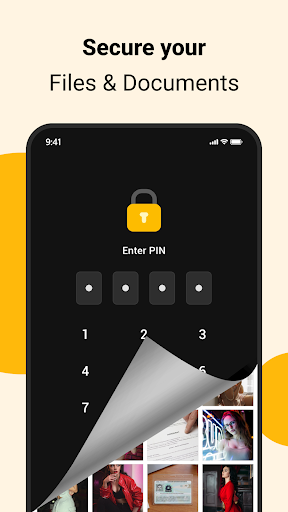
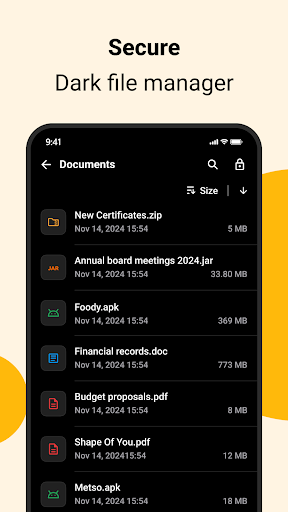
Analysis by Reviewed APKs
My Files - File Manager is an Android tool for browsing and organizing the files on your phone, checking storage, and handling transfers or cloud content from one place. I see it suiting people who regularly move photos, documents, and downloads around but do not need a full desktop-style file system. Its mix of everyday file controls and FTP transfer options is useful, though ads and a modest Google Play rating temper my first impression.
Finding a Download in a Hurry
When I first opened My Files, I thought about the small file hunt that tends to happen at the least convenient moment: a downloaded form needed before leaving home, or a photo I want to share while chatting. The app is built around browsing phone files and folders, so I can look through downloads and common media, then search when I have a file name or type in mind. That is the everyday job it handles best.
Once I find the right item, the practical controls are familiar: copy, move, rename, delete, or share. I can imagine using those options to move a document into a tidier folder or send a picture without bouncing through several separate tools. It is not a dramatic transformation of phone use, and that is part of the appeal. For a quick, occasional cleanup or retrieval task, a straightforward file manager can be enough.
A Utility, Not a Cloud Suite
The obvious comparison is the file browser already on an Android phone. My Files aims to bring local browsing together with storage information, supported cloud content, and Wi-Fi transfers. That broader mix may appeal if I want one place to move files between phone storage and cloud storage, or to send something to a PC over a local network without plugging in a cable.
I would not treat it as a replacement for a dedicated cloud service, a computer file-management setup, or a photo-editing app. Its purpose is handling files rather than creating or improving them. The description also does not name specific cloud providers, so I would check the app’s store information before relying on a particular service. If I only open files and rarely reorganize them, the phone’s built-in tools may already cover my needs.
Small Habits, Less Clutter
A file manager is most useful when I remember to use it before storage becomes a problem. I would make a quick search for large files part of an occasional phone tidy-up, then review what I actually want to remove or move. My Files describes storage usage by file type and can help locate large files and unused folders, which gives that cleanup a more concrete starting point than scrolling through every folder.
I would also use simple naming and filing habits after downloads: rename a document when its original name is unhelpful, move it to a folder I can find later, and share or delete it when the task is done. For transfers, I would start the FTP server only when I need to move something over Wi-Fi. These are modest routines, but they make a utility like this more valuable than installing it and forgetting it.
More From Our News Desk

Zoom Meetings, Google Meet, or Teams: Which Is Easiest to Join?

How I Build a Free Streaming Lineup With Tubi

Why Crunchyroll Is the Default Anime App for So Many Fans

YouTube TV: A Practical Guide to Cutting Cable

Rummikub and the Small Comfort of Phone Games

TeamViewer Remote Control or AnyDesk for Helping Family?
Who Might Find It Useful
I would recommend My Files to Android users who often download documents, collect photos and videos, or move content between phone storage and a supported cloud service. The search, file actions, storage overview, and FTP option cover a useful range of practical chores. Someone who has ever needed to free up room or get a file onto a PC without reaching for a cable may appreciate having those tools gathered together.
It may be less appealing if you want an ad-free experience, need a highly specialized file workflow, or already feel comfortable with your phone’s built-in manager. The Google Play rating is 3.3 from around 9,000 ratings, so I would approach it with reasonable expectations rather than assume every interaction will feel polished. It is an everyday utility, not an essential upgrade for every phone owner.
My Files - File Manager is published by GALLERY PRO and is categorized as a Tools app for Android. Google Play shows over 1 million installs and a 3.3-star rating from about 9,000 ratings. The app is free to download, and the supplied store details indicate that it contains ads but does not offer in-app purchases.
The app has an Everyone content rating and a release date of January 18, 2020. Its version is described as varying with the device. The available details do not give a minimum Android version or a last-updated date, so I would check Google Play for the requirements and current release information for a specific phone.
A Closer Look at Everyday File Control
A Direct First Impression
My first impression is of a utility with a broad but understandable brief: browse files, organize them, keep an eye on storage, and handle transfers. The description emphasizes a clean interface and everyday use, and the feature set sticks to recognizable actions rather than asking me to learn a new way of thinking about files. That matters when I open a tool because I need to find something, not spend time deciphering its purpose.
Getting started depends on granting access needed to work with files. The app describes storage access for browsing and managing content, and network access for cloud features and FTP transfers. I would pay attention to permission prompts and allow access in line with the tasks I plan to use. That is a sensible setup mindset for any file utility, especially one intended to operate on local content.
The Everyday File Routine
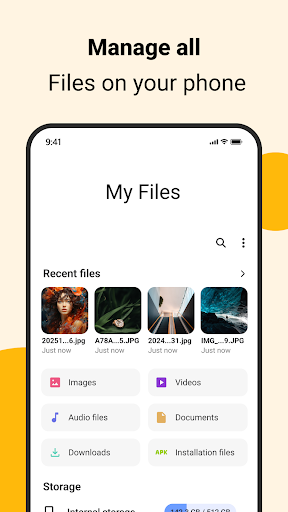
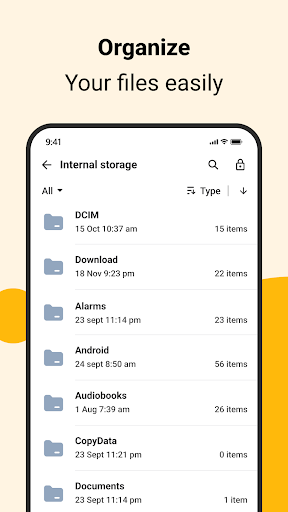
The core experience is the familiar cycle of locating a file, choosing an action, and moving on. My Files supports browsing internal storage and external SD cards, as well as managing documents, photos, videos, audio, and downloads. Copying a file before reorganizing it, renaming a vague download, or sharing a photo are simple examples of the kind of work this tool is designed to handle.
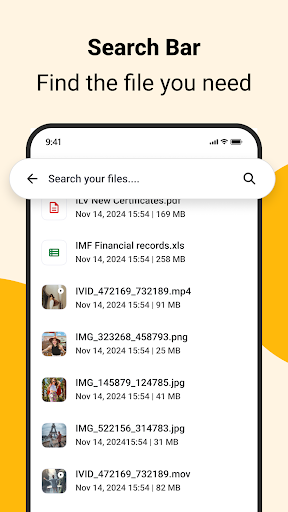
Search is particularly useful when I remember what a file is called but not where it landed. Instead of opening folders one by one, I can use the app’s quick file search to narrow the hunt. I would still keep my own folders reasonably organized; search helps with retrieval, but it does not replace the small habit of putting important files somewhere predictable.
Storage and Transfer Tools
The storage view adds a practical angle to file browsing. My Files can show usage by file type and help identify large files or unused folders, giving me a way to decide what deserves attention when phone space feels tight. I like that this is tied to file management rather than being only a bare list of folders. It makes the app relevant even when I am not looking for one particular document.
The other standout is the combination of cloud file management and an FTP server. The app describes accessing supported cloud services, uploading and downloading files, and moving content between device storage and cloud. It can also start an FTP server so an Android phone and PC can transfer files over Wi-Fi. These are useful options for people who move files regularly, without needing to be the center of every user’s routine.
A Useful Weekly Check-In
A realistic routine for me would be a short check-in after a busy week of downloads and photos. I would open the storage overview, look at which file types are taking up space, and inspect any large items before deciding whether to keep, move, or delete them. I would use the file browser to make those changes rather than treating a storage number as a reason to remove things blindly.
If I had a document to work with on a PC, I could use the FTP option for a local Wi-Fi transfer instead of connecting a USB cable. For content that belongs in supported cloud storage, I could handle an upload or download from the same general tool. I would treat both as task-based options: useful when a specific transfer comes up, rather than features I need to leave running all the time.
Keep Expectations Grounded
The main practical drawback is advertising. My Files is free, but ads can make a utility feel less calm when I am trying to complete a quick task. The Google Play score of 3.3 stars also suggests that users’ experiences are mixed. Neither fact tells me exactly how every session will feel, but both are reasons to try it with sensible expectations rather than assume it will be a flawless replacement for existing tools.
Cloud support is described in general terms, without naming the services, and the Android version requirement is not provided in the available details. I would check compatibility and supported services in Google Play before building a workflow around either. More broadly, file actions deserve care: move or delete only after checking the selected item. The app offers useful control, but the responsibility for choosing the right file still sits with me.
My Files - File Manager covers a solid range of ordinary Android file chores: browsing, searching, organizing, checking storage, cloud handling, and Wi-Fi transfers. I like that it can serve both a quick download hunt and a more deliberate cleanup session. Its ads and middling rating keep it from being an automatic recommendation, but the feature mix is practical.
I would try it if I regularly manage files or want an FTP transfer option alongside local storage tools. If my needs are limited to opening the occasional download, I would stick with the simplest option already on my phone. For everyone else, this is worth considering as a general-purpose utility, with a quick compatibility check before relying on its cloud features.
My Files Frequently Asked Questions
What is My Files - File Manager used for?
My Files - File Manager is an Android utility for browsing and managing phone files, including documents, photos, videos, audio, and downloads. It supports actions such as copying, moving, renaming, deleting, and sharing, along with storage information, cloud file handling, and FTP transfers over Wi-Fi.
Which devices support My Files - File Manager?
My Files - File Manager is described as an app for Android. The minimum Android version is not specified in the available details, and compatibility may vary by device. Check Google Play for the current requirements for your particular phone or tablet before installing.
Does My Files - File Manager cost anything?
The app is free to download and the supplied details say it contains ads. They indicate that it does not offer in-app purchases. Advertising and store information can change, so check the Google Play page for the current details before downloading.
Can My Files - File Manager transfer files to a PC?
The app describes an FTP server that can be started on the phone for transferring files between Android and a PC over Wi-Fi, without a USB cable. It also supports file management for internal storage, external SD cards, and supported cloud services.
Who should use My Files - File Manager?
It may suit Android users who regularly search, organize, move, or clean up files, or who want cloud and wireless transfer options in a file manager. If you rarely manage files or strongly prefer an ad-free tool, it may be less appealing. The 3.3-star Google Play rating is worth considering.
Pros
- Handles common file actions, including copying, moving, renaming, deleting, and sharing.
- Storage breakdowns and large-file discovery give cleanup sessions a practical starting point.
- FTP and cloud tools add options for moving files beyond local folders.
- Supports browsing both internal storage and external SD cards.
Cons
- Ads may interrupt the quick, focused feel expected from a file utility.
- Its 3.3-star Google Play rating points to mixed user experiences.
- Supported cloud services are not named in the supplied app description.
- Category
- Tools











