Miracast
- 15.13K
- 2.4
- Installs
- 5.00M
- Price
- Free
Screenshots
Analysis by Reviewed APKs
Miracast is an Android screen-mirroring tool for sending a phone or tablet display to a compatible TV, projector, or monitor. It suits people who want to show something from their device on a larger screen without making a separate presentation or moving files first. My overall take is that the idea is useful and straightforward, but success depends heavily on compatible display hardware and a smooth connection.
A quick living-room handoff
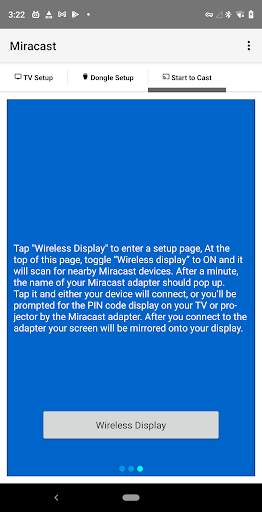
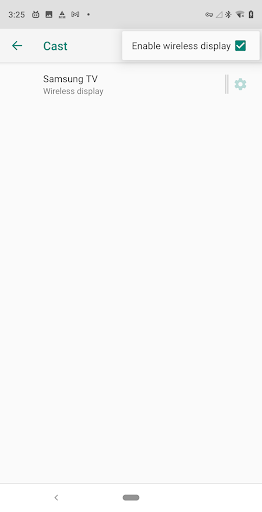
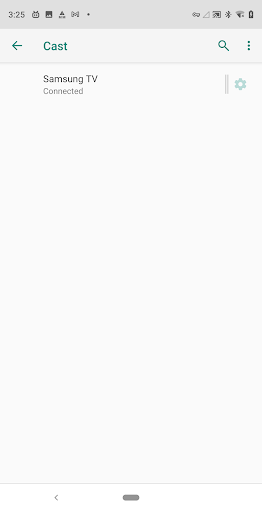
When I want to show someone a photo or a short clip, passing my phone around can feel clumsy. Miracast is built for that kind of moment: it mirrors the Android screen onto a compatible television or other display. The practical routine is simple in principle. Open the app’s Wireless Display setup, switch wireless display on, wait for nearby Miracast devices to appear, and select the one you want to use.
The connection can involve a PIN shown by the TV or adapter, so I’d keep the remote nearby rather than assuming the phone will connect on its own. Once connected, the display reflects what is on the Android device. That makes the app useful for showing something already on your phone, though the material does not describe it as a way to send a file independently or browse television content.
A mirror, not a media hub
Miracast’s role is narrower than a streaming service or a smart-TV app. It sends the Android screen to compatible display hardware, so it can suit an impromptu photo share or showing a phone screen to a small group. It is not presented as a library of films, a place to discover content, or a remote control for a television. I’d think of it as a bridge between a device and a display.
The compatibility requirement matters more than the app’s name might suggest. The TV needs to support Wireless Display or Miracast, or you need a suitable adapter connected to the display. If you are choosing between mirroring and using a TV’s own streaming apps, this is for showing what is on the phone, not replacing those apps. It is also not a solution for a TV that lacks compatible casting support.
Make connection time easier
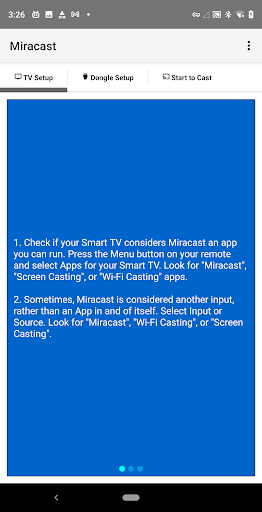
A little preparation can make a casual screen share less awkward. I’d check the TV’s Apps area and its Input or Source menu for labels such as Miracast, Screen Casting, or Wi-Fi Casting. The connection option may be presented as an app or as an input, depending on the television. Knowing where it lives before guests are waiting saves a few minutes of remote-control searching.
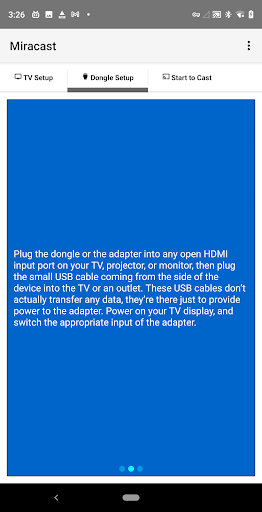
If the display needs an adapter, the setup involves plugging it into an open HDMI port and providing power through its USB cable or an outlet. I’d also keep the adapter’s PIN in view if one appears during connection. These are small habits, but they fit the app’s practical purpose: getting a phone screen onto a larger display without turning a simple share into a long setup session.
More From Our News Desk

Zoom Meetings, Google Meet, or Teams: Which Is Easiest to Join?

How I Build a Free Streaming Lineup With Tubi

Why Crunchyroll Is the Default Anime App for So Many Fans

YouTube TV: A Practical Guide to Cutting Cable

Rummikub and the Small Comfort of Phone Games

TeamViewer Remote Control or AnyDesk for Helping Family?
Who may find it useful
I’d recommend Miracast to Android users who already have a TV, projector, or monitor that supports Miracast and occasionally want to share their device screen. It is a reasonable fit for showing photos, a page, or other material on a larger display in a living room or meeting space. The appeal is strongest when compatible hardware is already available and the need is occasional rather than part of a complex presentation setup.
It may frustrate people whose television does not support Wireless Display and who do not have a compatible adapter. The app also may not suit someone looking for a streaming catalog, file-transfer tool, or a feature-rich presentation system; those are not its stated jobs. I’d approach it as a focused connection utility, with the understanding that the display’s compatibility and setup are central to the experience.
Miracast is a Tools app from Cast4TV. On Google Play it has over five million installs and a 2.4-star rating from about 15,000 ratings. The app is free to download, contains ads, and does not offer in-app purchases. Its content rating is Everyone.
The version provided in the app facts is 1.2.0. It was released on November 14, 2020, and its last update is dated September 12, 2026. The minimum Android version is not included in the available app facts, so check the Google Play page for the requirement that applies to your device.
What Screen Mirroring Feels Like
Starting with the display
My first impression is that Miracast is aimed at a specific task rather than trying to be an all-purpose media app. The central idea is to open Wireless Display, turn the feature on, and scan for a nearby compatible receiver. That clear job description helps set expectations: the app is there to help mirror an Android screen, while the TV or adapter provides the receiving side.
Before trying it, I’d check the television’s menus. Some TVs may put the feature in their Apps section, while others may expose it under Input or Source. If neither route applies, the instructions describe using a Miracast adapter in an HDMI port and powering it separately. The setup therefore starts with the display, not just with tapping through the phone.
The everyday connection
The day-to-day flow described for the app is easy to follow: enter Wireless Display, enable it, allow a scan for nearby receivers, then choose the adapter or display when its name appears. If the receiver asks for a PIN, the code comes from the TV or adapter. Once connected, the phone screen is mirrored on the larger display, which is a direct way to share what is already open.
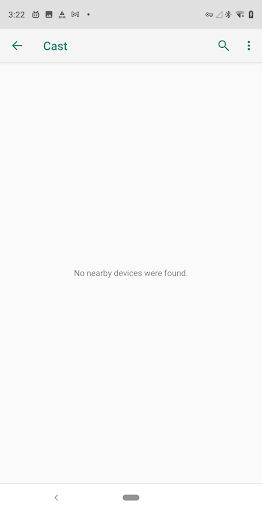
The scan may take around a minute before a receiver appears, so I would not treat a short wait as a sign that the process has failed. I’d give it time and check that the display is on the right input. The experience hinges on those small practical details more than on a long series of app-specific steps.
The useful distinction
The main feature is screen mirroring, and the instructions make the connection path unusually concrete. They explain that the phone scans for nearby Miracast devices, that a receiver name should appear, and that a PIN may be requested. That helps a first-time user understand what to look for instead of tapping around without knowing whether the display or phone is meant to act next.
The other useful part is the guidance for finding Miracast on the television. It may appear as an app or as a source/input option, and the instructions include the basic physical setup for an HDMI adapter. Those details support the central job without turning the app into something it is not: a complete guide to every television model or a separate content service.
A simple sharing routine
For a relaxed photo-sharing session, I’d first switch the television to its Miracast-related app or input, then open the app on the Android device and start Wireless Display. I’d wait for the receiver name, select it, and enter the PIN if prompted. With the screen mirrored, I could show the material directly from the phone rather than asking everyone to crowd around its smaller display.
For a projector or monitor, the same basic idea applies if the display supports Miracast or has a compatible adapter. I’d test the connection before people are waiting, since the app’s scan and any PIN prompt add a few steps. That little rehearsal is especially useful when the display’s casting option is tucked away in a menu.
Keep compatibility in mind
The biggest limitation is also the most important thing to check: the receiving display must support Wireless Display or Miracast, unless a compatible adapter is being used. The app cannot make an unsupported television become a Miracast receiver. A TV may also label the feature differently or place it in a menu that is not immediately obvious, which can add friction before the phone even starts scanning.
The app’s Google Play rating is 2.4 stars, so I’d keep expectations measured rather than assuming every setup will feel effortless. The available description focuses on connection steps and does not establish broader functions beyond mirroring. If the goal is a particular TV feature or a specialized presentation workflow, I’d check the display’s own instructions and compare the available options before relying on this app.
Miracast has a clear, everyday purpose: mirror an Android screen to a compatible TV, projector, or monitor. I like that its setup guidance covers both finding the feature on a TV and using an HDMI adapter. The trade-off is that the experience depends on receiver compatibility, and the connection may take a little patience.
I’d try it if I already had a Miracast-capable display and wanted a simple way to share phone content on a larger screen. I would not choose it as a streaming service or expect it to solve compatibility problems by itself. Check the television’s casting support first, then decide whether this focused tool fits your setup.
Miracast Frequently Asked Questions
What is Miracast used for?
Miracast is used to mirror an Android device’s screen on a compatible Smart TV, projector, or monitor. The app’s instructions describe enabling Wireless Display, scanning for nearby Miracast receivers, and selecting one to connect. A receiver may ask for a PIN shown on the TV or adapter. It is a screen-mirroring tool, rather than a streaming catalog.
Which devices and platforms support Miracast?
The app is for Android devices, and the receiving TV or display needs Wireless Display or Miracast support. The instructions also describe connecting a Miracast adapter to an HDMI port on a TV, projector, or monitor and powering it. The particular compatibility of a phone, television, or adapter can vary, so check the device details in the store and its own instructions.
What Android version does Miracast require?
The minimum Android version may vary by device and app availability. Check Miracast’s Google Play page for the current requirement that applies to your phone or tablet. Also make sure the receiving display supports Miracast or Wireless Display, since Android compatibility alone does not mean every television can receive a mirrored screen.
Does Miracast cost money or include purchases?
Miracast is free to download on Google Play and does not offer in-app purchases. It contains ads. The provided app facts do not describe a separate paid tier, so I would check the current Google Play page for any changes to the app’s pricing or purchase details.
Is Miracast a good fit for my setup?
It may suit you if you use Android and have a Miracast-compatible TV, projector, or monitor for occasional screen sharing. It may be less suitable if your display lacks Miracast support or you want a streaming service rather than screen mirroring. Check the TV’s Apps or Input/Source menus, and consult the store page for current device requirements.
Pros
- Focused screen mirroring for sharing an Android display on compatible larger screens.
- Setup guidance explains where casting may appear in TV menus.
- Instructions cover using a Miracast adapter with an HDMI display.
- Free to download with no in-app purchases.
Cons
- Requires a TV or adapter that supports Miracast or Wireless Display.
- Finding the correct television input or menu can take extra steps.
- The 2.4-star Google Play rating suggests a mixed user experience.
- Category
- Tools
- Version
- 1.2.0











