App Manager
- 11.29K
- 3.7
- Installs
- 1.00M
- Price
- Free

Screenshots
Analysis by Reviewed APKs
App Manager is a tool for handling installed apps, from uninstalling a forgotten trial to inspecting less visible system components. I see it suiting people who regularly install and remove apps, and Android users comfortable with more technical controls will find the broadest set of options. After spending time with its feature list, my overall take is that it offers much more reach than the built-in app manager, though some of that reach depends on root access.
A Faster App Clearout
Picture a Saturday morning when I am clearing space after trying several apps during the week. With the phone’s usual settings route, removing each one can mean opening its information page, finding the uninstall control, confirming, and repeating the trip. App Manager is built around making that routine less cumbersome: its app list offers a direct uninstall action, and batch operations can handle several selected apps together.
That makes the app most useful in little bursts rather than as something I would open every day. I can sort the collection by name, size, or installation date, then look for the large game I stopped playing or the tool I installed for one errand. If I have installed apps from outside the Play Store, App Manager can also show and install supported package files through other apps.
More Than Settings
The obvious comparison is the app-management screen already built into Android. That system tool is enough if I only remove an occasional app or change a basic permission. App Manager goes further with batch actions, sorting and filtering, app-history viewing, package details, and operations such as sharing or disabling apps. It can also show components that do not appear as ordinary launchable apps, including widgets and keyboards.
This is not a general phone cleaner, a file organizer for every kind of document, or an app store for discovering new software. Its job is to manage apps already on a device and handle related package files. Some of its most powerful actions, including stopping, clearing data, or disabling apps, require root. Removing system apps is also a potentially risky task, and the developer warns that some removals may not work.
Small Habits That Help
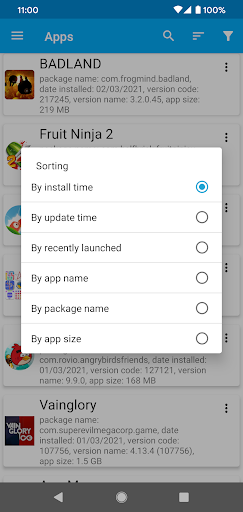
I would start by using the sort and filter controls before taking action. Sorting by installation date gives a quick view of recent experiments; filtering to user apps helps keep system components out of a routine cleanup. Sorting by size can make a storage review more focused, while package name and update date are useful when I am trying to identify a specific entry.
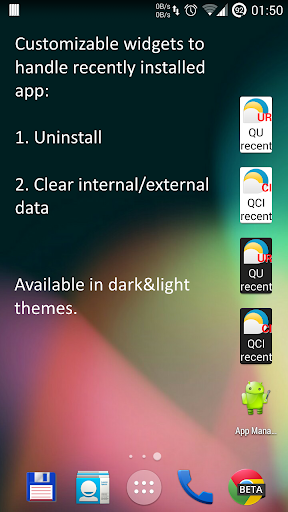
A second useful habit is checking the removed-app history before reinstalling something I have already tried. For new installs handled through App Manager, the description says it can add shortcuts automatically. Customizable widgets can also provide shortcuts for uninstalling a recently installed app or clearing app data. I would treat data-clearing controls carefully and use them only when I understand what will be erased.
More From Our News Desk

Zoom Meetings, Google Meet, or Teams: Which Is Easiest to Join?

How I Build a Free Streaming Lineup With Tubi

Why Crunchyroll Is the Default Anime App for So Many Fans

YouTube TV: A Practical Guide to Cutting Cable

Rummikub and the Small Comfort of Phone Games

TeamViewer Remote Control or AnyDesk for Helping Family?
Who Will Get the Most From It
I would recommend App Manager to Android users who install apps often, like keeping a tidy app drawer, or want more ways to inspect and sort what is on their phone. People who test several tools for work or hobbies may appreciate batch removal and the recent-app history. It can also appeal to curious users who want package names, version details, and controls beyond the standard uninstall flow.
It is a less natural fit for someone who only removes an app once in a while and prefers the simplest possible interface. Users without root can still use ordinary app-management functions, but root-dependent controls are not available to them. I would also steer cautious users away from experimenting with system-app removal: the developer describes it as risky, and device restrictions can prevent it from working as expected.
App Manager is developed by AndroidDeveloperLB and is listed in the Tools category on Google Play. The store figures show over 1 million installs and a 3.7-star rating from 11,292 ratings. It is free to download, with in-app purchases priced from $0.49 to $16.99 per item, and it contains ads. The content rating is Everyone.
The listed version varies with the device, and the supplied store details do not give a single minimum Android version. App Manager was released on March 15, 2014, and its listed last update is November 2, 2026. Android requirements can differ by device or app version, so I would check the Google Play details for the phone I plan to use.
A Closer Look at App Control
A Busy First Screen
When I first opened App Manager, the scale of its purpose was clear: this is not just a shortcut to uninstall. It is designed to expose a wide range of installed components and actions, including items that may not have a normal app icon. That breadth is useful once I know what I am looking for, though it can make the app feel more technical than a basic settings page.
I would begin with a straightforward task, such as finding a recently installed user app and removing it, before exploring root-only controls. The theme chooser offers light or dark presentation, with card-style or simpler layouts. That is a practical bit of choice for an app I might consult during a longer cleanup, without changing the underlying management options.
The Everyday Controls
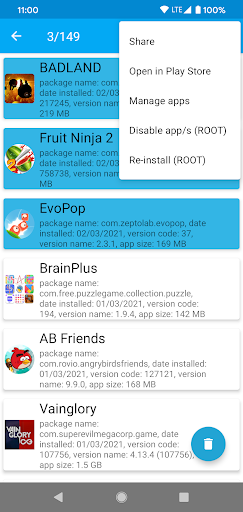
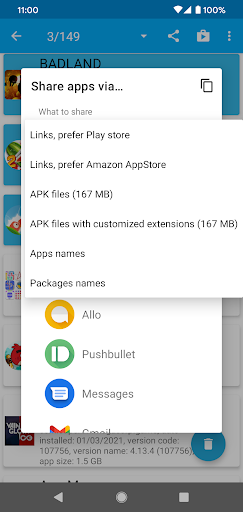
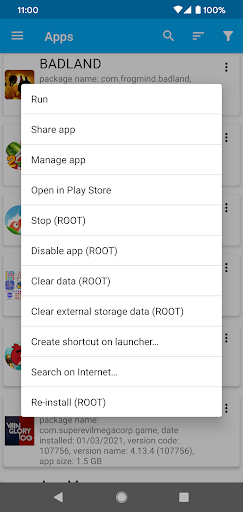
The core experience revolves around choosing an app and deciding what to do with it. Depending on the action and device permissions, options include running, sharing, managing, reinstalling, creating a shortcut, or opening its store page. The app can share an app as a link or package file, and batch actions cover tasks such as uninstalling, sharing, enabling, disabling, and reinstalling.
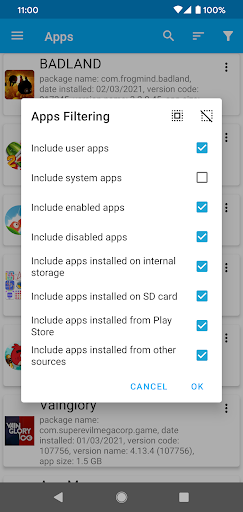
I like that sorting is not limited to alphabetic order. Installation date, update date, size, launch time, package name, and app name can all help answer different questions. Filters for system versus user apps, enabled versus disabled apps, and storage location narrow the list further. In practice, that means I can approach cleanup with a specific goal instead of scanning every entry.
Useful Extra Reach
One standout is the range of app types it can display. App Manager includes items such as live wallpapers, launchers, plugins, keyboards, and widgets, rather than limiting the view to familiar icons I can tap from the home screen. For someone diagnosing a particular component or trying to locate a hidden shortcut, that wider inventory is more revealing than a basic launcher view.
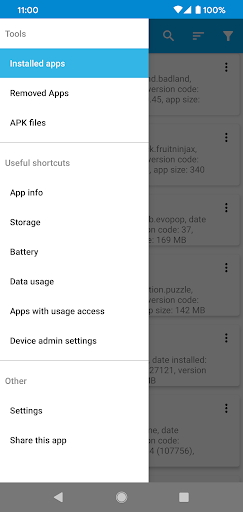
It also supports installing several package-file formats through other apps and includes tools for managing package files. The removed-app history can help me recall what I recently took off the device. For installed apps, the information view can show details such as the package name, installation date, build number, and version name. These are practical inspection tools, not a promise to improve performance.
A Weekly Review Routine
A sensible routine would be to open App Manager once a week or after a burst of app testing. I would filter to user apps, sort by installation date, and remove experiments I no longer need. If storage is the concern, I would sort by size and inspect the biggest entries before deciding whether they belong. That keeps the task deliberate instead of turning it into a hunt through settings.
For a specific app that has become hard to find, I could search by its name or package identifier, then check its version and other information before using an available action. If I use a widget for recently installed apps, I would treat it as a quick entry point rather than an invitation to remove things without checking. Small, careful passes suit this app better than an indiscriminate sweep.
Know the Boundaries
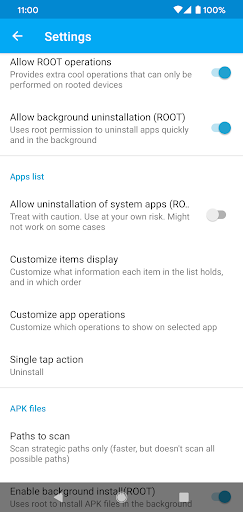
The main boundary is the difference between standard controls and root-level operations. Root can make uninstalling faster and enables actions such as stopping an app, clearing internal storage, and enabling or disabling apps. Without root, those advanced options are not a reason to expect the same level of control. Access can also depend on Android and the device’s own restrictions.
I would be particularly cautious around system apps. The developer warns that removing them can damage operating-system functionality, that some cannot be removed because of ROM restrictions, and that a restart may sometimes be needed to see a result. App Manager also contains ads, with an option to remove them by donating. Those caveats do not erase its useful everyday tools, but they do make careful selection important.
App Manager’s strongest case is convenience for people who regularly sort, inspect, install, and remove apps. Batch actions, flexible sorting, broad component visibility, and package-file support give it a wider toolkit than the built-in manager. I also appreciate that ordinary cleanup remains a clear use case even if I never touch root-only features.
I would try it if Android’s standard controls feel too slow or limited, especially when managing lots of recent installs. If I only uninstall something occasionally, the extra options may be more than I need. Either way, I would leave system-app removal alone unless I understand the consequences and have a clear reason to use it.
Manager Frequently Asked Questions
What is App Manager used for?
App Manager helps manage installed Android apps and related package files. It supports app removal, batch operations, sorting and filtering, sharing, app information, and a history of removed apps. Some controls, such as stopping apps or removing system apps, require root access. Its main appeal is offering more app-management options than the basic built-in route.
Which devices can run App Manager?
App Manager is an Android app available through Google Play. The supplied details do not specify one minimum Android version, and the listed app version varies with the device. I would check the Google Play page for the particular phone or tablet before installing, since requirements can vary with the device and app version.
Does App Manager cost anything?
App Manager is free to download and contains ads. The store details include in-app purchases priced from $0.49 to $16.99 per item. The developer says users can remove ads by donating as much as they wish. Store pricing and purchase options can change, so check Google Play for the current details.
Does App Manager need root access?
Not for every task. The description includes ordinary app-management actions as well as advanced features that require root, such as stopping apps, clearing internal storage, and enabling or disabling apps. Root also makes uninstalling easier and faster. What works depends on the device and its restrictions; system-app removal can be risky.
Who should use App Manager?
It is best suited to Android users who frequently install, sort, inspect, or remove apps and want more control than the standard manager provides. Casual users may find the range of controls unnecessary. People should be especially cautious with system apps, since removing them may affect the operating system. Root-dependent options also require root access.
Pros
- Batch actions and flexible sorting make larger app cleanups less tedious.
- Shows less visible components, including widgets, keyboards, and plugins.
- Includes removed-app history and useful app information.
- Offers light and dark themes with card or simpler layouts.
Cons
- Several advanced controls require root access.
- System-app removal can be risky and may not work on every device.
- Ads are present, and the app offers in-app purchases.
- Category
- Tools











