LetsView- Wireless Screen Cast
- 7.39K
- 2.9
- Installs
- 5.00M
- Price
- Free

Screenshots
Analysis by Reviewed APKs
LetsView- Wireless Screen Cast is for those times when a phone screen feels too small for what I want to show. It mirrors screens to computers and TVs, with extra tools for presentations and remote sharing. I’d consider it for a household or workspace with several kinds of devices. My overall take: it offers useful flexibility, but I’d try my usual connection before relying on it for an important meeting.
Moving photos off a small screen
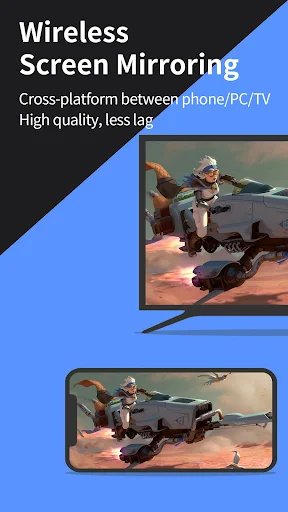
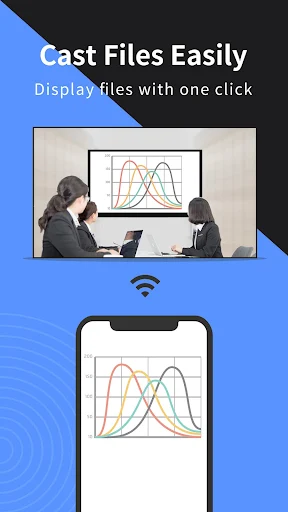
Picture the end of a family trip: everyone wants to see the photos, but passing one phone around gets old fast. That is the everyday job LetsView is built for. I can mirror a phone screen to a TV so the group sees the same thing at once. The same idea works for a movie or sporting event, though I would test the connection before settling in.
The first practical step is getting the devices onto the same Wi-Fi network. LetsView can detect a nearby device there, and it also offers a QR code or passkey when I need another way to connect. I like having those options because device discovery is exactly where a quick sharing plan can stall. Once connected, the phone remains the source of what appears on the larger screen.
More than a basic TV cast
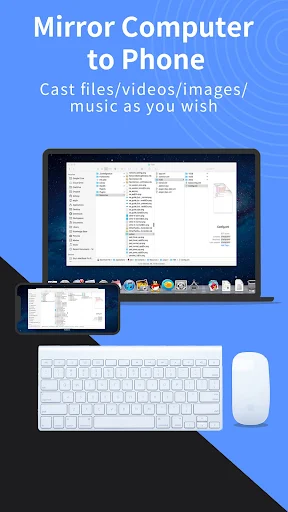
If all I want is a video on a TV, I would first consider whatever casting option is already available on my devices. LetsView makes more sense when the job crosses device types: a phone screen on a Windows PC or Mac, a computer screen on a TV, or a phone acting as an extra computer display. Those are distinct needs, and combining them is its main appeal.
I would not treat it as a replacement for an app that organizes a movie library or edits presentation slides. Its purpose is to share, display, and sometimes control an existing screen. Likewise, mirroring a phone does not make a small-screen app automatically better designed for a TV. For me, LetsView is a practical bridge between screens, not a new home for the content itself.
A little preparation helps
My habit with any screen-sharing plan is to connect before anyone is waiting to watch. With LetsView, that means putting the devices on the same Wi-Fi network and keeping the QR code or passkey method in mind if automatic detection does not do the job. I would also open the photos or document I intend to show first, so the shared screen starts with the right material.
For a presentation, I would check whether I need simple mirroring, a document presentation, or the whiteboard and drawing tools. Those choices serve different moments: showing finished material is not the same as marking up an idea while talking. If I plan to use my phone as a computer keyboard or mouse, I would connect and practice that interaction before the audience arrives.
More From Our News Desk

Zoom Meetings, Google Meet, or Teams: Which Is Easiest to Join?

How I Build a Free Streaming Lineup With Tubi

Why Crunchyroll Is the Default Anime App for So Many Fans

YouTube TV: A Practical Guide to Cutting Cable

Rummikub and the Small Comfort of Phone Games

TeamViewer Remote Control or AnyDesk for Helping Family?
Who will get the most from it
I would recommend LetsView to people who regularly move between a phone, a computer, and a larger display. It suits someone sharing family photos on a TV, showing a phone app on a Windows PC or Mac, or walking a group through a document. Teachers and presenters may find the drawing and whiteboard options useful alongside mirroring. The best fit is someone willing to prepare the connection.
I would be less inclined to recommend it to someone who only casts one familiar video service to one familiar TV and is happy with that routine. LetsView also asks for a little attention to device connections, even though it provides several ways to make one. Its Google Play rating gives me reason to test my own phone, network, and destination screen before making it part of a time-sensitive plan.
WangxuTech develops LetsView- Wireless Screen Cast, a Tools app on Google Play. It has over 5 million installs and a 2.9-star rating from roughly 7,400 ratings. Those figures tell me it has reached a broad audience, but the rating is worth keeping in mind. I would judge it by whether the particular screens I use can connect in the way I need.
The app is free to install, offers in-app purchases priced from $0.99 to $59.99 per item, and contains no ads. Google Play gives it an Everyone content rating. The current version is 1.5.29; it was released on October 13, 2019, and last updated on October 29, 2026. The description says LetsView supports Android 5.0 and above, as well as Windows PC and Mac.
Living with LetsView across different screens
Finding the first connection
When I first looked at how I would use LetsView, the sensible starting point was not its longest feature list. It was the two devices in front of me: what is showing the screen, and where should that screen appear? A phone-to-computer connection is different from a phone-to-TV one, so I would choose a simple pair first rather than setting up a whole room at once.
The connection choices are straightforward to understand on paper. Devices on the same Wi-Fi network can be detected automatically; a QR code and passkey provide other ways to pair them. I appreciate that there is a next step if discovery does not find the other screen. I would still leave a few minutes for setup rather than assume a new combination will be ready instantly.
What mirroring changes daily
Day to day, the biggest benefit is simply giving what is already on my device more room. A photo stops being something two people huddle over. A phone screen can appear on a computer during a discussion, and a computer can feed a TV for a larger view. LetsView also supports casting a phone screen to multiple devices, which could help when one display is not enough.
I think of mirroring as sharing the state of a screen, not sending someone a separate copy of a file. That distinction shapes how I would use it: I would tidy up what I plan to display and move through it deliberately while others watch. It is especially handy for showing a sequence of screens or demonstrating an app, where a single image would not tell the full story.
Controls beyond simple casting
The feature that caught my attention was using a connected phone as a makeshift keyboard or mouse for a computer. That could save a walk back to the desk when the computer is driving a presentation. LetsView also describes controlling a mobile phone from a Windows computer. I would treat these as purposeful control tools, rather than assume every screen-mirroring session needs them.
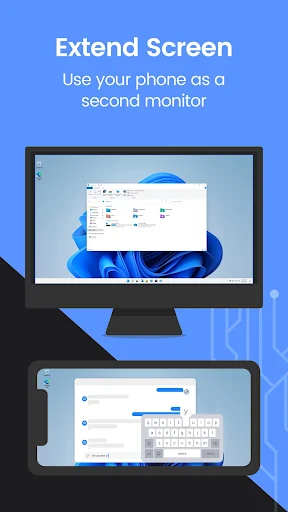
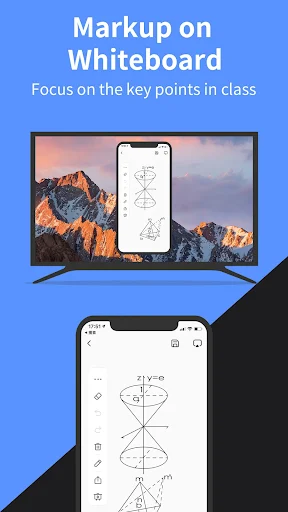
There is more for active sessions than just watching. Drawing, a whiteboard, document presentation, screen capture, and mobile screen recording are part of the toolset. I can see the appeal when explaining a chart or preserving a short demonstration. The phone-as-secondary-monitor option is another distinct use: it keeps supporting material on the phone while the computer’s main screen holds the primary task.
Building a presentation routine
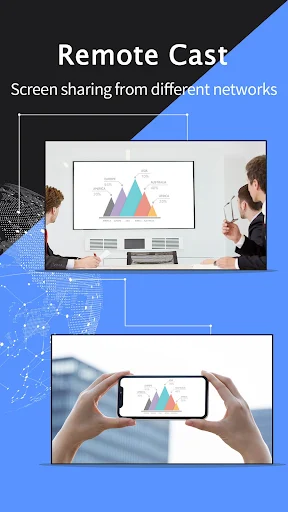
I spent some time thinking through a typical meeting-room routine for this app: connect the presenting device to the larger screen, bring up the document, and decide whether anyone needs annotations. LetsView’s document presentation and whiteboard tools fit that sequence. If I were presenting remotely instead, its remote mirroring option uses a cast code to connect devices on different networks.
That remote option changes how I would prepare. A local family photo session can start with both devices on the same Wi-Fi network; a cross-network demonstration calls for sharing the remote cast code with the right person ahead of time. I would also decide whether recording the phone screen is useful before beginning. Making those choices early keeps the screen share focused on the material.
Limits I would watch
Wireless mirroring is only useful if the devices I have can establish the connection I need. LetsView offers automatic detection, QR pairing, and a passkey, but those options do not remove the need to check my particular phone, computer, or TV. The description says it fits most TVs, not every TV. I would test my intended combination before inviting other people to depend on it.
The 2.9-star Google Play rating also tempers my expectations. It does not explain what will happen on my setup, but it is enough to make me avoid treating the app as a sure thing for a live event. And while installation is free and the app has no ads, it offers in-app purchases. I would check any purchase prompt against the feature I actually need.
LetsView has a broader job than putting a phone video on a TV. I like that it covers phone-to-computer mirroring, larger displays, remote sharing, and presentation tools without requiring me to change the content I already have. Its connection choices give me a sensible place to start when automatic discovery does not work for my setup.
I recommend trying it if you often need to show one device’s screen on another, especially across a mix of phones, computers, and TVs. Start with a low-stakes session, then test the exact workflow you plan to use. Given the Google Play rating and the range of possible device combinations, I would not make an important presentation its first outing.
LetsView Frequently Asked Questions
What is LetsView- Wireless Screen Cast used for?
It mirrors screens between devices so you can show a phone, tablet, or computer display on a larger screen. Examples include sharing phone photos on a TV, showing a mobile screen on a computer, and presenting documents. LetsView also includes drawing, a whiteboard, screen capture, mobile screen recording, and a remote mirroring option that uses a cast code.
Which devices work with LetsView- Wireless Screen Cast?
The Android app is available on Google Play. LetsView’s description also describes support for iOS screens, Windows PC, and Mac, with mirroring to computers and TVs among its uses. The exact setup depends on which screen you want to share and which device will display it, so I would check that pair before planning a presentation around it.
What Android version does LetsView- Wireless Screen Cast need?
LetsView’s description says it supports Android 5.0 and above. Requirements can change as an app is updated, so it is worth checking the current Google Play details for your phone before installing. If you are connecting to a computer or TV as well, make sure you can set up that destination device for the kind of mirroring you want.
Is LetsView- Wireless Screen Cast free?
Yes, the Android app is free to install and contains no ads according to its Google Play details. It also offers in-app purchases priced from $0.99 to $59.99 per item. I would check any purchase screen for the exact option you are considering rather than assume every feature you want is included at no cost.
Is LetsView- Wireless Screen Cast right for presentations?
It may be a useful choice if you need to mirror a device to a larger screen, present a document, or draw on a whiteboard while explaining something. Remote mirroring is also described for devices on different networks. For a scheduled presentation, I would first test the specific devices and connection method I intend to use.
Pros
- Mirrors phone, computer, and TV screens across several everyday setups.
- Offers QR code and passkey pairing alongside automatic detection.
- Includes whiteboard, document presentation, and mobile screen recording tools.
- Free to install and contains no ads.
Cons
- A 2.9-star Google Play rating makes testing your setup especially sensible.
- In-app purchases mean some options may carry an additional cost.
- Connecting several kinds of devices takes preparation before a time-sensitive session.
- Category
- Tools
- Version
- 1.5.29











