LADB — Local ADB Shell
- 1.08K
- 3.5
- Installs
- 50.00K
- Price
- $2.99

Screenshots
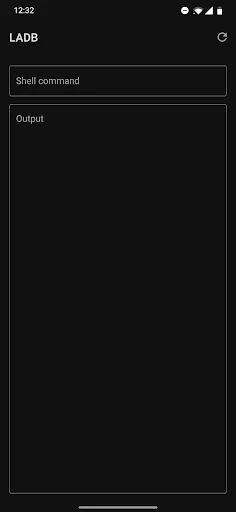
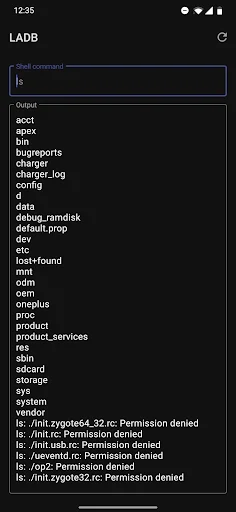
Analysis by Reviewed APKs
LADB — Local ADB Shell is a paid Android tool for running ADB shell commands on the same device, without rooting it or connecting to a computer. It suits people who already know why they want ADB and are comfortable working through Android’s Wireless Debugging settings. I like the idea of keeping a shell close at hand, but the pairing process can take patience, so this is a practical specialist tool rather than an easygoing utility for everyone.
A shell for a quick fix
Picture an evening when I want to run an ADB command but have only my phone nearby. LADB’s purpose is to let me open a local shell on that device, using Android’s Wireless Debugging rather than a USB connection to a computer. It is a focused job: I bring the command and the reason for running it, while LADB provides the local ADB connection.
The first hurdle is pairing, not typing. I need to keep LADB and Android Settings visible together, such as in split-screen, then create a Wireless Debugging connection and enter its pairing code and port in LADB. Keeping the pairing dialog open matters because Android can invalidate the pairing information if it is dismissed. Once connected, the app has a clear role: give an experienced user a way to work in an ADB shell on the phone.
Not a general phone cleaner
The obvious alternative is using ADB from a computer over USB. LADB instead targets the person who wants to connect locally through Wireless Debugging, without needing that computer-and-cable setup. It is also explicitly a non-root shell client, which makes it a different proposition from tools that depend on root access. That convenience comes with Android settings and pairing steps rather than a simple plug-in workflow.
I would not treat LADB as a one-tap phone optimizer, a guided troubleshooting app, or a place to discover what commands do. The description centers on providing an ADB shell, not recommending commands or explaining their effects. If I do not already have a specific task in mind and understand the command I plan to run, this is probably not the right starting point. It is a tool for deliberate, informed use.
Make pairing less fussy
I would plan the first connection for a moment when I can give it my attention. Opening Settings and LADB in split-screen or a pop-out window makes it easier to copy the pairing code and port without losing the dialog. The important habit is to keep both windows open until the Settings dialog closes on its own, rather than treating the pairing step as a quick background task.
If Assisted Pairing does not cooperate, I would try restarting LADB and use the manual pairing instructions in the app’s support information. The description also suggests a reset path for persistent errors: clear LADB’s app data, remove Wireless Debugging connections in Settings, and reboot. There is one compatibility wrinkle to remember: LADB is currently described as incompatible with Shizuku, and using both may require uninstalling Shizuku and rebooting.
More From Our News Desk

Zoom Meetings, Google Meet, or Teams: Which Is Easiest to Join?

How I Build a Free Streaming Lineup With Tubi

Why Crunchyroll Is the Default Anime App for So Many Fans

YouTube TV: A Practical Guide to Cutting Cable

Rummikub and the Small Comfort of Phone Games

TeamViewer Remote Control or AnyDesk for Helping Family?
Who will find it useful
I would recommend LADB to Android users who already understand ADB and want a local shell available on the device. Its appeal is specific and easy to explain: Wireless Debugging lets its bundled ADB server communicate with the local client, so a computer connection is not the focus. People who are comfortable switching between Settings and an app, copying pairing details, and troubleshooting a connection will be better prepared for the setup.
I would hesitate to recommend it to someone who wants a polished, guided way to improve a phone, or who is unsure what an ADB command will do. Pairing can be finicky, and the app does not present itself as a command tutorial. It may also be a poor fit for someone relying on Shizuku, given the compatibility issue described by the developer. The paid price makes sense mainly if the local-shell workflow is something the user actually needs.
LADB — Local ADB Shell is a Tools app by tytydraco. Google Play shows 50,000+ installs and a 3.5-star rating from about 1,077 ratings. It costs $2.99, with no in-app purchases or ads. Its content rating is Everyone. The supplied app information does not give a minimum Android version, so check Google Play for device compatibility before purchasing.
The supplied version is 2.6, with a release date of December 12, 2020, and a last-updated date of July 26, 2026. These dates and version details can change as the app is updated, so the current Google Play information is the best place to check before installing. LADB’s description says device data is not sent outside the app and is not collected or processed.
The Details Behind Local Pairing
A deliberate first setup
When I first opened the idea of using LADB, what stood out was how much the experience depends on Android Settings. This is not simply a matter of opening a shell and expecting it to connect. I need Wireless Debugging available, and the first pairing requires moving information from Settings into LADB while the pairing dialog remains active.
The split-screen suggestion is practical rather than decorative. With both windows visible, I can copy the code and port without dismissing the dialog that holds the pairing information. If the phone’s setup makes split-screen awkward, the description also mentions a pop-out window. Either way, I would approach setup as a small task of its own and avoid rushing through it.
The everyday shell
Once connected, LADB’s core experience is intentionally narrow: it provides an ADB shell locally on the Android device. That makes it most useful when I already know the command I want to run and would otherwise reach for a computer to establish an ADB connection. The app’s value is less about teaching me something new and more about making that particular workflow available on the phone.
I would keep expectations tied to that job. The supplied description explains the connection method and troubleshooting, but it does not position LADB as a command library or a general device-management dashboard. For day-to-day use, that means the useful preparation happens before I open the shell: know the task, understand the command, and make sure Wireless Debugging pairing is working.
Wireless Debugging, locally
The technical idea that makes LADB distinctive is that it bundles an ADB server in the app and uses Android’s Wireless Debugging to let that server and the client communicate locally. In the usual ADB arrangement described by the developer, a USB connection is needed. Here, Wireless Debugging is the bridge that allows the app to serve its purpose on the same device.
The other notable point is that LADB is presented as non-root. That gives it a clear identity for people seeking an ADB shell without rooting the phone. It does not mean every command or task will be appropriate for every device; the app’s role is to provide the shell connection, not to make decisions about what a user should run.
A calmer pairing routine
For a routine, I would start by opening Wireless Debugging in Settings and launching LADB alongside it. I would create the connection, enter the pairing code and port while the dialog is still present, and wait for the dialog to dismiss itself. That sequence is simple enough once familiar, but remembering why both windows need to stay open can prevent a frustrating restart.
If assisted pairing stalls, the support guidance offers manual pairing as another route and says a simple app restart can sometimes help. For repeated errors, I would follow the described cleanup steps in order: clear LADB’s app data, remove Wireless Debugging connections, then reboot. That is more involved than a casual utility routine, but it gives users a concrete troubleshooting path rather than leaving them with no next step.
Compatibility and patience
The main limitation I would keep in view is setup reliability. The developer notes that Assisted Pairing can be finicky on newer Android versions, and that manual pairing may be needed. That does not make the app unusable, but it does mean I would not count on a first connection being effortless, especially if I am trying to use it in the middle of another task.
Shizuku is another important caveat. The description says LADB is currently incompatible with it and may fail to connect when Shizuku is installed; the suggested workaround is to uninstall Shizuku and reboot. Together with the need to use Wireless Debugging and handle pairing information carefully, this makes LADB best for someone willing to troubleshoot rather than someone expecting a friction-free shell.
LADB has a clear and useful niche: it brings a non-root ADB shell to the Android device through Wireless Debugging, without making a computer the center of the workflow. I appreciate that focused purpose, along with the practical pairing and troubleshooting guidance. The trade-off is a setup that can be finicky and a Shizuku compatibility issue worth considering.
I would buy it if I already use ADB and specifically want local access from my phone. I would skip it if I need a beginner-friendly command guide or an effortless general-purpose utility. For the right user, LADB is a handy specialist tool; for everyone else, its pairing steps and paid price may be more effort than the job is worth.
LADB Frequently Asked Questions
What is LADB — Local ADB Shell used for?
LADB provides a local ADB shell on an Android device, using Wireless Debugging to connect its bundled ADB server and client. It is aimed at people who already have a reason to run ADB commands and want to do so without relying on a USB connection to a computer. It is not described as a command tutorial or general phone optimizer.
Which devices can run LADB?
LADB is an Android app that uses Android’s Wireless Debugging feature. The supplied information does not specify a minimum Android version or a broader device list, so compatibility can vary. Check the Google Play page and your device’s Wireless Debugging settings before purchasing, particularly if you are unsure whether your Android setup supports the required pairing workflow.
What Android version does LADB require?
A minimum Android version is not provided in the supplied app information. LADB depends on Wireless Debugging for its local connection, and pairing behavior may differ across Android versions. Check the current Google Play details for the version requirement that applies to your device, and be prepared to use the manual pairing guidance if Assisted Pairing does not work smoothly.
Does LADB cost money, and does it have purchases?
LADB costs $2.99 on Google Play. The supplied facts say it has no in-app purchases and contains no ads. Store prices and availability can change, so check the current Google Play page before buying. Since the app has a specific ADB-shell purpose and a pairing setup to work through, it is most worthwhile when that workflow is something you expect to use.
Is LADB suitable for beginners or Shizuku users?
LADB is best suited to people who already understand why they want an ADB shell and are comfortable pairing through Wireless Debugging. Its description says it is currently incompatible with Shizuku, which can cause connection failures; it suggests uninstalling Shizuku and rebooting. Beginners who need command explanations or users who depend on Shizuku may find it a poor fit.
Pros
- Provides a local ADB shell without requiring root access.
- Uses Wireless Debugging rather than centering the workflow on a USB-connected computer.
- Includes pairing and troubleshooting guidance for connection problems.
Cons
- Initial pairing requires careful timing between LADB and Android Settings.
- Assisted Pairing can be finicky, with manual pairing sometimes needed.
- The described Shizuku incompatibility may disrupt connections for some users.
- Category
- Tools
- Version
- 2.6











