iVCam Webcam
- 64.39K
- 3.8
- Installs
- 5.00M
- Price
- Free

Screenshots
Analysis by Reviewed APKs
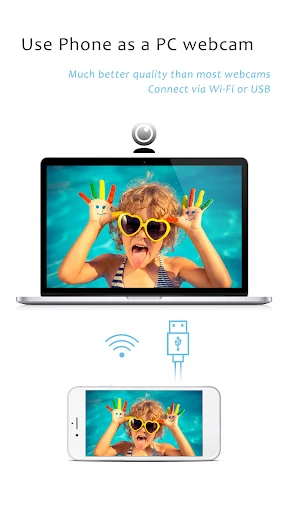
iVCam Webcam turns an Android phone or tablet into a webcam for a Windows PC, with the option to connect over Wi-Fi or USB. I see it as a practical choice for someone who already has a capable phone camera but wants a different webcam setup for calls or recording. Its range of camera controls is appealing, though it does require a Windows client alongside the mobile app.
Put a Phone to Work
Imagine settling in for a video call and realizing your laptop’s built-in camera is not the view you want. With iVCam, the phone you already own can serve as the PC’s camera instead. The app pairs with a Windows client, then sends live video over Wi-Fi or USB. I like the basic idea: it gives a second use to a device that might otherwise sit on the desk while I work.
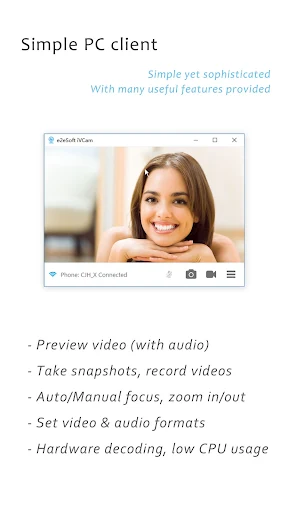
The appeal is not limited to calls. The Windows client can preview the video, take pictures, and record video files, while the phone can record directly to the PC. That last option is useful when device storage is tight. For a casual home setup, I can picture placing the phone where the framing works and leaving the computer to handle the recording, rather than buying another camera just for occasional use.
A Webcam, Not a Studio
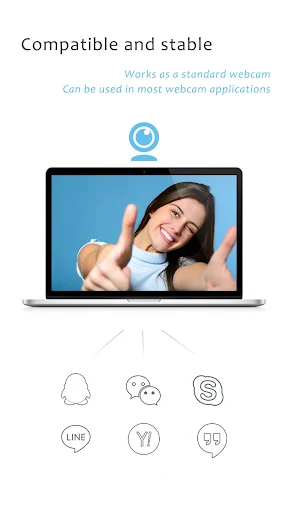
The obvious alternative is a built-in laptop camera or a separate USB webcam. iVCam takes a different route: it uses a phone or tablet as the camera and makes the feed available to Windows applications that use a webcam. That can suit someone who wants to reuse existing hardware, or who prefers the phone’s front or rear camera. It also supports landscape and portrait orientation, giving the setup some flexibility.
I would not treat it as a complete video-production suite or a replacement for every camera workflow. Its job is to provide webcam video and audio to a PC, with settings and effects that shape that feed. You need the Windows client as well as the mobile app, so this is not a phone-only camera tool. If all you need is a quick snapshot on your phone, this adds a computer connection you may not need.
Make Setup Repeatable
A little preparation makes a phone-as-webcam setup easier to repeat. I would pick a steady place for the phone, decide whether Wi-Fi or USB suits the session, and check the framing in the Windows client before joining a call. Since iVCam supports both portrait and landscape, it is worth choosing the orientation before the meeting rather than adjusting the phone once everyone is waiting.
The camera settings give you room to settle on a preferred look. Frame rate, video quality, encoder, exposure, focus, white balance, and zoom are among the options described. I would change only what I need, then leave the setup alone for routine calls. The app can run in the background, and its persistent notification makes it clear when the capture service is active; the notification can also stop that service.
More From Our News Desk

Zoom Meetings, Google Meet, or Teams: Which Is Easiest to Join?

How I Build a Free Streaming Lineup With Tubi

Why Crunchyroll Is the Default Anime App for So Many Fans

YouTube TV: A Practical Guide to Cutting Cable

Rummikub and the Small Comfort of Phone Games

TeamViewer Remote Control or AnyDesk for Helping Family?
Who Might Find It Useful
I would recommend iVCam to people who use a Windows PC for calls or recording and already have a smartphone or tablet they are willing to position as a camera. It is especially easy to understand if the built-in webcam is inconvenient and buying a separate one feels unnecessary. The ability to use Wi-Fi or USB, adjust the picture, and send audio to the PC gives it more range than a simple camera feed.
It may be less appealing if you want a completely standalone mobile camera app, do not use Windows, or would rather avoid installing a PC client. It also asks you to keep the phone positioned and connected while it is serving as the webcam. If you prefer a fixed, dedicated camera that is always ready in one place, a conventional USB or integrated webcam may fit your routine better.
iVCam Webcam is a Tools app from e2esoft. Google Play shows more than 5 million installs and a 3.8-star rating from about 64,000 ratings. The app is free to install, contains ads, and offers in-app purchases. The listed in-app items range from $7.99 to $24.99 each. Its content rating is Everyone.
The supplied app version is 7.4.2. It was released on September 29, 2019, and was last updated on May 5, 2026. iVCam pairs the mobile app with client software for Windows, and the Android minimum-version requirement is worth checking on Google Play before installing. The store is also the place to review the current purchase details for your region.
How iVCam Fits a Real Desk Setup
Starting With the Pairing
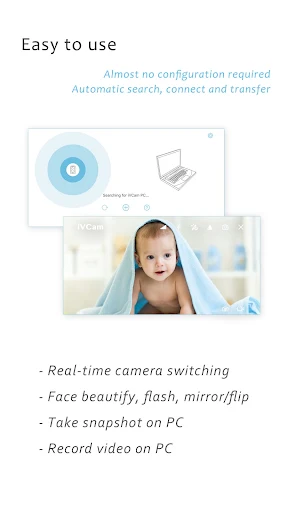
My first impression is that iVCam’s premise is straightforward, even though it involves two devices. The phone supplies the camera and the PC client receives the feed. The developer describes the connection as automatic over Wi-Fi or USB, without manual configuration. That is a welcome approach for a tool whose main job is to connect a phone to a computer rather than make you manage a complicated camera rig.
The important setup step is having the Windows client installed as well as the mobile app. Once that is in place, I would check that the phone is showing the intended camera view and that the PC is receiving it before opening a call. This is a modest extra step compared with using a built-in webcam, but it makes sense for a setup that relies on a separate device.
The Everyday Camera Feed
In daily use, the main experience is about turning a phone’s live video into a PC webcam feed. iVCam describes that video as real-time and low-latency, and it supports common sizes from 360p through 4K. The practical choice is not automatically the highest number: the right setting depends on the session and the equipment involved. Having a range to choose from is useful when a clear image matters more than simply selecting one fixed mode.
I also appreciate that the phone can remain in the background while the app runs, so the camera duty does not necessarily prevent using other apps. Audio is supported too, allowing the phone to act as a wireless microphone for the PC. For a call, that means the app can cover both picture and sound, although I would still test the combination before relying on it for an important meeting.
Controls Beyond the Basics
The camera controls are where iVCam goes beyond a bare connection tool. It supports front and rear cameras, wide-angle and telephoto cameras, and real-time switching between them. There are also options for manual or automatic focus, flash, zoom, and flipping or mirroring the video. Those controls can help when the phone is mounted in a spot where reaching it during a call would be awkward.
For a more deliberate image, the app supports exposure and focus controls as well as ISO, exposure compensation, and white balance. Video frame rate, quality, and encoder are configurable too. I would use these settings to make small adjustments for a particular room or camera position, not as a reason to spend every session tuning the picture from scratch.
Background effects are another notable extra. The supported options include blur, bokeh, mosaic, and green screen, alongside face beautification. These may be handy when I want a different background treatment or a softer on-camera look. They are additions to the webcam feed, not a promise that every effect will suit every scene.
A Simple Call Routine
For a regular work call, I would start by placing the phone at a stable angle and choosing portrait or landscape to match the framing. Then I would connect over Wi-Fi or USB, open the Windows client, and preview the image. A quick check of focus, exposure, and audio is enough to catch the small problems that are easy to miss before a meeting starts.
After settling on a useful setup, I would keep the same position and settings for routine calls. When I need a different view, the supported camera switching and zoom controls provide ways to adjust without rebuilding the whole arrangement. If I am recording instead, the Windows client can save video files to the PC, which is helpful when I want the phone’s camera view without filling its storage.
Keep the Trade-Offs Visible
The biggest practical limit is that iVCam depends on a Windows PC client. The mobile app alone does not deliver its main webcam-to-PC use case, so it is a poor fit for someone who wants a phone-only camera utility or does not have a Windows computer. That two-device arrangement also means there is more to position and check than with a built-in camera.
A phone used as a webcam needs to stay in a useful position, and the connection method matters to the setup. Wi-Fi offers a cable-free option, while USB is available as an alternative. The app also uses a foreground service to keep video and audio capture available when the device is locked; a persistent notification indicates that it is running and lets you stop it.
There are also ads and in-app purchases in the free app, so I would check the current store details if those affect your decision. iVCam offers plenty of controls, but a large settings range can feel like extra work if all you want is a fixed webcam that behaves the same way every time. Its value depends on whether you want the phone-camera flexibility.
iVCam Webcam makes a sensible case for reusing a phone or tablet as a Windows webcam. Its automatic Wi-Fi or USB connection, multiple camera controls, audio support, and PC recording options give it more usefulness than a bare video bridge. The Windows-client requirement is the main trade-off, and the setup will suit some desks much better than others.
I would try it if I already had a Windows PC and wanted to get more from a phone camera before buying separate hardware. It is less compelling for people who want a one-device solution or a permanently ready webcam. For the right setup, iVCam is a flexible tool with a clear, practical job.
iVCam Webcam Frequently Asked Questions
What is iVCam Webcam used for?
iVCam Webcam turns an Android phone or tablet into a webcam for a Windows PC. It can send video and audio to the computer, and the Windows client can preview the feed, take pictures, and record video files. It is intended for webcam use with PC applications, rather than as a phone-only camera app.
Which devices work with iVCam Webcam?
The mobile app is for Android phones and tablets, and its webcam function uses client software on a Windows PC. It connects through Wi-Fi or USB. The Android version requirement can vary by release and device, so check the Google Play store details for the current compatibility information before installing.
What Android version does iVCam Webcam require?
The Android version requirement is worth checking on Google Play, where compatibility details can vary with the app release and device. iVCam’s described setup also requires the Windows client on the PC. Check the current store information and the client requirements before arranging a phone-and-computer setup.
Does iVCam Webcam cost money?
iVCam Webcam is free to install and contains ads. It also offers in-app purchases, with items shown from $7.99 to $24.99 each. Purchase options and prices may vary, so check Google Play for the current details before deciding whether the free version or an in-app purchase suits you.
Is iVCam Webcam right for my setup?
It may suit you if you use a Windows PC for calls or recording and want to use a phone or tablet as the camera. It is less suitable if you want a standalone mobile camera app or do not use Windows. The persistent notification also indicates when its capture service is running.
Pros
- Uses a phone or tablet as a Windows webcam over Wi-Fi or USB.
- Offers camera switching, orientation choices, zoom, and picture controls.
- Supports phone audio and recording video files through the Windows client.
- Can run in the background while the phone handles webcam capture.
Cons
- Requires Windows client software in addition to the mobile app.
- Contains ads and offers in-app purchases.
- A phone must be positioned and connected for webcam use.
- Category
- Tools
- Version
- 7.4.2











