HopToDesk
- 8
- 4.2
- Installs
- —
- Price
- Free

Screenshots
Analysis by Reviewed APKs
HopToDesk is a remote-access app for using an iPhone or iPad to connect to a computer, reach its files and applications, or offer remote assistance. I see it fitting best for people who occasionally need to check in on a computer while away from their desk, as well as support-minded users. Its appeal is a focused set of remote-control tools, though it depends on setting up both sides of the connection.
A Computer Within Reach
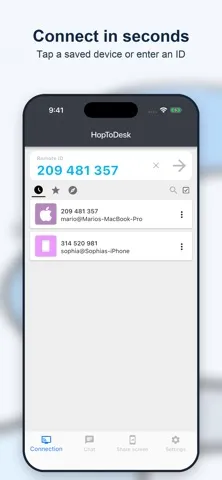
Picture leaving your desk and then realizing that a file you need is still on your computer at home. HopToDesk gives you a way to connect from an iPhone or iPad: install and launch it on both systems, enter the remote desktop’s ID, and allow the connection or provide its password. That simple sequence is the heart of the app, and it makes the most sense for occasional access rather than replacing a full computer workspace.
When I think through that kind of quick check-in, the value is less about doing hours of precise work on a phone and more about reaching an application or file that would otherwise be out of reach. The app also supports screen sharing and remote control, so it has a role in helping someone else troubleshoot a computer. A session still depends on the remote side being set up and the connection being allowed.
Remote Access, Not a Workstation
HopToDesk sits in the remote-desktop category: it links a mobile device with a computer, rather than simply syncing selected files or offering a mobile version of desktop software. That distinction matters. If I need to interact with an application that lives on the remote computer, remote control is the relevant idea; if I only want a copy of a document on my phone, this is a more involved route than a basic file-sharing workflow.
It is also not a way to turn an iPhone into a comfortable substitute for a keyboard-and-mouse workstation. A phone or tablet can be handy for checking in or assisting someone, but small-screen interaction is naturally better suited to brief tasks than long sessions. HopToDesk is aimed at access and support, including work-from-home and remote-system management scenarios, not at making every desktop task effortless on mobile.
Make Connections Predictable
The setup steps suggest a useful habit: prepare both systems before the moment you urgently need access. Install and launch HopToDesk on each side, then make sure you know the remote desktop’s ID and how its connection will be allowed. This avoids turning a quick away-from-home check into a scramble to find the right machine or arrange permission while you are already trying to solve something.
For repeated use, I’d keep sessions purpose-driven: connect to reach a particular file, open an application, share a screen, or provide assistance, then finish when that task is done. Wake-On-LAN is among the listed highlights and may be relevant when managing a remote system, while 2FA is another security feature the app calls out. Those tools add options, but they do not remove the need to understand the connection and access steps.
More From Our News Desk

Zoom Meetings, Google Meet, or Teams: Which Is Easiest to Join?

How I Build a Free Streaming Lineup With Tubi

Why Crunchyroll Is the Default Anime App for So Many Fans

YouTube TV: A Practical Guide to Cutting Cable

Rummikub and the Small Comfort of Phone Games

TeamViewer Remote Control or AnyDesk for Helping Family?
Who Might Find It Useful
I’d recommend HopToDesk to iPhone and iPad owners who sometimes need to reach a computer when they are away from it. It could also suit people who provide remote assistance, work from home, or manage remote systems and want mobile access as an option. The core flow is easy to explain: prepare both sides, identify the remote desktop, and allow or authenticate the connection.
It may be a poor fit if you expect a phone to handle extended desktop work comfortably, or if you want file syncing without connecting to another system. The app’s purpose is remote access and control, so its usefulness depends on having a computer available to connect to and being able to get the session started. People who rarely need remote access may find that setup more than they need.
HopToDesk is developed by Begonia Holdings, LLC, and its App Store page shows a 4.2 rating from 8 ratings. It is free, with a listed price of $0.00. The app is rated 4+ and requires iOS 13.0 or later. It is an iOS app for iPhone and iPad, rather than an Android or desktop listing.
The current version shown is 1.46.70. HopToDesk was released on August 23, 2022, and its latest update is dated October 17, 2026. The app is described as free for personal and business use. The available store details do not give an install count, advertising status, or in-app purchase information.
What Remote Access Feels Like
Getting Started
My first impression is that HopToDesk has a clear job: connect a mobile device with a computer. The quick-start instructions keep the initial process concrete rather than abstract. Both systems need the app installed and launched; then the mobile user enters the remote desktop’s ID and either allows the connection or enters its password. That is a practical sequence, though it does mean preparation on the computer matters as much as the iPhone or iPad.
I would treat the first connection as a setup task, not something to leave until a deadline. Familiarizing yourself with the ID and the permission step beforehand can make later access less fussy. HopToDesk is intended to work from an iPhone or iPad, and it requires iOS 13.0 or later. The setup description focuses on connecting two systems, so it is best approached with the computer you plan to reach already in mind.
Day-to-Day Access
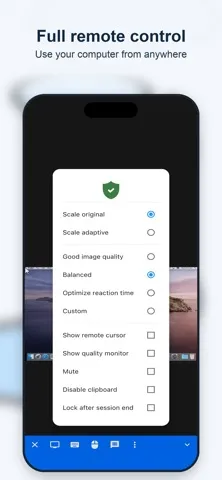
The everyday experience is built around a remote session. Once the connection is allowed or authenticated, the app is meant to let you reach files and applications on the computer and use remote control. That makes it potentially useful when a small task cannot wait until you return to your desk. It is a more direct answer than asking someone nearby to find a file, provided the computer and connection are ready.
I would keep expectations grounded about the mobile form factor. A phone can be useful for a quick look or a brief interaction, but the app’s remote-control purpose does not make a small screen equivalent to sitting at the computer. For longer or detailed work, the tablet form may be more comfortable than an iPhone, but the basic premise remains remote access from a mobile device.
Useful Extra Tools
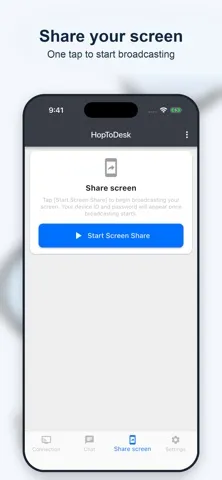
Beyond basic remote control, HopToDesk highlights screen sharing, Wake-On-LAN, 2FA security, and low latency. These features point toward a few different needs: showing a remote screen, managing a system, adding a security step, and keeping interaction responsive. They broaden the app’s scope beyond a single emergency file lookup, especially for people who use remote access as part of support or system-management routines.
I like that the feature set is easy to understand at a glance, without needing to imagine a complicated suite of unrelated tools. Still, the highlights do not change the central requirement: a remote computer must be part of the setup. Wake-On-LAN and 2FA are named features, but the useful takeaway for a prospective user is simply that the app includes them among its remote-access options.
A Practical Routine
A sensible routine would start before leaving home or the office. I’d install and launch HopToDesk on both systems, make note of the remote desktop ID, and understand whether the connection will be allowed directly or require a password. Then, when a small task comes up, I can connect with a clear purpose instead of treating the phone as a general-purpose workstation.
For remote assistance, I’d use the same deliberate approach: make sure the other system is ready, establish the session, and use screen sharing or remote control for the task at hand. The app is described for IT support and managing remote systems, so these are natural scenarios. A little preparation is what turns the connection flow into a useful routine rather than an extra hurdle.
Keep Expectations Realistic
HopToDesk’s biggest limitation is also part of its design: it is a bridge to a computer, not a replacement for one. You need to install and launch it on both systems, enter the remote desktop ID, and have the connection allowed or provide a password. If the computer is unavailable or the access step cannot be completed, the app cannot deliver the remote session you wanted.
The other practical limit is the device you are holding. Remote control from an iPhone or iPad can help with brief access and support, but the app is not described as a way to make extended desktop work comfortable on a touchscreen. Its rating count is also small, so the store score represents a limited number of ratings. I’d judge it by whether its connection workflow matches your own needs.
HopToDesk makes sense as a straightforward mobile route to a computer, with screen sharing, remote control, Wake-On-LAN, and 2FA among its stated features. I like the practical focus, especially for occasional access and remote assistance. The trade-off is that both systems must be ready, and mobile control is best suited to purposeful, shorter tasks.
If you use an iPhone or iPad and regularly need to reach a computer from elsewhere, HopToDesk is worth considering. If your goal is effortless file syncing or long stretches of desktop work on a phone, it is less likely to be the right fit. Its value depends on having a clear remote-access use for it.
HopToDesk Frequently Asked Questions
What is HopToDesk used for?
HopToDesk is for connecting an iPhone or iPad to a computer for remote access, screen sharing, and remote control. It can be used to reach files and applications or to provide remote assistance. The quick-start process involves installing and launching it on both systems, entering the remote desktop’s ID, and allowing the connection or entering its password.
Which devices can run HopToDesk?
HopToDesk is listed as an iOS app for iPhone and iPad, and it requires iOS 13.0 or later. Its connection instructions also require the app to be installed and launched on the computer you want to access. For the computer’s supported systems and any device-specific details, check the App Store information and the app’s current guidance.
Does HopToDesk cost anything?
HopToDesk is listed as free, with a price of $0.00, and its description says it is free for personal and business use. In-app purchase details may vary, so check the App Store page for current information before installing. The store details provided do not specify advertising status.
What iOS version does HopToDesk need?
HopToDesk requires iOS 13.0 or later according to its App Store details. That requirement applies to the iPhone or iPad running the app. The remote computer also needs HopToDesk installed and launched for the connection process, so check the store information and current app guidance for any requirements relevant to that system.
Is HopToDesk a good fit for everyday use?
It may suit people who regularly need mobile access to a computer, work from home, manage remote systems, or provide remote assistance. It is less suited to someone looking for simple file syncing or a replacement for a full desktop setup. The connection requires preparation on both systems, and touchscreen control may be less comfortable for long tasks.
Pros
- Connects an iPhone or iPad to a computer for remote access and control.
- Includes screen sharing, Wake-On-LAN, and 2FA among its stated features.
- The setup instructions make the connection process easy to follow.
- Described as free for personal and business use.
Cons
- Requires HopToDesk to be installed and launched on both systems.
- Remote desktop control on a phone may not suit long or detailed work.
- The App Store rating is based on only 8 ratings.
- Category
- Tools
- Version
- 1.46.70











