HiSense TV Remote Control
- 6.23K
- 4.3
- Installs
- 100.00K
- Price
- Free
Screenshots
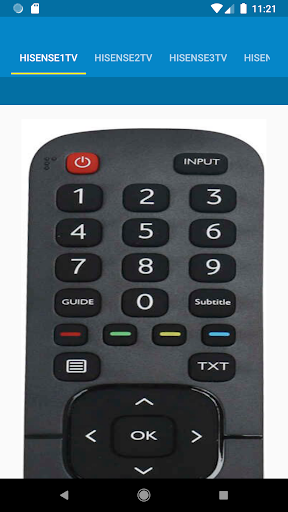
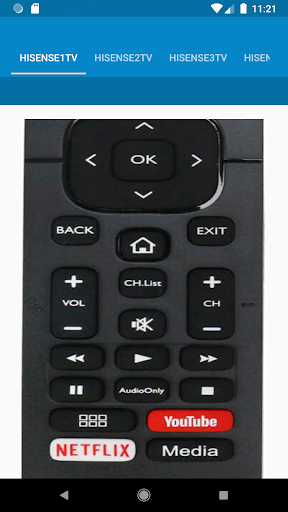
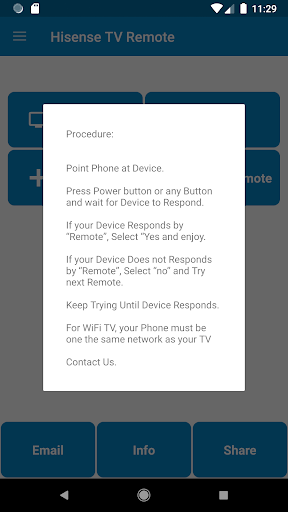
Analysis by Reviewed APKs
HiSense TV Remote Control turns an Android phone into a remote for compatible Hisense TVs, using infrared or Wi-Fi depending on the TV and phone. I’d consider it most useful when the physical remote has gone missing or is across the room. In my view, its appeal is practical rather than flashy: it brings familiar TV controls together, but the right connection method matters.
When the Remote Goes Missing
When I first opened HiSense TV Remote Control, I thought of the familiar living-room scramble: the show is ready, the TV is on, and the remote has slipped between the cushions. This app is meant to put TV controls on a phone instead. For a compatible setup, that can make everyday tasks like turning the television on or navigating its controls less dependent on finding the plastic remote.
The important first question is how the phone will communicate with the TV. The app describes infrared control for Hisense televisions, which requires an IR blaster in the phone. It also offers Wi-Fi functionality for Android Smart TVs; for that route, the phone and TV need to share the same network. That distinction is worth checking before relying on the app in the middle of a movie night.
A Phone-Based TV Remote
The obvious comparison is the physical remote that comes with the TV. That remote does not depend on a phone battery or on checking which connection method the handset supports. The app’s advantage is convenience when the phone is already nearby, and its saved option can bring back a Hisense remote used previously. It is a handy alternative, not a reason to assume every phone can control every TV.
This is a TV-control tool, not a general smart-home remote or a streaming service. Its description focuses on Hisense LED and Smart TVs, with Wi-Fi functionality specifically described for Android Smart TVs. I would not count on it to control unrelated devices or provide voice commands, custom shortcuts, or streaming access. Keeping that scope clear makes the app easier to judge on its actual job.
Small Habits That Help
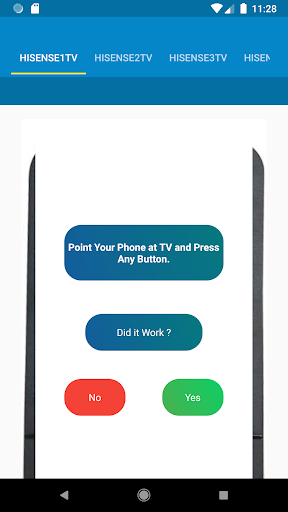
I’d start by identifying whether the phone has an IR blaster or whether the TV can be controlled over Wi-Fi. For Wi-Fi, I’d make sure both devices are on the same network before trying to use the app. If I were testing infrared, I’d follow the app’s suggested power-button check and respond according to whether the TV reacts. A short test early is better than discovering a mismatch when the room is dark.
Once a remote works, the saved option can make it easier to return to the last-used Hisense remote. I’d also set vibration according to the situation: feedback may feel useful while learning the controls, while switching it off may be more comfortable during quiet viewing. These are modest workflow touches, but they can make a phone remote feel less like a one-time experiment and more like a practical backup.
More From Our News Desk

Zoom Meetings, Google Meet, or Teams: Which Is Easiest to Join?

How I Build a Free Streaming Lineup With Tubi

Why Crunchyroll Is the Default Anime App for So Many Fans

YouTube TV: A Practical Guide to Cutting Cable

Rummikub and the Small Comfort of Phone Games

TeamViewer Remote Control or AnyDesk for Helping Family?
Who May Find It Useful
I’d recommend HiSense TV Remote Control to Hisense TV owners who regularly have their phone in hand and want another way to control the television. It is especially worth trying if the original remote is misplaced, or if a compatible phone and Android Smart TV can use the same Wi-Fi network. On Google Play, the app has over 100,000 installs and a 4.3-star rating from about 6,200 ratings, suggesting it has attracted a useful audience.
It may be a poor fit if the phone lacks an IR blaster and the TV cannot use the described Wi-Fi option, or if you want one app to manage a range of brands and devices. I’d also keep the physical remote around until I had tested the app with my own setup. The app is made by AYYAN, not the Hisense company, so it is best approached as an independent remote-control option.
HiSense TV Remote Control is a free Android Tools app developed by AYYAN. Google Play shows over 100,000 installs and a 4.3-star rating from 6,226 ratings. The app contains ads, and its content rating is Everyone. Its release date was June 3, 2020, and the latest update in the supplied app details was August 1, 2025.
The current version is 14.0. The app is free to download and has no in-app purchases. Its description covers infrared control, which requires an IR blaster in the phone, and Wi-Fi control for Android Smart TVs when the phone and TV are on the same network. The minimum Android version is not included in the available app details, so check Google Play for device compatibility.
The Details of Everyday TV Control
A Straightforward First Look
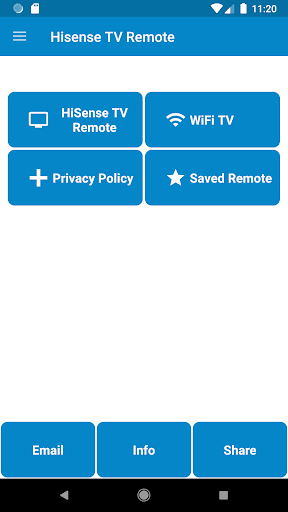
When I first opened the app, the practical appeal was easy to understand: it is intended to replace a missing or inconvenient Hisense remote with controls on a phone. The setup is described as plug and play, but the connection still depends on the hardware and TV. Infrared needs an IR blaster, while the Wi-Fi route is described for Android Smart TVs on the same network as the phone.
The infrared instructions ask the user to press the power button and indicate whether the television responds. That gives the app a simple way to test the remote choice rather than asking the user to guess blindly. I’d do this while I could still reach the physical remote, so a failed test does not leave me stuck without a working way to operate the TV.
The Daily Controls
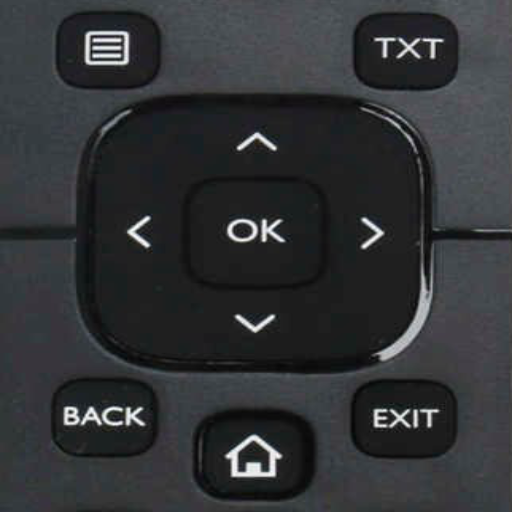
In regular use, the central promise is access to the functions found on a plastic remote, represented in the app. That makes the phone useful for ordinary moments: reaching for a control while seated, or using a backup when the remote has wandered off. The description does not spell out every individual button, so I’d treat the app as a TV-control companion rather than assume a particular layout before opening it.
Connection is the part most likely to shape the day-to-day experience. With Wi-Fi control, both the phone and Android TV need to be connected to the same network. With infrared, the phone must have an IR blaster. I’d check which path applies at home once and remember it, rather than repeatedly troubleshooting the wrong connection when I just want to change something on screen.
Useful Little Extras
The saved option is a small but practical feature: it lets users return to a Hisense remote they used previously. That could save a little time if the app offers more than one suitable remote choice for a setup. It is not a dramatic feature, but it supports the app’s role as a backup that I might open repeatedly instead of configuring from scratch every time.
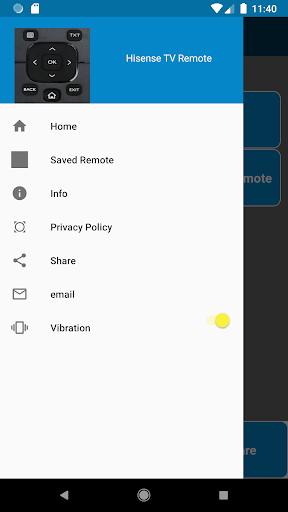
Vibration can be turned on or off through the drawer menu. I can see that being useful during initial testing, when feedback helps make phone taps feel deliberate, and less useful once the controls are familiar. The app also describes Wi-Fi functionality for Android Smart TV casting, with the same-network requirement. I’d keep expectations tied to those described functions rather than assume broader device support.
A Simple Backup Routine
A sensible routine would be to try the app once during an ordinary evening, not when everyone is waiting for a film to start. I’d confirm whether infrared or Wi-Fi is the right option, test whether the TV responds, and then save the working remote if needed. After that, I’d leave the physical remote in its usual place until I know the phone option is dependable in my own room.
For a Wi-Fi setup, I’d remember that moving the phone onto a different network can interrupt the arrangement described by the app. For infrared, I’d keep in mind that the phone needs an IR blaster. Those small checks make the app easier to use as a backup and avoid blaming the controls when the actual issue is that the connection requirements are not being met.
Keep Expectations Realistic
The main limitation is compatibility: a phone without an IR blaster cannot use the infrared route, and Wi-Fi control has a specific same-network requirement for Android Smart TVs. The app’s description centers on Hisense televisions, so I would not expect it to consolidate controls for a whole entertainment setup or work as a universal remote for unrelated brands.
It is also an independent app from AYYAN rather than an official Hisense product, as the description states. Ads are present, though the app is free and has no in-app purchases in the supplied details. I’d install it because I need an alternative TV remote, not because I expect advanced customization or features beyond the described controls.
HiSense TV Remote Control is a focused utility with a clear use: control a Hisense TV from an Android phone when the phone and television support one of its connection methods. Saved remotes and vibration settings add a little convenience, while the infrared and Wi-Fi requirements call for a quick compatibility check.
I’d try it as a backup if I owned a Hisense TV and often had my phone nearby, while keeping the physical remote until the app worked reliably in my setup. If you need a universal remote or your devices do not meet the connection requirements, this is unlikely to be the right fit.
HiSense TV Remote Control Frequently Asked Questions
What is HiSense TV Remote Control used for?
HiSense TV Remote Control is an Android app for controlling Hisense LED and Smart TVs from a phone. Its description covers infrared control when the phone has an IR blaster and Wi-Fi functionality for Android Smart TVs when both devices are on the same network. It is intended as a phone-based TV remote, not a general control app for every home device.
Which phones and TVs can use HiSense TV Remote Control?
The app is for Android phones and describes control of Hisense televisions. Infrared use requires an IR blaster in the phone. Its Wi-Fi functionality is described for Android Smart TVs, with the phone and TV connected to the same network. Specific device compatibility can vary, so it is worth checking Google Play and testing the app with your setup.
What Android version does HiSense TV Remote Control require?
The minimum Android version is not included in the app details provided here. Because requirements can vary by release and device, check the Google Play page for the current compatibility information before installing. The app is listed as version 14.0, and the supplied details say it was last updated on August 1, 2025.
Does HiSense TV Remote Control cost money?
The app is free to download and has no in-app purchases in the supplied details. It does contain ads. Store information can change, so it is worth checking Google Play for current pricing and purchase details before installing or using the app.
Is HiSense TV Remote Control a good fit for me?
It may suit a Hisense TV owner who wants a phone-based backup remote and has either an IR blaster or a compatible Android Smart TV and same-network Wi-Fi setup. It may not suit someone seeking a universal remote for several brands or devices. The app is made by AYYAN and is not an official Hisense product.
Pros
- Offers infrared and Wi-Fi control options for compatible Hisense TV setups.
- Saved option makes a previously used Hisense remote easier to reach.
- Vibration can be switched on or off in the drawer menu.
- Free to download, with no in-app purchases in the supplied details.
Cons
- Infrared control requires a phone with an IR blaster.
- Wi-Fi control requires the phone and Android TV to share a network.
- The app is an independent product, not an official Hisense remote.
- Category
- Tools
- Version
- 14.0











