DroidCam Webcam & OBS Camera
- 2.29K
- 4.6
- Installs
- —
- Price
- Free
Screenshots
Analysis by Reviewed APKs
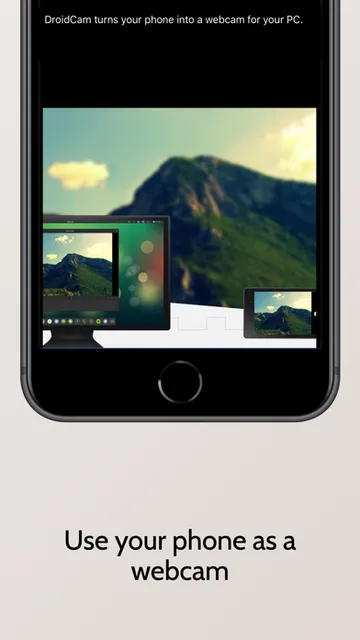
DroidCam Webcam & OBS Camera turns an iPhone into a camera for computer video calls or an OBS setup. I see it as a practical option for someone whose laptop camera is weak, missing, or awkwardly placed, and for creators who want to use their phone camera with OBS. The basic standard-definition mode is free and unlimited, but higher resolutions and some extra controls sit behind a paid upgrade.
A better angle for calls
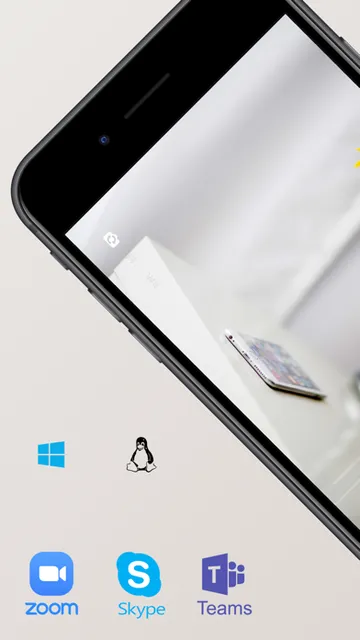
When I imagine using DroidCam for an ordinary workday, the appeal is simple: I can position my iPhone where it gives a better view than the camera built into my computer, then use that feed in a video chat program. The app sends picture and sound to the computer, while the computer-side DroidCam Client makes the phone available to programs such as Zoom, Skype, and Discord. It is a focused fix for a familiar problem, not a complete video-call service.
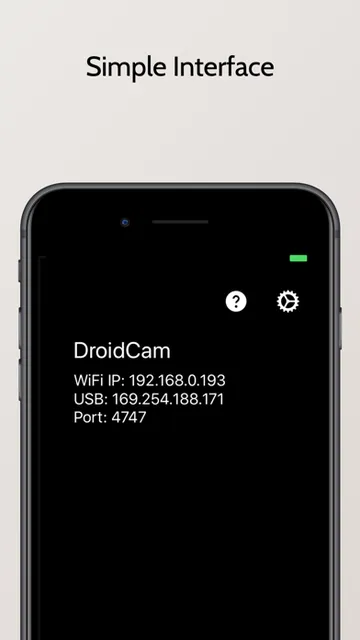
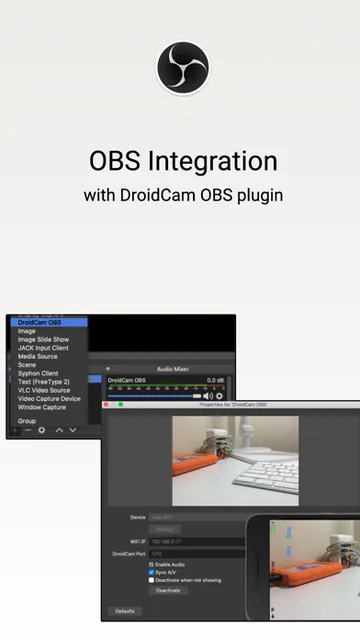
The first thing to plan is the connection and the computer setup. DroidCam supports Wi-Fi and USB, though USB may need additional setup. The phone app alone is not the whole arrangement: for the PC webcam route, the computer needs the DroidCam Client. If I wanted to use the camera in OBS instead, I would use the DroidCam OBS plugin. Once those pieces are in place, the phone can serve as a webcam without asking me to replace my usual calling app.
A camera tool, not a call app
DroidCam sits between the phone camera and software already running on a computer. That makes it different from simply joining a call on my iPhone: I can put the phone’s camera into a desktop workflow, including a compatible video chat program or OBS Studio. It also differs from buying a dedicated webcam, since it makes use of a phone I may already own. The trade-off is that getting the feed onto the computer requires the relevant client or plugin.
I would not choose it as a replacement for Zoom, Skype, or Discord themselves, and it is not an all-in-one streaming studio. Its job is camera input, with OBS integration as a useful option for people who already use OBS. The free mode is limited to standard definition at 640 by 480, while higher-quality video involves the Pro upgrade to remove watermarks. That distinction matters if I need a clean, polished image rather than a basic call feed.
Small setup habits help
I would sort out the computer-side installation before a call rather than troubleshoot while other people are waiting. For regular webcam use, that means the DroidCam Client; for a direct OBS setup, it means the DroidCam OBS plugin. I would also test the chosen Wi-Fi or USB connection in advance. The app supports both, but USB can involve extra setup, so it is worth checking that route before relying on it for a meeting or lesson.
A quick resolution check can prevent surprises, too. Standard definition is the unlimited free option, while HD video can be tried but carries watermarks unless I purchase the Pro upgrade. If I use OBS, the app supports up to 4K UHD as an OBS Camera; the PC webcam route supports up to 1080p Full HD. I would decide which mode fits the job, then keep the phone positioned and connected before opening the call or recording.
More From Our News Desk

Zoom Meetings, Google Meet, or Teams: Which Is Easiest to Join?

How I Build a Free Streaming Lineup With Tubi

Why Crunchyroll Is the Default Anime App for So Many Fans

YouTube TV: A Practical Guide to Cutting Cable

Rummikub and the Small Comfort of Phone Games

TeamViewer Remote Control or AnyDesk for Helping Family?
Who will get the most from it
I would recommend DroidCam to iPhone owners who use a computer for calls and want another camera option without buying a separate webcam first. It should also interest people who already work with OBS and want to bring a phone camera into that setup. The free standard-definition mode is useful for trying the workflow, while the higher-resolution options give frequent users a reason to consider the upgrade.
It may be less appealing if I want a camera setup that works entirely on the phone, or if I prefer not to install companion software on a computer. People who need clean HD video should also factor in the Pro upgrade, since the free option is standard definition and HD has watermarks until upgraded. For occasional calls where a built-in webcam is already adequate, installing a client or plugin may feel like more setup than the improvement is worth.
DroidCam Webcam & OBS Camera is made by DEV47 APPS LTD. It is free to download on the Apple App Store, has a 4+ content rating, and currently shows a 4.6-star rating from 2,294 ratings. The store information gives version 10.0, an original release date of April 29, 2020, and a last update date of November 4, 2026.
The iPhone app requires iOS 15.0 or later. The app description says standard-definition use at 640 by 480 is free with no time limit. A Pro upgrade is available, and its price may vary by region; HD video has watermarks unless the upgrade is purchased. The app description also mentions a subscription option, but does not give a fixed price.
Making an iPhone Work as a Webcam
Getting the pieces together
My first impression is that DroidCam is built around a clear, practical job rather than a long list of phone-side activities. The iPhone supplies the camera and sound; the computer uses that feed in another program. The important setup decision is whether I want the general PC webcam route or direct OBS use, because each has its own computer-side component.
For everyday computer webcam use, the DroidCam Client is available for Windows and Linux. For OBS Studio, the DroidCam OBS plugin is available for Windows, Mac, and Linux through Flatpak. I would check which route matches my computer and intended app before settling in. The iOS app requires iOS 15.0 or later, so an older iPhone software setup may need attention first.
The daily camera handoff
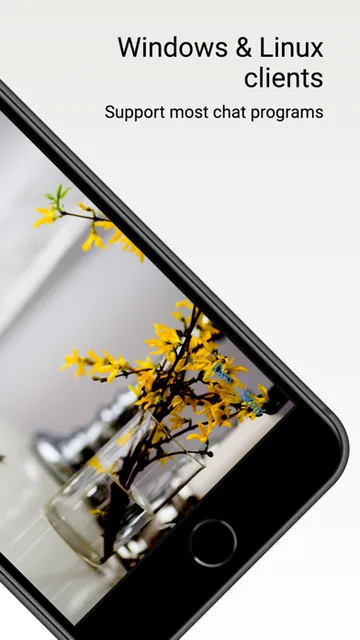
Once configured, the useful part is the handoff: I can use the phone as a camera source in computer programs rather than switch a call over to the phone. The description names Zoom, Skype, Discord, and most other programs for the PC Client route. That gives the app a place in a normal desk routine, whether the call is a team check-in, a remote lesson, or a conversation with friends.
The app supports both Wi-Fi and USB connections. Wi-Fi avoids a cable across the desk, while USB offers another way to connect when that better suits the setup; the description notes that USB may require additional setup. I would test whichever connection I plan to use before an important call. That small bit of preparation is more useful than discovering a connection issue just as a meeting starts.
Resolution and OBS options
Resolution is one of the most consequential differences between the basic and upgraded experience. Free use is unlimited at 640 by 480, which is a straightforward way to see whether the setup fits my routine. The description says HD video can be tried, but removing its watermarks requires the Pro upgrade. That makes the free mode easy to evaluate, while a clean high-definition image is a paid consideration.
The OBS route has a higher stated ceiling than the general PC webcam route: up to 4K UHD as an OBS Camera, compared with up to 1080p Full HD as a PC Webcam. DroidCam also offers direct OBS Studio integration through its plugin. For people who already build scenes in OBS, that can make the phone camera part of an existing workflow instead of requiring a separate client for that route.
The Pro upgrade includes more than HD video, according to the app description. On iPhone 11 and later, it includes use of ultrawide and telephoto lenses, remote camera adjustment from the computer, and advertising removal. I would treat those as extra conveniences for a specific setup rather than assume every user needs them. The relevant upgrade and settings information is available inside the app.
A repeatable call routine
For a recurring remote-work call, I would keep the routine boring in the best way: choose the connection, position the phone, open the computer-side client, and check the image in the program I plan to use. If the call runs through OBS, I would use the plugin route instead. Doing a short test before the calendar fills up gives me a chance to catch a setup issue without turning the meeting itself into a tech check.
I would also match the quality choice to the occasion. Standard definition may be enough for a casual conversation or a quick test, and it has no time limit in the free mode. For teaching, content creation, or a call where presentation quality matters more, the HD and OBS resolution options may be more relevant. The point is not to select the highest number automatically, but to decide whether the upgrade is useful for how I actually use the camera.
Know the trade-offs
DroidCam depends on a computer-side component for its main purpose, so it is not as immediate as opening a call app on the phone. The setup also varies by route: a PC webcam uses the Client, while direct OBS integration uses the plugin. USB may need extra configuration, and Wi-Fi is another supported option. I would not leave either connection untested if I were counting on it for a scheduled event.
The free tier is generous in duration but modest in resolution: unlimited 640 by 480 use is not the same as unlimited clean HD. Watermarks apply to HD unless I purchase the Pro upgrade. That is a meaningful limitation for anyone recording or presenting regularly, while it may be irrelevant for someone who only wants to try the basic feed. Upgrade pricing can vary by region.
The app’s usefulness also depends on the rest of the setup. A phone camera does not remove the need for compatible computer software, and the stated maximum resolutions describe different routes rather than one universal setting. I would check the computer client or OBS instructions for the route I intend to use. With those expectations in view, the app’s role is easy to understand: it turns an iPhone camera into a source for computer workflows.
DroidCam Webcam & OBS Camera is a focused tool with a sensible free starting point. I like that it can feed ordinary computer video apps or connect directly to OBS, and that it supports both Wi-Fi and USB. The main catches are the computer-side setup and the distinction between free standard definition and watermark-free HD.
I would try it if I wanted to reuse an iPhone as a computer camera, especially for calls or an existing OBS setup. If I needed clean HD, I would weigh the Pro upgrade before making it part of a regular workflow. For someone happy with the free resolution and willing to do a little setup, it is a practical option.
DroidCam Webcam & OBS Camera Frequently Asked Questions
What is DroidCam Webcam & OBS Camera used for?
DroidCam Webcam & OBS Camera lets an iPhone provide picture and sound to computer software as a webcam, or work with OBS Studio through the DroidCam OBS plugin. The description names Zoom, Skype, and Discord among compatible computer programs. It is a camera tool for an existing call or streaming setup, rather than a video-calling service on its own.
Which devices and platforms work with DroidCam?
The app is available for iPhone on the Apple App Store and requires iOS 15.0 or later. The computer-side DroidCam Client for webcam use is available for Windows and Linux. The OBS plugin is available for Windows, Mac, and Linux through Flatpak. The best route depends on whether you want a general computer webcam or direct OBS integration.
What iOS version does DroidCam require?
DroidCam Webcam & OBS Camera requires iOS 15.0 or later. I would check the iPhone’s software version before installing it, especially if the device has not been updated in a while. Store requirements can change over time, so the current Apple App Store information is worth checking before downloading.
Is DroidCam free, and does it have in-app purchases?
The app is free to download, and standard-definition use at 640 by 480 is unlimited. The description says HD video can be tried, but removing watermarks requires the Pro upgrade. It also mentions a subscription option, with pricing that may vary by region. Check the Apple App Store and the in-app upgrade information for current terms and prices.
Is DroidCam a good fit for my setup?
It may suit someone who wants to use an iPhone camera in computer calls or an OBS workflow and is comfortable installing the matching computer software. It may be less convenient if you want a phone-only calling app or do not want to configure a client or plugin. Free use is standard definition; HD without watermarks requires the Pro upgrade.
Pros
- Unlimited free standard-definition use gives you room to test the setup.
- Supports Wi-Fi and USB connections for different desk arrangements.
- Offers direct OBS integration alongside a general PC webcam route.
- Higher resolution options include up to 4K UHD for OBS Camera use.
Cons
- Computer-side client or plugin setup is part of the experience.
- Free standard-definition video is limited to 640 by 480.
- HD video carries watermarks unless you purchase the Pro upgrade.
- Category
- Tools
- Version
- 10.0











