Digital Clock Live Wallpaper-7
- 45.04K
- 4.2
- Installs
- 10.00M
- Price
- Free
Screenshots
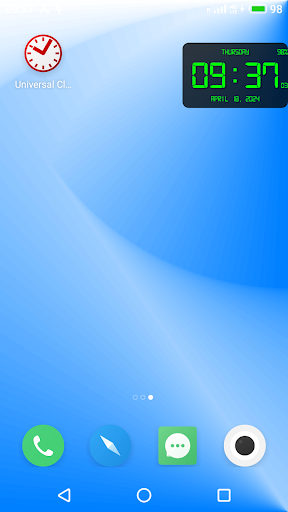
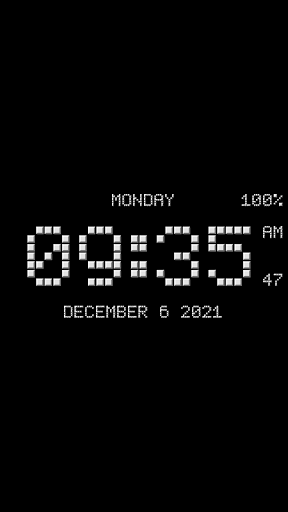
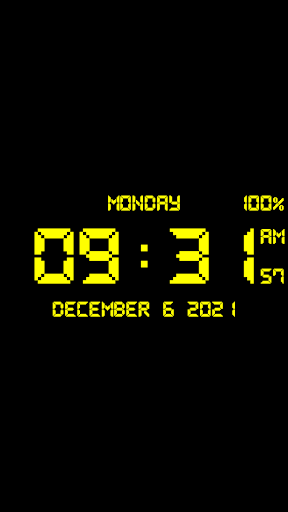
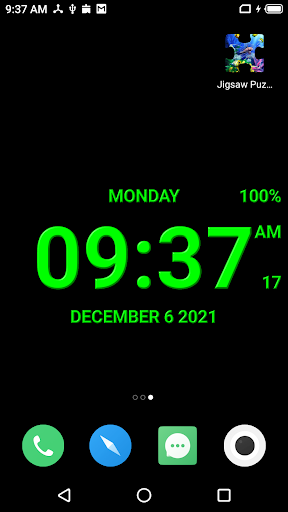
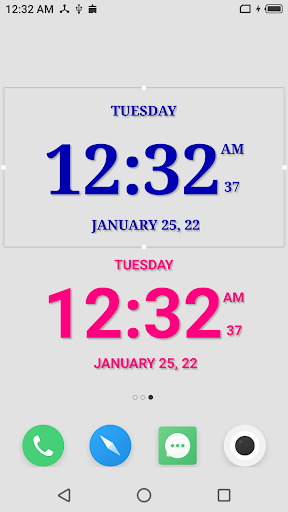
Analysis by Reviewed APKs
Digital Clock Live Wallpaper-7 puts a customizable digital clock on your phone in several forms, from a home-screen wallpaper to a floating clock or a small widget with seconds. I found it best suited to people who want time and date information visible without opening another app, and who enjoy tuning the look. Its range is unusually broad, though the many modes and settings take some exploring.
A clock in the background
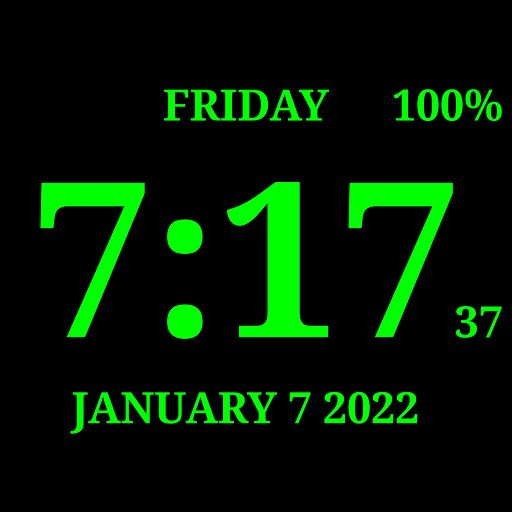
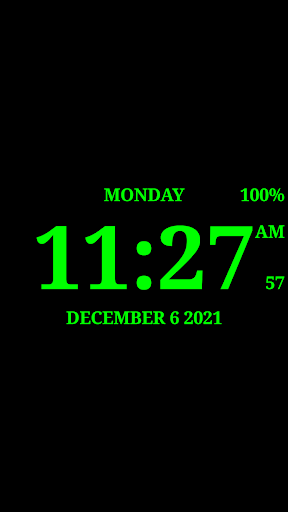
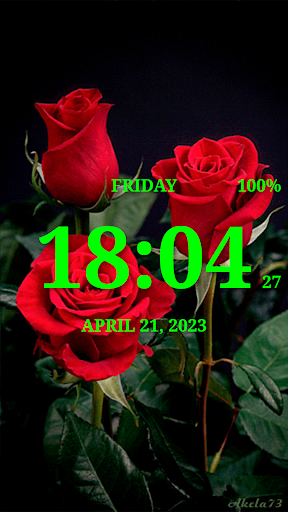
Picture a quick glance at your phone while making coffee: instead of opening the clock app, you can have the time displayed right on the home screen. Digital Clock Live Wallpaper-7 lets you set the clock’s size and position, then choose whether it also shows details such as the date, weekday, or battery percentage. It turns a routine check into a glance, without asking you to change how you use your phone.
I can also see the seconds widget being handy when I need a more precise readout during a short task. For a different setting, the fullscreen mode keeps the display on so the phone can serve as a desk clock. The app’s talking-clock feature offers another way to check the time: double-tap the screen for a spoken announcement, or schedule a spoken time and note with its reminder.
More than wallpaper
The obvious alternative is a standard clock widget, and this app can do that too. Its appeal is the choice of formats: wallpaper, widget, charging screensaver, fullscreen desk clock, floating overlay, and a mini clock window. That makes it more adaptable than a single-purpose clock display if I want to move between a glanceable home screen and a clock that sits above other apps.
It is not a general alarm manager or a complete home-screen customization suite. The description says a widget can open the app that set the current alarm, and the clock can show the next alarm time, but the focus remains on displaying time and related information. If I only need to check the time occasionally, the built-in phone clock is likely simpler and requires no extra setup.
Small setup habits
I’d start by choosing one mode and getting its basic position, size, and color right before exploring the rest. For wallpaper, adjust the clock so it is easy to read against the home-screen background. For a widget, configure its color and font individually; the description also says standard operating-system tools can resize it. These small choices help keep the display useful rather than letting decoration get in the way.
After that, I’d decide which information I actually want to see. Seconds, date, weekday, month, battery percentage, and next-alarm time are all options described for the clock, and individual details can be shown or hidden. If the display is hard to read, try a different font, color, or backing transparency. Treating the setup as a quick edit rather than enabling everything at once keeps the clock focused.
More From Our News Desk

Zoom Meetings, Google Meet, or Teams: Which Is Easiest to Join?

How I Build a Free Streaming Lineup With Tubi

Why Crunchyroll Is the Default Anime App for So Many Fans

YouTube TV: A Practical Guide to Cutting Cable

Rummikub and the Small Comfort of Phone Games

TeamViewer Remote Control or AnyDesk for Helping Family?
Who will appreciate it
I’d recommend Digital Clock Live Wallpaper-7 to people who like having a visible digital clock and want to shape its appearance. It can suit someone who wants seconds on a widget, a clock on a charging screen, or a phone that can sit on a desk showing the time. The range of fonts and display modes also gives curious tinkerers plenty to try without making them stick to one format.
It may be a poor fit if you prefer a minimal home screen, dislike adjusting settings, or only need the time once in a while. Some modes involve keeping the screen on or placing a clock over other windows, so they are options to use deliberately rather than turn on by default. I’d also skip it if a basic system clock already covers your routine and you have no interest in changing its appearance.
Digital Clock Live Wallpaper-7 is a Tools app from Style-7. On Google Play it has over 10 million installs and a 4.2-star rating from about 45,000 ratings. It is free to install and contains ads; the store facts give no in-app purchases. Its content rating is Everyone, and the listed version is 7.4.
The app was released on August 19, 2013, and its last update is dated August 17, 2026. The supplied store facts do not give a minimum Android version, so check Google Play for compatibility with your device. As with any app, availability and requirements can depend on the device and store information shown for your installation.
A clock with room to adapt
A flexible first impression
When I first opened the idea of this app, what stood out was that “clock” does not mean just one small box on the home screen. There are dedicated modes for wallpaper, a widget, a screensaver, a fullscreen display, and clocks that float above other content. That breadth is useful, but it also means the first decision is what role I want the app to play.
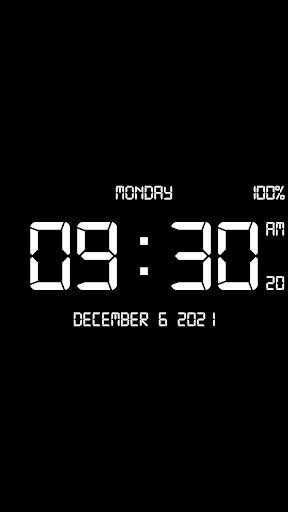
I’d avoid changing every visual option at once. Start with a font and color that are legible, then set the clock’s size and position for the chosen mode. The app describes 15 font choices, including system fonts and digital styles such as seven-segment and pixel looks. That’s enough variety to make the display feel personal without needing to hunt for external designs.
Useful at a glance
The everyday strength is visibility. A wallpaper clock can make the time available as soon as I reach the home screen, while a widget adds a compact clock that can include seconds. The description says each widget can have its own font and color, which is useful if I keep more than one on a screen and want them to serve different purposes.
There is a practical trade-off: more information can mean a busier display. I’d choose only the details I routinely check, such as the date or battery percentage, and leave the rest hidden. The option to show the next alarm time instead of a date string can be useful when that is more relevant to my day, but it is still a readout rather than a replacement for a dedicated alarm app.
More ways to display time
The floating clock and mini clock are the modes that make this app feel different from a typical wallpaper utility. The floating version can sit above other apps and games, with adjustable transparency, size, and position. The mini clock is described as a small picture-in-picture window that can be moved and snaps to an open area of the screen. Those options can keep a clock visible while I’m doing something else.
For a more stationary setup, the app also offers a screensaver that activates while charging or docked, plus a fullscreen mode intended to make the phone work as a desk clock. Foldable-phone owners may find the second-screen screensaver relevant. These are distinct use cases, not features I’d expect everyone to use every day, but they give the app more reach than a wallpaper-only clock.
A routine that fits
A sensible routine might be to use the wallpaper clock during the day, then switch to a charging screensaver at night. If I want to check the time while another app is open, I could try the floating or mini clock instead. The available modes make it possible to match the display to the moment rather than forcing one clock format to do every job.
I’d keep the visual setup consistent across those moments: use a readable font, choose a color with enough contrast, and show only the extra information I find useful. The description also includes a night mode for wallpaper, fullscreen, and screensaver use, with a dark background and dim gray text. That gives the clock a more subdued option for darker surroundings.
Keep the trade-offs in view
This is a feature-rich clock display, so it is not automatically the easiest choice for someone who wants one tap and no decisions. The many operating modes and detailed appearance controls invite experimentation. I’d treat the extra options as a menu to draw from rather than a checklist to complete, especially if all I want is a clear time on my home screen.
Some features also depend on how a person chooses to use the phone. A fullscreen desk-clock mode keeps the display on, while a floating clock sits above other content; those may not suit every routine. The app describes night and screen-protection options, including pixel shifting, but I’d still choose a mode and display behavior that make sense for my device and how I use it.
Digital Clock Live Wallpaper-7 stands out for flexibility, not for replacing every clock-related tool on a phone. I like that it can serve as wallpaper, a widget, a desk display, or a small clock above other apps, with enough control over fonts and details to make the readout useful.
I’d recommend it to anyone who regularly checks the time and wants that information presented their way. If you prefer a clean, untouched home screen or just need a basic clock, the built-in option will probably be easier. For everyone else, it’s worth trying one mode first and adding complexity only when it helps.
Digital Clock Live Wallpaper-7 Frequently Asked Questions
What is Digital Clock Live Wallpaper-7 used for?
Digital Clock Live Wallpaper-7 displays a customizable digital clock as wallpaper, a home-screen widget, a screensaver, a fullscreen desk clock, or a floating or mini clock. It can show details such as the date and battery percentage, and it includes spoken time announcements and scheduled spoken reminders. The exact combination depends on the mode and settings you choose.
Which devices can run Digital Clock Live Wallpaper-7?
The supplied store information identifies Digital Clock Live Wallpaper-7 as an Android app. It includes modes described for a phone’s home screen, charging or docked use, and a second screen on some foldable devices. Compatibility requirements can vary by device, so check the Google Play store entry to see whether it supports your particular phone or tablet.
What Android version does Digital Clock Live Wallpaper-7 require?
The minimum Android version can vary with the app’s current store availability and your device. Check the Google Play entry for Digital Clock Live Wallpaper-7 before installing to confirm compatibility. The app description covers several display modes, but it does not establish that every mode will be available or work the same way on every device.
Is Digital Clock Live Wallpaper-7 free?
Digital Clock Live Wallpaper-7 is free to install on Google Play and contains ads. The supplied store facts do not give a price for in-app purchases. Store details can change, so it is worth checking the current Google Play entry for the latest cost and purchase information before installing.
Who should try Digital Clock Live Wallpaper-7?
It may suit people who want a visible, customizable clock and are interested in options such as a seconds widget, charging screensaver, or floating clock. It may not suit people who prefer a minimal home screen or want a simple clock with no setup. Its range of modes is most useful if you have a specific display routine in mind.
Pros
- Several clock formats, including wallpaper, widgets, floating windows, and screensavers.
- 15 font choices and controls for color, size, position, and displayed details.
- Includes spoken time announcements and scheduled reminders with a spoken note.
- Can show seconds, date, battery percentage, or the next alarm time.
Cons
- The number of modes and settings may feel excessive if you only need a basic clock.
- Fullscreen and floating-clock options may not suit every phone routine.
- Contains ads, which may be a drawback for people who prefer an ad-free utility.
- Category
- Tools
- Version
- 7.4











