Cricut Heat: DIY Heat Transfer
- 294
- 2.9
- Installs
- 100.00K
- Price
- Free

Screenshots
Analysis by Reviewed APKs
Cricut Heat: DIY Heat Transfer is a companion app for setting up and using Cricut EasyPress 3 and Cricut Hat Press. It helps take guesswork out of choosing time and temperature, then guides you through a transfer from preparation to peeling. I found its appeal is practical rather than creative: it supports the pressing stage, not design-making. For owners of a compatible press, it is a focused workshop helper.
A smoother pressing session
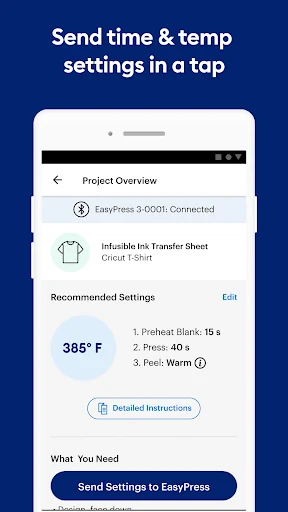
Imagine finishing a cut iron-on design for a cotton T-shirt and moving to the kitchen table to press it. Instead of hunting for a chart or trying to remember a setting, I can choose the project’s material and blank in Cricut Heat, then follow the tailored instructions. The app provides time and temperature guidance and can send those settings to a connected press, keeping the setup close at hand.
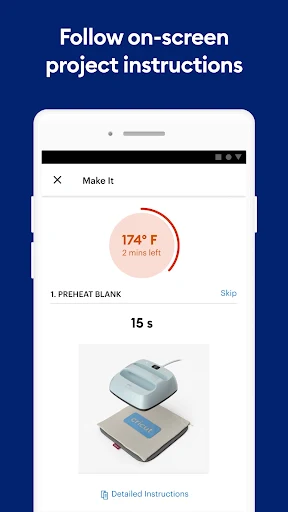
The useful part is that the guidance covers more than a number on a display. Cricut says the project instructions include preparation, a supply list, stacking order, and steps through the post-press peel. That gives a first-time user a sequence to follow while the press is warming up and the transfer is underway. It is a small but welcome bit of structure when a project has several layers or materials.
A press companion, not a studio
Cricut Heat sits alongside, rather than replaces, the tools used to create and cut a design. Its job begins when you are preparing a heat-transfer project and need press settings or a process to follow. I would not open it expecting a design library, image editor, or a way to upload and arrange artwork; those functions are not what this app describes itself as providing.
Its scope is also tied to particular hardware: Cricut EasyPress 3 and Cricut Hat Press. That makes it more specialized than a general crafting reference, and less useful if you do not own one of those presses. For previous press models, Cricut points users to its online Heat Guide instead. If you already have a compatible device, the direct connection and saved settings can make the focused approach worthwhile.
Make the next project easier
A little preparation helps the app feel less like a lookup tool and more like part of the workbench. Before pressing, gather the blank and transfer material, then select the relevant project details so the app can build its instructions. I would keep the supply list visible while setting up the work area, rather than discovering halfway through that I need to rearrange the layers or prepare another item.
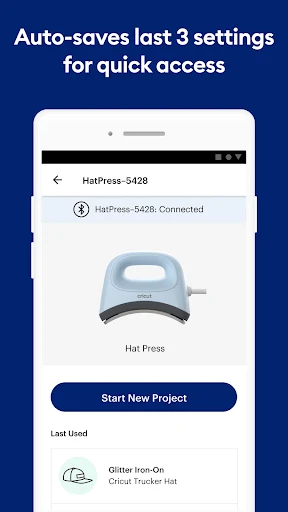
The app saves the last three settings for quick access, which suits repeat jobs such as making several similar shirts. Custom settings are also available, so experienced crafters can use their own preferences when appropriate. I would still check that the material and blank choices match the project before sending settings to the press; a handy shortcut is only helpful when it reflects what is actually on the table.
More From Our News Desk

Zoom Meetings, Google Meet, or Teams: Which Is Easiest to Join?

How I Build a Free Streaming Lineup With Tubi

Why Crunchyroll Is the Default Anime App for So Many Fans

YouTube TV: A Practical Guide to Cutting Cable

Rummikub and the Small Comfort of Phone Games

TeamViewer Remote Control or AnyDesk for Helping Family?
Who will get the most from it
I would recommend Cricut Heat to people who own an EasyPress 3 or Hat Press and want clear, project-specific support at pressing time. Beginners may appreciate the setup walkthrough and ordered instructions, while regular users can benefit from sending settings over Bluetooth and reopening recent settings. The in-app guide, help links, and videos also make it useful to have a reference nearby rather than pause a project to search elsewhere.
It is a weaker fit for crafters with older Cricut presses, people who mainly need help designing artwork, or anyone without one of the compatible devices. The app’s value is closely linked to its press companion role, so it is not a general-purpose heat-transfer planner. I would also consider the Google Play rating of 2.9 from 294 ratings as one piece of context, rather than assuming every owner will have the same experience.
Cricut Heat: DIY Heat Transfer is a free Android app from Cricut in the Lifestyle category. Google Play shows over 100,000 installs and a 2.9-star rating from 294 ratings. It is rated Everyone, and the supplied store facts say it contains no ads and offers no in-app purchases. The app is designed as a companion for Cricut EasyPress 3 and Cricut Hat Press.
The supplied version is 1.1.4. The app was released on March 9, 2022, and the recorded last update is September 11, 2026. The Android minimum version is not included in the available app facts, so check Google Play for the requirement that applies to your device.
A focused guide at the heat press
Setup starts with your press
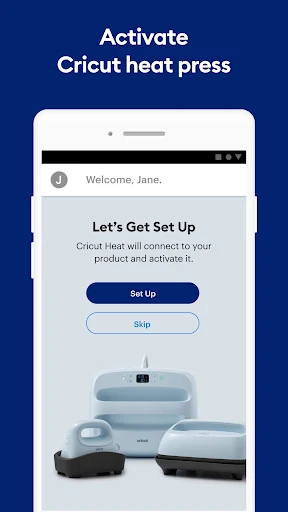
When I first opened Cricut Heat, the important distinction was clear: this is a companion for compatible presses, not a standalone crafting workspace. New Cricut users can follow the app’s setup and activation prompts. Existing members can sign in with a Cricut ID to set up and activate their press, so the onboarding is built around getting the hardware connected and ready.
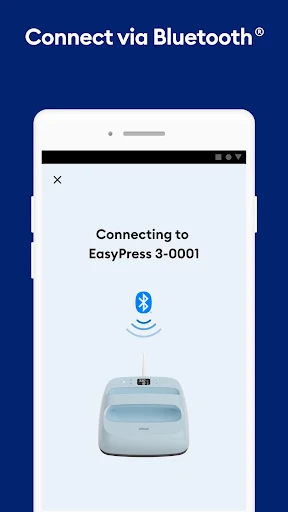
The app’s described connection process uses Bluetooth. Once the press is connected, the basic flow is direct: choose what you want to make, then follow the on-screen steps. That is a sensible arrangement for someone standing beside a work surface, where a phone can stay nearby while the press handles the transfer.
The everyday flow
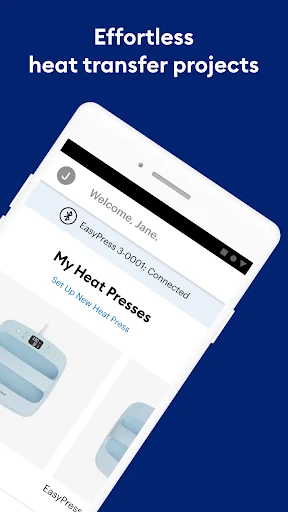
The main loop is straightforward: identify the material and blank, review the recommended time and temperature, and work through the instructions. Cricut says the app can send settings to the press in a tap. In practice, that makes it easier to keep the reference and the machine in the same workflow instead of bouncing between a browser and the press controls.
The instructions are meant to span the job, from preheating through the post-press peel and reveal. That matters because timing is only one part of a transfer; the order of materials and when to remove the transfer are also part of the process. I like that the app aims to keep those details together rather than presenting settings alone.
Helpful details beyond settings
The supply lists are a practical touch. Before starting, I can use them as a prompt to check that the blank and project materials are ready, reducing the odds of having to stop once the press is hot. The app also describes stacking order in its project guidance, which is useful when a transfer involves more than one layer or a particular preparation sequence.
For repeat work, the last three settings are saved for quick access, and there is a custom-settings option. The app also includes the EasyPress 3 and Hat Press user guides, plus help links and videos. In-app notifications can flag one-tap firmware updates, keeping the device-related support close to the same place as the project instructions.
A practical batch routine
For a small batch of matching shirts, I would start by checking the blanks and transfer materials, then select the project details in the app. I would review the supply list and stacking order before connecting the press and sending the settings. Once the first item is complete, the saved recent setting can make the next setup quicker, provided the material and blank are still the same.
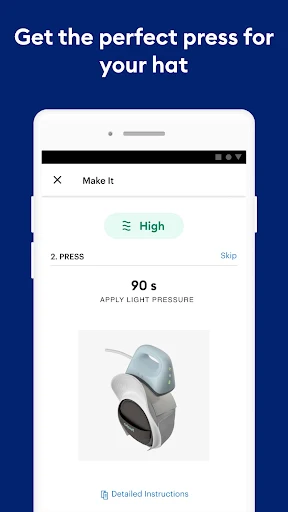
For a hat project, the same basic idea applies, but the app is paired with Cricut Hat Press rather than treated as a generic iron guide. I would keep the phone and instructions accessible, follow the steps in order, and use the press’s own workflow as intended. The benefit is less mental bookkeeping while I focus on positioning and preparing the project.
Keep the boundaries in mind
The biggest limitation is hardware compatibility: Cricut Heat only works with EasyPress 3 and Cricut Hat Press. Owners of earlier models are directed to Cricut’s online Heat Guide. That restriction is easy to overlook if you search for general heat-transfer advice, so I would check the press model before installing the app or planning to rely on it.
It is also not an all-in-one design app. The described functions center on press setup, project instructions, settings, and support materials, rather than creating or editing the artwork itself. You will need to arrive with the project ready for the pressing stage. And while it offers recommended settings, the app’s guidance is most useful when the material choices you enter accurately reflect the project in front of you.
Cricut Heat does one narrow job in a helpful way: it brings press settings, step-by-step project guidance, and device support together for compatible Cricut presses. The Bluetooth handoff and recent-setting shortcuts make sense in a real crafting routine, while the supply lists and stacking guidance add useful context beyond temperature and time.
I would try it if I owned an EasyPress 3 or Hat Press and wanted an on-phone guide beside my work area. I would skip it if I needed design tools or support for an older press. Its specialized role is a strength for the right owner, but also the reason it will not suit every crafter.
Cricut Heat Frequently Asked Questions
What is Cricut Heat: DIY Heat Transfer used for?
Cricut Heat helps owners of Cricut EasyPress 3 and Cricut Hat Press choose time and temperature settings for heat-transfer projects. It also provides project-specific instructions, supply lists, and stacking order, and can send settings to a connected press. It supports the pressing stage rather than serving as a described tool for creating or editing designs.
Which devices and platforms work with Cricut Heat?
Cricut Heat is an Android app designed to work with Cricut EasyPress 3 and Cricut Hat Press, connecting to the press through Bluetooth. The app description says previous press models should use Cricut’s online Heat Guide instead. Check the Google Play store details for current device compatibility and requirements.
What Android version does Cricut Heat require?
The Android minimum version can vary with app updates and device compatibility. Check the Google Play store page for the requirement that applies to your phone or tablet before installing. The app’s described workflow also requires a compatible EasyPress 3 or Hat Press and a Bluetooth connection to that press.
Is Cricut Heat free, and does it have purchases?
Cricut Heat is free to download on Google Play. The supplied store facts report no in-app purchases and no ads. The app is intended to accompany compatible Cricut presses, so its practical usefulness depends on having the supported hardware. Store details can change, so it is worth checking Google Play for current information.
Is Cricut Heat suitable for beginner crafters?
It can suit beginners who have a compatible press and want guided setup and ordered instructions for a heat-transfer project. The app includes a user guide and help links and videos. It may not suit someone looking for design-creation tools or support for an earlier press model; check the app description and store details for your setup.
Pros
- Provides project-specific time, temperature, supply, and stacking guidance.
- Sends settings to compatible presses over Bluetooth.
- Keeps the last three settings available for repeat projects.
- Includes user guides, help links, videos, and firmware-update notifications.
Cons
- Works only with Cricut EasyPress 3 and Cricut Hat Press.
- Does not provide described tools for creating or editing designs.
- Google Play rating is 2.9 stars from 294 ratings.
- Category
- Lifestyle
- Version
- 1.1.4