Copy My Data: Transfer Content
- 251.14K
- 4.3
- Installs
- 50.00M
- Price
- Free
Screenshots
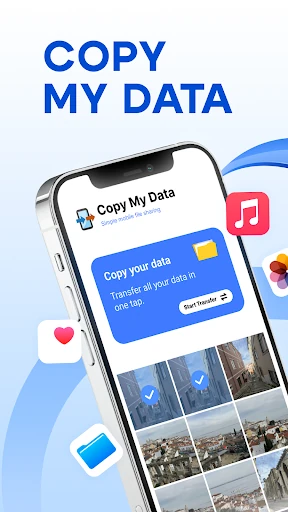
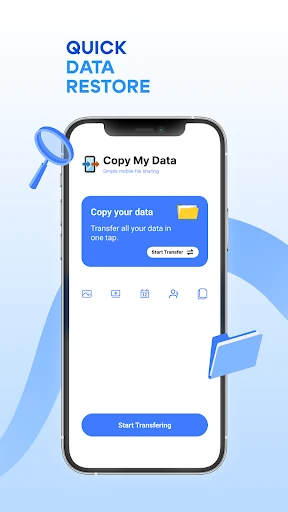
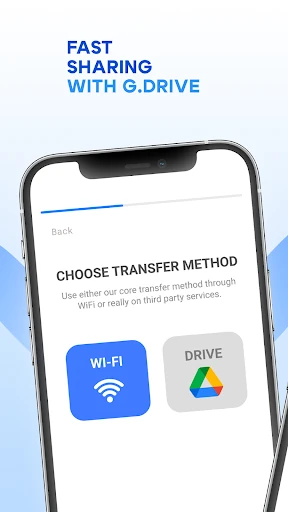
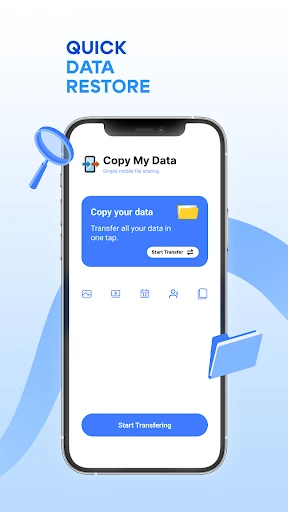
Analysis by Reviewed APKs
Copy My Data: Transfer Content is a phone-to-phone transfer app for moving selected personal data over Wi-Fi, without using a computer. It is aimed at people setting up a replacement phone who want a guided alternative to copying everything by hand. After looking at what it does and how it expects both phones to connect, I see it as a focused helper for a device switch, rather than an all-purpose backup service.
A Less Fiddly Phone Switch
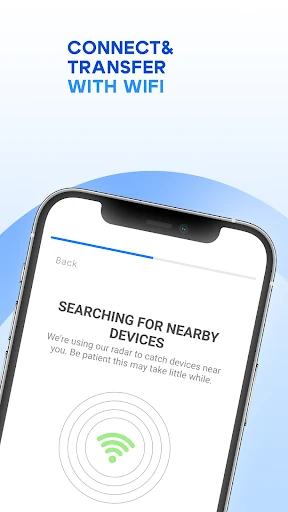
When I imagine using Copy My Data, it is the evening after a new phone comes home and the old one still has the calendar dates and photos I need. Instead of hunting through several apps or connecting a computer, I would put both phones on the same Wi-Fi network, open the app on each, and follow its transfer steps. The QR connection is intended to make pairing the two devices straightforward.
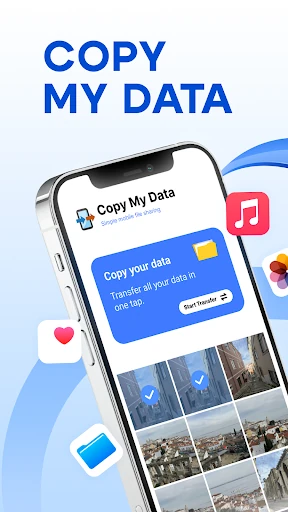
The practical appeal is that this is about getting familiar information from one handset to another, not rebuilding every detail from scratch. The app describes transfers for contacts, calendar dates, photos, videos, and music, and mentions documents as well. I would treat that as a useful collection of personal content to move, then check the destination phone afterward rather than assume every item arrived exactly as expected.
A Focused Alternative
Copy My Data sits between doing a manual, item-by-item move and relying on a computer-based transfer. Its stated approach is wireless phone-to-phone copying over the same Wi-Fi network, with a QR code to connect the devices. That makes the idea easy to understand if both phones are available beside you. It is a transfer tool, not a place to organize photos or manage a long-term archive.
I would not choose it as a general cloud backup, a file browser, or a way to keep several devices synchronized over time. The description centers on copying content from one phone to another, especially during a switch. It also does not give me a reason to expect every setting or app to migrate. If my goal were to move only one photo, sharing it directly could be simpler.
Make the Move Smoother
A little preparation can make a transfer less hectic. I would charge both phones, make sure they are on the same Wi-Fi network, and keep them close together while following the app’s prompts. Before starting, I would decide which kinds of content matter most, such as calendar dates and favorite photos. That small bit of planning helps turn a vague “move my phone” task into a more manageable checklist.
I would also use the old phone as the reference point during setup. After the transfer, I could open the calendar and photo library on the new phone and check that the items I care about are there. For a large switch, moving content when I have time to pay attention is more comfortable than squeezing it into a busy morning. The app’s guided steps are useful, but a quick review still makes sense.
More From Our News Desk

Zoom Meetings, Google Meet, or Teams: Which Is Easiest to Join?

How I Build a Free Streaming Lineup With Tubi

Why Crunchyroll Is the Default Anime App for So Many Fans

YouTube TV: A Practical Guide to Cutting Cable

Rummikub and the Small Comfort of Phone Games

TeamViewer Remote Control or AnyDesk for Helping Family?
Who Might Find It Useful
I would recommend Copy My Data to someone moving to another phone who wants a simple, wireless way to copy familiar personal content. It may be especially appealing if contacts, calendar dates, photos, videos, or music are the main things on the checklist. The same-Wi-Fi and QR approach is easy to picture, and the app is designed to guide the process rather than leave the user to work out every step alone.
It may be less suitable for someone expecting a complete clone of a phone, an ongoing backup plan, or a tool for transferring every app and setting. The description focuses on selected types of content, so I would keep expectations to that scope. It also depends on having both phones available and connected to the same Wi-Fi network. If either condition is inconvenient, another transfer method may fit better.
Copy My Data: Transfer Content is developed by Red Sky Labs and is listed in the Tools category on Google Play. The app has more than 50 million installs and a 4.3-star rating from about 251,000 ratings. It is rated Everyone and requires Android 7.0 or later. Those figures give a useful snapshot of its reach and basic compatibility for Android users considering a phone-to-phone transfer.
The app is free to download and includes ads and in-app purchases. Google Play lists in-app items ranging from $2.99 to $79.99 each. Its current version is 5.1.1. It was released on March 19, 2014, and its most recent update was December 26, 2025. I would check Google Play for the current details before installing, since app information and purchase options can change.
A Closer Look at Moving Content
Starting With Two Phones
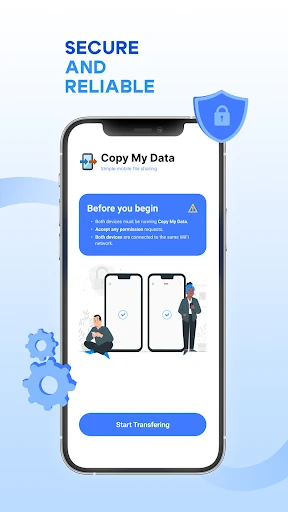
My first impression is that the app’s purpose is refreshingly narrow: it helps move data between phones without requiring a computer. The setup described is simple in outline. Both devices need to be connected to the same Wi-Fi network, and the app uses a QR code to connect them. That makes the process feel more like a guided handoff than a technical migration project.
I would start by installing and opening the app on both phones, then follow the prompts rather than improvising. The description says Copy My Data guides users through a few steps, which is the right kind of help when one phone is new and the other holds the information you need. I would keep both devices nearby and avoid treating the setup as a background task.
The Everyday Transfer
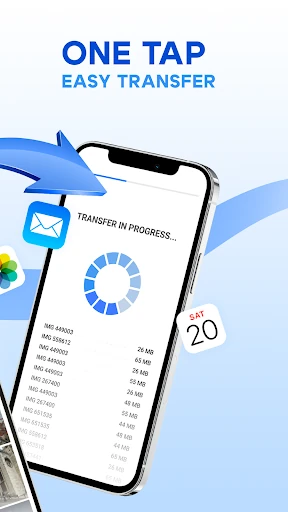
The core experience is a direct transfer of personal content over Wi-Fi. In daily terms, that means the app is aimed at the moments when a calendar, photo collection, or other familiar material needs to follow you to a replacement phone. I like that the process does not call for a computer in the described workflow; both phones are the center of the job.
The same-network requirement is worth keeping in mind before opening the app. If one phone is using a different Wi-Fi network, the setup described will not be ready to go yet. I would check connectivity first, then let the app guide the pairing. It is a small practical detail, but noticing it early can prevent a frustrating start when you are eager to finish setting up.
Content It Can Move
The app describes support for contacts, calendar dates, photos, videos, and music, with documents also mentioned in its transfer guidance. That mix covers several of the things people tend to notice missing after switching phones. In my own planning, I would put the information I use regularly near the top of the list, then check the new device for those items once the transfer is done.
The QR code connection is another distinct part of the experience. Rather than asking the user to work through a computer-based connection, the app is designed to pair two phones wirelessly through the code. The overall promise is a few guided steps, not a collection of advanced transfer controls. That straightforward scope is a strength for a basic move, as long as it matches what a user wants to copy.
A Calm Setup Routine
For a realistic routine, I would set aside a quiet stretch of time, connect both phones to the same Wi-Fi network, and open Copy My Data on each. I would follow the QR connection steps and keep the old phone available while the content is being moved. That is less stressful than trying to remember what is missing after the old device has already been put away.
Afterward, I would check a few meaningful examples rather than just assume the transfer is complete. I might look for an important calendar date and a handful of photos I know are on the old phone. This is not a separate feature claim; it is simply a sensible way to confirm the result of any device move. Once I am satisfied, I can continue setting up the new phone.
Keep Expectations Grounded
The main limitation is the app’s focused scope. Its description talks about copying certain content types, not moving every part of a phone or maintaining a continuing backup. Anyone who expects apps, settings, or a full device image to appear automatically should pause and check whether this tool fits that goal. I would see it as one part of a switch, not a complete replacement for every setup step.
It also relies on two phones and a shared Wi-Fi network, so it is not designed for a one-device cleanup or a transfer when the old phone is unavailable. The app contains ads and offers in-app purchases, which may affect how comfortable it feels to use. Those trade-offs do not undo its basic idea, but they are worth weighing against the simplicity of the transfer it offers.
Copy My Data: Transfer Content is a practical option when the job is moving selected personal data from one phone to another over Wi-Fi. The QR connection and guided steps give the process a clear shape, while its stated content types cover several everyday essentials. I would use it for a planned phone switch, then take a moment to check the new device.
I would recommend it to Android users who have both phones at hand and want a computer-free transfer for contacts, calendar dates, photos, videos, or music. I would look elsewhere if I needed a full device clone or a continuing backup routine. Keep the same-Wi-Fi requirement and the app’s limited focus in mind, and it can be a useful helper for a specific move.
Copy My Data Frequently Asked Questions
What is Copy My Data: Transfer Content used for?
Copy My Data: Transfer Content is used to copy data from one phone to another over a Wi-Fi network, without needing a computer. Its description names contacts, calendar dates, photos, videos, and music, and also refers to documents. It connects the phones using a QR code and guides users through the transfer steps.
Which phones and devices work with Copy My Data?
The supplied app details are for Android, and the stated transfer method requires two phones connected to the same Wi-Fi network. The description does not specify a complete list of supported device combinations, so compatibility can vary and is worth checking on the Google Play store before you begin a move.
What Android version does Copy My Data require?
Copy My Data requires Android 7.0 or later according to its Google Play information. It is listed as version 5.1.1, though version details can change over time. If you are preparing an older phone for a transfer, check Google Play for current compatibility information before relying on it for setup.
Does Copy My Data cost money?
Copy My Data is free to download and includes ads and in-app purchases. Google Play lists in-app items priced from $2.99 to $79.99 each. The specific options and prices may vary, so check the store details before making a purchase. The transfer itself is described as working over Wi-Fi between phones.
Is Copy My Data right for a complete phone switch?
It may suit someone who wants to move selected content such as contacts, calendar dates, photos, videos, or music to another phone. The description does not present it as a full device clone or ongoing backup service. If you need apps or settings moved too, check the store information and your phone’s other transfer options.
Pros
- Moves several everyday content types between phones over Wi-Fi, without requiring a computer.
- Uses a QR code to connect the phones and provides guided transfer steps.
- The stated content includes contacts, calendar dates, photos, videos, and music.
Cons
- Both phones need to be connected to the same Wi-Fi network for the described process.
- Its stated focus is selected content, not a complete phone clone or ongoing backup.
- The app contains ads and offers in-app purchases.
- Category
- Tools
- Version
- 5.1.1