Chinese Keyboard - Pinyin
- 12.86K
- 4.5
- Installs
- 1.00M
- Price
- Free

Screenshots

Analysis by Reviewed APKs
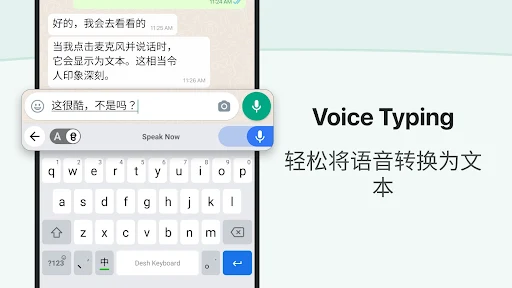
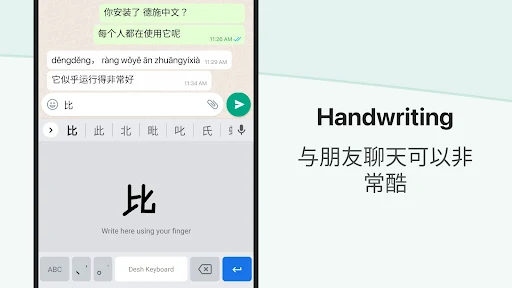
Chinese Keyboard - Pinyin is an Android keyboard for writing Simplified Chinese by typing phonetic spellings with English letters. It suits people who already use Chinese in messages but want a more direct input method, as well as bilingual texters who switch between Chinese and English. My overall take is practical: it puts Chinese suggestions and handy extras into the keyboard you can use across apps, though ads and setup are part of the deal.
A message, without the detour
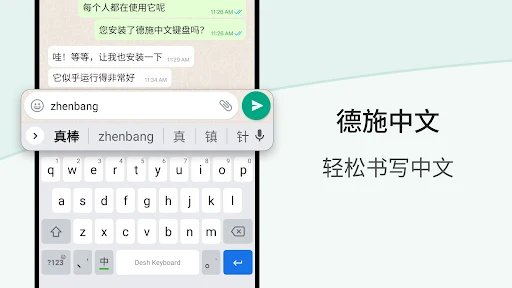
Picture replying to a Chinese-speaking friend while you are in a messaging app. With Chinese Keyboard - Pinyin, you type a word using English letters, then choose a Simplified Chinese suggestion from the keyboard. That keeps the main task close to where you are already writing, rather than making you draft a sentence elsewhere and move it over. The central idea is easy to grasp: type the sound, pick the characters that fit.
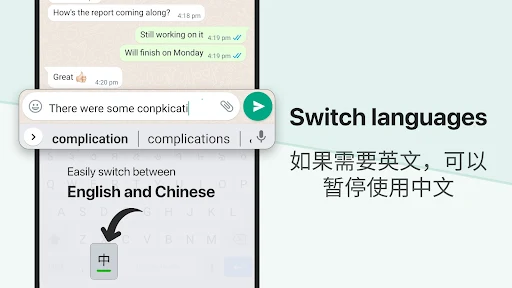
When I first considered how I would use it in a normal day, the appeal was less about a big study session and more about quick exchanges: a short reply, a name, or a phrase mixed into an English message. The language button lets you switch between Chinese and English suggestions, so the keyboard can handle both sides of that routine. It is a focused tool for composing text, not a full language course.
A keyboard, not a course
The obvious alternative is a manual Chinese keyboard, or simply staying with an English keyboard and finding another way to enter Chinese. This app takes a different route: enter phonetic spellings in English letters and choose from Chinese word suggestions. Because it is designed to work inside apps, it is most useful when the goal is sending or entering text where you already are, rather than switching between separate writing tools.
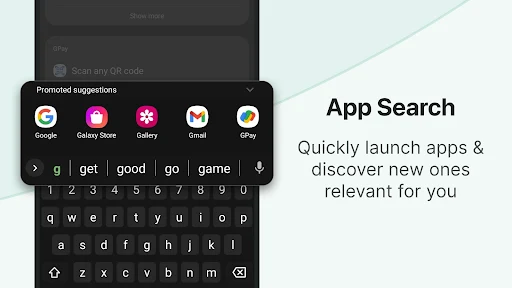
That focus also sets a clear boundary. Chinese Keyboard - Pinyin does not present itself as a structured way to learn Mandarin, practice conversation, or study grammar. Its app search feature can help you find and open installed apps or discover relevant ones, but that is separate from learning Chinese. I would choose it for everyday typing support, not as a substitute for a dictionary, course, or dedicated language-learning routine.
Make the keyboard yours
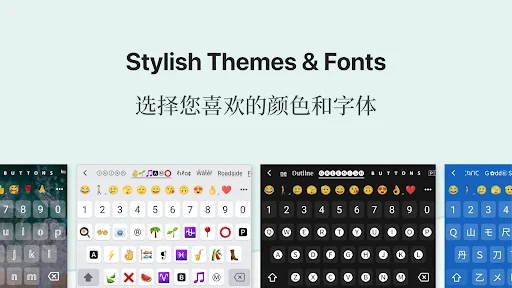
A small setup habit can make the keyboard feel more settled. After enabling and choosing it, take a moment to select a theme or create one using a photo. The app says you can switch keyboards by pressing and holding the Space key, which is useful to remember if you move between this and another keyboard. I would also try the language button early, so switching between English and Chinese becomes familiar before a hurried reply.
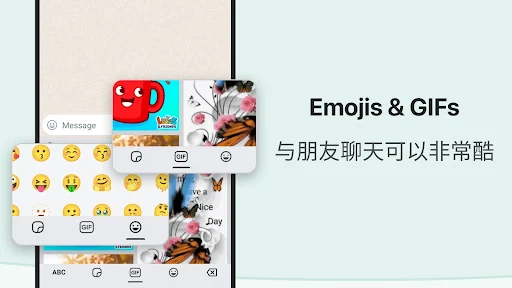
For routine messages, it helps to treat suggestions as choices rather than assuming the first one is right. Type the phonetic spelling, scan the Chinese options, and tap the word that matches what you mean. The emoji bar offers quick access to emojis, with a full view available from its button and skin-tone choices on a press-and-hold. Stickers stored on your phone can also be browsed and sent in messaging apps; that feature requires storage permission.
More From Our News Desk

Zoom Meetings, Google Meet, or Teams: Which Is Easiest to Join?

How I Build a Free Streaming Lineup With Tubi

Why Crunchyroll Is the Default Anime App for So Many Fans

YouTube TV: A Practical Guide to Cutting Cable

Rummikub and the Small Comfort of Phone Games

TeamViewer Remote Control or AnyDesk for Helping Family?
Who may find it useful
I would recommend Chinese Keyboard - Pinyin to people who regularly message in Simplified Chinese and prefer entering phonetic spellings with familiar English letters. It also makes sense for bilingual users who often move between English and Chinese in the same conversation. Themes, emoji access, and phone-stored stickers add a little convenience around the core typing job, without changing what the app is mainly for.
It may not suit someone looking for lessons, detailed language explanations, or a dedicated place to practice writing. The keyboard also asks you to enable and select it before use, and the free version includes ads. If you rarely type Chinese, a separate keyboard may be more clutter than help. People who prefer a minimal keyboard with no extra features may likewise want to weigh the additional sticker and app-search options.
Chinese Keyboard - Pinyin is a free Android Tools app from Desh Global. Google Play shows over one million installs and a 4.5-star rating from about 12,900 ratings. Its content rating is Everyone. The app was released on December 31, 2017, and its current version is 17.6.8.
The app contains ads, and it offers in-app purchases; the listed price is $1.49 per item. The description says Premium provides an ad-free experience. The latest update shown is October 16, 2026. An Android version requirement is not included in the available app details, so check Google Play for device compatibility.
How Pinyin Typing Fits Daily Messages
First setup steps
The first impression is a keyboard with a clear job, but there is an Android setup step before it can do that job. Open the app, enable the keyboard, and choose it as the one to use. Android may show its standard warning when a downloaded keyboard is enabled. That can feel like a more serious start than opening an ordinary messaging app, so it is worth pausing to read the system prompt before continuing.
Once selected, you can choose a keyboard theme or make a photo theme of your own. I would do this before relying on the keyboard for a quick conversation, then test the Space-key method for changing keyboards. The setup instructions are short, but the experience depends on making this keyboard active in the first place. After that, the idea of typing English letters and choosing Chinese suggestions is straightforward.
Typing through the day
The everyday flow is centered on the suggestion row: type a phonetic spelling in English characters, then select the Simplified Chinese word you want. That makes the keyboard useful in messaging and social apps where you want to compose directly. English word suggestions are available too, and a language button switches between English and Chinese. The practical benefit is keeping both languages within one keyboard rather than treating every bilingual reply as a separate task.
Suggestions still need a quick look before you tap. A phonetic spelling can lead to Chinese choices, and the job is choosing the one that matches the thought you are trying to express. For familiar words and short messages, that is a simple rhythm to learn. For a more considered message, I would take the extra moment to scan the options rather than treating typing speed as more important than choosing the right characters.
Useful extras on hand
The emoji bar is the most immediately familiar extra. It puts emoji selection on the keyboard, opens a fuller emoji view from its button, and offers skin-tone choices when you press and hold an emoji. That is a small convenience rather than a reason to install a Chinese keyboard on its own, but it keeps expressive details near the message you are composing.
Sticker browsing is a more distinctive addition: the app can browse stickers from your phone and send them inside messaging apps. The description says storage permission is required for this feature. You can also change the keyboard theme in settings or create a photo-based theme. These options give the keyboard some personal touches, while the app search feature provides a way to find and open installed apps or discover relevant ones.
A simple message routine
For a typical bilingual exchange, I would start with the language button set to the language I need, type the phonetic spelling of a Chinese word, and check the suggestions before selecting one. If the reply shifts back to English, I would switch languages and continue. That routine keeps the app in the background of the conversation rather than turning each message into a separate language task.
Stickers and emojis fit best as optional finishing touches. If I wanted to send a sticker, I would browse those stored on the phone; if I wanted an emoji, I could use the bar or open the full selection. The keyboard theme is a set-it-and-forget-it choice for most people, while remembering how to switch keyboards with a long press on Space is useful whenever another keyboard is needed.
Trade-offs to keep in mind
The main limitation is that this is an input tool, not a guide to Chinese. It helps turn English-letter phonetic typing into Chinese suggestions, but it does not provide lessons or explain the language in the description. Anyone hoping to build broader skills will need something designed for that separate goal. The keyboard is most compelling when Chinese typing is already part of a person's regular phone use.
There are also practical considerations before settling in: setup requires enabling and selecting a downloaded keyboard, the free app contains ads, and stickers require storage permission. Premium is described as ad-free and is offered through in-app purchases. The extra options may be welcome for some users, but someone who wants a bare-bones keyboard may find the added features unnecessary.
Chinese Keyboard - Pinyin has a useful, specific purpose: type phonetic spellings with English letters, choose Simplified Chinese suggestions, and keep writing inside the app already open. The English switch, themes, emoji bar, and phone-stored stickers round out the experience without changing that central role.
I would try it if I regularly sent Chinese messages and wanted a keyboard built around Pinyin-style input. I would look elsewhere for lessons or a particularly minimal typing setup. Keep the setup, ads, and optional purchase in mind, and check Google Play for device compatibility before installing.
Chinese Keyboard Frequently Asked Questions
What is Chinese Keyboard - Pinyin used for?
Chinese Keyboard - Pinyin is an Android keyboard for typing phonetic spellings with English characters and choosing Simplified Chinese suggestions. It can be used inside messaging and other apps, and includes English and Chinese switching, emoji access, themes, and phone-stored sticker browsing. It is a typing tool rather than a language course.
Which devices can use Chinese Keyboard - Pinyin?
Chinese Keyboard - Pinyin is an Android app distributed through Google Play. The Android version requirement is worth checking on its Google Play page, since device compatibility can vary. The available details describe an Android keyboard and do not specify an iOS or desktop version.
Does Chinese Keyboard - Pinyin cost money?
The app is free to download and contains ads. It also offers in-app purchases listed at $1.49 per item. Its description says Premium provides an ad-free experience. Check Google Play for the current purchase options and any details that may vary.
Does Chinese Keyboard - Pinyin work in messaging apps?
The app is designed to let you type Chinese inside apps, including messaging and social apps. You enter phonetic spellings using English letters, then choose Chinese suggestions. It also describes browsing stickers stored on your phone and sending them within messaging apps; storage permission is required for that sticker feature.
Who should try Chinese Keyboard - Pinyin?
It may suit people who regularly type Simplified Chinese and want to enter phonetic spellings with English letters, especially bilingual texters who switch between Chinese and English. It may be less suitable for someone seeking lessons or a minimal keyboard without ads and extra features. The app's store page is the best place to check current device details.
Pros
- Converts English-letter phonetic typing into selectable Simplified Chinese suggestions.
- Supports switching between English and Chinese suggestions within the keyboard.
- Includes themes, a photo-theme option, emoji access, and phone-stored stickers.
- Designed for typing directly inside messaging and other apps.
Cons
- Requires enabling and selecting a downloaded keyboard before everyday use.
- The free app contains ads, with an in-app purchase for an ad-free experience.
- Sticker browsing requires storage permission and is not needed for basic typing.
- Category
- Tools
- Version
- 17.6.8











