Auto Clicker - Automatic tap
- 844.01K
- 4.5
- Installs
- 100.00M
- Price
- Free

Screenshots
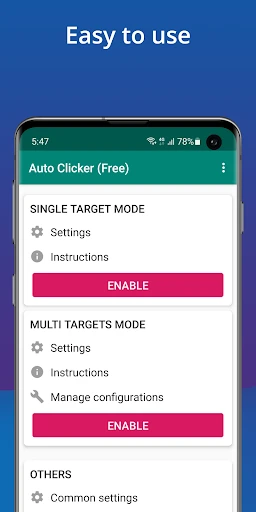
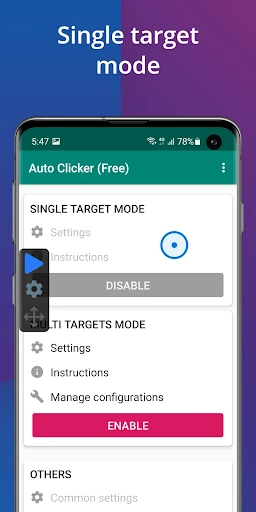
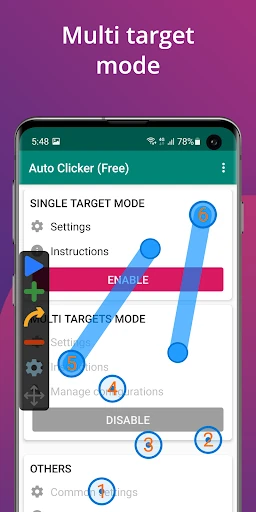
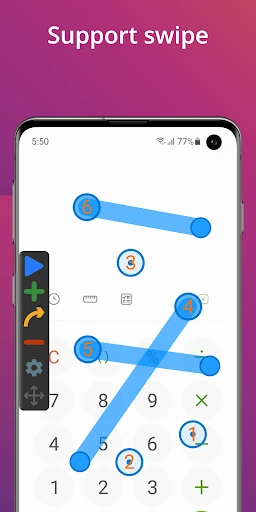
Analysis by Reviewed APKs
Auto Clicker - Automatic tap is a utility for repeating taps and swipes on an Android screen, with controls for setting locations and intervals. I see it suiting people who play click-based games or face other repetitive screen interactions. Its appeal is straightforward: it can handle a sequence while you step away, without root access. The trade-off is that it relies on Android's Accessibility service and takes a little care to set up.
Let Repeated Taps Run
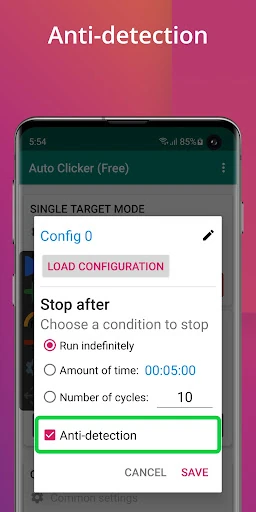
Imagine a game that asks you to tap the same spot over and over. Rather than keeping a finger on the screen through a long session, you can set a tap location and interval, then use the floating control panel to start or stop the automation. A global timer can limit how long it runs. That makes the app's main job easy to understand: repeat an action at a pace you choose.
When I first considered the everyday appeal, it was less about a complicated script and more about freeing up a hand during a repetitive task. The control panel gives you a visible way to manage a run, while the timer offers a simple stopping point. For a game or other task built around repeated screen inputs, those basics are more useful than a long list of options would be.
Automation, Not a Game
The obvious alternative is to keep tapping yourself, which is more direct but can become tedious when the same input repeats. Auto Clicker is for automating that repetition, including multiple click points and swipes, rather than for playing a game on your behalf in any broader sense. It does not remove the need to decide what to tap, where to tap, or how long the action should run.
I would think of it as a small input tool, not a general phone assistant or a way to improve every app. Its useful scope is screen actions that can be described as taps or swipes at chosen points and intervals. If a task depends on judgment, changing content, or decisions between actions, repeated input alone will not do that work. The app is most at home with predictable routines.
Build a Simple Routine
A little preparation can make a repetitive run easier to manage. I would first identify the screen locations the task needs, choose an interval that makes sense for that task, and use the global timer when I want a defined run rather than leaving it going indefinitely. The floating panel then gives a practical start-and-stop control without changing the basic purpose of the app.
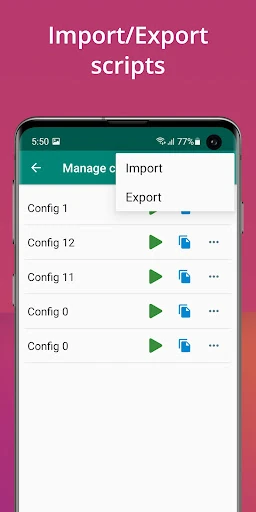
For tasks with more than one repeated action, the support for multiple click points and swipes gives you room to define a more involved sequence. Import and export for automatic scripts can also help when you want to reuse or move a setup instead of rebuilding it each time. I would still check that a script is appropriate for the current screen before starting it; automation repeats what you set.
More From Our News Desk

Zoom Meetings, Google Meet, or Teams: Which Is Easiest to Join?

How I Build a Free Streaming Lineup With Tubi

Why Crunchyroll Is the Default Anime App for So Many Fans

YouTube TV: A Practical Guide to Cutting Cable

Rummikub and the Small Comfort of Phone Games

TeamViewer Remote Control or AnyDesk for Helping Family?
Who Might Find It Useful
I would recommend Auto Clicker to Android users who regularly encounter repetitive taps or swipes, especially in click-based games. The interval controls, multiple action points, timer, and floating start/stop panel cover the practical basics without requiring root access. It may also suit someone who wants to save a reusable automatic script for a repeated sequence, provided the task really can be handled with screen inputs.
It may not suit people who rarely repeat the same action, or who expect an app to make decisions and adapt to changing screens. Setup also involves enabling the Accessibility service, which is required for the app to simulate screen actions. If you are uncomfortable granting that permission or managing an automation run, manual interaction may feel simpler. I would start with a short, familiar task before relying on a longer sequence.
Auto Clicker - Automatic tap is a Tools app from True Developers Studio. On Google Play it has over 100 million installs and a 4.5-star rating from around 844,000 ratings. It is free to download, contains ads, and offers in-app purchases priced at $1.99 per item. Its content rating is Everyone.
The app requires Android 7.0 or later and needs the Accessibility service to perform its core screen actions. The current version is 2.3.0. It was released on February 20, 2019, and its most recent update was September 26, 2025.
A Closer Look at Repeated Screen Actions
A Practical First Impression
The central idea is clear as soon as you understand the app's purpose: choose screen actions, set their timing, and let the tool repeat them. Its description emphasizes a friendly interface, and the feature set stays focused on automatic tapping and swiping rather than presenting itself as a broad productivity suite. That narrow scope is helpful when all you need is repeated input.
Getting the app ready involves an important step beyond choosing a tap: enabling the Accessibility service. The app says it uses that service to simulate clicks and swipes, and that it does not collect private data through this permission. Even so, permission screens deserve a deliberate read. I would make sure I understand what is being enabled before starting an automation session.
The Everyday Experience
Day to day, the most useful parts are the controls around a run. You can specify an interval, use a floating panel to start or stop automatic tapping, and set a global timer for a session with a defined duration. Those features give the experience a practical rhythm: configure an action, run it, and keep a way to end it close at hand.
A repeating task is only as useful as its timing and placement, so I would treat the initial setup as something to check rather than rush through. The app can tap at locations you choose, but it cannot know whether the screen has changed or whether a different point is now needed. That makes it a better fit for stable, predictable screens than for tasks that shift constantly.
Multiple Actions and Scripts
Support for multiple click points is a step beyond a tool that can only repeat one tap. The app also supports multiple swipes, so its automation can cover more than a single stationary input. These options broaden the kinds of repetitive sequences it can handle while keeping the core concept the same: define screen actions and let them run.
Importing and exporting automatic scripts stands out for anyone who expects to reuse a setup. Rather than treating every session as a fresh configuration, script support gives users a way to carry a prepared sequence into another run. I would still review what the script is set to do before using it. Reuse saves setup effort, but it does not replace checking that the actions match the task.
A Measured Session
For a routine session, I would begin on the screen where the repeated action belongs and identify each point the task needs. Then I would set the interval and, if the task has a natural endpoint, use the global timer. Starting with a short run is a sensible way to see whether the taps and swipes match the intended sequence before letting the automation continue.
Once the run is underway, the floating control panel provides a way to start or stop it. That visible control matters because automation should not feel like something you have to leave running without a clear way to manage it. For a repeated game input or another predictable screen task, this simple cycle of configuring, checking, and stopping is the app's most natural workflow.
Keep the Limits in View
Auto Clicker performs simulated screen actions, so it depends on the Accessibility service and the locations and intervals you provide. It is not described as a tool that understands what is on screen or changes its behavior in response. If a task moves buttons around or requires a decision at each step, a fixed sequence of taps and swipes may not be enough.
The app's focus on automation also means it is worth being thoughtful about where and when you run it. A timer can define a session, and the floating panel helps with starting or stopping, but you still choose the actions and oversee the setup. Ads and optional in-app purchases are part of the free app's store details, too, so the experience may include those elements.
Auto Clicker - Automatic tap is a focused answer to one familiar annoyance: repeating the same screen input again and again. Its interval controls, timer, floating panel, multiple actions, and script support give it a useful range without changing that simple purpose. The Accessibility requirement is a real part of setup, not a detail to skip.
I would try it if repetitive taps or swipes are a regular part of your Android routine and you are comfortable configuring the required service. If your tasks need judgment or change from moment to moment, it is less likely to help. For predictable repetition, it offers a clear set of controls and a practical way to stop a run.
Auto Clicker Frequently Asked Questions
What is Auto Clicker - Automatic tap used for?
Auto Clicker - Automatic tap is used to automate repeated taps at chosen screen locations and intervals. It also supports multiple click points, multiple swipes, a global timer, and importing or exporting automatic scripts. The app is aimed at repetitive screen actions, including click-based games, rather than tasks that need decisions or interpretation.
Which devices can run Auto Clicker - Automatic tap?
Auto Clicker - Automatic tap is an Android app, and it supports Android 7.0 and up. It requires the Accessibility service to simulate clicks and swipes. If you are checking a particular device or store availability, details can vary, so it is worth checking the Google Play store listing for the latest compatibility information.
Does Auto Clicker - Automatic tap cost money?
The app is free to download and contains ads. It also offers in-app purchases priced at $1.99 per item. Store pricing and availability can vary, so check the Google Play listing for current purchase details before you decide whether to buy anything.
Does Auto Clicker - Automatic tap need root access?
No root access is required according to the app description. However, Auto Clicker - Automatic tap does need the Accessibility service to carry out its core function of simulating taps and swipes. The app says it does not collect private data through that permission, but you should review permission prompts and decide whether you are comfortable enabling it.
Who is Auto Clicker - Automatic tap best for?
It is best suited to Android users with predictable tasks that involve repeating taps or swipes, such as click-based game actions. The timer, floating start/stop panel, and script support can help manage a session. It may not suit people who need automation to interpret changing screens or make decisions between actions.
Pros
- Repeats taps at selected locations with a user-set interval.
- Supports multiple click points, multiple swipes, and reusable scripts.
- A global timer and floating panel help manage an automation run.
- Works without root access on Android 7.0 and later.
Cons
- Requires enabling the Accessibility service to simulate screen actions.
- Fixed screen inputs may not suit tasks that change or need decisions.
- The free app contains ads and offers in-app purchases.
- Category
- Tools
- Version
- 2.3.0











