AirDroid Cast-screen mirroring
- 18.91K
- 4
- Installs
- 5.00M
- Price
- Free
Screenshots
Analysis by Reviewed APKs
AirDroid Cast is a screen-mirroring and control app for sharing a mobile device’s display with a Windows or macOS computer. It suits people who present from a phone, teach or meet remotely, or want to operate a mobile device from a computer. After looking through its workflows, I see a practical tool with useful connection choices, though its strongest remote-network features require a paid upgrade.
A phone on the meeting screen
Picture a work-from-home morning when you need to show a phone app to colleagues without passing your handset around. With AirDroid Cast, you can scan a QR code or enter a Cast Code to send the phone screen to a Windows or macOS computer. That gives the host a larger view to share during a meeting, while the phone remains the source of the material being shown.
I can also see it helping when a lesson or product demonstration depends on something easiest to show on a mobile device. Instead of describing each tap, you can put the display on the computer and walk people through it. The app’s description also mentions two-way audio for communicating with meeting attendees, so it is aimed at more than simply putting a picture on a larger screen.
A bridge, not a TV app
AirDroid Cast is best understood as a link between mobile devices and a Windows or macOS computer. That makes it a different choice from simply watching a video on the phone or using a television-focused casting setup: its described strengths include computer-based viewing, device control, and sharing screens in meetings. AirPlay support also lets macOS or iOS screens be shared to Windows or Mac computers.
The distinction matters if your only goal is to send a movie to a television. The supplied details focus on computers, meetings, presentations, teaching, and gaming or streaming from mobile devices, not a general TV app or a broad media library. Nor is it a replacement for desktop presentation software; it helps show and control a mobile screen from a computer.
Make connections predictable
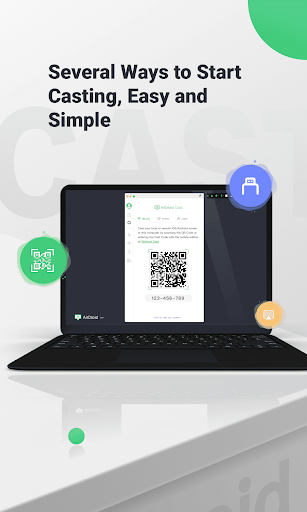
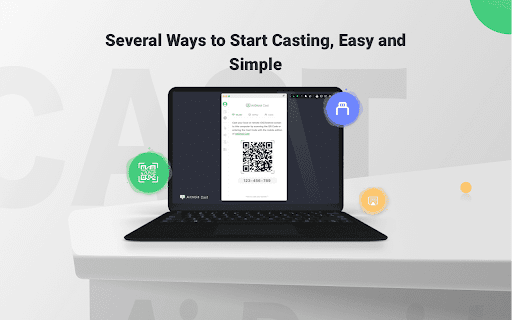
A small habit that should make sessions smoother is choosing the connection method before everyone is waiting. QR scanning and Cast Codes are the described wireless options, while a USB cable is another way to start casting. If I were preparing a presentation, I would connect and check the screen before the audience arrives rather than spending the first minutes figuring out which method suits the room.
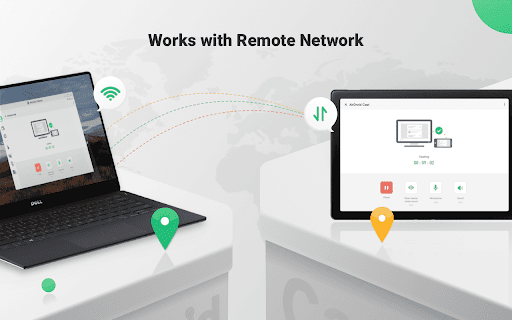
For recurring meetings, it also helps to decide whether the session is local-network or remote. The description says the features work on a local area network, while use over a remote network requires Premium. If several people need to present, the computer can display as many as five devices at once, so planning who will share and when can keep a busy meeting easier to follow.
More From Our News Desk

Zoom Meetings, Google Meet, or Teams: Which Is Easiest to Join?

How I Build a Free Streaming Lineup With Tubi

Why Crunchyroll Is the Default Anime App for So Many Fans

YouTube TV: A Practical Guide to Cutting Cable

Rummikub and the Small Comfort of Phone Games

TeamViewer Remote Control or AnyDesk for Helping Family?
Who will get the most from it
I would recommend AirDroid Cast to people who regularly need to show a phone or tablet on a computer: remote presenters, instructors, meeting hosts, and mobile gamers who want to share a session. The combination of QR or code-based casting, USB casting, computer control, and multi-device viewing gives it several work and entertainment uses without making it a general-purpose media service.
It may be less appealing if you only want a simple way to put videos on a television, or if you rarely share a mobile screen. The remote-network option also involves Premium, so anyone who needs to connect across networks should check the paid plan details first. People who prefer to keep all interaction on the handset may not need the computer-control side of the app.
AirDroid Cast-screen mirroring is a Tools app from SAND STUDIO. On Google Play it has over 5 million installs and a 4.0-star rating from around 18,900 ratings. The app is free to download, contains no ads, and offers in-app purchases. The listed in-app products range from $2.49 to $29.99 per item.
Google Play gives the app an Everyone content rating. The supplied version is 1.1.9.0, with a release date of January 26, 2021, and a last update date of August 24, 2026. AirDroid Cast’s computer companion is described for Windows and macOS, and its casting features also include AirPlay support for iOS and macOS screens.
Putting Mobile Screens to Work
A straightforward first look
When I first considered the setup, the choices felt easy to understand: scan a QR code, enter a Cast Code, or connect with USB. Those are concrete ways to begin, rather than an expectation that every situation uses the same connection. The app is designed to send a mobile screen to a Windows or macOS computer, so the computer is central to the experience.
That focus is worth keeping in mind before starting. This is not described as a stand-alone phone viewer; the computer needs AirDroid Cast installed for the casting and control workflow. For a presentation or classroom demonstration, I would get the computer ready first, then connect the mobile device using the method that fits the setup.
The daily casting flow
Day to day, the appeal is having the phone’s content visible on a computer while you talk through it or work from a larger display. The app can share a mobile screen through wireless connection methods or USB. For a meeting, that means the host can show what is on a phone without asking everyone to crowd around the small display.
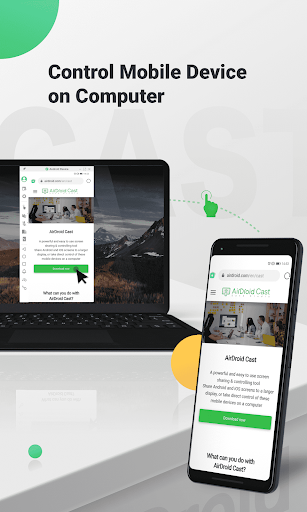
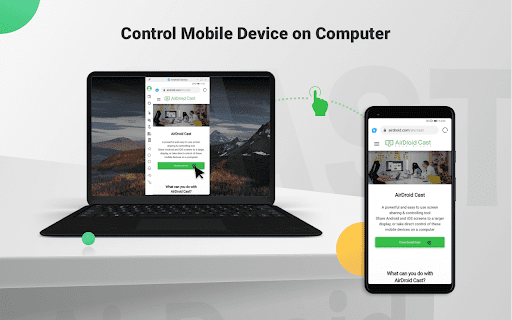
The control feature extends the workflow beyond viewing. From the computer, the description says you can click, scroll, and type on the connected mobile device. That could be useful when the phone is nearby but reaching for it would interrupt a demonstration. It is a more specific convenience than simply mirroring a screen, though it depends on using the computer-side setup.
Beyond one screen
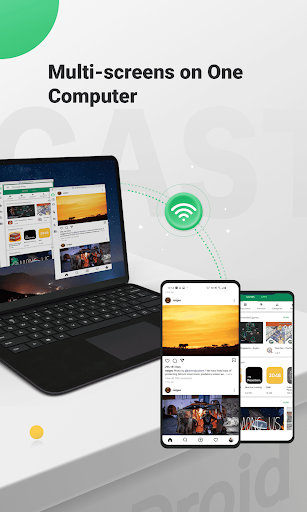
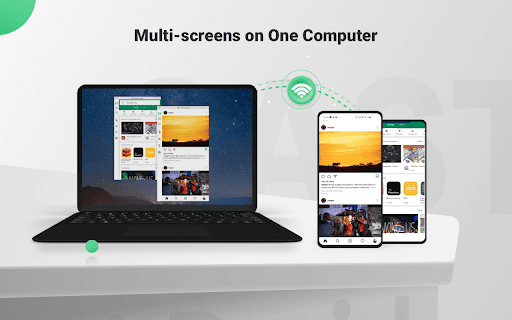
One feature that stands out is support for up to five devices casting to a computer at the same time. In a meeting, that could let a host compare several attendees’ slides or contributions on one computer. For multiplayer gaming or streaming, the same capacity gives friends a way to put their devices into a shared viewing setup.
Audio is another useful part of the described feature set. AirDroid Cast can stream device microphone audio, and its two-way audio feature is presented as a way to communicate with meeting attendees. That makes it relevant to discussion and instruction, rather than only silent demonstrations. The exact usefulness will depend on the session, but the audio option broadens the kinds of presentations it can support.
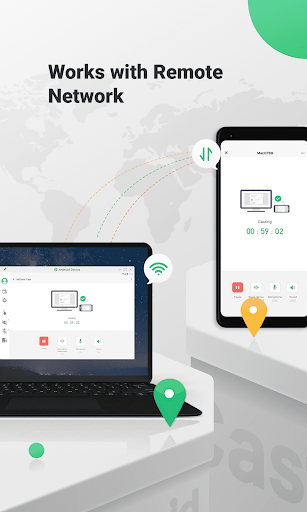
The connection range is also notable: local-network use is described for the features, while remote-network use is available with Premium. AirPlay support adds a route for sharing iOS or macOS screens to Windows or Mac computers. These details make the app more flexible than a single-purpose cable mirroring tool, while still keeping its destination centered on computers.
A useful repeatable routine
For a regular remote lesson, I would prepare the computer, connect the phone, and check that the intended screen is visible before students join. Once the session begins, the instructor can use the mobile device as a whiteboard by typing key points or drawing a formula on it, then sharing that screen. Two-way audio gives the group a way to discuss what is being shown.
For a team meeting, the routine could be similar: ask each person who needs to present to connect by QR code or Cast Code, then bring in additional screens when useful. Since the app supports up to five simultaneous devices on one computer, a host can structure the session around a few contributors rather than passing one device around. A little coordination keeps the shared display from becoming cluttered.
Limits to keep in view
The computer requirement is the main practical boundary. AirDroid Cast is described as casting to Windows or macOS computers, so it is not presented here as a direct phone-to-TV solution. If your usual routine revolves around a television rather than a computer, this may not match your setup as neatly as a TV-oriented casting option.
Remote-network casting also has a clear condition: the description says it requires Premium, while local-area-network use is available across the features. That makes the paid option relevant for people connecting from different networks, especially for remote meetings. Before relying on it for a particular work setup, I would check the current in-app purchase details and confirm that the plan suits the intended use.
Finally, screen mirroring is only as useful as the content you need to show. The app’s strengths are sharing and controlling mobile screens, meeting communication, and viewing multiple devices, not replacing the apps or materials on those devices. It works best as a bridge between a mobile workflow and a computer display.
AirDroid Cast has a clear job: bring mobile screens onto a Windows or macOS computer, with options for remote control, audio, and multiple simultaneous devices. I like that its connection methods cover QR codes, Cast Codes, and USB, making it practical for both planned presentations and more informal sharing.
I would try it if mobile screen sharing is part of my work, teaching, or gaming routine. If I only wanted to cast to a television, or needed remote-network access without a paid upgrade, I would compare alternatives and check the current plan details before settling on it.
AirDroid Cast Frequently Asked Questions
What is AirDroid Cast-screen mirroring used for?
AirDroid Cast is used to share mobile screens with Windows or macOS computers and, in supported workflows, control mobile devices from a computer. Its described uses include remote meetings, presentations, teaching, gaming, and streaming. It supports QR-code or Cast-Code connections, USB casting, audio features, and up to five devices casting to one computer at once.
Which devices work with AirDroid Cast?
The Android app is for mobile screen sharing to Windows or macOS computers, where AirDroid Cast is installed. The description also says AirPlay can share iOS or macOS screens to Windows or Mac computers. For current compatibility details and supported device combinations, check the Google Play information and the computer app details.
What Android version does AirDroid Cast require?
The Android version requirement can vary with the app’s current release and device, so check the Google Play information for the latest compatibility details before installing. The app is listed as version 1.1.9.0 in the supplied facts, but that does not establish the minimum Android version.
Does AirDroid Cast cost money?
AirDroid Cast is free to download and contains no ads, but it offers in-app purchases. The supplied price range is $2.49 to $29.99 per item. Remote-network use requires Premium according to the app description; check Google Play for current purchase details and which option fits your needs.
Is AirDroid Cast a good fit for casual screen sharing?
It can suit casual sharing if you want to show a mobile screen on a Windows or macOS computer, and it also has features for meetings, teaching, and multi-device viewing. It may be less suitable if you only want to cast to a television or do not need a computer-based workflow. Remote-network use requires Premium.
Pros
- Offers QR-code, Cast-Code, and USB options for starting a cast.
- Can control a connected mobile device from a Windows or macOS computer.
- Supports up to five devices casting to one computer simultaneously.
- Includes audio and two-way communication features for meeting workflows.
Cons
- Remote-network casting requires a Premium upgrade.
- The described casting workflow centers on Windows and macOS computers, not televisions.
- The minimum Android version requirement should be checked in Google Play.
- Category
- Tools
- Version
- 1.1.9.0











